Five #AutoCAD commands to help clean up drawings:
Purge - remove unused layers, styles, blocks etc
Audit - check/fix DWG for errors
Overkill - remove multiples & overlapped objects
Laydel - Delete occupied/stubborn layers
Wblock - declutter by creating separate dwg with objects
Visual Tricks to Take Your AutoCAD Drawings to the Next Level
#AutoCADTips#CADDesign#ArchitectureDrawing#CADPresentation
AutoCAD is often seen as strictly technical...
But that doesn’t mean your drawings always have to be boring.
Whether you're working on an architectural plan, landscape layout, civil design, or a concept sketch, a few visual tricks can transform your DWGs from plain and basic to professional and polished.
Here are 7 easy tricks to level up your drawing presentation style — and make your work stand out:
✅ 1. Use Advanced Hatch Styles
Go beyond solid fills and ANSI patterns.
Try: Gradient hatches for subtle color transitions
Image hatches to simulate textures (brick, grass, water)
Transparency settings to layer visuals without clutter
Pro Tip: Combine multiple hatches at different transparencies to simulate a hand-colored look.
✅ 2. Add a Hand-Drawn Look with SKETCH or FREEHAND
Want to simulate a pencil-drawn or concept-sketch style?
Use the SKETCH command or the FREEHAND AutoLISP routine to apply wavy, human-style lines.
Great for: Concept plans, client presentations, or early-stage ideas.
✅ 3. Use Better Blocks
Your blocks = your drawing’s vocabulary.
Upgrade your symbols to higher-quality, more detailed, or stylized versions (trees, furniture, vehicles, etc.).
Bonus: Use blocks with hatching and lineweight variations for even more visual depth.
✅ 4. Use Text Masks and Frames for Readability
Got notes or labels overtop hatches, linework, or aerial imagery?
Turn on Background Mask in MTEXT or MLEADER
Add Text Frames for key labels or callouts
This makes your text pop and improves clarity instantly.
✅ 5. Insert Isometric or Angled 3D Views
Flat plans can be hard to interpret.
Use an additional isometric viewport with a 3DORBIT view to showcase:
An overview of a building
A sloped site
A landscape layout
A detailed mechanical part
Adds instant context and helps your audience visualize the design.
✅ 6. Post-Process in Photoshop or GIMP
Once you’ve created your PDF plot, drop it into a photo editor and:
Brush in shadows or textures
Add colored highlights
Apply pen/marker effects
This is an easy way to simulate hand-drafted styles that wow clients.
✅ 7. Play with Lineweights + Color
Use heavier lines for borders, key elements, or foreground objects.
Use color (judiciously!) to indicate different materials, features, or phasing.
When plotting, use CTB/STB styles to fine-tune the final look.
Whether you're creating a design portfolio, prepping for client review, or just want your DWG to pop — these tricks help bridge the gap between technical and artistic.
Which trick do you want to try first?
Or do you already use one I didn’t mention? Drop it below 👇
PS. Want to learn more about optimizing your drawings and automating workflows, including my Sheetsets Mini Course!
Get my new Complete CAD Toolbox Package for a huge discount now!
Included in the package deal:
1. AutoCAD Kickstart Course (Basics for new Users to Get Started Fast!)
2. AutoCAD Fundamentals & Workflows Course (My Workflows, Tips/Tricks & more from 20 years as a Designer!)
3. AutoCAD Sheet Sets Mini Course (Learn Sheet Set basics Fast!)
4. AutoCAD Productivity Webinar
5. Gold Title Block Template Packages
Get Started Now! https://t.co/zOmXTYsH32
5 Things I Always Check When Opening Someone Else's AutoCAD Drawing or I run into an Issue with one of mine!
If you've worked in AutoCAD long enough, you've probably opened a drawing from a consultant, coworker, or older project and immediately thought...
“What happened to this drawing?!”
Dozens of unnecessary layers, duplicate lines, missing Xrefs, and all kinds of leftover clutter.
Before I start working with an unfamiliar drawing, here are 5 things I like to check:
AUDIT — Check for Drawing Errors
Run AUDIT to identify and repair drawing database errors before they become bigger problems.
PURGE — Remove Unused Clutter
Get rid of unused blocks, layers, linetypes, and styles that have accumulated over time.
OVERKILL — Eliminate Duplicate Geometry
Especially useful for cleaning up imported drawings, traced linework, and overlapping objects.
Check Your Xrefs
Look for missing references, unnecessary attachments, and outdated file paths. Detach anything you no longer need.
Review Your Layers
Look for duplicate or inconsistent layer names, unnecessary layers, and objects with incorrect properties.
Bonus Tip: Always save a backup before making major changes to an unfamiliar drawing!
A few minutes of cleanup at the beginning of a project can save you hours of frustration later.
Good CAD workflows aren't just about drawing faster. They're about keeping your drawings organized, consistent, and easy to work with.
What's the most frustrating thing you've encountered when opening someone else's AutoCAD drawing?
https://t.co/eIdGnZjW5f
Want to Level Up Your AutoCAD Skills?
Master These Workflows First
#AutoCAD#CADWorkflows#DesignStandards#DraftingTips#AECDesign
Most beginners focus only on commands…
But the real pros know that consistency, speed, and accuracy come from workflows, not just shortcuts.
If you want to grow from a decent drafter into a go-to CAD expert, start mastering these core workflows:
1. File & Folder Organization
Always use a clean folder structure:
/ProjectName/Drawings/Layouts/Details/Refs
This prevents duplicate files, broken paths, and version mix-ups.
Pro Tip: Use consistent file naming (e.g., SITE_PLAN_IFR_v2.dwg) and consider templates for folder structure.
2. Start Every Drawing with a Template
Set up a .DWT (drawing template) with:
Preloaded layers
Text and dimension styles
Plot settings
Typical Blocks
Title block + fields
You’ll save hours per project and your sheets will always look clean and professional.
3. Layer & Object Standards
Use standardized layer naming like:
A-WALL, C-ROAD-CENTERLINE, E-LIGHTING, etc.
Combine this with:
Color-based plot styles
Standard linetypes
Locked layer properties
Consistency across drawings = faster editing, easier collaboration, and less rework.
4. Automate Repetitive Tasks
Use tools like:
Tool Palettes (drag & drop blocks/styles)
Sheet Sets (for publishing + title block info)
Fields (auto-update text + metadata)
Custom scripts or AutoLISP
It’s not about doing more , it’s about doing it smarter
5. Use Checklists or QA Workflows
Before finalizing any drawing:
Run AUDIT, PURGE, and OVERKILL
Check layer usage
Confirm plot settings + scales
Print preview with CTB/STB applied
Bonus: Build your own checklist or get some of my cheatsheets/lists → https://t.co/d02AdcVy4V
6. Document Your Standards
Whether you work solo or in a team:
Write down your standards — layer names, dimension styles, block naming, etc.
This becomes your CAD Manual and helps train new team members fast while avoiding chaos.
Final Thought:
Workflows > Commands.
Learning the “why” and “when” behind your CAD habits will make you 10× more valuable on any project or team.
Got a must-know workflow that changed how you work in AutoCAD?
Drop it in the comments below
And if you want to shortcut the process, check out my Complete CAD Toolbox – loaded with templates, workflows, and training:
https://t.co/WUfc9xMQ4T
I’ll never forget my first “real” AutoCAD job.
When I first started using AutoCAD, like many of us my only experience was from schooling and self learning. Back then, youtube didn't exist, there were no real resources to learn.
You had to get lucky and be hired at a company with good mentors and training for all of the more technical and real world issues we run into in CAD.
I remember running into issues simply changing colors/stylesof drawings on my first project. We were never really taught how .ctb files worked, and my new job didn't have much for onboarding to learn the company standards.
I realized pretty quickly that "book/school" knowledge wasn’t getting me anywhere.
It felt like death by a thousand clicks:
I was manually turning off the same layers in every viewport.
Copying from one layout to another.
Losing hours hunting down a missing XREF
Starting from scratch, because I didn’t have a good template.
And worst of all?
No one around me to explain any of it.
Just “figure it out” they said.
So I did what everyone does, I turned to Google, help files and a ton of trial and error!
Over the next few years I became obsessive over learning not only Civil Design and Engineering but also as much as I could about the software. Time savers, tricks, workflows, etc..
I've spent years (about 20 now!) building my CAD knowledge, workflow by workflow, template by template, learning and making plenty of painful mistakes along the way.
Now I’ve bundled all those lessons into one place.
AutoCAD Fundamentals & Workflows:
For those who are tired of struggling with CAD headaches.
This Course Solves Problems Like These:
“Why does every drawing I open feel different?”
→ Learn clean setup workflows & DWG standards
“How do I scale and setup Annotative Text?”
→ Learn how viewports, text and scaling all work together
“Why do I keep losing layers, text, or viewports when I copy files?”
→ Understand XREFs, layouts, fields & title block automation the right way.
“How do I get consistent print results?”
→ Learn layout creation, plotting tricks, and batch print workflows
“I feel like I’m constantly redoing the same work.”
→ Reusable templates, title blocks, and productivity shortcuts
What You’ll Learn (Just the Highlights):
Real-world drawing setup + template creation
XREF workflows that won’t break your files
Layouts, plotting, scaling, and field automation
Dimensioning, annotation, and drawing packaging
Pro productivity tricks from 20+ years of daily CAD use
+ Bonuses
⭐️ What Students Are Saying:
"As a 47-year-old plumber/installer transitioning to CAD, this course gave me a second career."
"I’ve used AutoCAD for years… and still learned so much!"
"Clear, fast, and practical. I went from zero to confident in a weekend."
AutoCAD can be overwhelming.
But you don’t need to master every button, you just need a workflow that works.
Stop fighting with AutoCAD and start owning your work
Click here to start now: https://t.co/h7N3UsoDxb
Why You NEED to Use Blocks in AutoCAD (Seriously!) #AutoCADTips#CADProductivity#DraftingWorkflow
If you're not using Blocks in AutoCAD yet… you're probably wasting a ton of time, file space, and effort
Blocks are one of the most powerful tools in AutoCAD and they’re not just for advanced users.
Here’s a breakdown of why Blocks matter, how to use them smarter, and some real-world drafting workflows that’ll save you hours 👇
What Are Blocks in AutoCAD?
A Block is a group of objects combined into a single reusable object.
Instead of drawing the same thing over and over (like doors, fixtures, callouts, etc.), you draw it once and reuse it with a simple click or insert.
Why Use Blocks?
Speed: Insert a block instead of redrawing = huge time savings
Consistency: All repeated items stay the same size, style, and layer
File Size: Blocks are lighter than duplicated linework Smart Editing: Update the block definition once and all copies update!
Tips & Tricks for Using Blocks Like a Pro:
1️⃣ Use Dynamic Blocks
Add grip points, stretch actions, and visibility states to make your blocks adaptable. (Think adjustable doors, scaling arrows, rotating symbols, etc.)
2️⃣ Name Your Blocks Clearly
Use consistent, searchable names like DOOR_36x80, TAG_ELEVATION, or FURN_CHAIR_A. This helps when using design center or searching across files.
3️⃣ Use Layer 0
Smartly Draw blocks on Layer 0 to allow them to inherit the layer properties of wherever they're inserted. Great for symbols and annotations.
4️⃣ Use WBLOCK to Save Blocks as Files
Want to use a block in other projects or share with coworkers? Use the WBLOCK command to save it to your library.
5️⃣ Leverage Tool Palettes Drag and drop your most-used blocks into a Custom Tool Palette. It’s like a speed bar for drafting.
6️⃣ Create a Block Library
Store all your standard symbols, details, and annotations in one folder or DWG file.
Easy access = faster workflows and cleaner drawings.
Common Use Cases for Blocks: Floor plan symbols (doors, windows, furniture)
Civil details (manholes, inlets, curb cuts)
Mechanical parts (nuts, bolts, valves)
Annotation callouts (north arrows, elevation tags, section markers)
Title block elements (logo, sheet info, revision boxes) Final Thought: Blocks aren’t just about being fast, they’re about drawing smarter.
If you're aiming for clean, professional, and scalable drawings, blocks are a must.
WANT TO LEARN how to master Templates, Title Blocks, Layers, Styles, xrefs, blocks, sheet sets and so, so much more?!!
Get the Complete CAD Toolbox now: https://t.co/h7N3UsoDxb
Got a favorite block tip or workflow? Drop it in the comments below 👇
Or tag a coworker still redrawing furniture from scratch every time
10 AutoCAD Tricks I Wish I Knew Years Ago!
After 20+ years working in AutoCAD, one of the biggest things I've learned is that working faster isn't about memorizing more commands. It's about eliminating repetitive work!
In today's new video, I'm sharing 10 of my favorite time-saving AutoCAD tricks, including:
Fields – Stop manually updating drawing information.
Named Views – Navigate drawings and create layouts faster.
SELECTSIMILAR – Make changes to multiple objects in seconds
Tool Palettes – Keep your most-used tools and blocks ready to go.
Templates – Automate drawing setup and repetitive tasks.
And Many More!!
These are the kinds of small improvements that can add up to hours saved every week.
Watch the new video here: https://t.co/mE22oohZ8s
What's one AutoCAD trick you wish you'd discovered sooner? Drop it in the comments! 👇
Getting faster in AutoCAD isn't about learning every command.
AutoCAD has well over 1,000 commands, but being productive isn't about memorizing all of them.
It's about finding ways to eliminate repetitive work and make the tools you use every day work harder for you. A few examples:
• Use SELECTSIMILAR instead of clicking objects one at a time.
• Use Fields instead of manually updating repeated text and information.
• Use Named Views instead of constantly zooming and panning around large drawings.
• Use Tool Palettes to keep your most-used blocks, tools and content organized and ready to go.
• Use Templates (.DWT) instead of rebuilding layers, styles, layouts and settings for every project.
• Use Sheet Sets to organize drawings and automate repetitive sheet and title block information.
The goal isn't to work faster by clicking faster.
It's to remove as many unnecessary clicks as possible. Small improvements like these don't seem huge individually, but when you're working in AutoCAD every day, they can add up to hours saved every week.
What's one AutoCAD tool or workflow that's saved you the most time?
Are you looking to learn AutoCAD or Improve your existing Workflows and understand it like a pro?
Check out my Complete CAD Toolbox to learn from my 20 years as a CAD Designer and Trainer! https://t.co/h7N3UsoDxb
One of my biggest pet peeves in AutoCAD and really anything in life, is doing the same thing twice.
Changing the same project number on 15 sheets.
Setting up the same layers on every new drawing.
Fixing the same plot settings.
Updating the same information in multiple places.
Rebuilding the same layouts.
After 20+ years of using AutoCAD, I've learned that one of the easiest ways to get faster isn't learning to draw faster.
It's eliminating as much repetitive work as possible.
Here are 10 things I use (or recommend) to automate more of the everyday CAD workflow:
1. Start With a Proper Template (.DWT)
Your template should already contain your layers, styles, layouts, title blocks, plot settings, typical blocks and other standards.
Don't start every project from scratch.
2. Use Fields Instead of Static Text
Drawing numbers, dates, sheet information, areas, scales and other information can often be linked with Fields.
Change the source once → update it everywhere.
3. Build Smarter Blocks
Dynamic Blocks, especially when combined with attributes and Fields can turn repetitive drafting tasks into reusable tools instead of geometry you constantly redraw.
4. Let Xrefs Do the Updating
If another drawing contains information you're constantly copying into yours, there's a good chance it should be an Xref.
Update the source → reload → your drawing updates.
5. Use Sheet Sets
Sheet Sets can automate sheet numbering, titles, callouts, publishing and project-wide information.
This is one of the most underused productivity tools in AutoCAD.
6. Build Tool Palettes
Stop hunting through old projects for that block, hatch, detail or standard object you know exists somewhere.
Put your frequently used content in one place.
7. Automate Repetitive Commands
Scripts, command macros and even Action Recorder can automate sequences of commands you find yourself repeating over and over.
I don't personally use Action Recorder a ton, but it's absolutely worth knowing about.
8. Use Properties + MATCHPROP
Sometimes automation doesn't need to be complicated.
Being able to quickly apply existing properties instead of manually recreating settings can save hundreds of little clicks.
9. Automate Selection
QSELECT, SELECTSIMILAR, Filters and other selection tools let AutoCAD find objects for you instead of manually clicking through a drawing.
10. Standardize the Entire Workflow
This is the big one.
Project Folder Structures + Templates + Xrefs + Fields + Blocks + Sheet Sets + Tool Palettes + standards all become much more powerful when they're designed to work together.
That's really the goal.
Not to become the fastest one doing repetitive CAD work...
But to stop doing so much repetitive CAD work in the first place and build a smarter system and process.
And that's exactly what I've built my Complete CAD Toolbox around.
It's a collection of Tutorials walking through a streamlined process, including templates, title blocks, checklists, workflows, cheat sheets and training I've developed to help make everyday AutoCAD production faster, more consistent and less repetitive.
If you're spending too much time rebuilding, retyping and repeating the same CAD tasks every project, check it out below:
Complete CAD Toolbox → https://t.co/h7N3UsoDxb
If you're manually resizing text and dimensions for different viewport scales in AutoCAD… there’s a better way.
One of the most useful concepts and tools to understand in AutoCAD is Annotative Scaling.
And once you understand how it works, it can eliminate a LOT of unnecessary setup and duplicate styles.
The basic idea is simple:
Annotative objects automatically adjust their displayed size based on the annotation scale.
That means your notes, dimensions and symbols can maintain a consistent plotted size, whether your viewport is:
1:10
1:20
1:50
1:100
or something completely different.
Here are a few places where this becomes especially useful:
1. Annotative Text
Instead of creating separate text styles/heights for different drawing scales, annotative text can automatically display at the correct plotted height.
Set the paper height you want → AutoCAD handles the scaling.
2. Annotative Dimensions
The same concept applies to dimensions.
Arrowheads, text, gaps and other dimension components can maintain a consistent plotted appearance across different viewport scales.
No more oversized dimensions on one drawing and tiny ones on another.
3. Annotative Multileaders
Your leader text, arrowheads and landing distances can also scale automatically.
This makes it much easier to keep notes consistent throughout an entire drawing set.
4. Annotative Blocks
This one can be REALLY useful.
Symbols like:
• Section markers
• Detail callouts
• North arrows
• Grid bubbles
• Elevation markers
• Keynotes
• Other drawing symbols
…can be made annotative so they maintain the correct plotted size regardless of drawing scale.
5. One Object Can Support Multiple Scales
This is where annotative scaling gets even more powerful.
The same object can have multiple annotation scales assigned to it.
So if the same note or symbol appears in two viewports at different scales, you don't necessarily need two copies.
AutoCAD can display the appropriate representation in each viewport.
So should EVERYTHING be annotative?
Not necessarily.
If an object only ever appears at one predictable scale, a traditional non-annotative style can still work perfectly well.
The real advantage of annotative objects shows up when you're working with multiple viewport scales and want your annotations to remain consistent without constantly calculating scale factors or maintaining a pile of duplicate styles.
Once it's set up properly, your workflow becomes:
Choose your annotation size → Assign the appropriate scale → Let AutoCAD handle the rest.
It's another example of something I talk about all the time:
Don't just learn how to draw in AutoCAD.
Learn how to build a workflow that makes AutoCAD do more of the repetitive work for you.
If you'd like to learn more about things like Annotative Scaling, Templates, Xrefs, Blocks, Fields, Sheet Sets, Layouts, plotting and complete drawing workflows, I cover them step-by-step in my AutoCAD Fundamentals & Workflows Course.
It's designed to go beyond simply learning commands and help you understand how to actually build and produce professional AutoCAD drawings efficiently.
👉 Check out AutoCAD Fundamentals & Workflows here:
https://t.co/h7N3UsoDxb
Many AutoCAD users waste WAY too much time setting up the same things on every new drawing...
Layouts.
Layers.
Title blocks.
Plot settings.
Blocks.
Styles.
You shouldn't be starting from scratch every time.
In my newest video, I break down 7 ways to build a smarter AutoCAD template that helps automate your setup, standardize your drawings, and save time on every project.
We’ll cover .DWT templates, preset layouts, title block attributes, Fields + Sheet Sets, reusable content and more.
The best production teams don't start from scratch. They start from a system.
Watch the new video here: https://t.co/zlFDZ4NTVa
One of my biggest pet peeves in AutoCAD and really anything in life, is doing the same thing twice.
Changing the same project number on 15 sheets.
Setting up the same layers on every new drawing.
Fixing the same plot settings.
Updating the same information in multiple places.
Rebuilding the same layouts.
After 20+ years of using AutoCAD, I've learned that one of the easiest ways to get faster isn't learning to draw faster.
It's eliminating as much repetitive work as possible.
Here are 10 things I use (or recommend) to automate more of the everyday CAD workflow:
1. Start With a Proper Template (.DWT)
Your template should already contain your layers, styles, layouts, title blocks, plot settings, typical blocks and other standards.
Don't start every project from scratch.
2. Use Fields Instead of Static Text
Drawing numbers, dates, sheet information, areas, scales and other information can often be linked with Fields.
Change the source once → update it everywhere.
3. Build Smarter Blocks
Dynamic Blocks, especially when combined with attributes and Fields can turn repetitive drafting tasks into reusable tools instead of geometry you constantly redraw.
4. Let Xrefs Do the Updating
If another drawing contains information you're constantly copying into yours, there's a good chance it should be an Xref.
Update the source → reload → your drawing updates.
5. Use Sheet Sets
Sheet Sets can automate sheet numbering, titles, callouts, publishing and project-wide information.
This is one of the most underused productivity tools in AutoCAD.
6. Build Tool Palettes
Stop hunting through old projects for that block, hatch, detail or standard object you know exists somewhere.
Put your frequently used content in one place.
7. Automate Repetitive Commands
Scripts, command macros and even Action Recorder can automate sequences of commands you find yourself repeating over and over.
I don't personally use Action Recorder a ton, but it's absolutely worth knowing about.
8. Use Properties + MATCHPROP
Sometimes automation doesn't need to be complicated.
Being able to quickly apply existing properties instead of manually recreating settings can save hundreds of little clicks.
9. Automate Selection
QSELECT, SELECTSIMILAR, Filters and other selection tools let AutoCAD find objects for you instead of manually clicking through a drawing.
10. Standardize the Entire Workflow
This is the big one.
Project Folder Structures + Templates + Xrefs + Fields + Blocks + Sheet Sets + Tool Palettes + standards all become much more powerful when they're designed to work together.
That's really the goal.
Not to become the fastest one doing repetitive CAD work...
But to stop doing so much repetitive CAD work in the first place and build a smarter system and process.
And that's exactly what I've built my Complete CAD Toolbox around.
It's a collection of Tutorials walking through a streamlined process, including templates, title blocks, checklists, workflows, cheat sheets and training I've developed to help make everyday AutoCAD production faster, more consistent and less repetitive.
If you're spending too much time rebuilding, retyping and repeating the same CAD tasks every project, check it out below:
Complete CAD Toolbox → https://t.co/h7N3UsoDxb
AutoCAD has well over 1,000 commands and tools.
But here’s the thing…
You probably only need about 25 of them to handle 90%+ of your everyday drafting work.
After using AutoCAD for 20+ years, these are some of those must know, everyday type of commands/tools I’d put on that list:
LINE / PLINE PEDIT
OFFSET
TRIM
EXTEND BREAK
MOVE
COPY
ROTATE
STRETCH
MATCHPROP
FILLET
HATCH
CHSPACE
BLOCK / INSERT
LAYISO
OVERKILL
PURGE
DIST
DIM
MLEADER
FIELDS
QSELECT
MTEXT FIELDS
There are definitely more Commands and Tools that are worth knowing and understanding but...
Knowing every AutoCAD command isn’t what makes you fast.
Knowing the RIGHT commands, and knowing how to combine them into a good workflow is far more important.
So I’m curious:
If you could only keep 25 AutoCAD commands/tools, which ones absolutely HAVE to make the list?
Drop yours below.
**Ankle Surgery Journal — Days 2 & 3**
September 11–12, 2026
Well... I may have spoken too soon. 😂
I woke up on Day 2 with noticeably more pressure and pain in my ankle.
Nothing terrible, and conveniently it was almost time for my next scheduled medication anyway.
I took it, managed another hour or two of sleep, and thought:
**"Maybe this is where the pain levels out."**
Midday update:
It did not level out.
Day 2 ended up being the most uncomfortable day so far.
The pain has changed from the general soreness of the first couple days into more pulsing pressure around the surgical area, mixed with occasional sharp, nerve-like sensations.
It comes in waves too.
One minute I'm reasonably comfortable...
The next my ankle is VERY aware that someone spent 90 minutes rebuilding it a couple days ago.
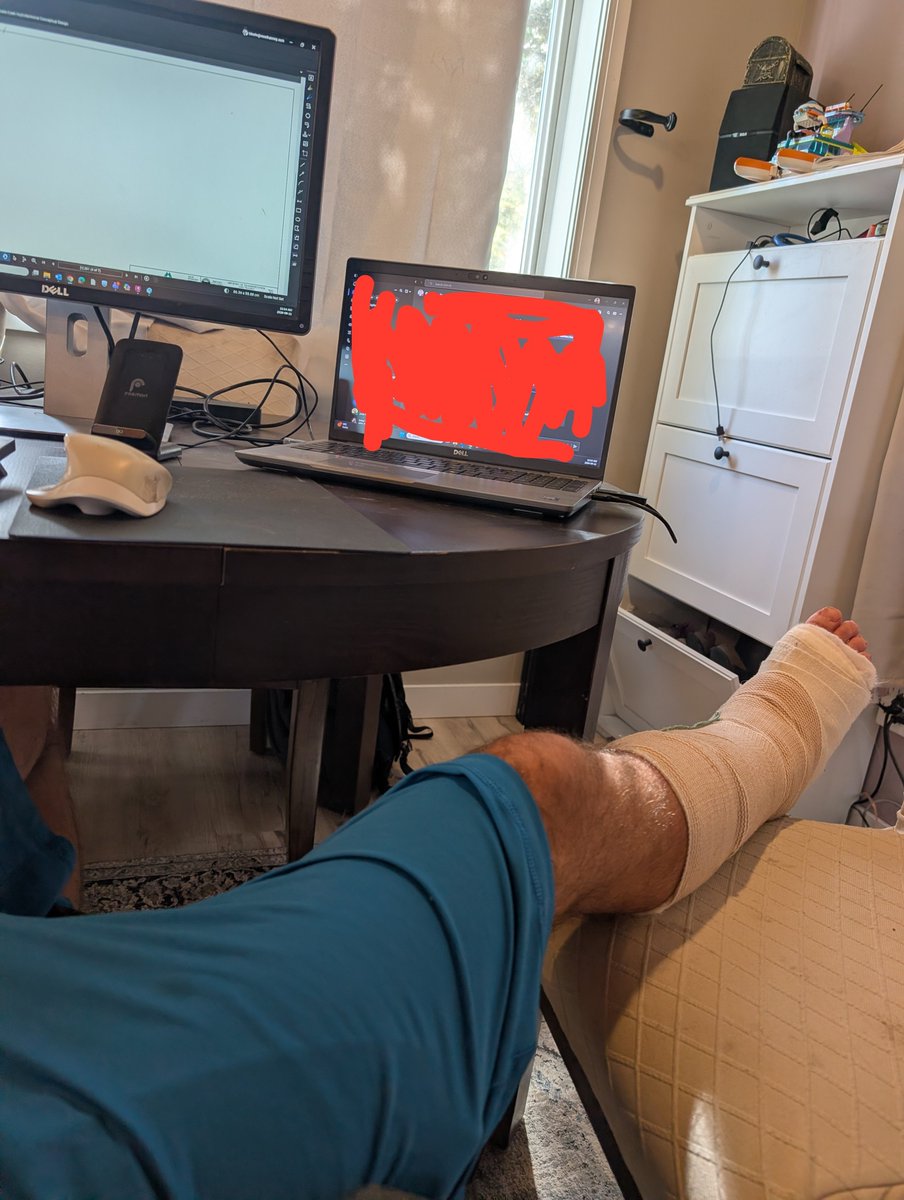
On the positive side, I actually managed to work most of a normal day from my temporary upstairs workstation.
I took breaks to lie down and elevate the leg, but overall the setup worked surprisingly well.
That's a win.
---
**Day 3 was different.**
Not necessarily because of the ankle itself, but because this was the first day I really felt like I was missing out on normal life.
It's Saturday.
Beautiful outside.
My daughter's gymnastics started today.
Normally I'd be doing something with the kids, working in the yard, running errands, or finding another excuse not to sit still.
Instead...
I'm on the couch or in bed with my leg elevated. The depressive and generally down feelings are much more prevalent.
My wife has been amazing handling the kids, errands, food, and everything else while I'm temporarily useless.
But that's also been harder mentally than I expected.
I feel unable to help, lonely and generally low.
When you're working during the week, there's something to focus on.
I even decided to try and vacuum/mop the floors for some reason today while everyone was out running errands… it wasn't a good idea..
When it's Saturday and everyone else is going about their lives, being told to lie down and do absolutely nothing suddenly feels a lot more restrictive.
Add poor sleep, discomfort, medication, and restlessness together and today has probably been the toughest day mentally so far.
Sleep is slowly improving, though.
And despite a rough couple of days, I'm still only three days removed from surgery.
That's something I keep reminding myself.
This isn't the part where I'm supposed to be getting back to normal yet.
Right now my job is basically:
Keep the leg elevated.
Rest.
Let it heal.
Manage the pain.
And apparently learn how to sit still for longer than 30 minutes...
Ankle Surgery Journal — Day 1
September 10, 2026
Well... the good hospital drugs have officially worn off. 😂
Day 1 started around 6:30 this morning with my scheduled pain and anti-inflammatory meds, while my wife handled getting the kids ready for school before heading off to work.
I'm still completely non-weight-bearing and mostly confined to bed, with orders to keep the ankle elevated as much as possible.
The good news?
**I'm actually feeling pretty decent.**
Pain is definitely higher than yesterday now that the nerve block and surgery meds have worn off, but it's still surprisingly manageable. Staying on top of my medication schedule, keeping the leg elevated, and icing behind my knee seems to be helping a lot.
The bad news?
Last night may have been one of the worst sleeps of my life.
I think I managed about two hours total.
Between sleeping with my leg elevated, medication every 4–6 hours, and being forced to sleep on my back when I've basically been a lifelong stomach sleeper...
Sleep was not happening.
So far, the MVP of recovery continues to be the leg elevation pillow. Seriously, this thing has already earned its keep. A few big gel ice packs have been great too.
Mentally, I'm still optimistic.
The hardest part isn't really the pain yet, it's suddenly not being able to do basic things for myself.
I'm notoriously bad at sitting still, so being told to essentially **stay in bed and do nothing** might actually be my biggest challenge.
Today's ambitious agenda:
Catch up on a few emails.
Watch some football later
Maybe finally play a video game I haven't had time for.
And absolutely nothing productive involving my ankle.
We'll see how long I can handle that.
**Day 1: Tired,
slightly more sore... but so far, so good.**
Ankle Surgery Journal — Day 0
September 9, 2026
Well... I survived.
Surgery day started strangely normal.
Got the kids up and ready for school, except instead of pouring my usual coffee and heading downstairs to work, I wasn't allowed to eat or drink anything.
Honestly, skipping the morning coffee may have been the first real challenge of this recovery, haha...
I spent the morning putting the finishing touches on my temporary upstairs workstation—dual monitors, laptop, keyboard, 3Dconnexion mouse, graph paper, headset... I even brought up the Quest 2 in case VR somehow becomes part of my recovery/work setup, I might rig it up so that I can lay on my back and use the VR as dual monitors depending on how the pain is sitting, or if laying down is better.
If I'm going to be stuck upstairs for a while, I might as well experiment.
I checked into the surgery centre around 10:15, changed into the always-fashionable hospital gown and eventually got my IV.
The nurse repeatedly warned me about fainting because her previous patient had.
I hadn't considered fainting until she kept mentioning it...
Thanks for that. 😂
Thankfully, no fainting.
Eventually I met with my surgeon and anesthesiologist and was rolled into the operating room.
Monitors went on.
Medication went into the IV.
Oxygen mask went on.
And...
I woke up.
It honestly felt almost instantaneous.
The surgery itself took about 90 minutes, and waking up to see my leg completely wrapped in a splint was a strange combination of relief and *"Well, I guess we really did this."*
The good news?
So far, the pain has been surprisingly manageable, hovering around a 3 or 4/10 while the surgical medications are still doing their thing.
And after months of appointments, MRIs, researching, worrying and waiting...
**the surgery part is officially behind me.**
My wife picked me up and, being the absolute hero that she is, arrived with a @Starbucks cold brew and sushi.
Possibly the greatest post-surgery meal ever.
I'm now home, leg elevated, ice packs ready, pain medication scheduled and officially non-weight-bearing until my follow-up in two weeks.
And conveniently, I got into bed just as the Seahawks kicked off the first game of the NFL season.
Perfect timing.
Physically, today has been much easier than I built it up to be in my head.
Mentally, I'm still processing what's ahead.
I'm not good at sitting still.
The thought of being dependent on my wife and family, being unable to help with normal things around the house, and potentially having months to a year before I'm back to my usual active self is still pretty daunting.
But that's tomorrow's problem.
For tonight...
Surgery is done.
Pain is manageable.
Coffee has finally been consu
med.
And I'm home with my family.
I'd call Day 0 a win.
**Go @Seahawks !**
Ankle Surgery Journal — Day -1 September 8, 2026
Tomorrow's the day.
In a way, it's a day I've known was coming for almost 20 years.
In my early 20s, I badly sprained my right ankle. I never really had it looked at and, like a lot of people in their 20s, I just powered through it.
Since then, I've had what I've always called a "bad ankle" and come to learn is “chronic ankle instability.”
I’ll roll and sprain it regularly; walking the dogs, hiking, playing hockey, snowboarding, or sometimes just walking down the street.
I learned to live with it.
That changed this January when I rolled it again while doing something as exciting as... taking out the garbage.
This one was different. Something(s) completely gaveway.
Months of appointments, testing, and an MRI showed significant damage, including complete tears of the ATFL and CFL, a split tear of the peroneus brevis tendon, signs of additional partial tears, and an older injury to the PTFL.
Tomorrow I'm having surgery to reconstruct the lateral ligaments in my ankle, along with an arthroscopy to cleanup and address what's going on inside the joint.
And I'm nervous.
I'm not particularly worried about the surgery itself. Though it’s not completely out of my mind.
It's what comes afterward that has been occupying my thoughts. Especially after scouring and reading dozens of forum, reddit, and blog posts on others experiences with the surgery.
Weeks of being non-weight-bearing.
Pain and discomfort.
Isolation.
Relearning to Walk.
Months of rehabilitation.
And the uncertainty of whether I'll regain full mobility without lingering pain or other long-term issues from either the original injuries or the surgery.
I'm an extremely active person and notoriously bad at sitting still, so the idea of suddenly having my mobility taken away is probably the part I'm struggling with most.
I've also made the questionable decision of researching the heck out of this surgery beforehand. Unfortunately, many of the recovery stories I've found online aren't exactly reassuring.
That's actually part of why I'm writing this.
Over the next few weeks, I'm going to document my own experience, the good, the bad, what surprises me, what helps, what doesn't, and what recovery actually looks like day-to-day.
Partly for myself.
But hopefully also for the next person who does what I did and spends the week before surgery searching the internet wondering:
"What am I actually in for?"
Tomorrow we find out.
If you want to follow along, I'm going to post short daily updates on my substack notes here, make sure to subscribe/follow along: https://t.co/C80Mlhzmq2
Most designers and production teams are only using 50% or less of what AutoCAD can actually do.
The result?
Lots of unnecessary clicking.
Lots of repetitive work.
And hours wasted every week.
If every production team learned and used just a handful of these tools, they'd become faster, more consistent, and make far fewer mistakes.
Here are 15 AutoCAD Commands & Tools Every Production Team Should Know:
1. OVERKILL
Clean duplicate and overlapping geometry.
2. PURGE
A Staple of clean drawings, use purge to get rid of unused styles, layer, blocks, and more!
2. QSELECT
Find objects by layer, type, color, block name, text style, and much more.
3. LAYISO
Instantly isolate only the layers you need.
4. MATCHPROP (MA)
Copy object properties in seconds.
5. Xrefs
Keep drawings smaller, improve collaboration, and update multiple drawings automatically.
6. Sheet Sets
Batch plot drawings, automate title blocks, and organize entire projects. + Better Collaboration
7. Fields
Automatically populate sheet numbers, drawing titles, dates, file names, and project information.
8. Templates (.DWT)
Start every project with the same standards, layouts, layers, and plot settings.
9. Dynamic Blocks
Create one intelligent block instead of maintaining dozens of versions.
10. Tool Palettes
Drag-and-drop commonly used blocks, linestyles, text, details, and symbols.
11. CHSPACE
Move objects between Model Space and Paper Space without rework.
12. NCOPY
Copy objects directly from Xrefs without binding or exploding them.
13. PDFIMPORT / PDFATTACH
Work smarter with consultant drawings and existing PDFs.
14. Named Views
Navigate large drawings and create viewports much faster.
15. Page Setups
Standardize plotting so every drawing comes out correctly with just a few clicks.
The interesting part...
None of these are "advanced" features.
They're simply tools that experienced production teams use every day to eliminate repetitive work and reduce errors.
You don't need to master every AutoCAD command.
You just need to master the ones that make the biggest impact. If you want to learn how these tools work and build our your own templates, check out my course: AutoCAD Fundamentals & Workflows now! https://t.co/h7N3UsoDxb
What's one command or tool your team couldn't live without?
Or...
What's one feature you've always wanted to learn better?
One of the easiest ways to tell the age of an AutoCAD drawing...
is how long it takes to open/how many random blocks and styles are in it.
I've worked on many projects that last years.
Every revision added a little more.
New blocks.
Temporary layers.
Unused Xrefs.
Old title blocks.
Forgotten styles.
References that nobody needed anymore.
None of them were a problem on their own.
But together?
They slowly turned a fast drawing into a frustrating one.
I think every long-term project should go through what I call a Drawing Health Check.
It only takes a few minutes, but it can save hours over the life of a project.
Here's my quick checklist:
PURGE unused blocks, layers, linetypes, styles and other unused objects.
AUDIT the drawing to repair errors before they become bigger problems.
Remove unused or detached Xrefs, images, PDFs and other external references.
Delete duplicate or obsolete details, blocks and layouts that are no longer needed.
Run OVERKILL on imported or messy geometry to eliminate duplicate objects.
Clean up temporary construction geometry and "I'll delete it later" objects.
Save the cleaned drawing as your new working file before continuing.
Think of it like maintaining your vehicle.
You don't wait until the engine fails before changing the oil.
Your drawings deserve the same attention.
A clean drawing opens faster.
Plots more reliably.
Is easier for your teammates to understand.
And is far less likely to surprise you six months from now.
The fastest CAD teams aren't just good at creating drawings.
They're equally good at maintaining and keep them to a standard.
Need help to Learn these tricks and start setting up better CAD drawings and templates? Check out my AutoCAD Workflows Course here: https://t.co/h7N3UsoDxb
7 Must-Know Tricks to Keep Your AutoCAD Drawings Small, Fast & Clean
Over time, every drawing collects a little clutter. In my last post we talked about all the common issues you'll run into with old and bloated Dwg files!
Unused blocks.
Old layers.
Broken Xrefs.
Duplicate geometry.
If you don't clean them up, your drawings eventually become slower, larger, and harder to work with.
Here's my quick cleanup checklist:
PURGE – Remove unused blocks, layers, linetypes, text styles, dimension styles and more.
AUDIT – Repair drawing errors before they turn into bigger problems.
OVERKILL – Eliminate duplicate and overlapping geometry (especially after importing PDFs or consultant files).
Remove Unused Xrefs & Images – Detach references that are no longer needed.
Delete Old Layouts & Details – If you aren't using them, don't carry them from project to project.
Clean Temporary Geometry – Get rid of construction lines, notes, test objects and "I'll delete it later" geometry.
Start with a Clean Template (.DWT) – The easiest way to prevent bloated drawings is to stop copying old projects in the first place.
A few minutes of cleanup can save hours of frustration later.
Healthy drawings:
✔ Open faster
✔ Plot more reliably
✔ Are easier to share
✔ Help your whole team work more efficiently
Bonus Tip: I like to run through this checklist before every major project submission or milestone.
Need to learn how to best create a .dwt template and setup AutoCAD drawings like a pro? Check out my AutoCAD Fundamentals & Workflows Course now: https://t.co/h7N3UsoDxb
What's one AutoCAD cleanup command or habit you swear by? Let everyone know below!
Must-Know AutoCAD Performance Tips
Is #AutoCAD feeling slow?
Before upgrading your computer, try these performance boosters first:
1. Start with a Clean Template (.DWT)
Don't copy old projects. A clean template prevents years of clutter from carrying into every new drawing.
2. PURGE Regularly
Unused blocks, layers, styles and linetypes all add unnecessary baggage to your drawings.
3. Keep Xrefs Organized
Detach references you no longer need and avoid attaching files that aren't part of your current project.
4. Clean Imported Geometry
Run **OVERKILL** after importing consultant drawings or PDFs to remove duplicate geometry.
5. Audit Your Drawing
Use **AUDIT** regularly to repair drawing errors before they start causing problems.
6. Limit Heavy Attachments
Large images, PDFs and point clouds can dramatically impact performance. Only load what you actually need.
7. Update Your Graphics Settings
Make sure Hardware Acceleration is enabled and your graphics driver is up to date. Sometimes this alone can make navigation much smoother.
A fast AutoCAD workflow isn't just about having a powerful workstation.
It's about keeping your drawings healthy.
Small improvements like these compound over hundreds of drawings and thousands of hours.
If you want to learn how to build a clean Template (dwt), master xrefs, understand blocks, annotative text and a ton more, check out my AutoCAD Workflows course here: https://t.co/h7N3UsoDxb
Bonus Tip: I do a quick cleanup before every major submission. It only takes a few minutes, but it prevents a lot of headaches later.
What's the biggest thing slowing your AutoCAD drawings down?