I originally wrote about this topic back in 2016, when SharePoint was making the jump from the classic experience to modern. It felt like everything was changing overnight. New sites, new navigation, new terminology, and a whole new way of working.
Fast forward almost 10 years, and not much has changed in one respect. Microsoft is still releasing new features, redesigning the interface, and adding capabilities like Copilot. If you've ever logged into SharePoint and thought, "That wasn't there yesterday," you're not alone.
The reality is that you don't have to master every new feature the moment it's released. A better approach is understanding which changes actually matter, learning them at your own pace, and focusing on the tools that make your work easier.
I updated this article with practical advice for keeping up with SharePoint without letting the constant stream of updates become overwhelming.
Read it here: https://t.co/IRNc6qpCCr
#SharePoint #Microsoft365
Not every SharePoint team site needs a Microsoft 365 Group.
In fact, there are plenty of situations where a standalone team site is the better choice.
In this video, I cover six practical examples, including:
📌 File migration projects
📌 Internal knowledge bases
📌 Employee handbooks
📌 Sites secured with Active Directory groups
📌 Client collaboration sites
📌 Archive sites
Choosing the right type of site from the start can make your SharePoint environment easier to manage and help avoid unnecessary Microsoft 365 Groups.
#SharePoint #Microsoft365
Looking to create an effective FAQ in SharePoint or Microsoft 365?
In this episode, I explore six practical ways to build and organize FAQs, from simple SharePoint pages and lists to more dynamic solutions using Copilot AI.
Listen to the full episode here: https://t.co/OYRnXGBhwS
#SharePoint #Microsoft365
Ever notice a strange name or URL in SharePoint and wonder what it's telling you? Those naming conventions aren't random. Like symptoms to a doctor, they reveal exactly what you're looking at once you know how to read them.
Here are 5 essential naming conventions worth knowing:
🔄 Synchronized libraries and folders: When you sync a library to Windows Explorer, it shows up as "Site Name – Library or Folder Name." That dash pattern tells you it's a synced location.
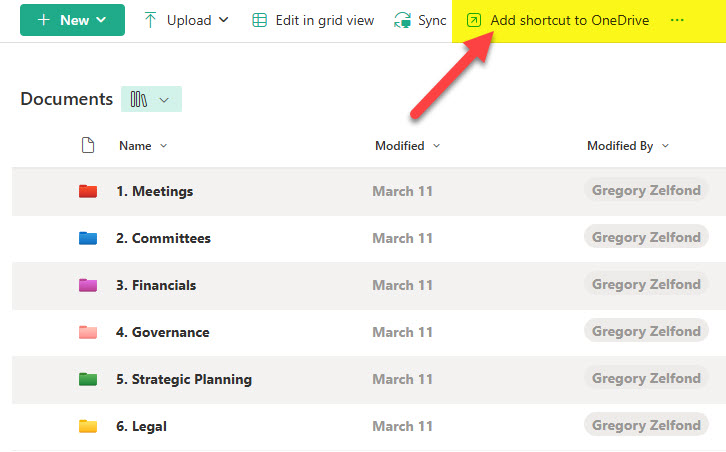
📁 Shortcut to OneDrive: Unlike synced libraries, a shortcut you add to OneDrive can be renamed to something friendlier and even given its own folder color, so you can tidy up how it appears.
🔗 Shared and private channel URLs: A site URL with a dash in it, like "Main Site Name – Channel Name," usually means you're in a Shared or Private Channel site rather than the main team site.
🏠 Home.aspx in the Site Pages library: This page is always there, no matter the template. It's a plain starting page with sample web parts and no custom branding, so it's a handy tell for how a site was set up.
📋 The Forms folder you can't create: Every document library has a hidden "Forms" folder left over from Classic SharePoint. You can't delete it or create one with that name, so if you need a "Forms" folder, make it as a subfolder or use a slightly different name.
Once you can read these small signals, you'll navigate SharePoint with a lot more confidence.
Full breakdown here 👉 https://t.co/2jFbR3oSm5
#SharePoint #Microsoft365
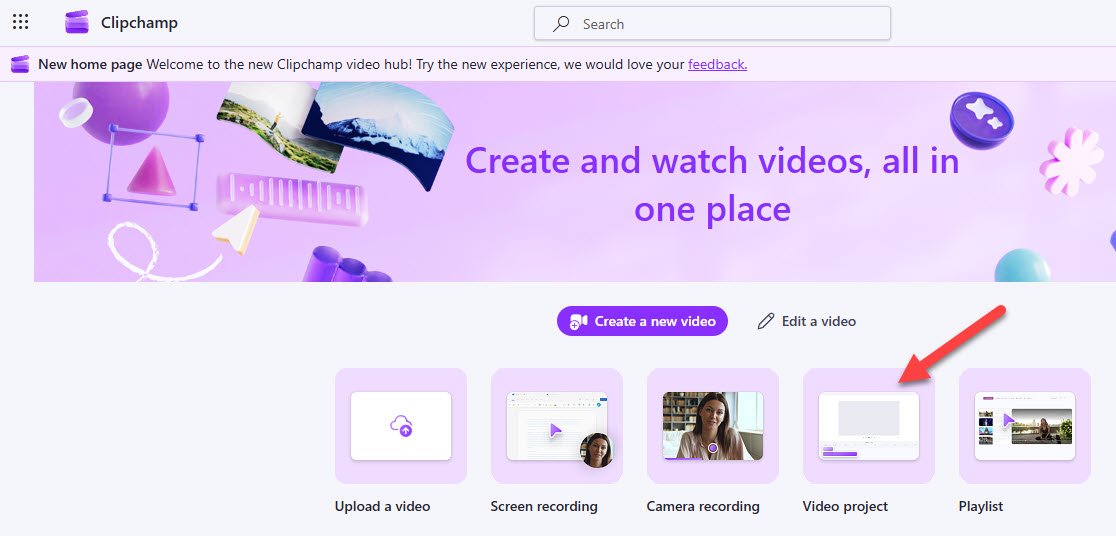
Did you know you can create a full video just by describing it? Copilot can now generate one for you inside Clipchamp, no editing skills required.
Just head to the Clipchamp homepage, type a description of the video you want, and click the arrow. Copilot builds it automatically and drops it straight into the Clipchamp editor so you can fine-tune it. Everything you make is saved in OneDrive under My Files > Videos > Clipchamp.
Full how-to here 👇
https://t.co/ozDyyBV39X
#SharePoint #Microsoft365
Learning SharePoint doesn't have to mean hours of searching for answers or figuring things out through trial and error.
Whether you're just getting started or you've suddenly become the person responsible for managing your organization's SharePoint environment, having the right training can save you countless hours of frustration.
The SharePoint Maven Online Academy offers self paced, on demand courses covering topics like:
◾ Microsoft Teams
◾ SharePoint for Beginners
◾ SharePoint Site Ownership
◾ SharePoint Metadata
◾ SharePoint Document Management
Each course is designed to help you build practical skills you can apply immediately.
Explore the academy here: https://t.co/JOlr4uIscN
#SharePoint #Microsoft365
When we work with Microsoft Lists, we tend to display the information in different views (List, Gallery, Board, and Calendar).
On the other hand, when we work with documents, we don’t think of alternate views at all – we just use the default view of files and folders.
Surprisingly, you can create alternate views on a document library as well, and they might be lifesavers in specific use cases – let me explain: https://t.co/gmUgOn5Q2o
#SharePoint #Microsoft365
Migrating to SharePoint?
In this episode, I cover the 5 most common mistakes organizations make, from poor information architecture to confusing SharePoint with OneDrive or Teams, disabling external sharing, and skipping user training.
Listen to the full episode here: https://t.co/OIcmZeqzjd
#SharePoint #Microsoft365
When most people think about SharePoint libraries, they think about just one thing: storing documents.
But SharePoint actually includes several different library types, each designed for a specific purpose.
Here are the 4 library types you'll find in SharePoint:
📄 Document Library
The most common library used to store and manage documents, spreadsheets, presentations, PDFs, and other business files.
🖼️ Site Assets Library
Stores images, logos, scripts, and other files that support the look and functionality of a SharePoint site.
📃 Site Pages Library
Holds the pages that make up your SharePoint site, including home pages, news posts, and other content pages.
🔒 Preservation Library
Created automatically behind the scenes when retention policies are in place to preserve content for compliance purposes.
Understanding the role of each library can help you better organize your SharePoint environment and avoid confusion when managing content.
Read more: https://t.co/2W6Gqj5OlZ
#SharePoint #Microsoft365
Need to add everyone in your organization to a SharePoint site?
If it is an intranet homepage, HR site, knowledge base, or another company-wide site, adding users one by one is not exactly the best use of anyone's time.
The good news is that there are ways to give access to everyone at once, especially if your organization already has an All Employees security group.
And if it does not, there are still options.
In this video, I walk through how to quickly add everyone from your organization to a SharePoint site without manually typing hundreds of names.
You can read more here too: https://t.co/Qsa7HaxGdS
#SharePoint #Microsoft365
Stop running meetings without an agenda. Here's how to build one right inside Teams, no Word doc or OneNote required.
Teams now lets you add a Loop-powered agenda and notes page directly to any meeting. Here's how it works:
📌 Before the meeting: When you schedule it in your Teams Calendar, click "Add an agenda." Teams instantly creates a Loop page with three ready-made sections: Agenda, Meeting Notes, and Tasks. Fill in your talking points ahead of time.
📝 During the meeting: Open the Notes tab to update all three sections live, right alongside your call. Everyone sees the same page in real time.
✅ After the meeting: Find everything again in the meeting chat under the Recap tab, or open the Loop app and filter by week. Your notes are saved automatically, in OneDrive for personal meetings or SharePoint for channel meetings, so there's no file to manage or lose.
The result: every meeting has a clear agenda, shared notes, and assigned follow-ups, all in one place.
Full walkthrough with screenshots here 👇
https://t.co/RZOh4aMRop
#SharePoint #Microsoft365
When people think about SharePoint, they usually think about document management.
But one of the most useful tools in Microsoft 365 is often overlooked: Microsoft Lists.
Lists can be used to track almost anything, including projects, issues, assets, requests, events, contacts, and much more. What makes them so powerful is the combination of flexibility, structure, and automation.
A few of my favorite Microsoft Lists features include:
✓ Multiple views to organize information different ways
✓ Rules and notifications to keep users informed
✓ Conditional formatting to highlight important information
✓ Version history to track changes
✓ Integration with Power Automate for workflow automation
✓ Forms for easy data entry
✓ Calendar, Gallery, and Board views
✓ Microsoft Teams integration
In this article, I highlight 20 features that make Microsoft Lists one of the most valuable tools in the Microsoft 365 ecosystem: https://t.co/AQctsepSYm
#MicrosoftLists #SharePoint #Microsoft365
In this episode, I introduce my LookBook 365 Portfolio site. I walk through the inspiration behind it, how it showcases real-world SharePoint design ideas, and how you can use it as a reference when building your own intranet or solutions.
If you’re looking for practical examples and visual inspiration, this is for you: https://t.co/LNOXDOnJ9e
#SharePoint #Microsoft365
Your SharePoint metadata strategy usually comes down to two choices:
📌 Managed Metadata (Term Store)
📌 Content Type Gallery
Both can help create consistency across sites, but they solve different problems.
I put together this quick visual to show when each approach makes sense and where they fit into a SharePoint governance strategy.
#SharePoint #Microsoft365 #SharePointTips
Flexible Sections have quickly become one of my favorite SharePoint features.
They give you much more control over page layouts and make it possible to create sites that look far more modern and engaging than traditional designs.
In this post, I share five unique features of Flexible Sections and how you can use them to improve the look and functionality of your SharePoint pages: https://t.co/nfzSbrxmzq
#SharePoint #Microsoft365
Learning SharePoint can feel overwhelming at first, but understanding what to expect makes the journey much easier.
In this Reel, I'm sharing 5 realities of learning SharePoint and the lessons I've picked up along the way.
#SharePoint#Microsoft365
One key reason for setting up metadata in SharePoint is the ability to standardize across multiple sites with a common tagging and naming convention.
Let’s say your organization decided to define such a naming convention via metadata.
How do you ensure that this metadata is propagated to all sites and utilized accordingly?
Let me share with you two primary methods to achieve this: https://t.co/k2LgVoJ2tx
#SharePoint #Microsoft365
🎓 Building SharePoint for a college or university? The structure looks different than a typical org, and that's okay. Here's how to do it right:
1. Separate sites per department — each gets an internal (restricted) site + an employee-facing one for broader staff access.
2. Use nested Hub Sites — create hubs by user type (faculty, staff, students), all rolled up into one main University Hub.
3. Leverage Term Store metadata — tag files by school, department, academic term, and year. Universities are perfectly structured for this.
4. Build a central Intranet Homepage — one entry point that routes every user to their corner of the intranet.
Full breakdown here 👇 https://t.co/SHsNM0fyFm
#SharePoint #Microsoft365
In this episode, I explain why pinning a document library to Quick Access is one of the simplest yet most overlooked productivity tips in SharePoint. I cover how it works, when to use it, and how it can save you time navigating files every day.
Listen to the full episode here: https://t.co/QlB65vT7t4
#SharePoint #Microsoft365
Honest confession: I still confuse people when I say "site collection." 😀
The term is technically still valid in SharePoint, but it is basically outdated. In modern SharePoint, every site IS its own site collection. We just call it a site now.
If you have been reading old SharePoint docs and feeling confused, that is probably why.
I broke down the full history here 👇
https://t.co/n33h2O5NN1
And if your SharePoint architecture is a mess because someone built it the old way, that is exactly what I help clean up. (DM me!)
#SharePoint #Microsoft365