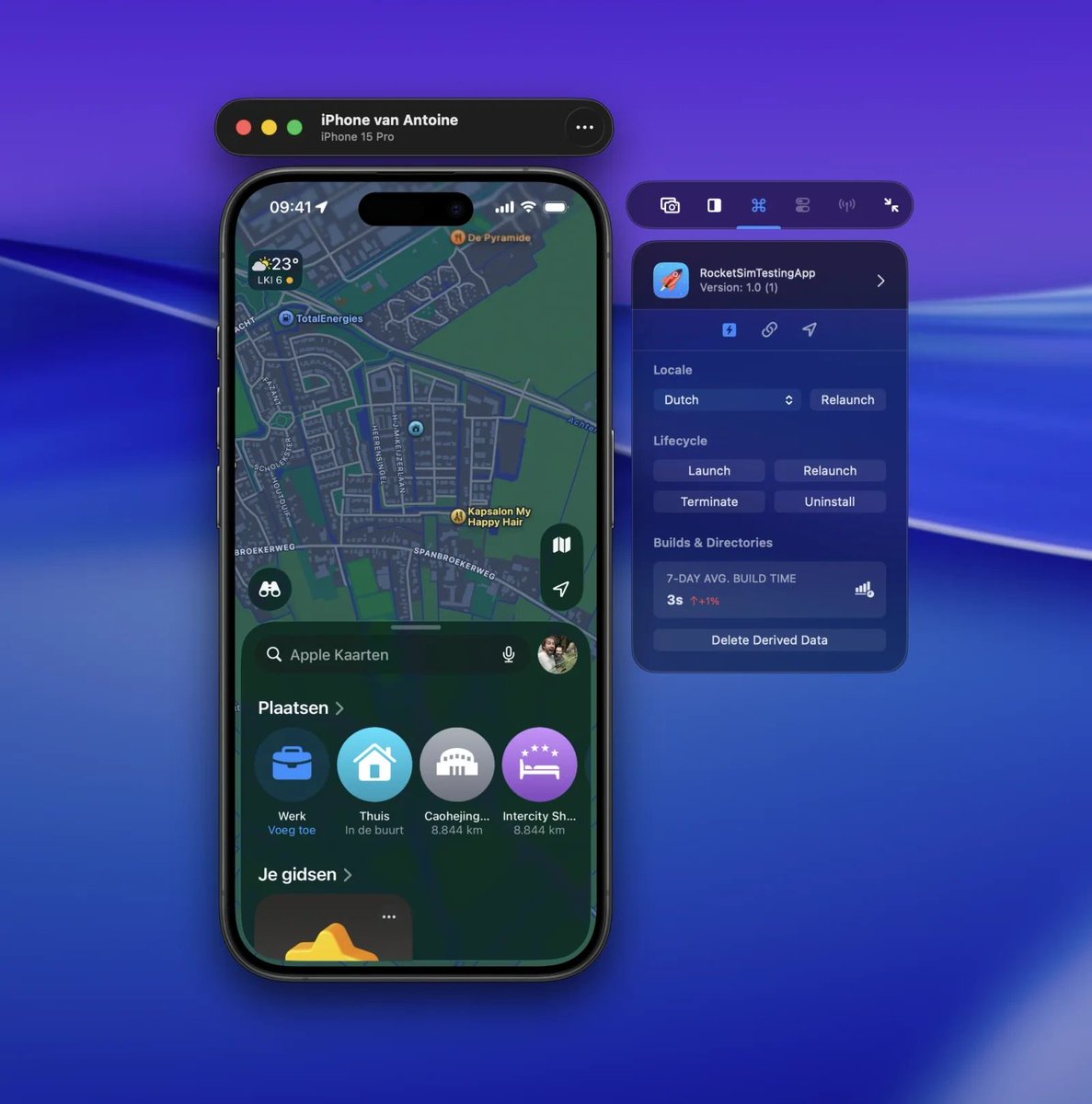
Testing location-aware code on a real iPhone used to break my Simulator flow.
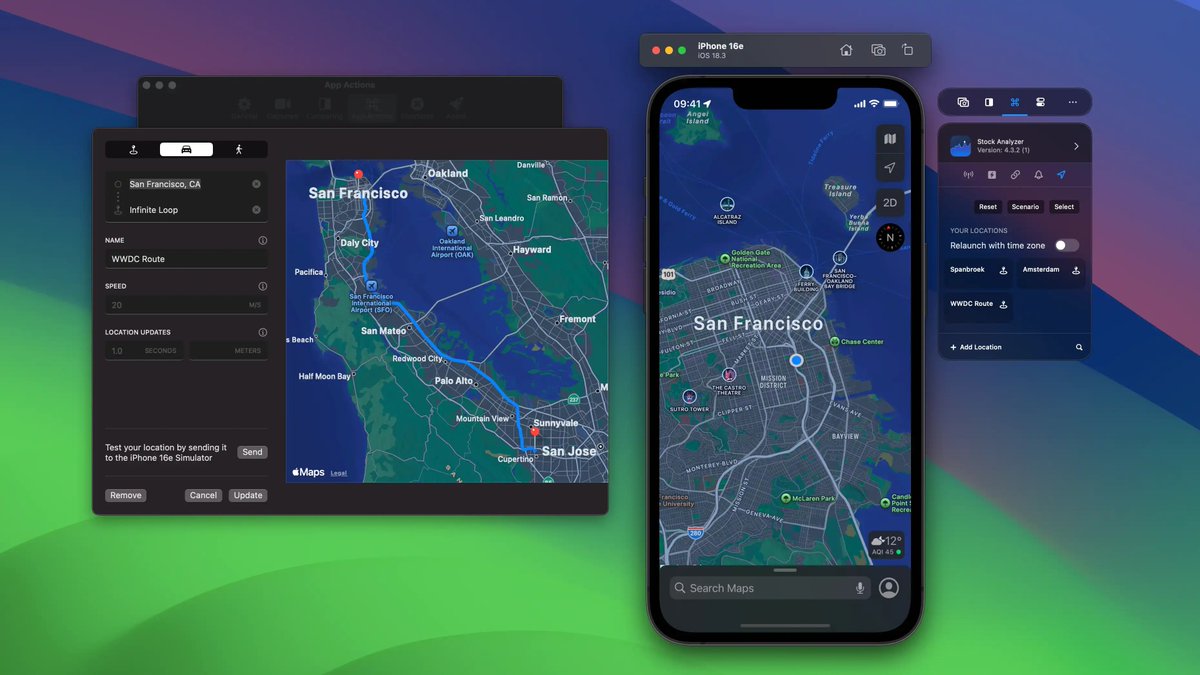
I built saved locations in RocketSim so you can reuse the same GPS scenarios on iPhone, iPad, and Simulator. With Xcode 27, those runs can include system time-zone changes too.
Fast scrolling in Simulator recordings can make your UI look choppy.
RocketSim can record at 120 FPS with HEVC, which keeps motion much closer to what you see while testing.
Xcode build times regress quietly.
A slow build feels random in the moment, but Build Insights in RocketSim puts three months of incremental builds next to Xcode versions and P75/P95 stats.
Simulator sandbox paths are not worth memorizing.
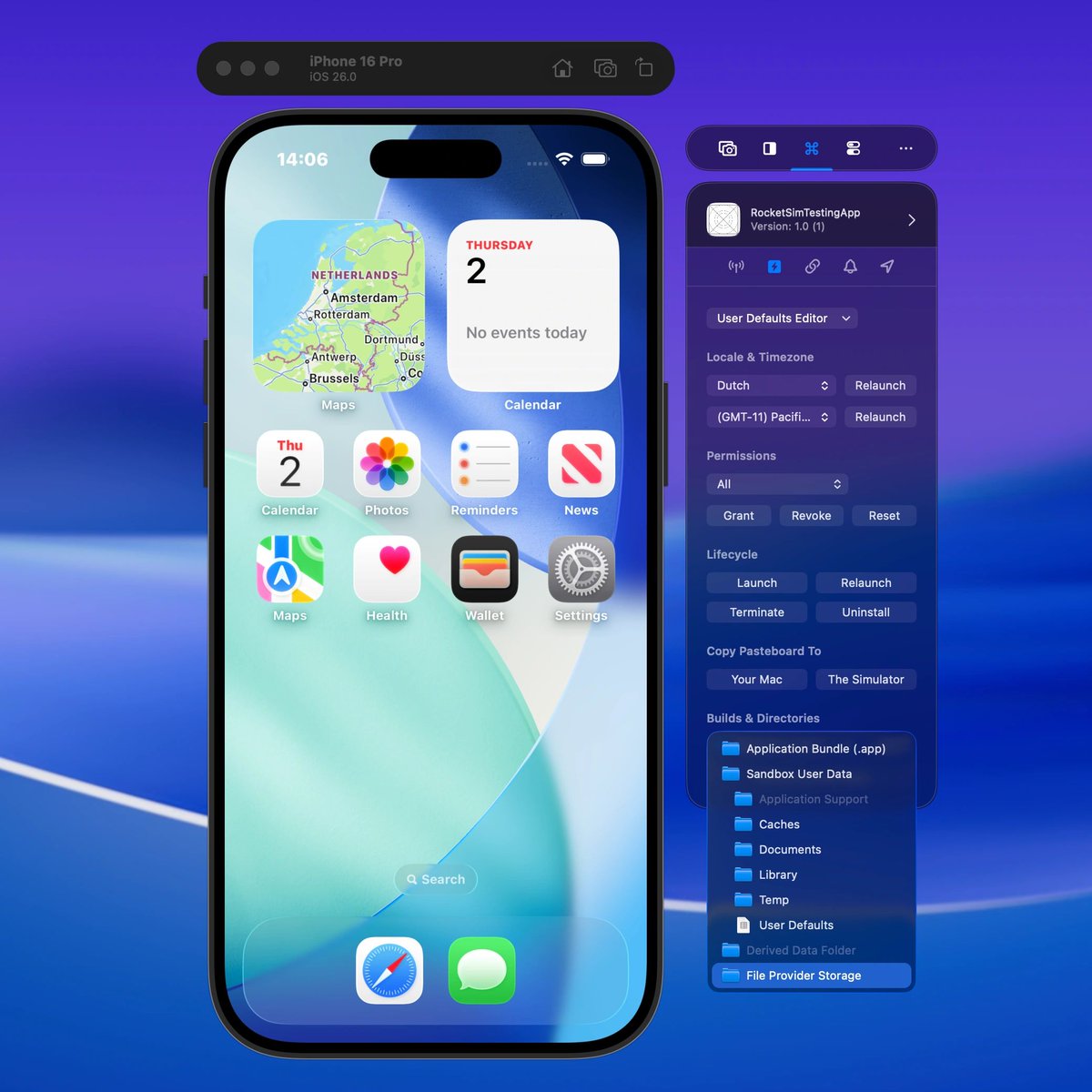
RocketSim lets you open Documents, Caches, App Groups, Derived Data, and User Defaults from one directory menu.
No more digging through CoreSimulator folders.
Getting bad-network testing right in the Simulator meant avoiding the obvious shortcut: don’t touch the Mac’s WiFi.
I built Network Speed Control around profiles like 3G, Edge, and 100% loss, scoped to the Simulator instead.
Real-device captures shouldn't pull you out of the Simulator workflow.
I built the USB preview so RocketSim's capture controls sit beside a physical iPhone too: screenshots, GIFs, and video from the same toolbar.
Repeatable Simulator tests shouldn't start with hunting for the same app again.
Recent Builds in RocketSim keeps actions tied to a bundle ID: relaunch, permissions, deep links, locations, and app folders are right next to the target.
Aligning Simulator UI by eye hides small spacing mistakes.
RocketSim's grid overlay gives you fixed reference lines across the screen. Adjust the spacing and color to match the UI you're checking.
Testing GPS routes in the Simulator shouldn't mean recreating the same path by hand.
RocketSim lets you save single coordinates, driving routes, and walking routes, then run them again when debugging location changes.
Testing iOS permission flows gets messy fast.
Denied camera, fresh location prompt, push notification onboarding: each state can send you into reinstall cycles.
RocketSim lets you grant, revoke, or reset permissions instead.
VoiceOver order is not the same as your view hierarchy.
While building VoiceOver Navigator, I focused on making that order visible instead of hidden behind swipes.
The numbered overlay on the Simulator is the whole point.
Finding a Simulator sandbox through CoreSimulator paths is still one of Xcode’s weirdest chores.
RocketSim gives you one-click access to your app’s sandbox, Documents, Caches, Derived Data, and app group directories from a single menu.
Status bar editing in RocketSim started with one tiny detail: 09:41.
Apple uses it in keynotes, and you can set the Simulator time, battery, charging state, and network before taking screenshots.
Your iOS Simulator is a sneaky little time thief!
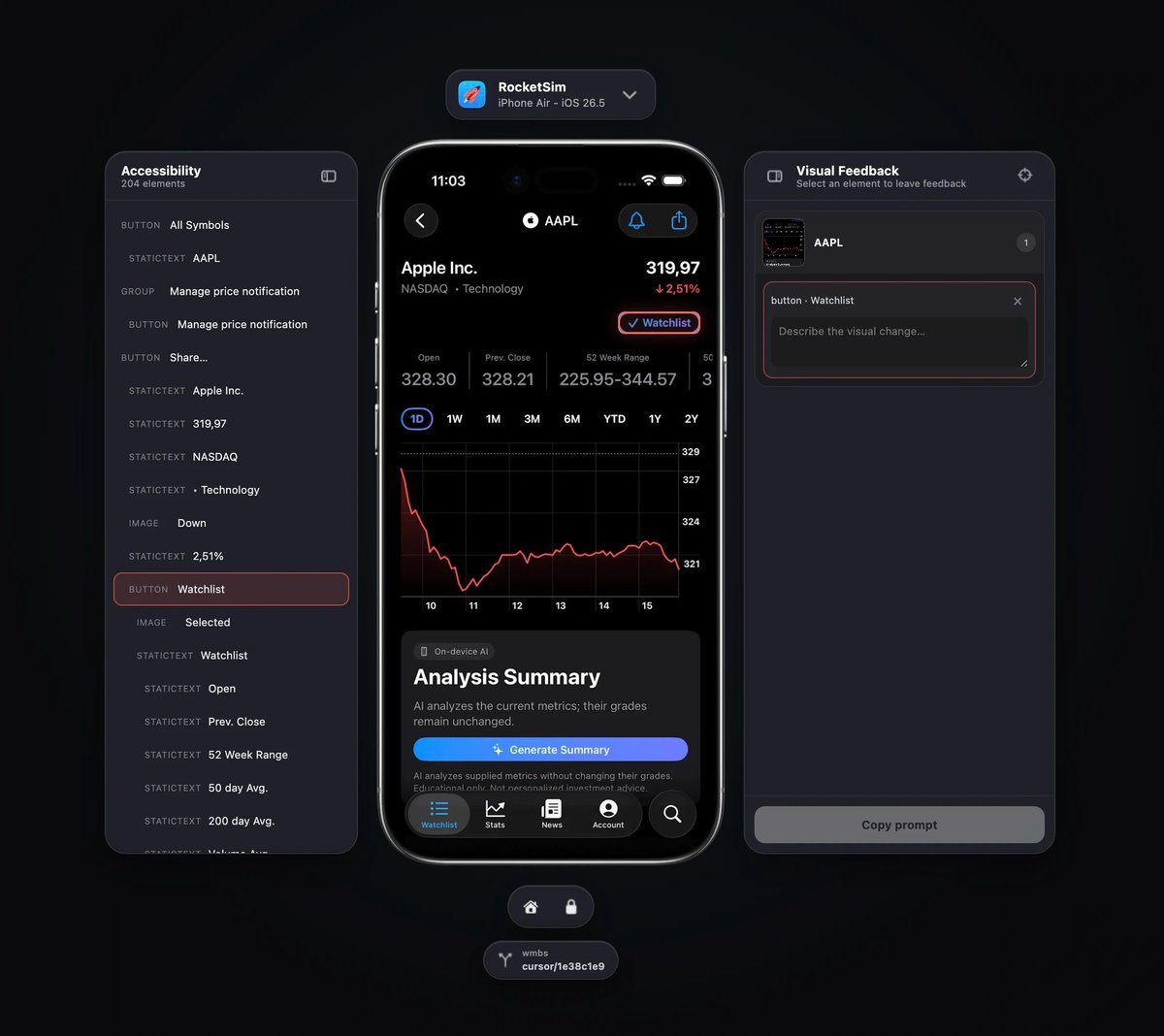
@rocketsim_app puts deep links, location testing, and network tools beside the Simulator and now lets AI agents inspect, navigate, and verify the app too.
I'm so glad to have them sponsoring Swiftsonic! 🚀
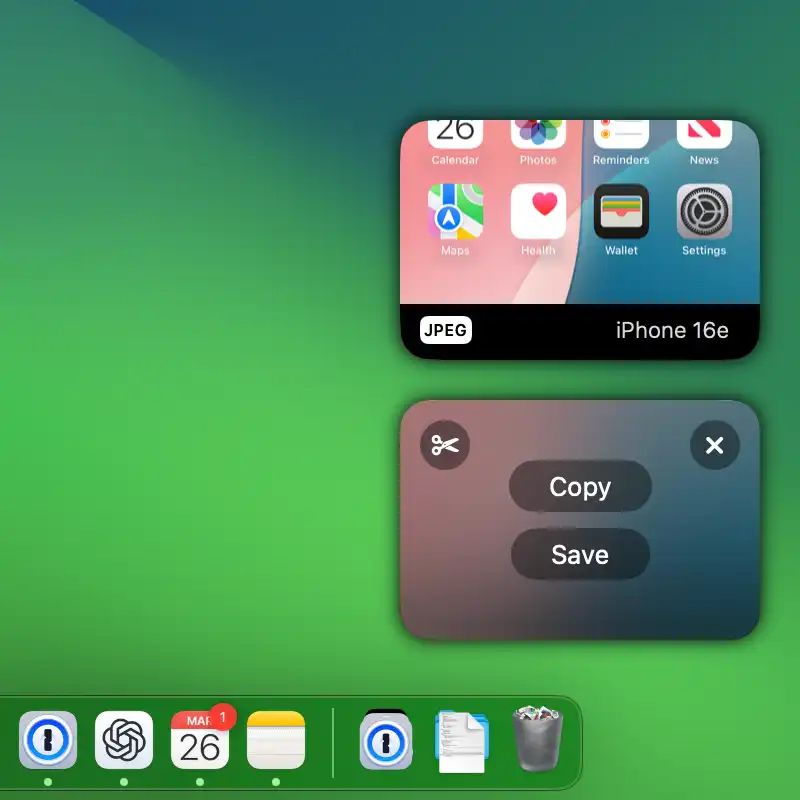
Simulator captures shouldn't send you to Finder every time.
RocketSim stacks screenshots and recordings in floating windows on the side, ready to copy, save, or drag where you need them.
Re-running the same build on a physical iPhone often means digging through Xcode again.
RocketSim Recent Builds lets you relaunch, terminate, uninstall, or start with a supported locale. For real devices, it only shows the actions that apply.
Testing permission dialogs on the Simulator often turns into reinstall cycles.
In RocketSim, you can grant, revoke, or reset camera, location, contacts, photos, and more without reinstalling your app.
Which permission flow do you retest most?