

Top Tweets for #makeyouremailwork

GMail Tip for Educators #15
How do you manage your email everyday? Have tips or tricks to share?
#MakeYourEmailWork
GMail Tip for Educators #14
Whew! If you’ve been following along, then you know I’ve gone through a lot of email steps! So here is my process in an handy-dandy PDF.
Download available at https://t.co/cRItxCpt4u
See GMail Tip for Educators #7-13 for Steps 1-8. #MakeYourEmailWork

GMail Tip for Educators #13
This is the final step in my email review process. See GMail Tip for Educators #7-12 for Steps 1-6.
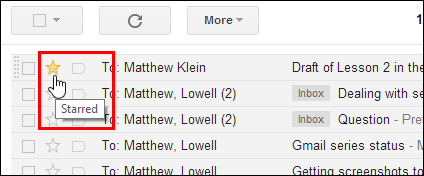
Step 7: Emails you need often: “star” the email and archive it. The email will will be located in your star folder and easy to find. #MakeYourEmailWork
GMail Tip for Educators #12
This is the final step in my email review process. See GMail Tip for Educators #7-11 for Steps 1-5.
Step 6: Leave only 50 emails in your inbox. Archive, delete, and snooze emails that you do not need this week. #MakeYourEmailWork
GMail Tip for Educators #11
This week we are continuing my email review process. See GMail Tip for Educators #7-10 for Steps 1-4.
Step 5: Have an email that you do not need until later? Use the snooze button to have the email delivered again in the future. #MakeYourEmailWork

GMail Tip for Educators #10
This week we are continuing my email review process. See GMail Tip for Educators #7-9 for Steps 1-3.
Step 4: Mark emails that need immediate attention as “unread.” Next to Inbox you will see a number - this is the # of urgent tasks. #MakeYourEmailWork

GMail Tip for Educators #9
This week we are continuing my email review process. See GMail Tip for Educators #7 & 8 for Step 1 & 2.
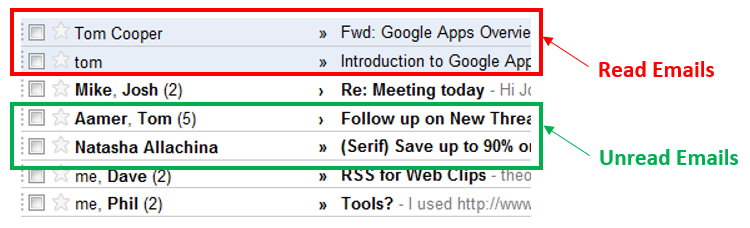
Step 3: Leave emails that do not need your immediate attention as “read.” These emails will stay in your inbox, but not in bold. #MakeYourEmailWork
GMail Tip for Educators #8
This week we are continuing my email review process. See GMail Tip for Educators #7 for Step 1.
Step 2: After you read an email, if there is nothing that needs to be done then Archive it (archived emails live in the All Mail folder).
#MakeYourEmailWork
GMail Tip for Educators #7
How often do you read emails? I review emails twice a day for only 10-15 min. Here's how:
Step 1: Before you open an email, review your inbox and delete emails you do not need. Unsubscribe from promotional emails you are not reading. #MakeYourEmailWork
GMail Tip for Educators #6
Last week we talked about not using labels to organize your emails. There is an exception! Create a label for the previous school year and move last year’s emails under the label. Clean up your inbox AND focus on this year’s tasks! #MakeYourEmailWork
GMail Tip for Educators #5
Don’t waste time on labels (or folders) to organize emails! Instead of using labels, simply archive your emails and use the search bar to find them! You can search for words, the sender, a date or a combination of items. #MakeYourEmailWork
GMail Tip for Educators #4
Your goal should be to keep only 50 emails in your inbox. Why 50? You can see all 50 emails on 1 page! Archive or delete emails to remove them from your inbox. Hint: Archiving just moves your email to your “All Mail” folder. #MakeYourEmailWork
GMail Tip for Educators #3
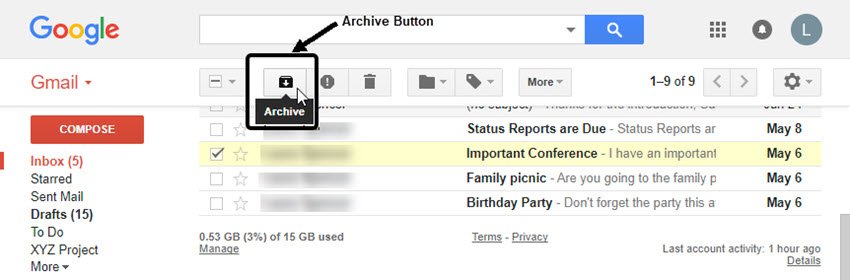
Time to clean up your inbox! Once you have “dealt” with an email (and it does not require additional action) archive your email. Archived emails go in to the “All Mail” folder (left-hand side of your Gmail). #MakeYourEmailWork
GMail Tip for Educators #2
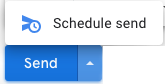
Write your email. Instead of selecting “Send” click the arrow and choose “Schedule Send.” Select the date and time you want your email to be sent.
#MakeYourEmailWork
2 of 2
GMail Tip for Educators #2
Writing an email? Need to send it later? Use the new SCHEDULE SEND option.
#MakeYourEmailWork
1 of 2
#ARGoDigital
GMail Tips for Educators #1
Snooze allows you to choose a time and day that the email will be re-delivered to your inbox. Need to find a snoozed email? Emails waiting to be delivered are in the “Snoozed” folder (left-hand side of your Gmail).#MakeYourEmailWork
2of2
#ARGoDigital
GMail Tips for Educators #1
Have emails that you will not need until school starts? Use the SNOOZE feature! #MakeYourEmailWork
1 of 2
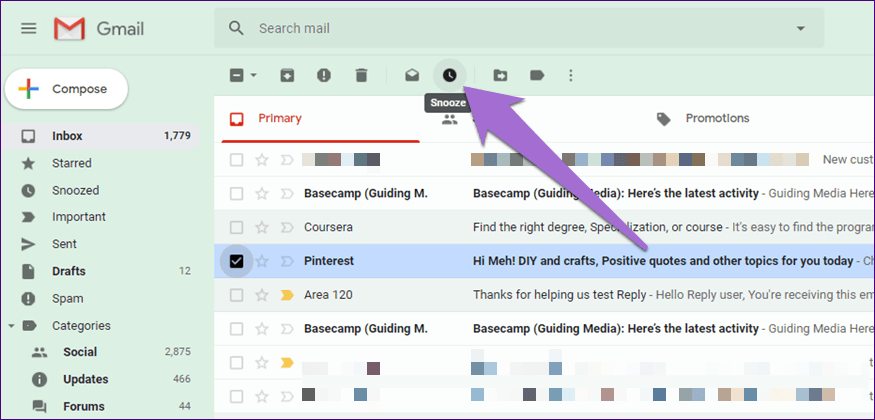
Is your inbox taking over your life? I used to always be “dealing” with my email until I said ENOUGH!
Each week I will post my email organization tips for educators! Follow #MakeYourEmailWork for weekly tips and tricks!
#ARGoDigital
Last Seen Hashtags on Sotwe
tiktok
Seen from United States
นวดบุรีรัมย์
Seen from Thailand
qmadhu
Seen from India
媚黑女王
Seen from United States
𝗜𝗦𝗥𝗔𝗘𝗟
Seen from United States
nolimit nolimit()*+filter:native_video
Seen from Switzerland
bursatravesti
Seen from Germany
pornedit
Seen from United Kingdom
boşalma
ebonyfeetlover
Seen from Italy
Trends for you
Most Popular Users

Elon Musk 
@elonmusk
240.7M followers

Barack Obama
@barackobama
119.2M followers

Donald J. Trump
@realdonaldtrump
111.7M followers

Cristiano Ronaldo
@cristiano
111M followers

Narendra Modi
@narendramodi
107M followers

Rihanna
@rihanna
97.7M followers

NASA
@nasa
92.2M followers

Justin Bieber
@justinbieber
91M followers

KATY PERRY
@katyperry
87.9M followers

Taylor Swift
@taylorswift13
81.7M followers

Lady Gaga
@ladygaga
73.2M followers

Virat Kohli
@imvkohli
70.2M followers

Kim Kardashian
@kimkardashian
69.9M followers

YouTube
@youtube
68.7M followers

Bill Gates
@billgates
64M followers

Neymar Jr
@neymarjr
63M followers

The Ellen Show
@theellenshow
62.4M followers

CNN
@cnn
61.9M followers

Selena Gomez
@selenagomez
60.9M followers

X
@x
60.8M followers