Academic Writing 101: A Free Mini Course
Table of Contents (links below):
1. What is "Active" Reading and Why You Should Do It
2. What is a Zero Draft and Why You Should Write One
3. How to Write a Perfect First Draft
4. How to Revise a First Draft
5. Who is the Ideal Reader
Finding research gaps and coming up with novel research questions takes a lot of time and labor.
Try https://t.co/SKfrXx2V5q
It will help you craft compelling research questions and find research gaps — in minutes.
600 academics are using it.
Here's a tutorial:
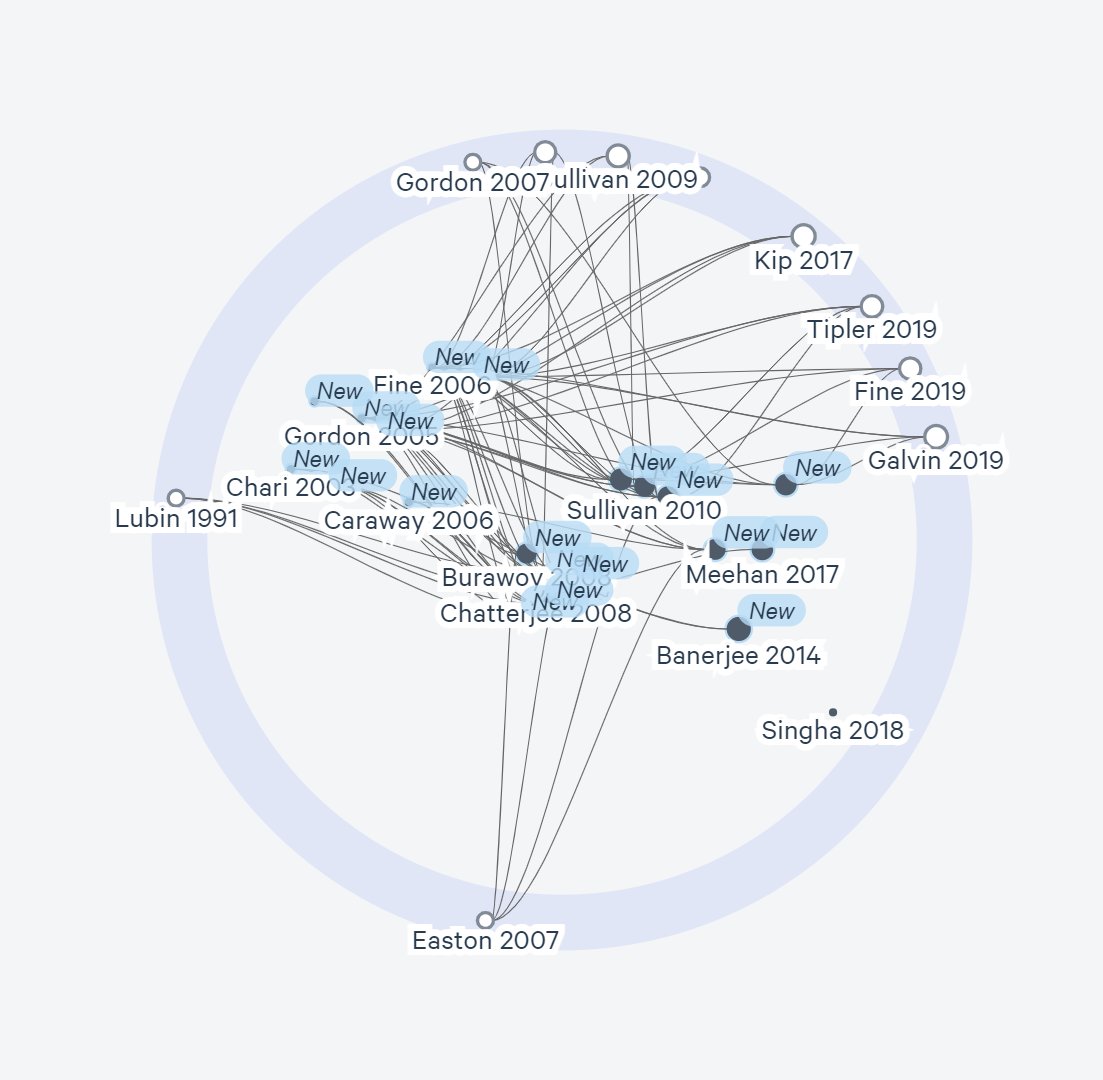
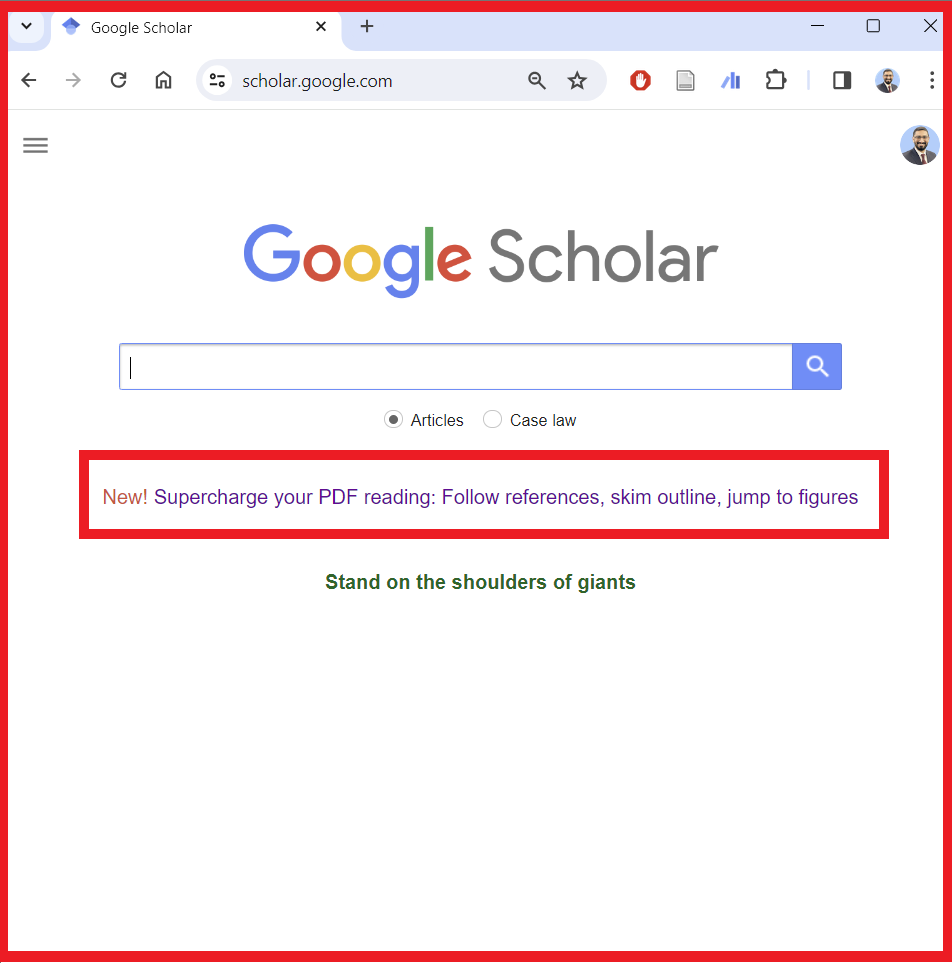
☹️Google Scholar is a great tool. But it doesn't show how papers are connected with each other.
😀Here's how to fast-track your literature review with a "visual search."
And export your papers to Zotero, Mendeley, or EndNote.
You can learn this workflow in 15 min:
How to connect Zotero with Google Gemini (to make it your research assistant)
A step-by-step tutorial:
1. Download Google Drive for Desktop. Then open your Google Drive and create a folder titled "Zotero PDFs."
2. Go to zotfile(dot)com and download a Zotero add-on called Zotfile. This will download an xpi (pronounced zippy) file to your computer.
3. Open your Zotero. Click on "Tools" and select "Add-ons." This will open Zotero's Add-on Manager.
Click on the gear-like icon in the top-right corner and select "Install Add-on From File."
Navigate to the xpi file you just downloaded and open it. This will add Zotfile to your Zotero. Restart Zotero to complete Zotfile's installation.
4. Next, click on "Edit" and select "Preferences" in your Zotero. In Zotero Preferences, click on "Advanced" and then "Files and Folders."
Notice the Default Location given under the Data Directory Location. This is the location where Zotero stores your PDFs.
We want Zotero to store our PDFs in our Google Drive. Zotfile will help us do that.
5. Click on "Tools" and select "Zotfile Preferences." You will see two fields. Enter Zotero's Default Location of PDFs in the top field.
In the bottom field titled "Custom location," enter the location of the folder you created in your Google Drive.
You can also use the "Choose" button to navigate to the Zotero PDFs folder in your Google Drive. Now Zotero will store all your PDFs in your Google Drive.
6. Click on "File" and select "New Collection." Choose a name for your collection.
7. Look up papers on Google Scholar or Pubmed or your university's library.
Click on the Zotero Connector (it's a browser extension) and Zotero will open an Item Selector for you.
Select the papers you want to read and Zotero will save them in the collection you just created. Click on "Done."
Go to your Zotero collection and you will see your papers there.
8. Go to the "Zotero PDFs" folder in your Google Drive and you will see all the PDFs there.
9. Open Google Gemini. Click on the Settings icon in the bottom-left corner and open Extensions.
Enable Google Workspace extension. This will connect Gemini with your Google Drive where you have all your Zotero PDFs.
10. Ask Gemini to give you a list of PDFs. Once it gives you the list, you can ask it to summarize a particular paper and ask other questions about it.
Google has integrated AI into Slides
You can now generate slides, images, text for your presentations.
This Gemini integration is available natively without installing anything.
Here's how to use it and an overview of what it can do: