doing a Black Friday sale thing. all my programs including Beta Blocker are 50% off until the end of the month :) ♥️
perfect time to get one if you’ve been on the fence about them
You guys loved the last breakdown clip so here’s another one 🫶
This is how Beta Blocker keeps up with tracking faces at extremely fast speeds on PC, technology really is incredible these days :3
I think one of the best parts about my apps and programs is that you get free lifetime support and updates. If I’m not around to help there usually a mod who will 🥹
I noticed a lack of this in the community when I first joined and I really wanted to make sure people know they’re in safe hands so I try my best to make them feel like they’re looked after. 🫶
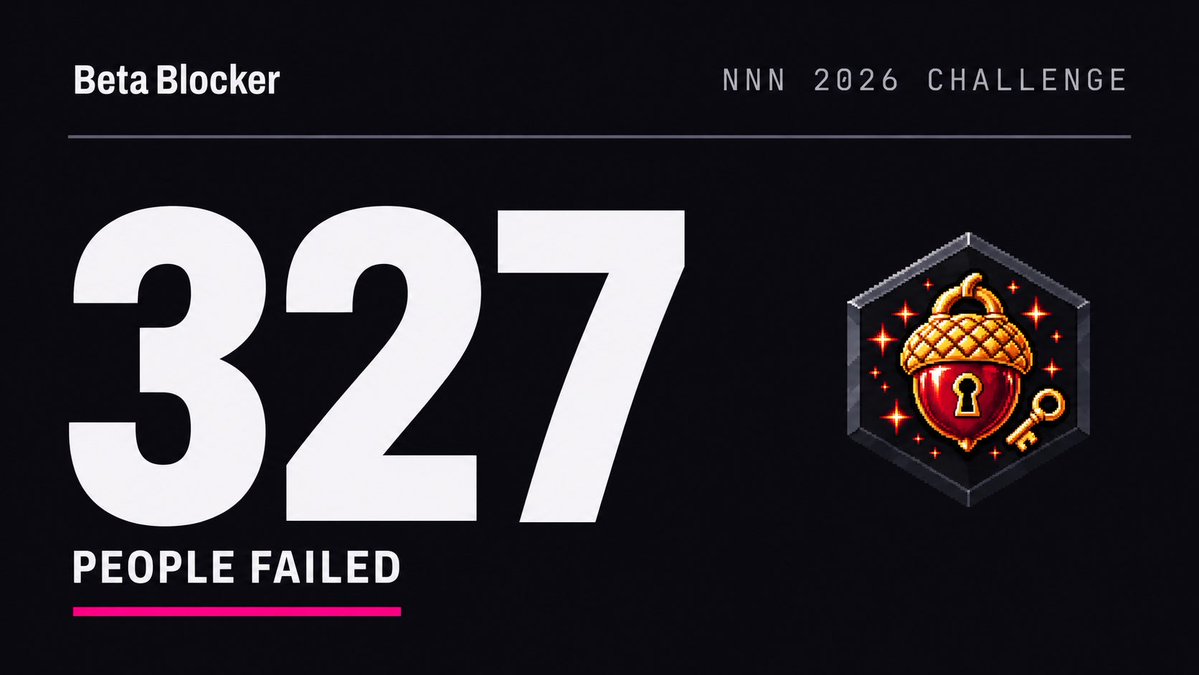
New Beta Blocker workshop event: No Nut November 2026 🏆
Check in each day, see it through to 30 November, and unlock a limited event badge plus the Challenge Complete achievement.
Three difficulty levels
Free to join on Windows and Android. Head to the workshop tab to find it!
Every setting I'd change in Beta Blocker for Android, in one post, since you all loved the Windows version.
Here's what each setting does, what I'd pick, and how it all works without anything leaving your phone.
1. Whole screen or one app
Settings > What to protect.
Whole screen is the default. It covers every app.
One app covers only the app you pick and pauses when you switch away. It gives the smoothest boxes for long videos. It needs Android 14 or newer.
So it's a choice between blocking in every app and smoother blocking in one. I left that choice to you.
2. Speed
Settings > Detection > Speed.
This is one of the most important settings, so it's worth getting right. More pixels spot smaller and more distant things.
Light: 320 pixels, about 4 checks a second. It also waits between checks to save battery.
Balanced: 320 pixels, about 9 checks a second. The default.
Best accuracy: 480 pixels, about 7 checks a second.
What I'd pick:
Recent flagship: Best accuracy.
Most phones: Balanced.
Older phone, or one that runs hot: Light.
3. Strictness
Same screen as Speed. Balanced is the default.
Strict covers anything that might be a problem, even when it's unsure. Relaxed gives you fewer false alarms but lets a few things through. If your goal is "nothing gets past", choose Strict.
Want finer control? Open Advanced on the same screen and set the exact threshold yourself.
4. What to hide
Style > What to hide.
The first option is the default, and most people never need more. You can add more areas, cover all 18, or pick them one by one, faces included.
Whole body is the other way to block: an outline around each person instead of a box per area. Use it for dance videos and crowds. It uses a little more battery and works best with One app.
5. Turn on the performance overlay
Settings > Advanced > Performance overlay.
It shows the check time and frame rate at the bottom of your screen. If boxes arrive late, go one step lighter. If everything stays smooth, go one step up. A few minutes of scrolling tells you what your phone can handle.
6. Permissions (the big one)
Settings > Permissions shows everything Beta Blocker uses and why, and you turn each one on yourself.
Notifications: shows whenever protection is on, with a Stop button.
Unrestricted battery: without it, Android's battery saving can switch protection off halfway through a video.
Smooth overlay: boxes that never block your taps, and up to 32 at once instead of 16.
Settings > Battery saver is on by default. It slows checks down when the battery is at 20% or lower, Android's battery saver is on, or the phone gets very hot. Leave it on unless you need every check.
7. Skip apps
Settings > Skip apps. Pick apps Beta Blocker should ignore, like your camera or a game. It's more useful than you'd think. It needs Smooth overlay.
8. Privacy
Everything runs on your phone. Nothing is uploaded, and there's no account.
The summary:
Most phones: Whole screen, Balanced speed, Strict, and Notifications, Unrestricted battery and Smooth overlay all on.
Recent flagship: the same with Best accuracy.
New Beta Blocker workshop event: No Nut November 2026 🏆
Check in each day, see it through to 30 November, and unlock a limited event badge plus the Challenge Complete achievement.
Three difficulty levels
Free to join on Windows and Android. Head to the workshop tab to find it!