🚀 10 AI Tools You Need to Try in 2026! 🤖🔥
Supercharge your creativity, boost productivity, and streamline your workflow with these powerful AI tools. From content creation to automation, there’s an AI solution for almost everything!
💡 Work smarter. Create faster. Achieve more.
Which AI tool is your favorite? 👇
BREAKING:
Claude can now help you build an entire YouTube channel from zero to monetization — completely free.
Here are 8 powerful prompts to launch, grow, and monetize your channel faster.
THE HIDDEN CODING ROADMAP ON YOUTUBE!
✅ ALL FREE. ↓
C
╰─→ https://t.co/6OSOdbY0KU…
C++
╰─→ https://t.co/6OSOdbY0KU…
Python
╰─→ https://t.co/6OSOdbY0KU…
Java
╰─→ https://t.co/6OSOdbY0KU…
C#
╰─→ https://t.co/6OSOdbY0KU…
SQL
╰─→ https://t.co/6OSOdbY0KU…
Go
╰─→ https://t.co/6OSOdbY0KU…
PHP
╰─→ https://t.co/6OSOdbY0KU…
Swift
╰─→ https://t.co/6OSOdbY0KU…
Kotlin
╰─→ https://t.co/6OSOdbY0KU…
Dart
╰─→ https://t.co/6OSOdbY0KU…
Ruby
╰─→ https://t.co/6OSOdbY0KU…
Rust
╰─→ https://t.co/6OSOdbY0KU…
TypeScript
╰─→ https://t.co/6OSOdbY0KU…
R
╰─→ https://t.co/6OSOdbY0KU…
React
╰─→ https://t.co/6OSOdbY0KU…
Next.js
╰─→ https://t.co/6OSOdbY0KU…
Node.js
╰─→ https://t.co/6OSOdbY0KU…
HTML/CSS
╰─→ https://t.co/6OSOdbY0KU…
Machine Learning
╰─→ https://t.co/6OSOdbY0KU…
Deep Learning
╰─→ https://t.co/6OSOdbY0KU…
DSA
╰─→ https://t.co/6OSOdbY0KU…
Looking for a shortcut to learning? —
These resources could save you a lot of time.
🔖 SAVE THIS FOR LATER.
Claude Code’s new Remote Control feature is a game changer. 🤯 You can start a Claude Code session on your computer and then control it remotely from your phone. That means you can keep building, coding, or reviewing work even when you’re away from your laptop.
Follow @Hyde_ai3 — I share more useful AI workflows like this. 👀
The workflow is simple:
→ Start Claude Code on your Mac
→ Connect using Remote Control
→ Continue the session from your phone
→ Let Claude keep working while you’re away
Bonus Mac tip:
Use Amphetamine to keep your Mac awake with the lid closed.
🔗 Amphetamine: https://t.co/xH8uxOclIL
🔗 Claude Code Remote Control: https://t.co/uAYoY4r8zl
This is especially useful when you only have a few minutes here and there but still want to keep making progress. 🚀
Follow @Hyde_ai3
STEVE JOBS MIT LECTURE
Dropped the most raw, unfiltered 60-minute business masterclass ever recorded.
Zero PR bullshit. Zero image to protect.
Just pure, brutal honesty from the man who built Apple once and was about to rebuild it even bigger.
Stop scrolling.
Watch this tonight instead of Netflix.
Bookmark it. Come back to it.
You'd never guess this gaming laptop ad was created with AI.
But it was.
This entire UGC video, from the unboxing to the product review, it was created using Arcads AI.
No creator.
No camera.
No lighting setup.
No filming.
Comment "Send" and I will send you the workflow.
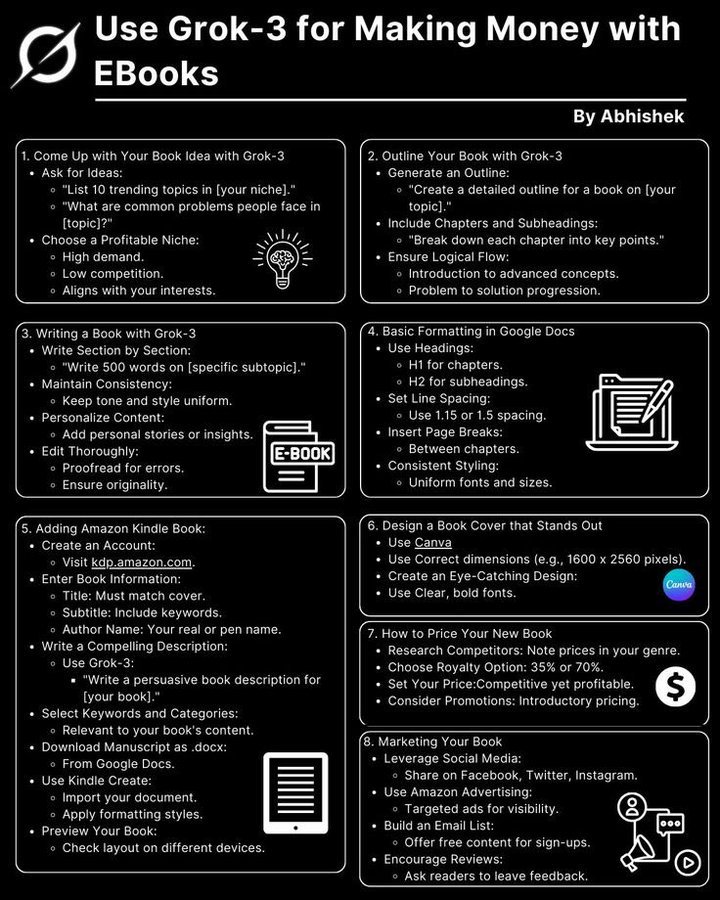
Want to make $$$ from eBooks using Grok-3?
This AI writes, edits & formats your entire eBook in
hours. I made $1,200 in my first week.
Want my exact method + prompt template?
1. Like
2. Retweet
3. Reply “Grok”
4.Bookmark
I’ll DM it to you (must follow)
Most people use 5 keyboard shortcuts their entire life.
I collected 700
Here's every shortcut that actually speeds up your workflow:
1. CTRL + C - Copy
2. CTRL + V - Paste
3. CTRL + X - Cut
4. CTRL + Z - Undo
5. CTRL + A - Select All
6. CTRL + S - Save
7. CTRL + F - Find
8. CTRL + W - Close Current Tab/Window
9. CTRL + T - Open New Tab
10. CTRL + SHIFT + T - Reopen Closed Tab
11. ALT + TAB - Switch Between Open Apps
12. ALT + F4 - Close Active Window
13. CTRL + Y - Redo
14. CTRL + P - Print
15. CTRL + N - New Window/Document
16. CTRL + O - Open File
17. CTRL + R - Refresh / Align Right
18. F5 - Refresh
19. CTRL + L - Select Address Bar
20. CTRL + H - History / Find and Replace
21. CTRL + B - Bold
22. CTRL + I - Italic
23. CTRL + U - Underline
24. CTRL + K - Insert Hyperlink
25. CTRL + SHIFT + V - Paste Without Formatting
26. CTRL + TAB - Next Tab
27. CTRL + SHIFT + TAB - Previous Tab
28. WIN + D - Show/Hide Desktop
29. WIN + E - Open File Explorer
30. WIN + L - Lock Computer
31. WIN + I - Open Settings
32. WIN + R - Open Run Dialog
33. WIN + S - Open Search
34. WIN + V - Open Clipboard History
35. WIN + SHIFT + S - Take a Screen Snip
36. CTRL + SHIFT + ESC - Open Task Manager
37. CTRL + SHIFT + N - Create New Folder
38. F2 - Rename Selected Item
39. DELETE - Move to Recycle Bin
40. SHIFT + DELETE - Permanently Delete
41. ALT + LEFT ARROW - Go Back
42. ALT + RIGHT ARROW - Go Forward
43. CTRL + LEFT ARROW - Move One Word Left
44. CTRL + RIGHT ARROW - Move One Word Right
45. CTRL + BACKSPACE - Delete Previous Word
46. CTRL + DELETE - Delete Next Word
47. HOME - Beginning of Line
48. END - End of Line
49. CTRL + HOME - Beginning of Document
50. CTRL + END - End of Document
51. SHIFT + HOME - Select to Beginning of Line
52. SHIFT + END - Select to End of Line
53. CTRL + SHIFT + LEFT ARROW - Select Previous Word
54. CTRL + SHIFT + RIGHT ARROW - Select Next Word
55. CTRL + SHIFT + HOME - Select to Document Start
56. CTRL + SHIFT + END - Select to Document End
57. WIN + UP ARROW - Maximize Window
58. WIN + DOWN ARROW - Minimize/Restore Window
59. WIN + LEFT ARROW - Snap Window Left
60. WIN + RIGHT ARROW - Snap Window Right
61. WIN + TAB - Open Task View
62. CTRL + ESC - Open Start Menu
63. ALT + SPACE - Open Window Menu
64. ESC - Cancel/Stop Current Action
65. CTRL + 1–9 - Switch to Specific Browser Tab
66. CTRL + 9 - Switch to Last Browser Tab
67. CTRL + 0 - Reset Browser Zoom
68. CTRL + + - Zoom In
69. CTRL + - - Zoom Out
70. F11 - Full-Screen Mode
71. CTRL + D - Bookmark Current Page
72. CTRL + J - Open Downloads
73. CTRL + SHIFT + B - Show/Hide Bookmarks Bar
74. CTRL + SHIFT + DELETE - Clear Browsing Data
75. ALT + HOME - Open Homepage
76. SPACE - Scroll Down
77. SHIFT + SPACE - Scroll Up
78. WIN + PRINT SCREEN - Save Full-Screen Screenshot
79. ALT + PRINT SCREEN - Screenshot Active Window
80. PRINT SCREEN - Screenshot to Clipboard
81. WIN + 1–9 - Open Taskbar App
82. WIN + M - Minimize All Windows
83. WIN + SHIFT + M - Restore Minimized Windows
84. WIN + HOME - Minimize All Except Active Window
85. WIN + SHIFT + LEFT ARROW - Move Window to Left Monitor
86. WIN + SHIFT + RIGHT ARROW - Move Window to Right Monitor
87. WIN + CTRL + D - Create New Virtual Desktop
88. WIN + CTRL + F4 - Close Virtual Desktop
89. WIN + CTRL + LEFT ARROW - Previous Virtual Desktop
90. WIN + CTRL + RIGHT ARROW - Next Virtual Desktop
91. CTRL + F4 - Close Current Document
92. CTRL + ALT + DELETE - Security Options
93. CTRL + SHIFT + C - Copy Formatting / Developer Tool in Some Apps
94. CTRL + SHIFT + Z - Redo in Some Applications
95. CTRL + SHIFT + W - Close Browser Window
96. CTRL + SHIFT + B - Show/Hide Bookmarks Bar
97. CTRL + SHIFT + I - Developer Tools
98. CTRL + SHIFT + J - Developer Console
99. CTRL + SHIFT + C - Inspect Element
100. CTRL + U - View Page Source
101. WIN + A - Open Quick Settings
102. WIN + X - Open Quick Link Menu
103. WIN + P - Display/Project Options
104. WIN + K - Connect to Wireless Devices
105. WIN + H - Voice Typing
106. WIN + . - Emoji Panel
107. WIN + SPACE - Switch Keyboard Language
108. WIN + W - Open Widgets
109. WIN + Z - Open Snap Layouts
110. WIN + G - Open Game Bar
111. ALT + ESC - Cycle Through Open Windows
112. ALT + SHIFT + TAB - Switch Apps Backward
113. CTRL + ALT + TAB - Keep App Switcher Open
114. ALT + ENTER - Open Properties / Full Screen
115. CTRL + E - Center Align / Search
116. CTRL + J - Justify Text
117. CTRL + M - Increase Indent / New Slide
118. CTRL + SHIFT + M - Decrease Indent
119. CTRL + D - Duplicate / Bookmark
120. CTRL + G - Group Objects / Go To
121. CTRL + T - Create Table / New Tab
122. CTRL + SHIFT + L - Turn Filters On/Off
123. CTRL + ; - Insert Current Date
124. CTRL + SHIFT + ; - Insert Current Time
125. F4 - Repeat Action / Toggle Absolute References
126. F1 - Help
127. F6 - Cycle Through Screen Elements
128. F10 - Activate Menu Bar
129. F12 - Developer Tools / Save As
130. F3 - Search
131. CTRL + 1 - Single Line Spacing
132. CTRL + 2 - Double Line Spacing
133. CTRL + 5 - 1.5 Line Spacing
134. CTRL + E - Center Text
135. CTRL + L - Align Text Left
136. CTRL + R - Align Text Right
137. CTRL + J - Justify Text
138. CTRL + ENTER - Insert Page Break
139. SHIFT + ENTER - Insert Line Break
140. CTRL + SHIFT + 8 - Show/Hide Formatting Marks
141. CTRL + SHIFT + 7 - Numbered List
142. CTRL + SHIFT + L - Bullet List
143. CTRL + ] - Increase Font Size
144. CTRL + [ - Decrease Font Size
145. CTRL + SHIFT + > - Increase Font Size
146. CTRL + SHIFT + < - Decrease Font Size
147. CTRL + D - Open Font Dialog
148. CTRL + ALT + M - Insert Comment
149. CTRL + SHIFT + E - Track Changes
150. CTRL + ALT + 1 - Heading 1
151. CTRL + ALT + 2 - Heading 2
152. CTRL + ALT + 3 - Heading 3
153. CTRL + SHIFT + N - Normal Style
154. CTRL + ALT + V - Paste Special
155. CTRL + SPACE - Remove Character Formatting
156. CTRL + Q - Remove Paragraph Formatting
157. CTRL + SHIFT + C - Copy Formatting
158. CTRL + SHIFT + V - Paste Formatting
159. CTRL + SHIFT + W - Underline Words Only
160. CTRL + SHIFT + D - Double Underline
161. CTRL + SHIFT + K - Small Caps
162. CTRL + SHIFT + T - Reduce Hanging Indent
163. CTRL + T - Create Hanging Indent
164. CTRL + M - Increase Indent
165. CTRL + SHIFT + M - Decrease Indent
166. CTRL + F2 - Print Preview
167. CTRL + ALT + C - Copyright Symbol
168. CTRL + ALT + R - Registered Trademark Symbol
169. CTRL + ALT + T - Trademark Symbol
170. ALT + SHIFT + UP ARROW - Move Paragraph Up
171. ALT + SHIFT + DOWN ARROW - Move Paragraph Down
172. CTRL + SHIFT + ] - Bring Object Forward
173. CTRL + SHIFT + [ - Send Object Backward
174. CTRL + SHIFT + G - Ungroup Objects
175. CTRL + G - Group Objects
176. CTRL + M - New Slide
177. CTRL + SHIFT + D - Duplicate Slide
178. F5 - Start Presentation
179. SHIFT + F5 - Start From Current Slide
180. ESC - End Presentation
181. B - Black Screen During Presentation
182. W - White Screen During Presentation
183. N - Next Slide
184. P - Previous Slide
185. HOME - First Slide
186. END - Last Slide
187. Number + ENTER - Jump to Specific Slide
188. ALT + F5 - Start Presenter View
189. CTRL + K - Insert Hyperlink
190. CTRL + E - Center Text
191. CTRL + L - Align Text Left
192. CTRL + R - Align Text Right
193. CTRL + J - Justify Text
194. CTRL + SHIFT + C - Copy Formatting
195. CTRL + SHIFT + V - Paste Formatting
196. CTRL + SHIFT + < - Decrease Font Size
197. CTRL + SHIFT + > - Increase Font Size
198. CTRL + D - Duplicate Object/Slide
199. CTRL + G - Group Objects
200. CTRL + SHIFT + G - Ungroup Objects
201. CTRL + T - Create Table
202. CTRL + D - Fill Down
203. CTRL + R - Fill Right
204. CTRL + K - Insert Hyperlink
205. CTRL + SHIFT + L - Turn Filters On/Off
206. CTRL + SPACE - Select Entire Column
207. SHIFT + SPACE - Select Entire Row
208. CTRL + Arrow Key - Jump to Edge of Data Region
209. CTRL + SHIFT + Arrow Key - Select Data to Edge
210. F2 - Edit Active Cell
211. ALT + = - AutoSum
212. CTRL + ` - Show/Hide Formulas
213. CTRL + 1 - Format Cells
214. CTRL + 5 - Strikethrough
215. CTRL + 9 - Hide Rows
216. CTRL + 0 - Hide Columns
217. CTRL + SHIFT + 9 - Unhide Rows
218. CTRL + SHIFT + 0 - Unhide Columns
219. ALT + DOWN ARROW - Open Drop-Down List
220. CTRL + PAGE UP - Previous Worksheet
221. CTRL + PAGE DOWN - Next Worksheet
222. SHIFT + F11 - Insert New Worksheet
223. ALT + F1 - Create Chart
224. CTRL + SHIFT + + - Insert Cells/Rows/Columns
225. CTRL + - - Delete Cells/Rows/Columns
226. ALT + ENTER - Line Break in Cell
227. CTRL + ENTER - Fill Selected Cells
228. CTRL + SHIFT + $ - Currency Format
229. CTRL + SHIFT + % - Percentage Format
230. CTRL + SHIFT + # - Date Format
231. CTRL + SHIFT + @ - Time Format
232. CTRL + SHIFT + ! - Number Format
233. CTRL + SHIFT + & - Apply Border
234. CTRL + 8 - Show/Hide Outline Symbols
235. CTRL + 9 - Hide Rows
236. CTRL + 0 - Hide Columns
237. CTRL + PAGE UP - Previous Worksheet
238. CTRL + PAGE DOWN - Next Worksheet
239. CTRL + SHIFT + 0 - Unhide Columns
240. CTRL + SHIFT + 9 - Unhide Rows
241. CTRL + N - New Explorer Window
242. CTRL + W - Close Explorer Window
243. ALT + UP ARROW - Go to Parent Folder
244. ALT + D - Select Address Bar
245. CTRL + E - Search Explorer
246. CTRL + F - Search Files
247. CTRL + A - Select All Files
248. CTRL + CLICK - Select Multiple Individual Items
249. SHIFT + CLICK - Select a Range
250. CTRL + SHIFT + CLICK - Select Range in Some Interfaces
251. SHIFT + ARROW - Extend Selection
252. CTRL + SHIFT + ARROW - Select by Words
253. ALT + ENTER - Open Properties
254. CTRL + SHIFT + E - Expand Navigation Pane
255. CTRL + Mouse Wheel - Change Icon Size
256. F6 - Cycle Through Explorer Elements
257. CTRL + C - Copy File
258. CTRL + X - Cut File
259. CTRL + V - Paste File
260. F5 - Refresh Explorer
261. CTRL + SHIFT + N - New Folder
262. F2 - Rename File
263. DELETE - Recycle Bin
264. SHIFT + DELETE - Permanent Delete
265. ALT + LEFT ARROW - Go Back
266. ALT + RIGHT ARROW - Go Forward
267. CTRL + N - New Explorer Window
268. CTRL + W - Close Explorer
269. WIN + E - File Explorer
270. WIN + R - Run
271. CTRL + SHIFT + S - Save As / Screenshot Options
272. WIN + ALT + R - Start/Stop Screen Recording
273. WIN + ALT + G - Record Recent Activity
274. WIN + ALT + PRINT SCREEN - Screenshot Game Window
275. WIN + G - Game Bar
276. ALT + PRINT SCREEN - Active Window Screenshot
277. PRINT SCREEN - Screen Screenshot
278. WIN + PRINT SCREEN - Save Screenshot
279. WIN + SHIFT + S - Snipping Tool
280. F11 - Full Screen
281. CTRL + C - Stop Current Command in Terminal
282. CTRL + V - Paste
283. CTRL + SHIFT + V - Paste in Terminal
284. CTRL + L - Clear Terminal Screen
285. UP ARROW - Previous Command
286. DOWN ARROW - Next Command
287. TAB - Auto-Complete
288. CTRL + HOME - Beginning of Terminal
289. CTRL + END - End of Terminal
290. ESC - Clear Current Command
291. F7 - Command History
292. ALT + F7 - Clear Command History
293. CTRL + SHIFT + C - Copy in Windows Terminal
294. CTRL + SHIFT + V - Paste in Windows Terminal
295. WIN + R, then CMD - Open Command Prompt
296. WIN + R, then POWERSHELL - Open PowerShell
297. WIN + R, then TASKMGR - Open Task Manager
298. WIN + R, then CONTROL - Open Control Panel
299. WIN + R, then MSCONFIG - Open System Configuration
300. WIN + R, then DEVMGMT.MSC - Open Device Manager
301. WIN + R, then DISKMGMT.MSC - Open Disk Management
302. WIN + R, then SERVICES.MSC - Open Services
303. WIN + R, then APPWIZ.CPL - Open Programs and Features
304. WIN + R, then NOTEPAD - Open Notepad
305. WIN + R - Open Run
306. WIN + X - Quick Link Menu
307. WIN + U - Accessibility Settings
308. WIN + CTRL + ENTER - Turn Narrator On/Off
309. WIN + + - Open Magnifier
310. WIN + - - Zoom Out With Magnifier
311. WIN + ESC - Close Magnifier
312. SHIFT + ALT + PRINT SCREEN - Toggle High Contrast
313. WIN + CTRL + O - On-Screen Keyboard
314. WIN + CTRL + C - Color Filters
315. WIN + CTRL + SHIFT + B - Restart Graphics Driver
316. WIN + CTRL + S - Speech Recognition
317. WIN + B - Focus Notification Area
318. WIN + T - Cycle Through Taskbar Apps
319. WIN + Q - Open Search
320. WIN + N - Open Notifications
321. WIN + W - Widgets
322. WIN + K - Connect Devices
323. WIN + P - Project Display
324. WIN + A - Quick Settings
325. WIN + H - Voice Typing
326. WIN + SPACE - Input Language
327. WIN + . - Emoji Panel
328. WIN + ; - Emoji Panel
329. WIN + Z - Snap Layouts
330. WIN + V - Clipboard History
331. CTRL + SHIFT + P - Private Browsing in Some Browsers
332. CTRL + SHIFT + O - Bookmark Manager
333. CTRL + SHIFT + J - Developer Console
334. CTRL + SHIFT + I - Developer Tools
335. CTRL + SHIFT + C - Inspect Element
336. CTRL + U - View Page Source
337. CTRL + SHIFT + DELETE - Clear Browsing Data
338. CTRL + SHIFT + B - Bookmarks Bar
339. CTRL + SHIFT + W - Close Browser Window
340. ALT + HOME - Homepage
341. CTRL + 1 - Tab 1
342. CTRL + 2 - Tab 2
343. CTRL + 3 - Tab 3
344. CTRL + 4 - Tab 4
345. CTRL + 5 - Tab 5
346. CTRL + 6 - Tab 6
347. CTRL + 7 - Tab 7
348. CTRL + 8 - Tab 8
349. CTRL + 9 - Last Tab
350. CTRL + SHIFT + TAB - Previous Tab
351. CTRL + TAB - Next Tab
352. CTRL + T - New Tab
353. CTRL + W - Close Tab
354. CTRL + SHIFT + T - Reopen Tab
355. CTRL + L - Address Bar
356. CTRL + D - Bookmark Page
357. CTRL + R - Refresh Page
358. F5 - Refresh Page
359. CTRL + F - Find on Page
360. ESC - Stop Loading Page
361. CTRL + + - Zoom In
362. CTRL + - - Zoom Out
363. CTRL + 0 - Reset Zoom
364. ALT + LEFT ARROW - Back
365. ALT + RIGHT ARROW - Forward
366. HOME - Top of Page
367. END - Bottom of Page
368. SPACE - Scroll Down
369. SHIFT + SPACE - Scroll Up
370. F11 - Full Screen
371. CTRL + SHIFT + Z - Redo
372. CTRL + F4 - Close Document
373. CTRL + ALT + TAB - App Switcher
374. ALT + SHIFT + TAB - Previous App
375. ALT + ESC - Cycle Windows
376. ALT + SPACE - Window Menu
377. ALT + ENTER - Properties/Full Screen
378. CTRL + ESC - Start Menu
379. WIN + D - Desktop
380. WIN + M - Minimize All
381. WIN + SHIFT + M - Restore Windows
382. WIN + HOME - Minimize Other Windows
383. WIN + UP ARROW - Maximize
384. WIN + DOWN ARROW - Restore/Minimize
385. WIN + LEFT ARROW - Snap Left
386. WIN + RIGHT ARROW - Snap Right
387. WIN + SHIFT + LEFT ARROW - Move Left Monitor
388. WIN + SHIFT + RIGHT ARROW - Move Right Monitor
389. WIN + TAB - Task View
390. WIN + 1–9 - Taskbar Apps
391. WIN + CTRL + D - New Desktop
392. WIN + CTRL + F4 - Close Desktop
393. WIN + CTRL + LEFT ARROW - Previous Desktop
394. WIN + CTRL + RIGHT ARROW - Next Desktop
395. CTRL + ALT + DELETE - Security Screen
396. CTRL + SHIFT + ESC - Task Manager
397. WIN + L - Lock PC
398. WIN + I - Settings
399. WIN + E - File Explorer
400. WIN + S - Search
401. WIN + R, then MSCONFIG - System Configuration
402. WIN + R, then CMD - Command Prompt
403. WIN + R, then POWERSHELL - PowerShell
404. WIN + R, then CONTROL - Control Panel
405. WIN + R, then TASKMGR - Task Manager
406. WIN + R, then DEVMGMT.MSC - Device Manager
407. WIN + R, then DISKMGMT.MSC - Disk Management
408. WIN + R, then SERVICES.MSC - Services
409. WIN + R, then APPWIZ.CPL - Programs and Features
410. WIN + R, then NOTEPAD - Notepad
411. F1 - Help
412. F2 - Rename
413. F3 - Search
414. F4 - Address Bar/File List
415. F5 - Refresh
416. F6 - Cycle Through Elements
417. F7 - Spell Check in Some Apps
418. F10 - Activate Menu Bar
419. F11 - Full Screen
420. F12 - Developer Tools / Save As
421. CTRL + SHIFT + + - Insert Cells/Rows/Columns
422. CTRL + - - Delete Cells/Rows/Columns
423. CTRL + SHIFT + $ - Currency Format
424. CTRL + SHIFT + % - Percentage Format
425. CTRL + SHIFT + # - Date Format
426. CTRL + SHIFT + @ - Time Format
427. CTRL + SHIFT + ! - Number Format
428. CTRL + SHIFT + & - Border
429. CTRL + ` - Show Formulas
430. ALT + = - AutoSum
431. CTRL + SHIFT + C - Copy Formatting
432. CTRL + SHIFT + V - Paste Formatting
433. CTRL + SPACE - Select Column
434. SHIFT + SPACE - Select Row
435. CTRL + ARROW KEY - Jump to Data Edge
436. CTRL + SHIFT + ARROW KEY - Select to Data Edge
437. ALT + DOWN ARROW - Open Drop-Down
438. CTRL + PAGE UP - Previous Sheet
439. CTRL + PAGE DOWN - Next Sheet
440. SHIFT + F11 - New Worksheet
441. ALT + F1 - Create Chart
442. CTRL + 8 - Outline Symbols
443. CTRL + 9 - Hide Rows
444. CTRL + 0 - Hide Columns
445. CTRL + SHIFT + 9 - Unhide Rows
446. CTRL + SHIFT + 0 - Unhide Columns
447. CTRL + 5 - Strikethrough
448. CTRL + 1 - Format Cells
449. CTRL + ENTER - Fill Selected Cells
450. ALT + ENTER - Line Break in Cell
451. CTRL + SHIFT + 7 - Numbered List
452. CTRL + SHIFT + 8 - Formatting Marks
453. CTRL + ALT + 1 - Heading 1
454. CTRL + ALT + 2 - Heading 2
455. CTRL + ALT + 3 - Heading 3
456. CTRL + SHIFT + N - Normal Style
457. CTRL + ALT + M - Comment
458. CTRL + SHIFT + E - Track Changes
459. CTRL + F2 - Print Preview
460. CTRL + ALT + V - Paste Special
461. CTRL + ALT + C - Copyright Symbol
462. CTRL + ALT + R - Registered Trademark
463. CTRL + ALT + T - Trademark
464. CTRL + SHIFT + K - Small Caps
465. CTRL + SHIFT + D - Double Underline
466. CTRL + SHIFT + W - Underline Words
467. CTRL + Q - Remove Paragraph Formatting
468. CTRL + SPACE - Remove Character Formatting
469. CTRL + T - Hanging Indent
470. CTRL + SHIFT + T - Reduce Hanging Indent
471. B - Black Screen in Presentation
472. W - White Screen in Presentation
473. N - Next Slide
474. P - Previous Slide
475. HOME - First Slide
476. END - Last Slide
477. Number + ENTER - Jump to Slide
478. ALT + F5 - Presenter View
479. WIN + ALT + R - Start/Stop Recording
480. WIN + ALT + G - Record Recent Activity
Haan. Aapke existing 480 ke baad #481–700 tak aur shortcuts de raha hoon. Main koshish kar raha hoon ki pehle diye gaye shortcuts ko repeat na karun aur mostly practical/useful shortcuts rakhu.
481. CTRL + SHIFT + A - Select All in Some Applications
482. CTRL + SHIFT + F - Advanced Find in Some Applications
483. CTRL + SHIFT + H - Find and Replace in Some Applications
484. CTRL + SHIFT + O - Open Options/Bookmark Manager in Some Apps
485. CTRL + SHIFT + P - Print/Private Mode in Some Apps
486. CTRL + SHIFT + S - Save As
487. CTRL + SHIFT + F - Full-Screen/Find Options in Some Apps
488. CTRL + SHIFT + U - Underline/Unicode Input in Some Apps
489. CTRL + SHIFT + X - Cut Formatting/Strikethrough in Some Apps
490. CTRL + SHIFT + Y - Redo in Some Applications
491. CTRL + ALT + LEFT ARROW - Navigate/Move Back in Some Apps
492. CTRL + ALT + RIGHT ARROW - Navigate/Move Forward in Some Apps
493. CTRL + ALT + UP ARROW - Move Window/Screen in Some Apps
494. CTRL + ALT + DOWN ARROW - Move Window/Screen in Some Apps
495. SHIFT + F3 - Change Text Case in Microsoft Word
496. SHIFT + F5 - Move to Previous Edit Location in Word
497. SHIFT + F7 - Open Thesaurus in Word
498. SHIFT + F9 - Toggle Field Code in Word
499. SHIFT + F10 - Open Context Menu
500. SHIFT + F11 - Insert Worksheet in Excel
501. SHIFT + F12 - Save Document in Microsoft Office
502. CTRL + F3 - Open/Manage AutoText in Word
503. CTRL + F5 - Restore Document Window in Some Office Apps
504. CTRL + F6 - Switch Between Open Documents
505. CTRL + F7 - Move Window in Some Office Apps
506. CTRL + F8 - Resize Window in Some Office Apps
507. CTRL + F9 - Insert Empty Field in Word
508. CTRL + F10 - Maximize/Restore Document Window
509. CTRL + F11 - Insert Macro Sheet in Excel
510. CTRL + F12 - Open File Dialog in Office Apps
511. ALT + F - Open File Menu
512. ALT + E - Open Edit Menu in Some Apps
513. ALT + V - Open View Menu
514. ALT + T - Open Tools Menu in Some Apps
515. ALT + H - Open Home Tab/Menu
516. ALT + N - Open Insert Tab/Menu
517. ALT + P - Open Page Layout/Preview in Some Apps
518. ALT + M - Open Formulas/Other Menu in Some Apps
519. ALT + A - Open Data/Menu in Some Apps
520. ALT + W - Open View/Menu in Some Apps
521. CTRL + SHIFT + 1 - Apply Number Format in Excel
522. CTRL + SHIFT + 2 - Apply Time Format in Excel
523. CTRL + SHIFT + 3 - Apply Date Format in Excel
524. CTRL + SHIFT + 4 - Apply Currency Format in Excel
525. CTRL + SHIFT + 5 - Apply Percentage Format in Excel
526. CTRL + SHIFT + 6 - Apply Scientific Format in Excel
527. CTRL + SHIFT + 7 - Apply Border in Some Excel Versions
528. CTRL + SHIFT + 8 - Show/Hide Outline Symbols
529. CTRL + SHIFT + 9 - Unhide Rows
530. CTRL + SHIFT + 0 - Unhide Columns
531. ALT + F1 - Create Embedded Chart in Excel
532. ALT + SHIFT + F1 - Insert New Worksheet
533. CTRL + SHIFT + F3 - Create Names From Selection
534. CTRL + SHIFT + F - Format Cells Font Tab
535. CTRL + SHIFT + P - Format Cells Font Settings
536. CTRL + SHIFT + U - Expand/Collapse Formula Bar
537. CTRL + SHIFT + O - Select Cells Containing Notes/Comments in Some Excel Versions
538. CTRL + SHIFT + 4 - Currency Format
539. CTRL + SHIFT + 5 - Percentage Format
540. CTRL + SHIFT + 6 - Scientific Format
541. CTRL + SHIFT + 7 - Border Format
542. CTRL + SHIFT + 8 - Show/Hide Outline
543. CTRL + SHIFT + 9 - Unhide Rows
544. CTRL + SHIFT + 0 - Unhide Columns
545. ALT + F8 - Open Macro Dialog
546. ALT + F11 - Open VBA Editor
547. CTRL + F11 - Insert Macro Sheet
548. SHIFT + F11 - Insert New Worksheet
549. CTRL + PAGE UP - Move to Previous Sheet
550. CTRL + PAGE DOWN - Move to Next Sheet
551. ALT + F5 - Refresh PivotTable
552. ALT + DOWN ARROW - Open Filter/Menu
553. ALT + ENTER - Insert Line Break in Cell
554. CTRL + SHIFT + ENTER - Enter Array Formula in Older Excel
555. F9 - Calculate Workbook
556. SHIFT + F9 - Calculate Active Worksheet
557. CTRL + ALT + F9 - Force Full Calculation
558. CTRL + SHIFT + ALT + F9 - Recheck Dependencies and Calculate
559. ESC - Cancel Cell Entry
560. ENTER - Confirm Cell Entry
561. CTRL + SHIFT + 5 - Strikethrough in Some Office Apps
562. CTRL + SHIFT + 6 - Show/Hide Formatting Marks in Some Apps
563. CTRL + SHIFT + 7 - Numbered List
564. CTRL + SHIFT + 8 - Bulleted List/Formatting Marks
565. CTRL + SHIFT + 9 - Remove Numbering in Some Apps
566. CTRL + ALT + M - New Comment
567. CTRL + ALT + V - Paste Special
568. CTRL + ALT + 1 - Heading 1
569. CTRL + ALT + 2 - Heading 2
570. CTRL + ALT + 3 - Heading 3
571. ALT + SHIFT + 5 - Strikethrough in Google Docs
572. CTRL + ALT + SHIFT + 5 - Clear Formatting in Some Editors
573. CTRL + SHIFT + 7 - Numbered List
574. CTRL + SHIFT + 8 - Bulleted List
575. CTRL + ALT + M - Insert Comment
576. CTRL + ALT + SHIFT + I - Word Count in Some Editors
577. CTRL + SHIFT + C - Word Count in Google Docs
578. CTRL + ALT + SHIFT + V - Paste Without Formatting in Some Editors
579. CTRL + ALT + SHIFT + 5 - Strikethrough in Some Editors
580. CTRL + SHIFT + E - Center Align in Some Editors
581. CTRL + SHIFT + L - Left Align in Some Editors
582. CTRL + SHIFT + R - Right Align in Some Editors
583. CTRL + SHIFT + J - Justify in Some Editors
584. CTRL + ALT + 0 - Normal Text Style in Some Editors
585. CTRL + ALT + 1 - Heading 1
586. CTRL + ALT + 2 - Heading 2
587. CTRL + ALT + 3 - Heading 3
588. CTRL + ALT + 4 - Heading 4
589. CTRL + ALT + 5 - Heading 5
590. CTRL + ALT + 6 - Heading 6
591. CTRL + SHIFT + K - Insert Link in Some Editors
592. CTRL + SHIFT + 7 - Numbered List
593. CTRL + SHIFT + 8 - Bulleted List
594. CTRL + SHIFT + 9 - Remove List Formatting
595. CTRL + ALT + M - Comment
596. CTRL + ALT + SHIFT + I - Document Details/Word Count
597. CTRL + SHIFT + C - Word Count
598. CTRL + SHIFT + V - Paste Without Formatting
599. CTRL + ALT + SHIFT + 5 - Strikethrough
600. CTRL + SHIFT + E - Center Align
601. CTRL + SHIFT + L - Left Align
602. CTRL + SHIFT + R - Right Align
603. CTRL + SHIFT + J - Justify
604. ALT + SHIFT + 5 - Strikethrough
605. CTRL + ALT + M - Insert Comment
606. CTRL + ALT + SHIFT + I - Word Count
607. CTRL + SHIFT + C - Word Count
608. CTRL + SHIFT + V - Paste Without Formatting
609. CTRL + ALT + 0 - Normal Text
610. CTRL + ALT + 1 - Heading 1
611. CTRL + ALT + 2 - Heading 2
612. CTRL + ALT + 3 - Heading 3
613. CTRL + ALT + 4 - Heading 4
614. CTRL + ALT + 5 - Heading 5
615. CTRL + ALT + 6 - Heading 6
616. CTRL + SHIFT + 7 - Numbered List
617. CTRL + SHIFT + 8 - Bulleted List
618. CTRL + SHIFT + 9 - Remove List Formatting
619. CTRL + K - Insert Link
620. CTRL + SHIFT + E - Center Align
621. CTRL + SHIFT + L - Left Align
622. CTRL + SHIFT + R - Right Align
623. CTRL + SHIFT + J - Justify
624. CTRL + SHIFT + C - Word Count
625. CTRL + ALT + M - Comment
626. CTRL + ALT + SHIFT + I - Document Information
627. CTRL + ALT + SHIFT + V - Paste Without Formatting
628. ALT + SHIFT + 5 - Strikethrough
629. CTRL + ALT + 0 - Normal Text
630. CTRL + ALT + 1 - Heading 1
631. CTRL + ALT + 2 - Heading 2
632. CTRL + ALT + 3 - Heading 3
633. CTRL + ALT + 4 - Heading 4
634. CTRL + ALT + 5 - Heading 5
635. CTRL + ALT + 6 - Heading 6
636. CTRL + SHIFT + 7 - Numbered List
637. CTRL + SHIFT + 8 - Bulleted List
638. CTRL + SHIFT + 9 - Remove List Formatting
639. CTRL + K - Insert Hyperlink
640. CTRL + SHIFT + E - Center Text
641. CTRL + SHIFT + L - Align Left
642. CTRL + SHIFT + R - Align Right
643. CTRL + SHIFT + J - Justify
644. CTRL + SHIFT + C - Word Count
645. CTRL + ALT + M - Add Comment
646. CTRL + ALT + SHIFT + I - Word Count/Document Info
Comment "MORE" and follow @darshal_
I'll send it to your DMs.
🚨 BREAKING: Claude can now design logos that look like they cost $10,000.
I tested it myself.
The final result cost me exactly $0.
Here are the 7 prompts I used:
Save this for later🔖
Nano Banana + MakeUGC + Veo3 = AI UGC at scale.
- Analyze niche.
- Study 1,000+ winning ads.
- Generate scripts, avatars & videos.
No ghost creators.
No wasted samples.
5/15 minutes. Production-ready.
$20k/month agencies can’t compete.
Comment “UGC” for the workflow.
🔖 Follow @Nexa_Tech_Ai + Bookmark for more AI growth strategies.
If you have 100 ideas but only post 3…
the problem probably isn’t ideas.
It’s making the damn video.
ZenReel turns ONE idea into a short-form video:
→ Script
→ Voice
→ Visuals
→ Captions
→ Final reel
No editing marathon.
Just describe what you want to share.
For creators, founders, marketers, educators, developers, and anyone with something worth saying.
Try it: https://t.co/aRl5OjpWl0
🚨 BREAKING: Claude can now create logos that look like they cost $10,000. 🤯
I tested it myself.
The final result? $0. 💸
Here are the 7 prompts I used 👇
🔖 Save this for later.
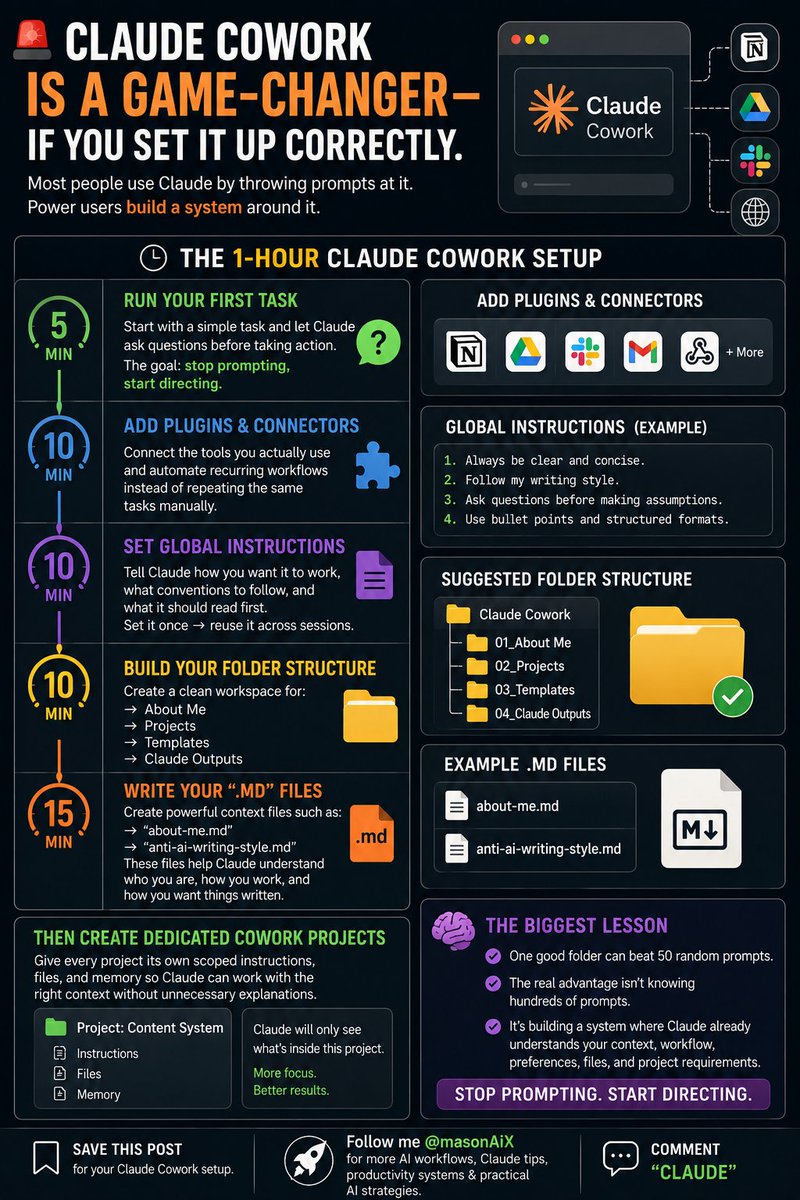
🚨 CLAUDE COWORK IS A GAME-CHANGER — IF YOU SET IT UP CORRECTLY.
Most people use Claude by throwing prompts at it.
Power users build a system around it.
This visual breaks down how to set up a professional Claude Cowork workflow in just 1 hour — from folder structure and global instructions to projects, connectors, and your first real task.
⚡ THE 1-HOUR CLAUDE COWORK SETUP
⏱️ 5 MIN — Run Your First Task
Start with a simple task and let Claude ask questions before taking action.
The goal: stop prompting, start directing.
⏱️ 10 MIN — Add Plugins & Connectors
Connect the tools you actually use and automate recurring workflows instead of repeating the same tasks manually.
⏱️ 10 MIN — Set Global Instructions
Tell Claude how you want it to work, what conventions to follow, and what it should read first.
Set it once → reuse it across sessions.
⏱️ 10 MIN — Build Your Folder Structure
Create a clean workspace for:
→ About Me
→ Projects
→ Templates
→ Claude Outputs
A structured environment makes AI work much more consistent.
⏱️ 15 MIN — Write Your ".md" Files
Create powerful context files such as:
→ "about-me.md"
→ "anti-ai-writing-style.md"
These files help Claude understand who you are, how you work, and how you want things written.
📁 Then Create Dedicated Cowork Projects
Give every project its own scoped instructions, files, and memory so Claude can work with the right context without unnecessary explanations.
🧠 THE BIGGEST LESSON
One good folder can beat 50 random prompts.
The real advantage isn't knowing hundreds of prompts.
It's building a system where Claude already understands your context, workflow, preferences, files, and project requirements.
Stop prompting. Start directing.
Save this post for your Claude Cowork setup.
Follow me @MasonA7040 for more AI workflows, Claude tips, productivity systems & practical AI strategies.
Comment "CLAUDE"