🎬 Video Editing Tips #50: Sync Sound and Picture
Even a one-frame audio delay can make an action feel unnatural. Align sound effects and music precisely with what's happening on screen.
💡Perfect timing makes every moment feel real.
#VideoEditing#SoundDesign#AudioSync
🎬 Video Editing Tips #49: Stay Objective
Watch your edit from the audience's perspective. Provide enough context to make the story clear without overexplaining. Give viewers clarity, but leave room for discovery.
#VideoEditing#EditingTips#Storytelling#Video#Editor
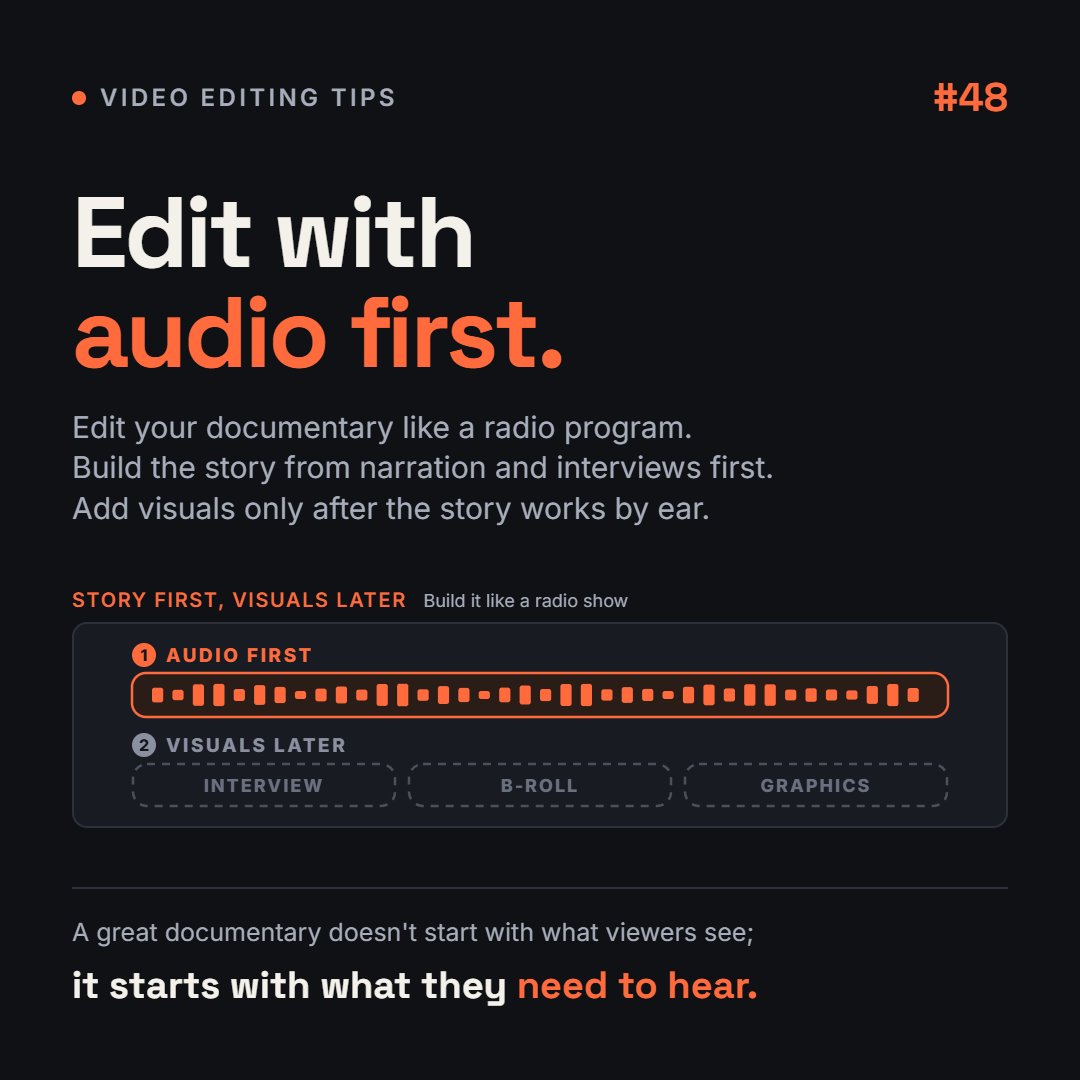
🎬 Video Editing Tips #48: Start with Audio
Build your documentary with dialogue and narration first. Add visuals only after the story works through audio alone. Story first, visuals second.
#DocumentaryEditing#VideoEditing#Editor#Video
🎬 Video Editing Tips #47: Let Sound Tell the Story
Don't add sounds just to fill silence. Use ambient audio and effects to build atmosphere, reveal details, and move the story forward. Every sound should have a purpose.
#VideoEditing#SoundDesign#Editor#Video
🎬 Video Editing Tips #45: Give the Audience Time to React
Let funny, emotional, or surprising moments breathe before moving to the next shot or line. Hold reaction shots a little longer to make humor and emotions more impactful.
#VideoEditing#Editor#Video
🎬 Video Editing Tips #46: Total Silence Feels Unnatural
Avoid muting everything. Use subtle ambient sounds, muffled audio, or ringing effects to create realistic silence. Make silence feel natural by focusing on the character's listening experience.
#VideoEditing#Editor
🎬 Video Editing Tips #44: Turn up the Volume.
Listen at a comfortable volume to better evaluate audio impact and catch details in your mix. Use quality closed-back headphones and check your mix at different volume levels.
#VideoEditing#Editor#Video
🎬 Video Editing Tips #43: Use Room Tone for Seamless Dialogue
Use ambient audio between dialogue lines to eliminate awkward silence and maintain sound continuity. Always record room tone for smoother, more natural dialogue edits.
#VideoEditing#Editor#video
🎬 Video Editing Tips #42: Build Tension with Cross-Cutting
Cut between two events to build suspense, create anticipation, and keep viewers engaged. Shorten your cuts as tension rises to increase urgency and emotional impact.
#VideoEditing#Editor#Video
🎬 Video Editing Tips #41: Fake Camera Movement
Add subtle zooms or simulated camera movements to bring static shots to life and create more cinematic impact. Keep movements subtle to maintain image quality and enhance visual storytelling.
#VideoEditing#Editor#Video
🎬 Video Editing Tips #40: Duplicate and Save Timeline Versions
Duplicate your timeline before major edits so you can experiment without losing work that already works. Give each version a clear, descriptive name to make comparing changes easier.
#VideoEditing#Editor
🎬 Video Editing Tips #39: Vary Pacing and Sound Levels
Combine fast and slow editing with changes in audio levels to create contrast and keep viewers engaged. Follow intense moments with silence or softer sounds to make them more impactful.
#VideoEditing#Editor
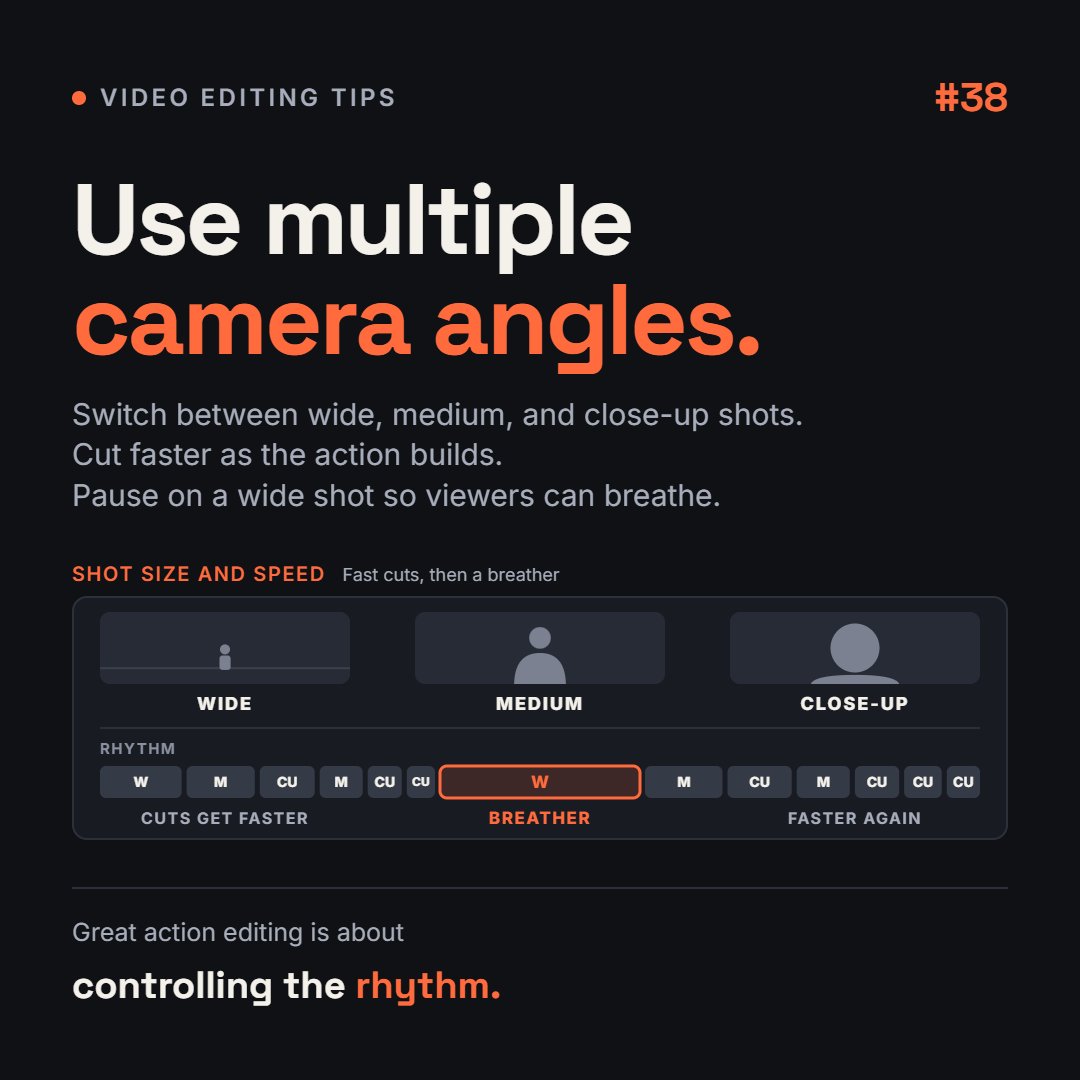
🎬 Video Editing Tips #38: Use Multiple Camera Angles
Combine wide shots, medium shots, and close-ups with fast cuts to make action sequences more dynamic. Mix fast cuts with visual breaks to control rhythm and impact.
#VideoEditing#Editor
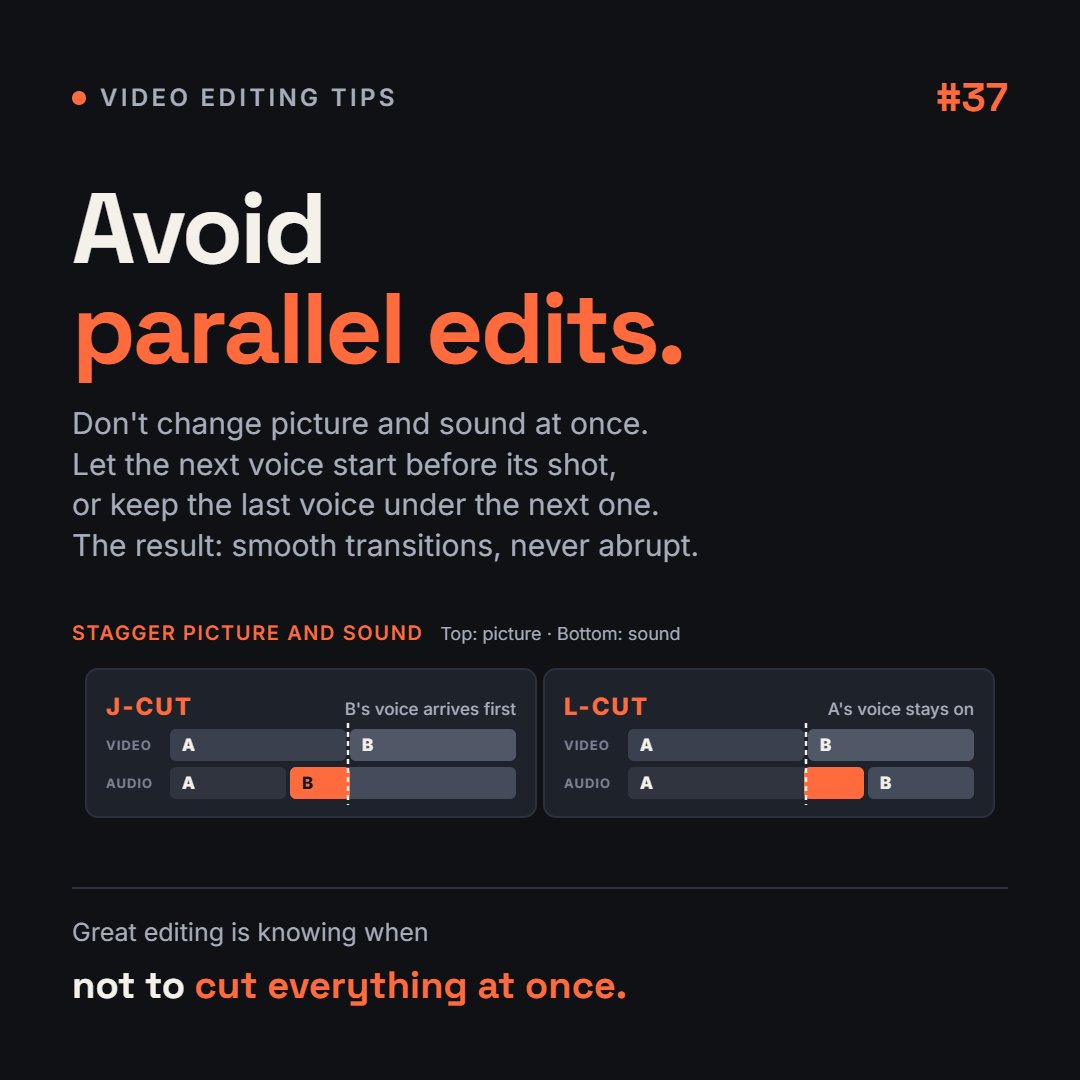
🎬 Video Editing Tips #37: Avoid Parallel Edits
Avoid cutting audio and video at the same time to create smoother, more natural transitions. Use J-cuts and L-cuts to improve scene flow, especially in dialogue sequences.
#VideoEditing#Editor
🖥️ Video Editing Tips #36: Use Two Monitors
Use a second monitor to organize your workspace, access tools easily, and manage complex timelines more efficiently. Keep your media and editing tools on one screen, and your timeline and preview on the other.
#VideoEditing#Editor
🎬 Video Editing Tips #35: Zoom In on the Timeline
Zoom in when making detailed edits to improve precision, avoid mistakes, and stay focused on the section you're working on. Get closer to your timeline for more accurate frame-by-frame adjustments.
#VideoEditing#Editor
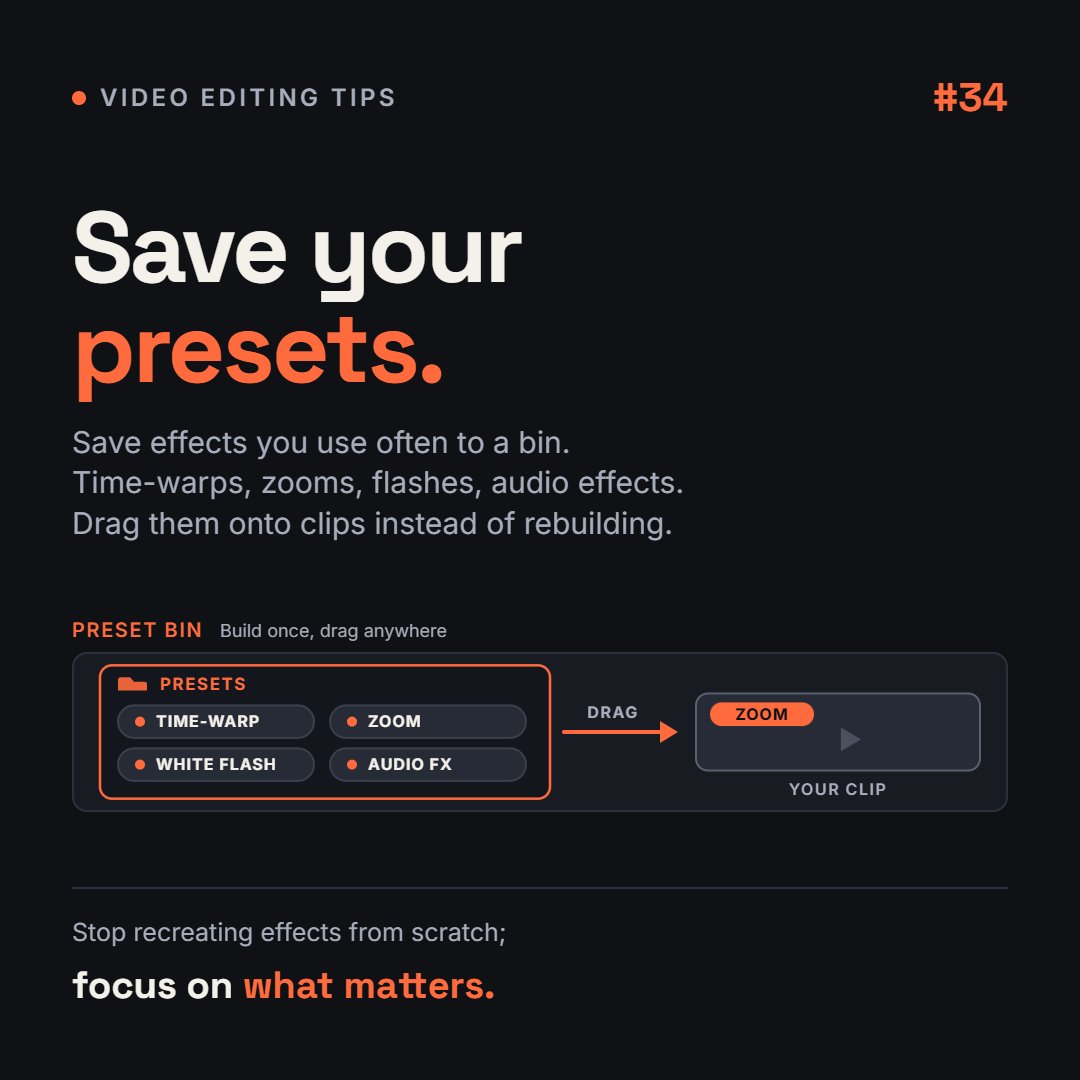
🎬 Video Editing Tips #34: Save Your Favorite Effects and Presets
Save frequently used effects and plugin settings as presets to speed up editing and maintain consistency. Organize your favorite presets into dedicated folders for quick access.
#VideoEditing
🎬 Video Editing Tips #33: Mark Your Favorite Shots and Takes
Highlight your best shots, performances, and takes while reviewing footage to make better editing decisions later. Use markers, color labels, or notes to save your first impressions.
#VideoEditing
🎬 Video Editing Tips #32: Organize Your Source Materials
Organize your footage, audio, graphics, and assets before editing to save time and keep your workflow smooth. Sort clips by scenes, shot types, characters, or locations for quick access.
#VideoEditing
⌨️ Video Editing Tips #31: Customize Keyboard Shortcuts
Customize shortcuts to match your workflow, reduce mouse clicks, and speed up your editing. Keep frequently used shortcuts within easy reach for a smoother workflow.
#VideoEditing