My weekly EdTech newsletter just went out - https://t.co/6eS57qgjch
🔠 Tapple
✨ Google AI Educator Series
🖼️ Real or AI Quiz
��️ HICE26
💻 Jeffrey Powell Mobile Learning Conference
💎 New EduGems
✍️ Groovelit
#edtech #GoogleEDU
🤖 Educator AI Assistant brings AI support right into your workflow. From generating lesson ideas to creating questions or organizing content, it helps save time while keeping lessons creative and aligned with your goals. You can use it to draft materials faster, brainstorm new approaches, or get alternative explanations for tricky topics, making planning smoother and more flexible.
https://t.co/muaziAUxfX
#GoogleEDU #GoogleWorkspace
My weekly #EdTech newsletter just went out - https://t.co/UlW9UljgBY
💎 Gems Webinar
📓 NotebookLM Webinar
⚽ PE Game Inventor
🗣️ CTE Client Simulator
🎯 Simple Slides
🎓 Transition Portfolio
📰 Google News
⏳ Time Travel App
✖️ Stand-up Maths
🎵 Lyria Song Maker
🚨 Factile
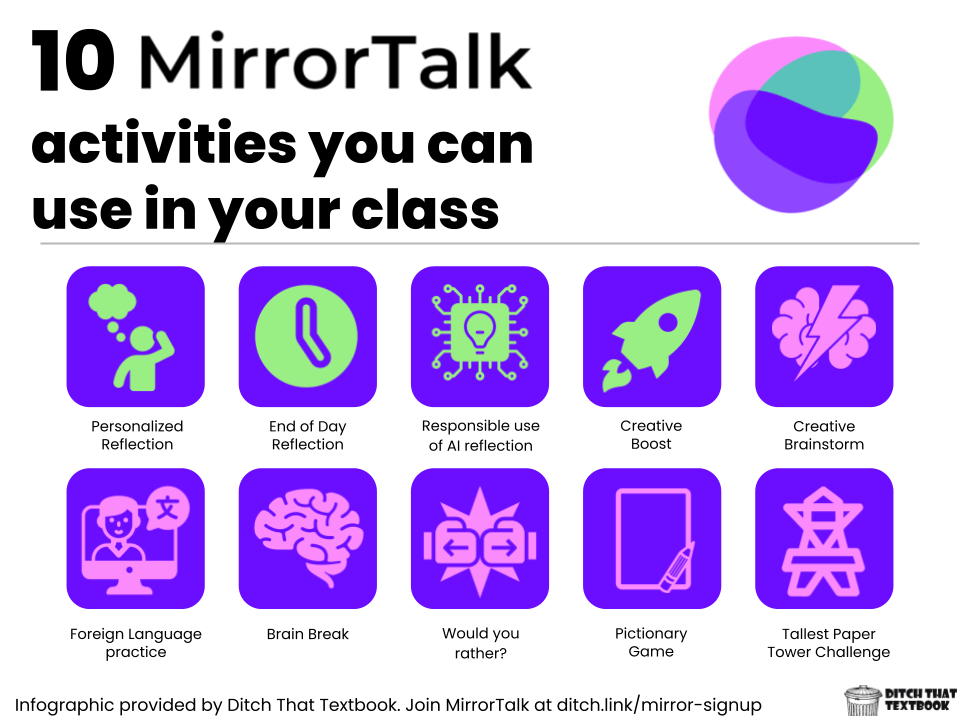
🪩 @MirrorTalkAI's activity library is a game-changer for educators looking to integrate reflection seamlessly into their daily routines!
Check out our post 10 easy ways to use MirrorTalk in your classroom
https://t.co/uVLHlvojrH
My weekly EdTech newsletter just went out - https://t.co/rCasGP9wfS
🆕 15 Updates to Make Google BETTer
💎 New EduGems
✖️ Exporting Math from Gemini to Google Docs
🤣 Learn & Laugh with Mr. Gaff
🧠 Brain Breaks
💻 VIZOR Chromebook Management
#edtech#GoogleEDU
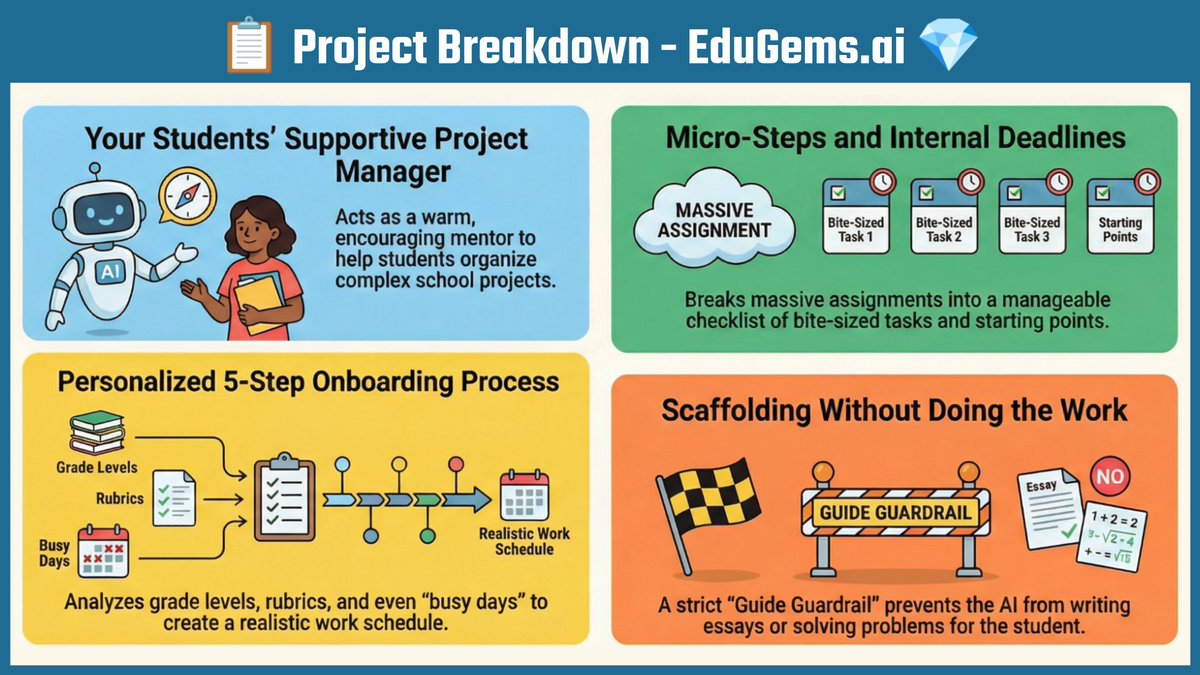
💎 New EduGem: https://t.co/zRrJ8wB2U4
📋 Project Breakdown - Help students manage their workload by breaking complex projects into manageable micro-steps with a clear timeline
#edtech#GoogleEDU@GeminiApp@GoogleForEdu
💎 New EduGem: https://t.co/vANZ8xmNwe
🔔 Bell Ringer by Date - Create a bell ringer & image with Headline, Hook, Spark & Quote specific to a chosen date for your grade level & subject area
#EdTech#GoogleEDU@GeminiApp@GoogleForEdu
🧞 Upcoming Webinar: Learning Genie https://t.co/x8xZJroh2N
🧰 Create unit plans with all resources (plans, slides, worksheets, assessments, more)
🏫 Any subject & grade
📍 Localizes curriculum
💰 Robust free version
🗓️ Jan 21 @ 7pm ET
▶️ Live-streamed & recorded
#edtech
If you are attending #FETC be sure to check out the shared resource doc - https://t.co/O24L5Sc8Af
🎉 Mixers, events & meetups
🧑 Attendee Information
🗣️ Sessions
🍽️ Restaurants
✋ Questions
🧰 Learning Resources
💬 Other Comments
#edtech@fetc
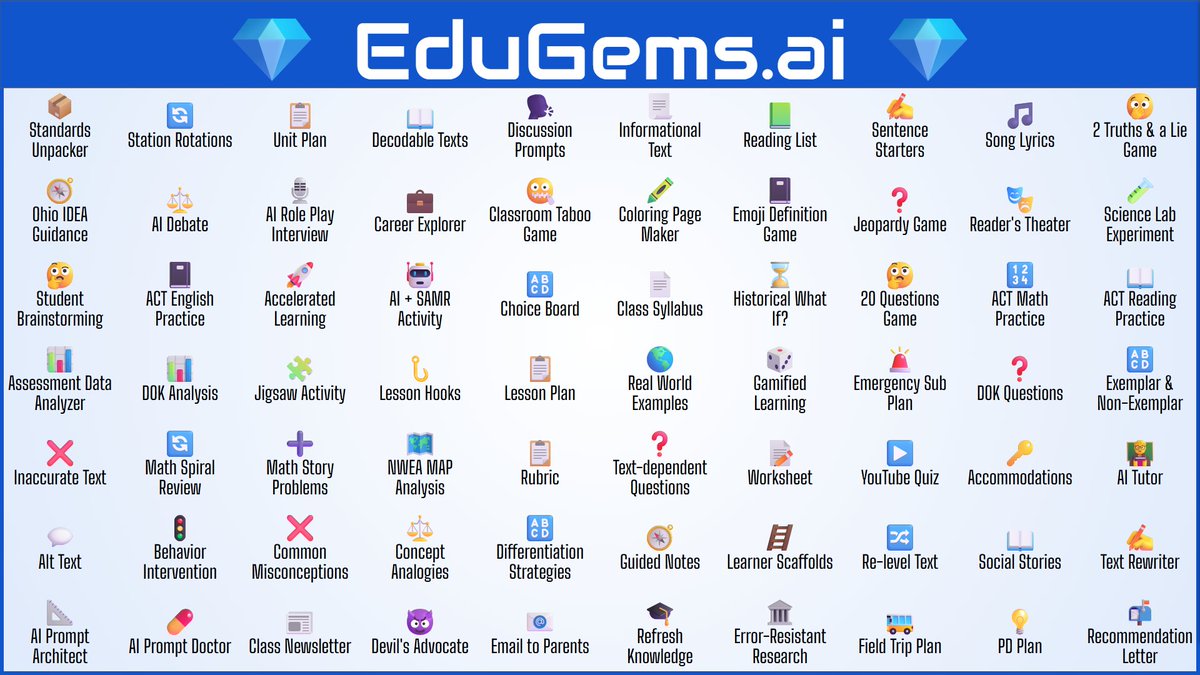
💎 70 Gems! https://t.co/pgzKoaGIFF
There's now a total of 70 Gemini Gems on my EduGems site covering:
💡 Curriculum & Lesson Design
📖 Literacy & Language
🧒 Student Activities
💯 Assessment
🔑 Support
💼 Professional Tasks
#edtech#GoogleEDU@GoogleForEdu@GeminiApp
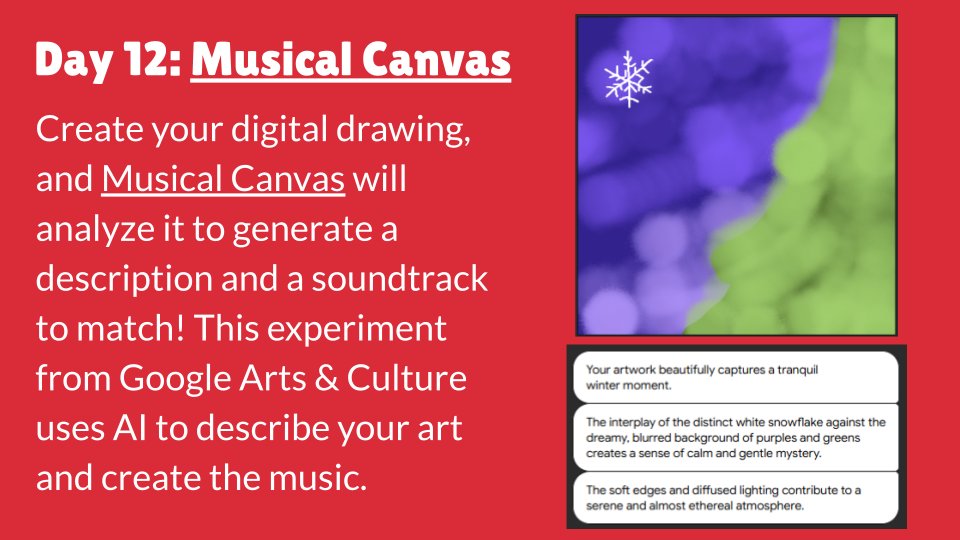
❄️🎄🎁 Happy Day 12 of Tech-mas!
Musical Canvas from @googlearts is so fun! It's amazing to see AI analyze your art and then come up with music to match.
➡️ Try it here: https://t.co/79WTBrjoRc
#techmas
💎 New EduGem: https://t.co/F2MvdtujtX
📓 ACT English Practice - Help students prepare for the ACT English section with practice questions, immediate feedback, and clear explanations
#EdTech#GoogleEDU#EduGems@GoogleForEdu@GeminiApp
100 Useful Computer Shortcuts 🤏
1. F1 ➔ Help
2. F2 ➔ Rename
3. Ctrl + X ➔ Cut
4. F2 ➔ Edit cell
5. Ctrl + C ➔ Copy
6. Ctrl + Z ➔ Undo
7. Ctrl + Y ➔ Redo
8. Ctrl + S ➔ Save
9. Ctrl + F ➔ Find
10. Ctrl + B ➔ Bold
11. Ctrl + V ➔ Paste
12. Ctrl + P ➔ Print
13. F11 ➔ Full screen
14. Ctrl + I ➔ Italic
15. Alt + = ➔ AutoSum
16. Ctrl + H ➔ Replace
17. Ctrl + R ➔ Refresh
18. Ctrl + T ➔ New tab
19. Ctrl + H ➔ History
20. PrtScn ➔ Screenshot
21. Ctrl + O ➔ Open file
22. Ctrl + W ➔ Close tab
23. Ctrl + J ➔ Downloads
24. Ctrl + U ➔ Underline
25. Ctrl + A ➔ Select all
26. Ctrl + Tab ➔ Next tab
27. Ctrl + L ➔ Left align
28. Ctrl + R ➔ Right align
29. End ➔ Go to end of line
30. Ctrl + E ➔ Center align
31. Windows + S ➔ Search
32. Ctrl + ` ➔ Show formulas
33. Windows + I ➔ Settings
34. Ctrl + 1 ➔ Single spacing
35. Ctrl + 2 ➔ Double spacing
36. Ctrl + D ➔ Bookmark page
37. Ctrl + N ➔ New file/window
38. Home ➔ Go to start of line
39. Shift + Space ➔ Select row
40. Windows + Tab ➔ Task view
41. Windows + L ➔ Lock screen
42. F7 ➔ Spell check (MS Word)
43. Ctrl + M ➔ Indent paragraph
44. Ctrl + 5 ➔ 1.5 line spacing
45. Ctrl + K ➔ Insert hyperlink
46. Ctrl + Shift + L ➔ Bullet list
47. Windows + A ➔ Action center
48. Alt + Right Arrow ➔ Forward
49. Alt + D ➔ Select address bar
50. Ctrl + L ➔ Focus address bar
51. Windows + R ➔ Run dialog box
52. Ctrl + Space ➔ Select column
53. Windows + H ➔ Start dictation
54. Windows + K ➔ Connect devices
55. Alt + Space ➔ Open window menu
56. Alt + F4 ➔ Close current window
57. Windows + V ➔ Clipboard history
58. Shift + Arrow Keys ➔ Select text
59. Windows + E ➔ Open File Explorer
60. Ctrl + Mouse Scroll ➔ Zoom in/out
61. Ctrl + Shift + Tab ➔ Previous tab
62. Ctrl + "-" ➔ Delete selected cell
63. Windows + D ➔ Show/hide desktop
64. Ctrl + Shift + Esc ➔ Task Manager
65. Ctrl + N ➔ New folder (in Explorer)
66. Ctrl + Shift + "+" ➔ Insert new cell
67. Shift + Delete ➔ Permanently delete
68. Ctrl + Shift + > ➔ Increase font size
69. Ctrl + Shift + < ➔ Decrease font size
70. Ctrl + Shift + N ➔ Create new folder
71. Ctrl + Shift + T ➔ Reopen closed tab
72. Windows + M ➔ Minimize all windows
73. Ctrl + Up Arrow ➔ Move paragraph up
74. Windows + U ➔ Ease of Access Center
75. Windows + Pause/Break ➔ System info
76. Ctrl + Page Up/Down ➔ Switch sheets
77. Windows + Shift + S ➔ Snip & Sketch
78. Alt + Tab ➔ Switch between open apps
79. F5 ➔ Refresh (also works in browsers)
80. Ctrl + Arrow Keys ➔ Move to cell edge
81. Ctrl + Alt + Delete ➔ Security options
82. Ctrl + Enter ➔ Enter in all selected cells
83. Ctrl + D ➔ Delete item (to Recycle Bin)
84. Ctrl + Shift + Esc ➔ Open Task Manager
85. Ctrl + Q ➔ Remove paragraph formatting
86. Alt + Enter ➔ Properties of selected item
87. Windows + Up Arrow ➔ Maximize window
88. Ctrl + Down Arrow ➔ Move paragraph down
89. Windows + Left Arrow ➔ Snap window left
90. Windows + Right Arrow ➔ Snap window right
91. F12 ➔ Save As (Word/Browsers - Dev Tools)
92. Windows + Down Arrow ➔ Minimize window
93. Ctrl + Shift + N ➔ Incognito mode (browser)
94. Alt + Esc ➔ Cycle through open apps in order
95. Ctrl + Right Arrow ➔ Move cursor word forward
96. Ctrl + Left Arrow ➔ Move cursor word backward
97. Alt + Print Screen ➔ Screenshot active window
98. Alt + Left Arrow ➔ Back (browser/File Explorer)
99. Ctrl + Shift + Esc ➔ Open Task Manager directly
100. Ctrl + Shift + Arrow Keys ➔ Select word/paragraph
📌 If you enjoyed this, please consider Bookmarking it and sharing it with others. Also, don't forget to follow me for more content like this.
💎 New EduGem: https://t.co/ucPFd5ktlw
🎭 Reader's Theater - Transform a topic, text, or concept into an engaging Reader's Theater script to build reading fluency and comprehension
#EdTech#GoogleEDU@GoogleForEdu@GeminiApp
Just in case you need some activities before break, I've collected things students can do in FigJam, Google Slides, Canva, Wayground, and Adobe Express.
https://t.co/z6RXsiLOSw
(Image generated with Gemini)