We're excited to be installing more @EpsonEducation BrightLink projectors in our classrooms. Here's some information on how the projectors work. You'll also find a 6 minute tutorial video at the bottom of how to use the interactive tools. https://t.co/gkE2g959yq
Middle and High School teachers, you may want to take advantage of these @usatestprep sessions as part of their free Virtual Conference, Sept 16th-17th. https://t.co/AyWclsxjEv
Another critical tool we use in documents, spreadsheets, websites, and just about everything is the find tool. With file or web page open on any computer, hit ctrl + F (or Mac: Com + F) and you'll get a search box that will help you find what you're looking for quickly!
This time of year, we're using a lot of spreadsheets to keep up with people and stuff. One tool we use frequently: the VLOOKUP formula. Find data from one spreadsheet (ex: name and email) and match it to another (ex: name and book) https://t.co/Fbg7sO911C Work smarter not harder.
@WeVideo Don't see the thumbnail that you want? Just click "back to editor" and try moving the blue marker slightly to make sure it's getting the precise moment. Click "finish" again and hopefully you'll see your correct thumbnail.
Quick @WeVideo tip: you can choose the thumbnail of your video (the screen showing before it plays) by moving the blue timeline marker to the specific frame just before you click "finish." That moment will become a thumbnail option.
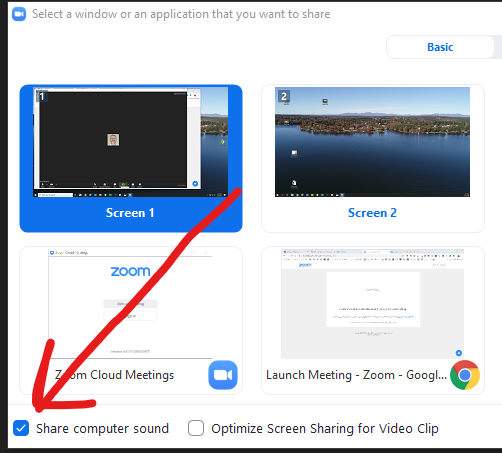
When in Zoom: If you need your computer/device audio to play as you share screen (like when paying a video from your computer) be sure to check the box to "share computer sound".
Using Google Slides? Use the "Master" feature to change all the fonts, colors, backgrounds, and add logos or images at one time, saving you time! Open Slides, Click "View," Click "Master", make your changes, and you're all set! You can go back and change at any time.
Want to record @zoom_us sessions for use later? For iPads and Chromebooks, use Cloud Recordings. https://t.co/YLl8MHXB3S For Mac or PC, record locally. https://t.co/T4TlEcXlro
If you need help creating videos, all Spart2 teachers have access to @WeVideo, which offers screen recording, video editing, narration, text add-overs, music and other features. Contact us if you're @SpartanburgD2 teacher and need access or help.
Great suggestions (many on by default now) on using @zoom_us. One of the keys to safe and productive sessions is getting your settings right. Remember to establish your meeting procedures too, just like in your classroom.
https://t.co/RF6HfdntfX
@zoom_us One practice to consider: Have students view video/material before @zoom_us session, & then focus on probing questions during the conference. You might have a @playposit video with some simple check questions to know who watched and if they got main ideas. https://t.co/W7a9bnjQW7
@zoom_us Also, consider using hand-raising as part of your procedures. You can mute all and then unmute for an individual for questions. https://t.co/G7fCcyISCa