Head of Performance @hypertune_ | @yukiaim @diffygg
Business: [email protected]
Helped: @ShopifyRebels @100Thieves @Sentinels
For manual PC services book here ⬇️
@LotuesBlosm_art Yup in there!
Settings → System → Sound → Input → select your microphone → Device properties → Additional device properties
It might look a bit different than my screenshot but basically:
Enhancements tab → Disable all enhancements / Disable all sound effects
🚨Streamers
Windows might be making your mic sound WORSE
Here’s the fix ⬇️
1. Open Settings
2. Go to System → Sound
3. Select your microphone properties
4. Audio enhancements → Off
Hardware acceleration lets your browser use the GPU to render videos, animations, and web content.
That can be useful, but it can also cause capture issues when Discord tries to screen share certain browser windows.
Turning it OFF makes the browser render differently, which can sometimes stop the black screen issue.
Small note: some websites use protected video / DRM, so a black screen there may be intentional and this will not fix every site.
🚨Discord Users
Discord stream BLACK screening on certain websites?
Here’s the fix ⬇️
1. Open your browser settings
2. Go to System / Performance
3. Turn OFF Hardware / Graphics Acceleration
4. Restart your browser
5. Try streaming again
🚨Streamers
Windows might be making your mic sound WORSE
Here’s the fix ⬇️
1. Open Settings
2. Go to System → Sound
3. Select your microphone properties
4. Audio enhancements → Off
Voice Clarity became more common with Windows 11 24H2, and it was designed to cancel echo, suppress background noise, and reduce room reverb in real time.
That can be useful for calls, but not every streamer wants Windows processing their mic before OBS, Discord, NVIDIA Broadcast, or audio filters touch it.
If you stack multiple noise suppression / voice enhancement features, your mic can start sounding robotic, muffled, compressed, delayed, or inconsistent.
For streaming or recording, test Voice Clarity ON and OFF, then keep the setting that actually sounds best.
In my case, it sounds best with it OFF.
🚨Windows Users
USB power-saving is CAUSING your mouse and keyboard input issues
Here’s the fix ⬇️
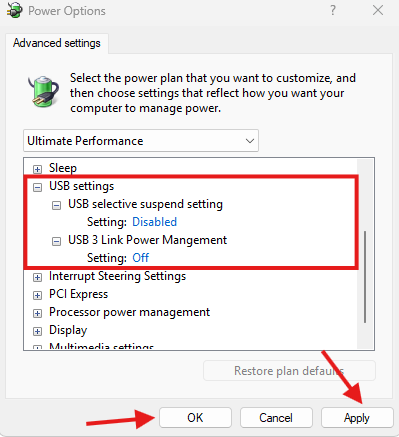
Search “Edit power plan”
Click “Change advanced power settings”
Scroll down to USB settings
Set:
USB selective suspend setting → Disabled
USB 3 Link Power Management → Off
USB power saving issues will not happen on every setup, but they are worth checking if your peripherals randomly act up while gaming.
USB selective suspend lets Windows suspend USB devices to save power.
USB 3 Link Power Management lets USB links enter lower power states.
On gaming PCs, this can sometimes cause disconnects, polling issues, delayed input, or audio crackles.
Some PCs won’t show USB 3 Link Power Management by default. If it’s missing, disable USB selective suspend first. Advanced users can expose hidden power plan settings with PowerSettingsExplorer.
🚨Windows Users
USB power-saving is CAUSING your mouse and keyboard input issues
Here’s the fix ⬇️
Search “Edit power plan”
Click “Change advanced power settings”
Scroll down to USB settings
Set:
USB selective suspend setting → Disabled
USB 3 Link Power Management → Off
Task Manager Up-time shows how long the current Windows session has been running.
Restart usually resets it but shutdown may not reset it if Fast Startup is enabled.
You can also hold Shift while clicking shutdown to force a fuller shutdown.
Long Up-time does not automatically mean bad performance, but apps, drivers, overlays, services, pending updates, and memory leaks can stack up over time.
If your PC feels slow and uptime is high, you might just need a simple restart.
🚨Windows Users
Your PC might be FAKE shutting down and making games run WORSE
Here’s the fix⬇️
1. Open Task Manager → Performance → CPU
2. Look at Up-time
3. If your Up-time shows days or weeks, restart your PC.
@Zamasu077 It does run disk cleanup so your system might be a bit unstable while recompiling DirectX shader cache again. I would check your CPU and GPU temps, also see if the crash goes away after a couple of games.
🚨Windows Users
Stop letting your Windows stay BLOATED
Go fix it up with this tool ⬇️
Open PowerShell as Administrator
Paste this command:
irm https://t.co/fULsCWeFzN | iex
Then go to:
Tweaks → Essential Tweaks → Run Tweaks
This is easily one of the fastest and safest ways to debloat your Windows setup.
@FysxMR@hypertune_ This tool does have a remove edge option, however that's located somewhere else in the "caution tweaks" section. You shouldn't have to worry about it :)
CTT is one of the most well-known Windows debloat/tweaking tools in the PC "optimization" community.
It puts a lot of common Windows cleanup, privacy, update, and performance-related tweaks in one place.
Only use the official Chris Titus Tech / WinUtil command, check the create a restore point box, and read what each tweak does before applying it.
Do not randomly disable everything, "essential tweaks" is generally safe though.
The goal is to debloat Windows and build a cleaner baseline, not break important features your setup actually needs.
🚨Windows Users
Default Windows apps might be WASTING your RAM
Uninstall the ones you never use ⬇️
Search → Add or remove programs
Look for apps like:
Weather
News
Copilot
Outlook
Teams
OneDrive
Phone Link
If you never use them, remove them.
🚨Windows Users
Default Windows apps might be WASTING your RAM
Uninstall the ones you never use ⬇️
Search → Add or remove programs
Look for apps like:
Weather
News
Copilot
Outlook
Teams
OneDrive
Phone Link
If you never use them, remove them.