🚀 ECLI v0.2.1 is now released!
ECLI is evolving into a fast, lightweight, keyboard-driven terminal-first engineering workbench — built for developers, DevOps engineers, and platform teams who prefer working in the terminal.
GitHub: https://t.co/GMDCxcxeyd
PyPI: https://t.co/VY4cD4uvAW
Website: https://t.co/yiH9vZySAK
#ECLI #TerminalIDE #DevOps #Python #Linux #OpenSUSE #ArchLinux #Slackware #NixOS #Nix #OpenSource #Fedora #Debian #GuardBSD #macOS
🚀 ECLI v0.2.0 — Services Foundation
The new ECLI release is an important step from a “terminal editor” toward a full Terminal-First Engineering Operations Workbench.
In v0.2.0, we added the service foundation that will power the next DevOps/SRE features:
✅ CommandPlan — operation planning model without automatic execution
✅ BuiltInPolicyEngine — deterministic security rules
✅ AuditLogService — JSONL audit logging with sensitive data redaction
✅ PrivilegedActionService — safe refusal-only skeleton, with no sudo/exec path
✅ SystemDoctor — read-only environment diagnostics
✅ ServiceRegistry — service composition without a global service locator
✅ New TUI panels: System Doctor, Command Plans, Services
✅ Better AI Assistant behavior when an API key is missing
✅ Minimal CLI surface: --services, --doctor, --plan-preview
Most importantly: ECLI remains terminal-first. We are not moving toward Electron or a heavy GUI. New features are available through right-side panels, consistent with the existing AI Assistant, Git panel, and File Manager.
ECLI v0.2.0 lays the foundation for the next stage: stable services, characterized UI behavior, safe operation planning, and future operational panels.
GitHub: https://t.co/7ziVqS73gE
PyPI: https://t.co/Pv4q4WFtTB
Website: https://t.co/yiH9vZzqqi
#ECLI #TerminalIDE #Python #DevOps #SRE #OpenSource #TUI #EngineeringTools #GuardBSD #Windows #macOS #Linux #FreeBSD #Python
📦 𝗘𝗖𝗟𝗜 𝗶𝘀 𝗮𝗹𝘀𝗼 𝗮𝘃𝗮𝗶𝗹𝗮𝗯𝗹𝗲 𝗼𝗻 𝗣𝘆𝗣𝗜!
Developers can now install ECLI directly from the Python Package Index:
pip install ecli-editor
The Python distribution name is ecli-editor, while the CLI command remains simple:
ecli
This gives ECLI an additional clean installation path next to GitHub Releases and source builds, making the project easier to test, install, and integrate into developer workflows.
🔗 PyPI: https://t.co/Pv4q4WEW43
#ECLI #TerminalIDE #DeveloperTools #AI #Documentation #GitHub #Python #CLI #SoftwareEngineering #DevOps #Windows #GuardBSD #Linux #macOS #FreeBSD
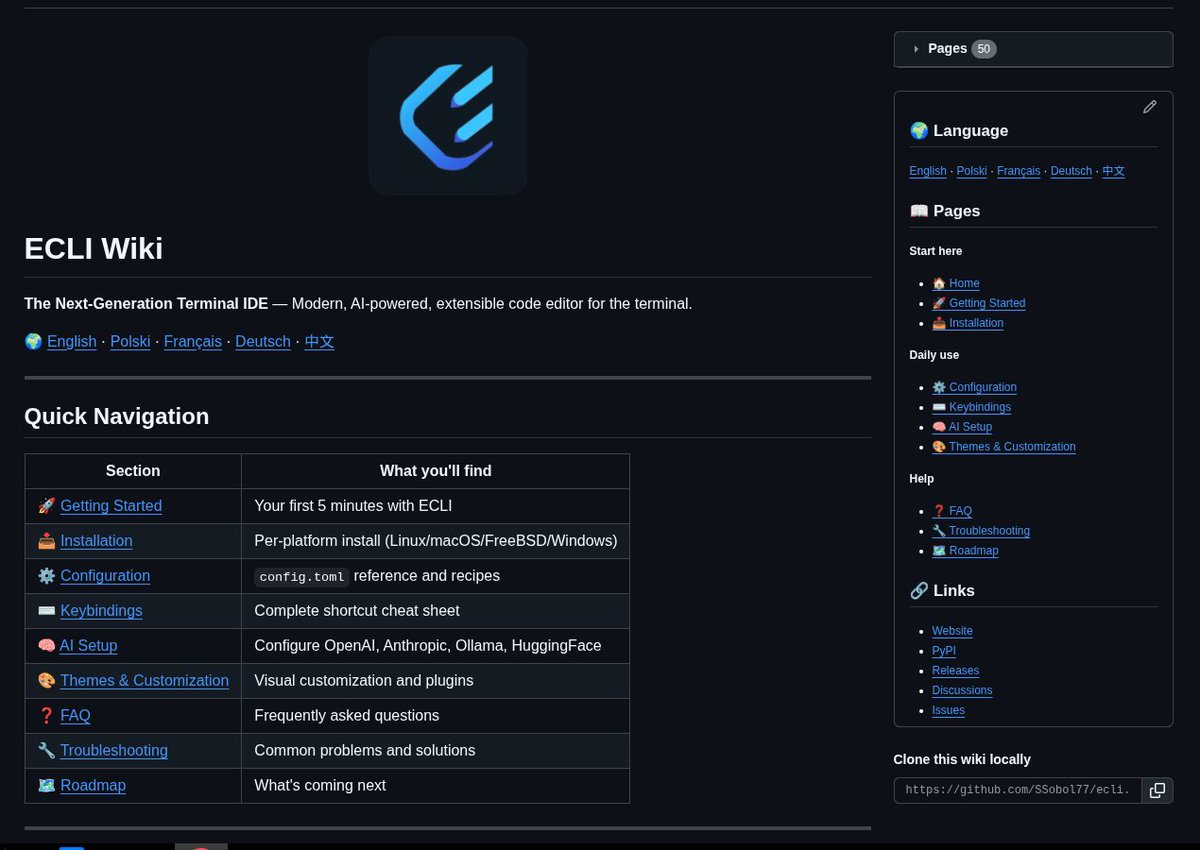
🚀 𝗧𝗵𝗲 𝗘𝗖𝗟𝗜 𝗪𝗶𝗸𝗶 𝗶𝘀 𝗴𝗿𝗼𝘄𝗶𝗻𝗴 — 𝘁𝗵𝗲 𝗱𝗼𝗰𝘂𝗺𝗲𝗻𝘁𝗮𝘁𝗶𝗼𝗻 𝗻𝗼𝘄 𝘀𝘂𝗽𝗽𝗼𝗿𝘁𝘀 𝗺𝘂𝗹𝘁𝗶𝗽𝗹𝗲 𝗹𝗮𝗻𝗴𝘂𝗮𝗴𝗲𝘀!
I have added and organized Wiki pages for ECLI — The Next-Generation Terminal IDE.
The documentation now follows a multilingual structure, making the project more accessible to users and developers from different backgrounds.
🌍 The Wiki currently includes:
𝗘𝗻𝗴𝗹𝗶𝘀𝗵 · 𝗣𝗼𝗹𝘀𝗸𝗶 · 𝗙𝗿𝗮𝗻ç𝗮𝗶𝘀 · 𝗗𝗲𝘂𝘁𝘀𝗰𝗵 · 中文
The first core sections are already available:
✅ Getting Started
✅ Installation
✅ Configuration
✅ Keybindings
✅ AI Setup
✅ Themes & Customization
✅ FAQ
✅ Troubleshooting
✅ Roadmap
This is an important step toward more professional project documentation. ECLI is designed to be not only a fast terminal-first IDE, but also a tool that is clear, well documented, and easy to adopt in real development environments.
ECLI remains a lightweight terminal-first code editor focused on simple configuration, AI workflows, Git integration, and working without heavy frameworks like Electron.
🔗 ECLI Wiki: https://t.co/4b830sOSMO
🌐 Website: https://t.co/yiH9vZySAK
#ECLI #TerminalIDE #DeveloperTools #AI #Documentation #GitHub #Python #CLI #SoftwareEngineering #DevOps #GuardBSD #Windows #macOS #FreeBSD #Linux
ECLI (Editor CLI) is a next-generation terminal IDE that brings the power of modern development tools into your terminal environment. It's built for developers who value speed, flexibility, and the ability to work without leaving the terminal.
https://t.co/Pv4q4WEW43
https://t.co/dDOhbJztUF
https://t.co/yiH9vZySAK
#ECLI #TerminalIDE #CodeEditor #DeveloperTools #Programming #SoftwareEngineering #CLI #HelpSystem #UX #Productivity #Python
#GuardBSD #MacOS #Windows #Linux #FreeBSD
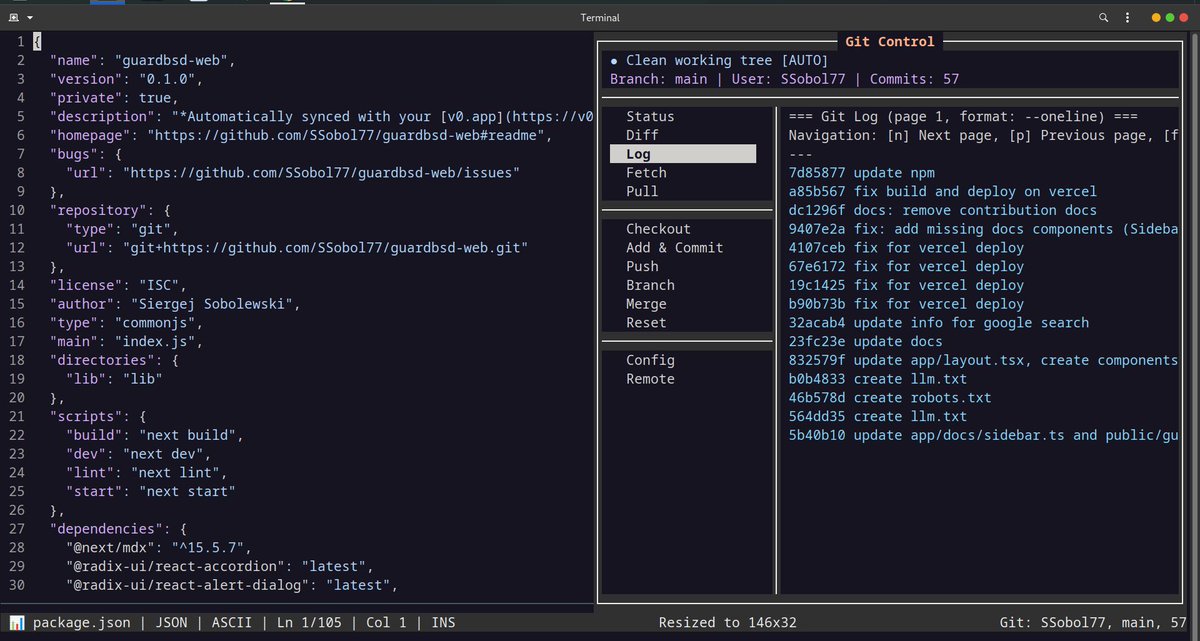
🚀 𝗚𝗶𝘁 𝗖𝗼𝗻𝘁𝗿𝗼𝗹 𝗣𝗮𝗻𝗲𝗹 𝗶𝗻 𝗘𝗖𝗟𝗜 — a terminal workflow without leaving the editor
I have added a new Git Control panel to ECLI Editor, opened with the 𝗙𝟰 shortcut.
The goal is simple: a fast, practical Git workflow directly inside the editor, without constantly switching between the editor, terminal, and external tools.
𝙏𝙝𝙚 𝙥𝙖𝙣𝙚𝙡 𝙘𝙪𝙧𝙧𝙚𝙣𝙩𝙡𝙮 𝙨𝙝𝙤𝙬𝙨:
✅ clean / dirty working tree status
✅ current branch
✅ Git user
✅ commit count
✅ commit history in --oneline format
✅ action menu: Status, Diff, Log, Fetch, Pull, Checkout, Add & Commit, Push, Branch, Merge, Reset, Config, Remote
This is another step toward my vision for ECLI as a modern terminal IDE: lightweight, fast, extensible, and ready for real developer work.
ECLI is not trying to replace classic IDEs one-to-one. It is built to give developers full control in the terminal — code editing, navigation, Git, project configuration, and, in the future, AI-assisted workflows.
I am developing ECLI for people who like the terminal, speed, and simplicity, but still want a professional developer experience.
#ECLI #TerminalIDE #Git #DeveloperTools #IDE #OpenSource #Programming #SoftwareEngineering #CLI #DevOps #Linux #GuardBSD #MacOS #Windows #FreeBSD #Python
🚀 𝗔𝗜 𝗖𝗼𝗱𝗲 𝗔𝘀𝘀𝗶𝘀𝘁𝗮𝗻𝘁 𝗶𝗻 𝗘𝗖𝗟𝗜 𝗘𝗱𝗶𝘁𝗼𝗿 — multi-provider AI directly in the terminal
Another step forward for ECLI Editor: the built-in AI Code Assistant, opened with the 𝗙𝟳 shortcut, is designed to support multiple AI providers, with API keys configured through a file-based setup.
The goal is to make AI integration practical and developer-friendly inside a terminal-first workflow. Instead of forcing users into a single provider or a rigid setup, ECLI is being built with flexibility in mind.
𝙆𝙚𝙮 𝙞𝙙𝙚𝙖𝙨 𝙗𝙚𝙝𝙞𝙣𝙙 𝙩𝙝𝙚 𝘼𝙄 𝘾𝙤𝙙𝙚 𝘼𝙨𝙨𝙞𝙨𝙩𝙖𝙣𝙩:
✅ opened directly with 𝗙𝟳
✅ support for 𝙢𝙪𝙡𝙩𝙞𝙥𝙡𝙚 𝘼𝙄 𝙥𝙧𝙤𝙫𝙞𝙙𝙚𝙧𝙨
✅ configuration-based API key management
✅ integrated AI access directly inside the editor
✅ terminal-focused workflow without leaving the development environment
✅ clean foundation for future AI-assisted coding features
The screenshot shows the panel correctly reporting a missing API key, which is also an important part of the design: clear feedback, transparent errors, and predictable behavior.
My vision for ECLI is not just to create another text editor, but to build a modern terminal IDE that combines editing, Git workflows, and AI capabilities in one fast and extensible environment.
Step by step, ECLI is becoming a serious tool for developers who want the speed of the terminal with the convenience of modern development features.
#ECLI #AICodeAssistant #AI #TerminalIDE #DeveloperTools #SoftwareEngineering #CLI #Programming #OpenSource #Productivity #Editors #Windows #MacOS #Linux #FreeBSD #GuardBSD
📘𝗘𝘅𝘁𝗲𝗻𝗱𝗲𝗱 𝗛𝗲𝗹𝗽 𝘂𝗻𝗱𝗲𝗿 𝗙𝟭 𝗶𝗻 𝗘𝗖𝗟𝗜 𝗘𝗱𝗶𝘁𝗼𝗿 — a classic that still makes sense
One feature that has remained a standard in good editors for years is the Help screen under the 𝗙𝟭 key. In ECLI Editor, this could not be missing either.
The extended Help gives users quick access to the most important shortcuts, features, and operations without leaving the editor:
✅ F1 — Help screen
✅ quick overview of available tools and features
✅ keyboard shortcuts listed in one place
✅ sections for file operations, editing, and tools
✅ convenient navigation without reaching for external documentation
These are exactly the kinds of details that create a good experience in a terminal IDE. Not everything should be hidden or require memorization from the very beginning. Sometimes classic solutions are simply the best — fast, clear, and practical.
With ECLI, I want modern features to go hand in hand with everyday usability. Git, AI Code Assistant, search, navigation, and now also a clear Help screen — all in one consistent environment.
Because F1 and Help are already a classic — and good classics never get old.
#ECLI #TerminalIDE #CodeEditor #DeveloperTools #Programming #SoftwareEngineering #CLI #HelpSystem #UX #Productivity #Linux #GuardBSD #MacOS #Windows #FreeBSD
📁 𝗕𝘂𝗶𝗹𝘁-𝗶𝗻 𝗙𝗶𝗹𝗲 𝗠𝗮𝗻𝗮𝗴𝗲𝗿 𝗶𝗻 𝗘𝗖𝗟𝗜 𝗘𝗱𝗶𝘁𝗼𝗿 — fast file operations without leaving the editor
Another important feature in 𝗘𝗖𝗟𝗜 𝗘𝗱𝗶𝘁𝗼𝗿: the built-in 𝗙𝗶𝗹𝗲 𝗠𝗮𝗻𝗮𝗴𝗲𝗿, opened with the 𝗙𝟭𝟬 key.
It is a practical tool that allows developers to perform many operations on files and directories without leaving the editor environment. The goal is a simple and fast terminal workflow — code editing and file management in one place.
Key features:
✅ 𝗙𝟭𝟬 — open the File Manager
✅ browse directories and files
✅ quick file preview with the right arrow key "→", without fully opening each file every time
✅ open files directly from the panel
✅ create new files
✅ copy files
✅ rename files
✅ delete files
✅ convenient keyboard-first control
This is especially useful when working with larger projects, where you often need to quickly check the contents of several files but do not always want to open each one in the main editor.
Step by step, ECLI Editor is evolving into a lightweight, fast, and practical tool for developers who want full control in the terminal.
#ECLI #FileManager #TerminalIDE #CodeEditor #DeveloperTools #Programming #SoftwareEngineering #CLI #Productivity #OpenSource #GuardBSD #Windows #MacOS #Linux #FreeBSD
🔎 𝗦𝗲𝗮𝗿𝗰𝗵 𝗮𝗻𝗱 𝗾𝘂𝗶𝗰𝗸 𝗶𝗻𝘀𝗲𝗿𝘁𝗶𝗼𝗻 𝗶𝗻 𝗘𝗖𝗟𝗜 𝗘𝗱𝗶𝘁𝗼𝗿 — a terminal workflow inspired by modern IDEs
Another feature in 𝗘𝗖𝗟𝗜 𝗘𝗱𝗶𝘁𝗼𝗿: a search and insertion panel that works similarly to solutions known from VS Code or Electron-based editors, but inside a lightweight terminal environment.
The goal is to give developers a fast workflow without leaving the editor:
✅ search text in the current file
✅ quickly jump to found fragments
✅ conveniently insert characters, code snippets, and structures
✅ work efficiently without a mouse
✅ terminal-first workflow
✅ keep the editor simple, fast, and responsive
This is an important part of the 𝗘𝗖𝗟𝗜 philosophy: bringing the convenience of modern code editors into the terminal environment, without the heavy overhead of classic desktop applications.
The goal is not to copy VS Code one-to-one. The goal is to build a fast, practical, and extensible tool for developers who want modern IDE features without giving up the control that the terminal provides.
Step by step, 𝗘𝗖𝗟𝗜 𝗘𝗱𝗶𝘁𝗼𝗿 is evolving toward a full terminal IDE: code editing, Git, AI Code Assistant, search, navigation, and developer workflow in one place.
#ECLI #TerminalIDE #DeveloperTools #Programming #SoftwareEngineering #CLI #OpenSource #CodeEditor #VSCode #Electron #Windows #Linux #MacOS #FreeBSD #GuardBSD