Welcome to Learn Copilot with Rishona
I'm Rishona Elijah, a Microsoft MVP and trainer who helps people get more value from Microsoft Copilot.
Discover new ways to save time and work smarter with Copilot.
🔗 LinkedIn: https://t.co/ctZzq2nINd 🔗 Blog: https://t.co/SHAQdTHikC
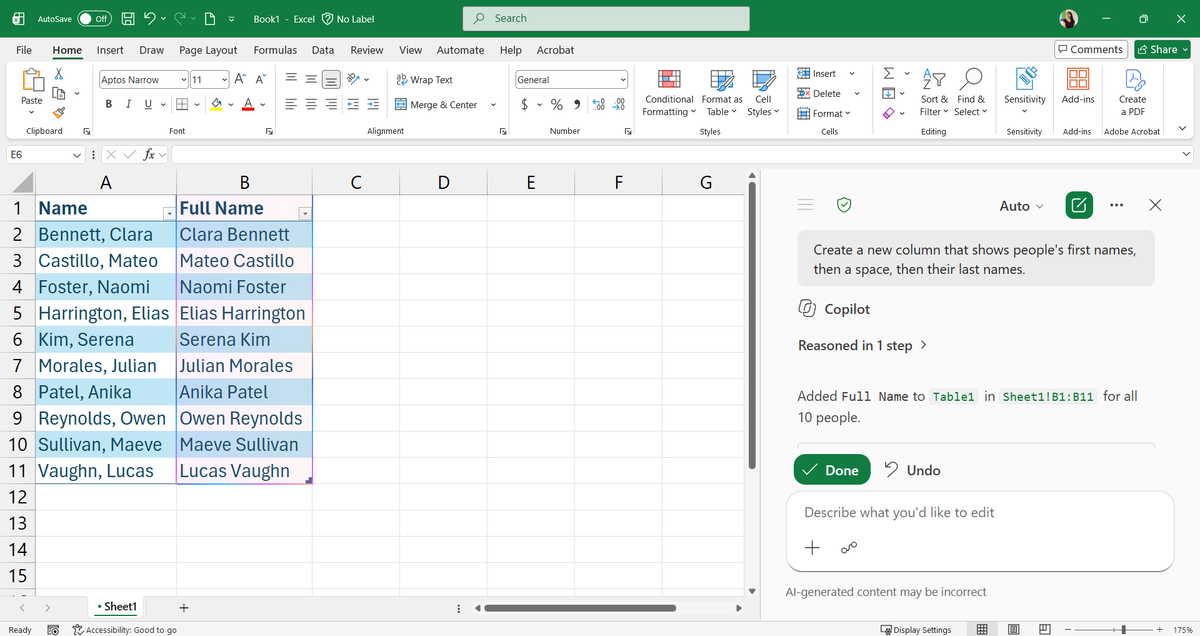
Fixing "Last, First" names one cell at a time in Excel is time you won't get back. Ask Copilot in Edit mode:
"Create a new column that shows people's first names, then a space, then their last names."
It works for splitting [email protected] email addresses too.
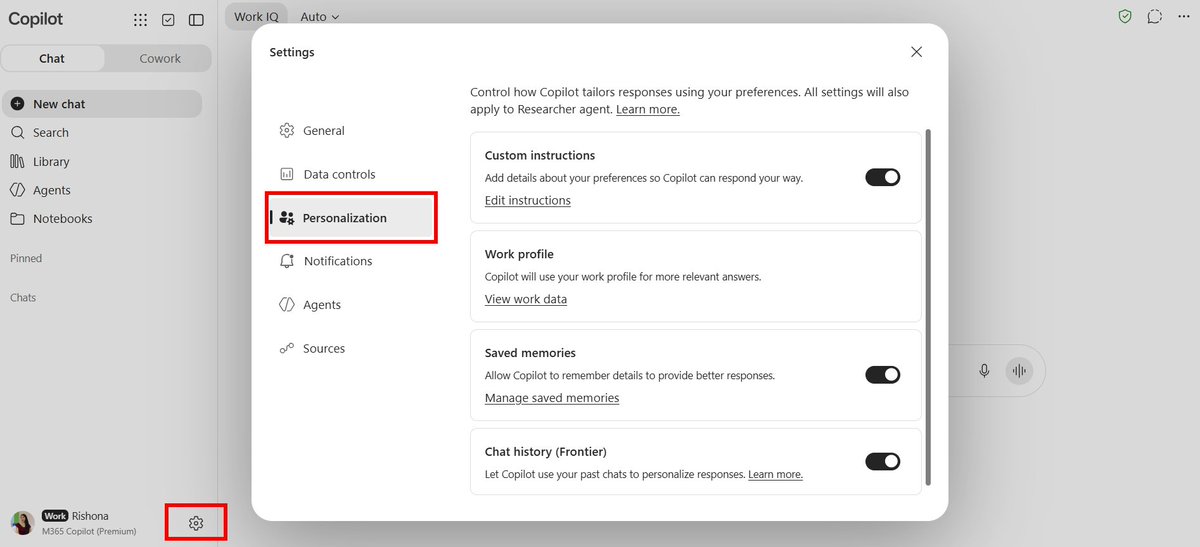
You shouldn't have to explain job to Copilot at the start of every chat. Tell it once:
"Remember that I [explain your common tasks/audience/other context about you]"
Copilot can then shape its future responses around that.
Your PowerPoint already has the approved messages, structure and visuals.
The only thing missing is you presenting it.
Copilot can write the narration, add a voiceover and turn the deck into a video people can watch without a live presenter.
Check out how Create feature can generate videos from your presentations within minutes: https://t.co/xqtjHCyLLo
@DerekJohnsonSV I've been seeing so many incredible creations with this. I'm glad we'll no longer be stuck watching presentations that are a block of heavy text on a slide 🙌
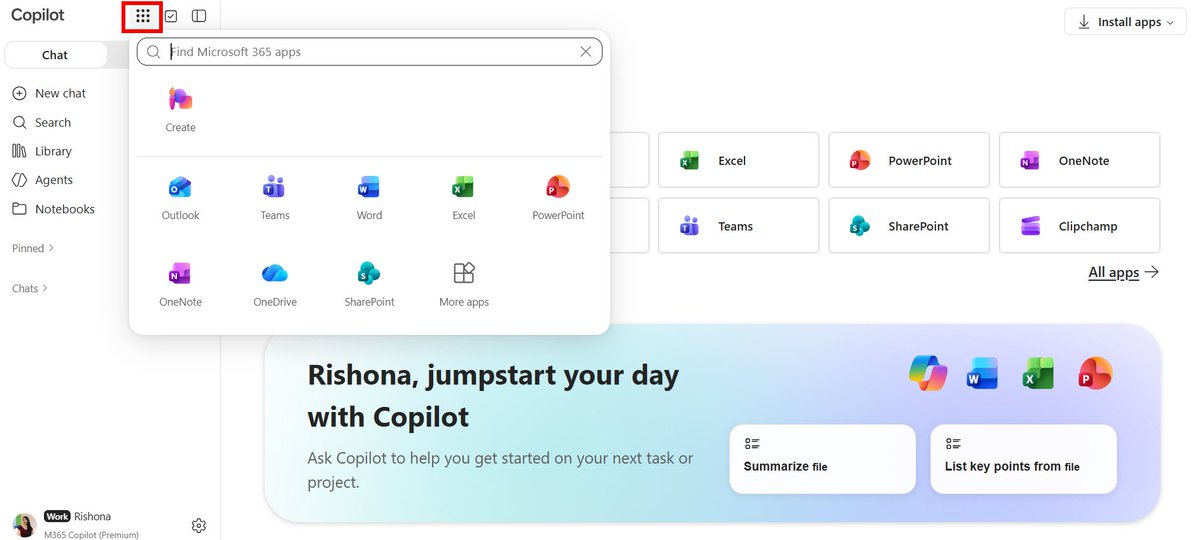
It's usually web browser version of the Microsoft apps that get the new Copilot features first.
If you are waiting for a new feature to drop, check if it's available there first. You can access all the browser apps (Word, PowerPoint, Excel, Outlook) from here https://t.co/4satW1Oojx
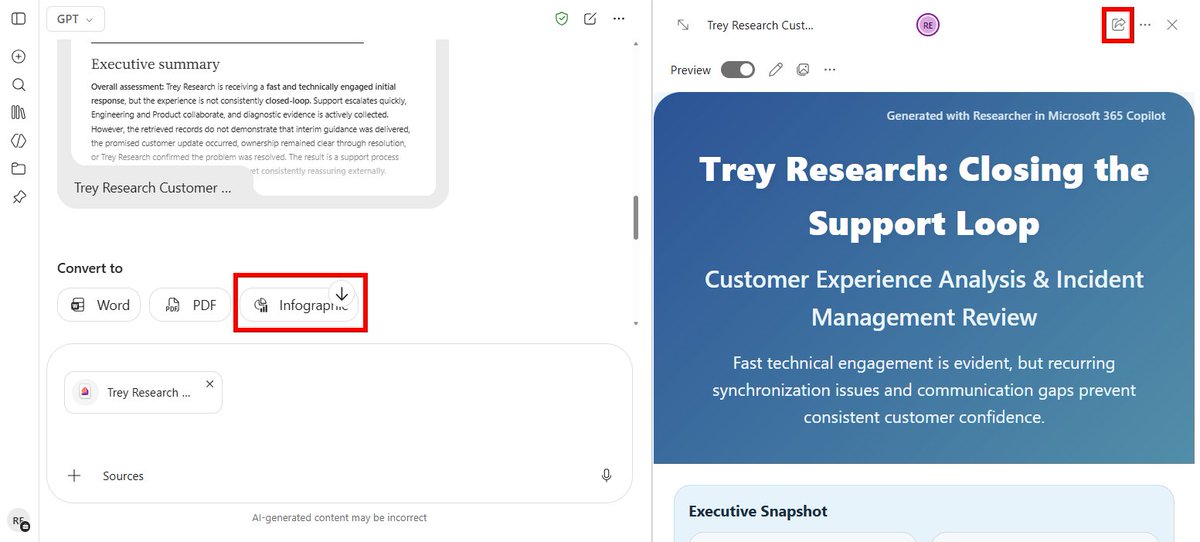
After running a task in Copilot's Researcher, try the "Infographic" option. It can take the detailed findings from Researcher and turn it into shareable overview.
"The current presentation is a corporate template containing approved layouts and design elements. Treat this file as a template only, not as content. Generate a new presentation about [describe presentation or attach files]
Instructions for layout usage:
- Use only the layouts available in the current presentation
- Select layouts based on the content needs of each slide
- Reuse layouts as many times as needed
- Do not attempt to use every layout
Instructions for slide creation:
- Create a complete, well structured presentation with logical flow (title, agenda, sections, content, summary)
- Add slides as required to fully represent the attached content
- Use the icons in this template throughout the presentation where relevant
- Do not create any new icons or images
- Add speaker notes to the presentation
- Include charts where necessary to represent the data. The chart styling must align to the sample charts in the template
Clean-up and finalisation:
-Remove all original template slides and placeholder slides that are not used
Remove duplicate or unused layouts that were not populated with content"
Stop rebuilding decks slide by slide just to fit your corporate template.
Open your template in PowerPoint, attach your source file and ask Copilot to build the whole deck using only your approved layouts (chart design and icons included)
PROMPT ⬇️
Find the gaps in your deck before your audience does 👩🏫
Set Copilot to Chat only in your PowerPoint presentation and try a prompt like this to gather feedback:
"Act as a [audience or customer name] watching this presentation. Provide feedback on areas that may need further clarification or information provided."
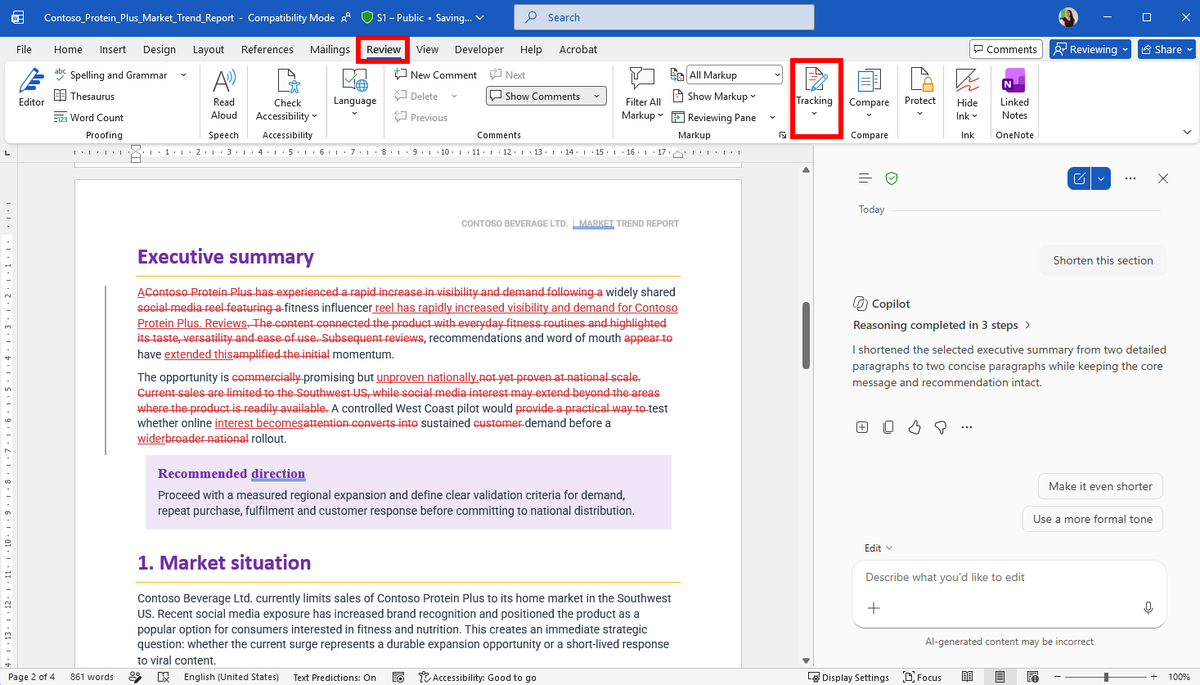
Letting Copilot edit a report you've spent hours on feels risky.
In Word, turn on Track Changes first (Review > Track Changes)
Every Copilot edit then shows up as a tracked revision, so you can accept or reject each change just like feedback from a colleague.
Most people attach files to Copilot for content.
Try attaching them for design.
If you attach a PowerPoint presentation that already contains your company's branding, Copilot can use it as a style reference when creating dashboards and reports in Excel.
E.g.
"Create a tool I can use for tracking marketing campaigns. On one sheet, create a table with 10 rows of fictional data and columns I'd need. On the same sheet, create a dashboard with charts. Use the exact same style and colours as in the attached presentation, including table and chart design. [attach your PPT file]"
One of the easiest ways to improve consistency across documents: Select a section in your Word doc and ask Copilot:
"Update this text to match the writing style used in [document]."
Useful when multiple people contribute to reports, policies or project documentation and the final document needs one consistent voice.
A practical prompt formula for generating a first draft in Word with Copilot
✒️“Create a draft of [format] about [topic]. Use [file] as a reference. Write for [audience] in a [tone] tone. Keep it under [length]"
You can queue follow-up prompts in Copilot for PowerPoint while the current request is still running. Copilot works through your instructions in sequence, so you can keep refining the deck without waiting between prompts.
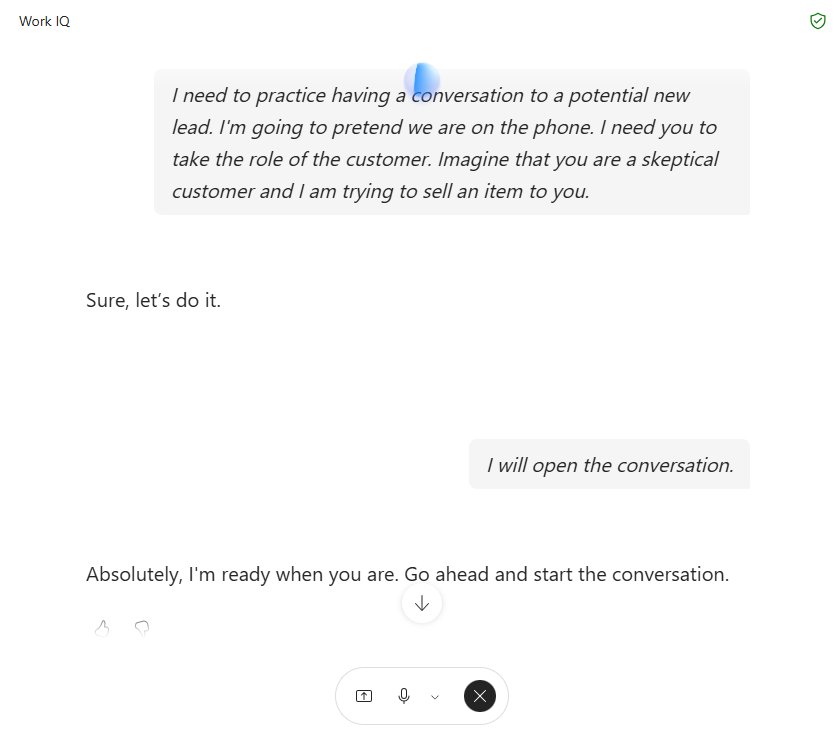
Need to practise a conversation?
Ask Copilot Voice to take on a persona, including the person’s situation and concerns. It can talk back in character while you practise responding naturally in real time.
Giving Copilot an example can save more time than adding another paragraph of instructions.
Attach a trusted template, sample message or organising framework. Ask Copilot to follow its structure, tone and formatting while creating the new content.
Your daily briefing should arrive where you already work.
The Workflows app in Microsoft Teams can run a recurring Copilot prompt, then deliver the response through Teams or Outlook.
How to set it up: https://t.co/EbUYAik62i
We’re building Copilot as a new OS for work that spans every model, every form factor, and every task. Today, we’re announcing our biggest update to Copilot to date, bringing four things together:
· Autopilot: proactive and long-running agent built for the enterprise
· Code: build apps with Copilot, hosted inside your company’s tenant
· Home: Chat + Cowork together
· Office: now fully embedded in Copilot (and Copilot embedded in Office, of course!)
Plus, you can invoke Copilot in Teams, and we’re introducing Today, a proactive experience that surfaces the most important information from across M365 without needing to ask for it.
The way we work is changing and so are our workflows. This update brings AI into that flow, from answering a question, to building an app, to getting work done on your behalf.


![LearnCopilot's tweet photo. You shouldn't have to explain job to Copilot at the start of every chat. Tell it once:
"Remember that I [explain your common tasks/audience/other context about you]"
Copilot can then shape its future responses around that. https://t.co/P8bmUqjmtN](https://pbs.twimg.com/media/HTmjZe9aIAAQ70Z.jpg)
![LearnCopilot's tweet photo. Find the gaps in your deck before your audience does 👩🏫
Set Copilot to Chat only in your PowerPoint presentation and try a prompt like this to gather feedback:
"Act as a [audience or customer name] watching this presentation. Provide feedback on areas that may need further clarification or information provided."](https://pbs.twimg.com/media/HTdE_woa4AAfs01.jpg)
![LearnCopilot's tweet photo. Most people attach files to Copilot for content.
Try attaching them for design.
If you attach a PowerPoint presentation that already contains your company's branding, Copilot can use it as a style reference when creating dashboards and reports in Excel.
E.g.
"Create a tool I can use for tracking marketing campaigns. On one sheet, create a table with 10 rows of fictional data and columns I'd need. On the same sheet, create a dashboard with charts. Use the exact same style and colours as in the attached presentation, including table and chart design. [attach your PPT file]"](https://pbs.twimg.com/media/HTauTvha4AEAYJP.jpg)
![LearnCopilot's tweet photo. One of the easiest ways to improve consistency across documents: Select a section in your Word doc and ask Copilot:
"Update this text to match the writing style used in [document]."
Useful when multiple people contribute to reports, policies or project documentation and the final document needs one consistent voice.](https://pbs.twimg.com/media/HTXSiG6a4AAo_0w.png)