👀 Look at your Mac laptop
🤏 Tap the Connect button
Use Mac Virtual Display to connect your Mac to your Apple Vision Pro so you have as much room to work as you need. Here’s how.
📆 Your day’s appointments
💬 New messages in the group chat
✉️ Emails in your inbox
In watchOS 11, you can use the double tap gesture to scroll through apps in addition to the Smart Stack. Here’s how.
📍 Get directions to a misplaced iPhone
🙋🏻 Share your location with a loved one
🔒 Mark your device or item as lost
Watch our video on YouTube to learn how to use Find My: https://t.co/XKRpyxyAh3
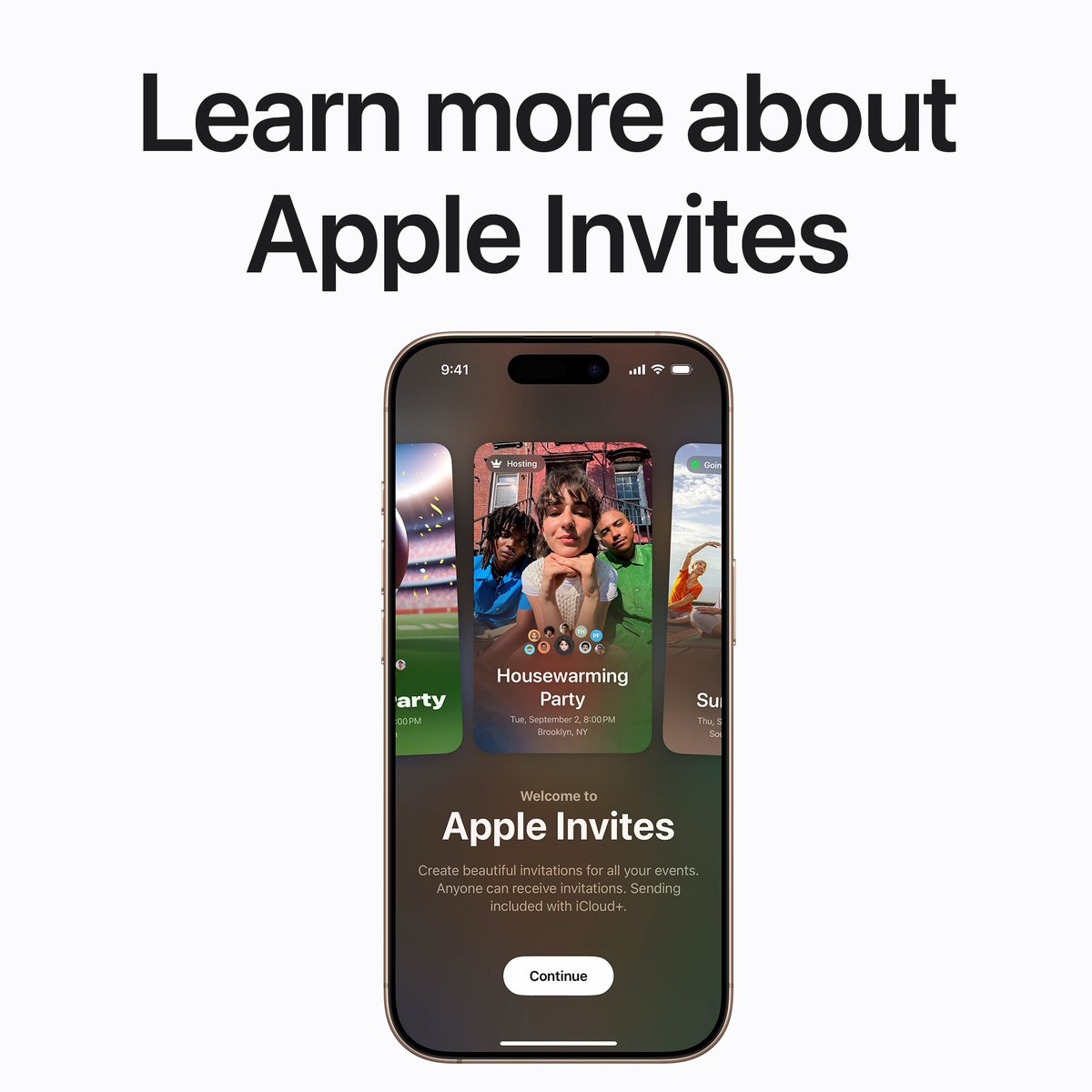
Surprise parties. Family reunions. Or any other gathering you can dream up.
You can use Apple Invites to create an event, invite friends, and even add a shared playlist and photo album. Here’s how: https://t.co/XBeNnPtzJE
With #AppleIntelligence in iOS 18.1 and iPadOS 18.1, multiple notifications from a single app can appear as a summary to help you understand them at a glance.
Here’s how to customize your notification summaries.
Manage your subscriptions in one place on your iPhone.
Check out our video on YouTube to learn how to cancel a subscription purchased in an app from the App Store right in Settings: https://t.co/vEWCJGQjRz
With #AppleIntelligence, you can turn on Focus and still be sure you’ll get important notifications.
Here’s how to use Intelligent Breakthrough & Silencing on supported devices with iOS 18.1.
You can click the Camera Control on iPhone 16 and iPhone 16 Pro to open Camera, or set it to open the Magnifier app, the Code Scanner, or your favorite third-party camera app.
Here’s how.
☃️ Photos of the kids playing in the snow
🏔️ Photos of my hiking trips in the mountains
🦬 Photos of animals I’ve seen on my vacations
Here’s how to create a custom memory movie with #AppleIntelligence in Photos starting in iOS 18.1.
An alligator playing hockey? A UFO over the Grand Canyon? A dinosaur holding a guitar?
With Genmoji, the only limit is your imagination. Here’s how they work in iOS 18.2 on supported devices with #AppleIntelligence enabled.
With iPhone Mirroring in macOS Sequoia, you can interact with your iPhone right from your Mac, using your keyboard and mouse or trackpad.
Check out our video on YouTube to learn how this Continuity feature works: https://t.co/kfUvAJzI8l