Novus Guard is a smart-phone based app that identifies risks & generates SOS signals in a static or mobile tracking mode & alerts the first responders.
The keys come with the details.
When an officer picks up a vehicle for the shift, its details shouldn't be sitting in a folder back at the office. In Novus Guard Pro, the vehicles assigned to an officer are in the app, with the full record a tap away.
My Vehicles:
• Open the menu → "Vehicles" → "My Vehicles"
• Each assigned vehicle is listed by its VRN, and the default one is marked "(Default)"
• Tap a vehicle to open its record, titled with the VRN
The vehicle record:
• "VRN", "VRD", "VIN", "Make" and "Model"
• "Transmission", "Fuel Type", "Vehicle Class", "Vehicle Type" and "Color"
• Under "Additional Information": "Odometer", "Condition" and "Max Speed"
Set the default:
• Switch on "Make as Default" to make that vehicle the officer's default
Vehicles are assigned to officers from the Novus Guard web admin, and the officer sees them in My Vehicles.
Fleet management in Novus Guard → https://t.co/tDu3IYZldc
#FleetManagement #MannedSecurity #SecurityOperations #NovusGuard
Heads-up on the work ahead.
Officers shouldn't have to dig through messages to find out what work is coming up. In Novus Guard Pro, the Job Alerts screen keeps upcoming jobs in one list on the officer's phone.
Job Alerts:
• Open it from "Jobs & My Availability" → "Job Alerts" in the app menu
• Each alert shows the site with its "Start:" and "End:" times, and urgent jobs carry a red "Urgent" chip
• Tap "Acknowledge" so the alert shows as "Acknowledged", and pin the jobs you want to keep in view
Filter the list:
• "Job Alerts Filter" narrows it by "Filter By Date" and "Filter By Job Status", then "Apply"
• "Reset & Back" clears the filter
Set preferences for public jobs:
• In Settings → "Public Jobs Settings", switch on "Public Jobs Notifications"
• Choose "Select Officer Type :", "Select Job Type :" and "Select Day Type :" (All Days, Working Days or specific days)
• "Save" stores them, with a "Saved Successfully" confirmation
Less chasing for the control room, and officers see the work coming before the shift starts.
Novus Guard Pro → https://t.co/JANNrojbou
#WorkforceManagement #MannedSecurity #SecurityOperations #NovusGuard
Enter. Exit. Logged.
When a vehicle crosses a geofence on a trip, the control room needs to see it later: which van, which driver, when, and which way. The Geofence Alerts log in the Novus Guard web admin keeps those alerts in one filterable list.
Filter the log:
• Set the "Period", or a "From" and "To" date, then click "Apply"
• "Advanced Filter" narrows it by "VRN(s)", "Driver" and "Enter/Exit"
Read each alert:
• Every row shows the "VRN", "Driver", "Date", "Time", "Enter/Exit" and "Geo Location"
• The "Breach" column shows a red "Breaching" or a green "Stopped Breaching" badge
Open the detail:
• "View Geofence Alert" opens a map, with "Show Geofence" and "Show Geofence Alert"
• "View Trip" links through to the vehicle trip, and "View PDF" opens the alert as a PDF
Fleet movement and geofence policy, reviewed in one place instead of pieced together from separate trip histories.
Fleet management in Novus Guard Pro → https://t.co/tDu3IYZldc
#FleetManagement #Geofencing #MannedSecurity #SecurityOperations #NovusGuard
Today vs yesterday. At a glance.
Lone-working shifts are easier to manage when you can see how they compare with the period before. The lone worker dashboard in the Novus Guard web admin puts jobs and welfare on one screen, next to the matching earlier period.
Pick the period:
• Under "Period", choose "Today", "This Week", "This Month" or "This Year"
• "Compare" pairs itself with the matching earlier period: Today with Yesterday, This Week with Last Week, and so on
• Use "Advanced Filter" to narrow it to an "Officer", "Client" or "Site", then click "Apply"
Read the jobs:
• "Live" and "Completed" jobs, each with a count
• Click "View Difference" to see both periods side by side, with the "Difference" as a green or red percentage
• "View" opens the matching job list
Check welfare:
• "Book ON", "Book OFF" and "Check Calls", each split into "Completed" and "Missed"
• With the difference view on, "View Graph" draws a bar chart under the table
• SOS alerts have their own section, counted by type
The control room can see how lone-working shifts are going without having to build a report first.
Lone worker protection in Novus Guard Pro → https://t.co/wTE5WA8URf
#LoneWorkerSafety #MannedSecurity #SecurityOperations #NovusGuard
Bill the shifts you actually worked.
Month end shouldn't mean copying hours off timesheets into a spreadsheet and hoping nothing was missed. In the Novus Guard web admin, a client invoice is built from the jobs your officers have worked.
Create the invoice:
• Open "Invoice" and choose "Add Invoice"
• In "Create Invoice", pick the "Client", "Sites", "From Date" and "To Date", add a "PO Reference" and "Payment Terms", then click "Submit!"
Check the worked jobs:
• Each job shows "SCH ON" / "SCH OFF" next to "ACT ON" / "ACT OFF", the "INV HOURS", "JOB RATE" and "TOTAL"
• Hours come from officers booking on and off, and the client and site rates are applied; "MODIFY RATE" is there if a line needs it
• "Jobs Total £", "VAT %" and "Gross Total £" are worked out for you. Click "Post" and you'll see "Invoice has been generated!"
Then follow it to payment:
• The invoice shows "INVOICE #", "PO REF:", hours, unit price and line totals, then "SUB TOTAL", "VAT" and "TOTAL"
• Open it as "Invoice PDF", "Job PDF" or "Invoice Excel"
• When the client pays, click the red "Unpaid" badge and confirm, and it turns green "Paid"
Every line on the invoice goes back to a shift someone worked.
Client Invoicing is part of Novus Guard Pro → https://t.co/To0OoFN37c
#MannedSecurity #SecurityOperations #ProofOfPresence #NovusGuard
Shifts by invitation. Answers in a tap.
Filling a shift shouldn't take a round of phone calls and "did you get my message?". In Novus Guard, you invite the officers you want straight from the job, and each one answers from their phone.
In the web admin:
• Open "Job Management", choose "Invite Officer" on the job, pick the officers and click "Invite"
In the Novus Guard Pro app:
• The officer opens "My Jobs" → "Invited Jobs" and sees the job's "Site", "Client", "Start Date", "Start Time", "End Date" and "End Time"
• They tap "Accept" or "Reject", confirm with "Yes", and see "You have Accepted the job" or "You have Rejected the job"
• Accepted jobs show under "Scheduled Jobs"
Back in the web admin:
• "Job Accepted" or "Job Rejected" appears in Notifications under "Jobs"
• Each officer's answer shows on the job's "Invited Officer" tab
You choose who gets invited, job by job.
See Novus Guard → https://t.co/kRhv8Ne1ys
#MannedSecurity #SecurityOperations #WorkforceManagement #NovusGuard
Reminders that send themselves.
Shift reminders shouldn't depend on someone remembering to send them. In the Novus Guard web admin, the Reminders module lets you write a message once as a template and put it on a schedule.
In the web admin:
• "Create Reminder Template": add a "Name", choose the "Client" and "Sites", then write the "Title Template" and "Message Body" with placeholders such as {officer_name} and {reminder_time}
• Click "Create Template". It appears under "Existing Templates", marked "Active" or "Inactive"
• "Create Reminder Schedule": pick the "Template", a "Repeat Type" (Daily, Weekly, Monthly, Once or Custom), the "Timezone", "Reminder Time" and "Days of Week", then set "Target Jobs"
• Click "Create Schedule" and it's listed under "Existing Schedules"
Each reminder is delivered to the assigned officer's phone as a push notification in the Novus Guard Pro app, with the placeholders filled in.
See Novus Guard → https://t.co/kRhv8Nezo0
#MannedSecurity #SecurityOperations #WorkforceManagement #NovusGuard
A PIN for every day. A PIN for the bad day.
Lone working means planning for the moment an officer can't speak freely. In Novus Guard Pro, officers can set two security PINs: a Safe PIN for everyday use and a separate Duress PIN.
In the officer app:
• Open "General Settings" and tap "Change Security PIN"
• Under "PIN Type", choose "Safe" or "Duress"
• Fill in "Enter Current PIN", "Enter New PIN" and "Confirm New PIN", then tap "Save"
• Look for "Pin Updated Successfully". A mismatched or reused PIN is rejected
When an SOS is resolved with the Duress PIN, the alert can be escalated to the control room instead of cancelled, and the web admin labels it a "Duress Alarm".
See Novus Guard → https://t.co/wTE5WA9sGN
#LoneWorkerSafety #MannedSecurity #SecurityOperations #NovusGuard
Availability first. Then the rota.
Planning a rota around guesses means chasing officers for who can work and when. In Novus Guard, officers record their own availability in the Pro app, and the office can see it on the web while the shifts are being planned.
In the officer app ("My Availability"):
• Tap a date and use "Set Availability Status": Available, Not Available, Tentative or Holiday
• Choose "Full Day Availability" or the Early, MidDay and Late slots
• Use "Copy Your Availability" to repeat a day on other dates, then Save
Walk it once. Patrol it every shift.
Setting up a new patrol often starts at a desk with a site plan and a guess at where each checkpoint should sit. In the Novus Guard Control App, a manager can build the template by walking the round instead.
• Open "Create by walking" and choose "Indoor" or "Outdoor"
• Take a photo or a 360° at the first stop: "Photo or 360° starts waypoint 1"
• Walk on: "Photos add to this stop · New waypoint when you move on"
• Tap "Create template" when the round is done
See Novus Guard → https://t.co/5b6juoEOz8
#MannedSecurity #GuardPatrol #ProofOfPresence #SecurityOperations #NovusGuard
Build the month, not the cell.
Filling a month of shifts one cell at a time takes a while. The Novus Guard web admin Planner has bulk tools for the work that repeats.
• "Create Bulk Shifts": set the shift details once, pick "From" and "To", then "Save"
• "Update Bulk Shifts": change many existing shifts together
• "Upload Bulk Shifts": bring a batch of shifts in at once
• Then check the month in the Planner as usual
See Novus Guard → https://t.co/5b6juoEOz8
#MannedSecurity #GuardPatrol #ProofOfPresence #SecurityOperations #NovusGuard
Real times. Ready to export.
Timesheets shouldn't mean copying times from one screen into another. In the Novus Guard web admin, Timesheet for Jobs shows when each officer actually came on and went off, and exports it in a click.
• Choose "Timesheet by" client, site or officer, then a date range
• See "Date", "Field Officer", "Act ON" and "Act OFF" for each job
• "Export Excel" or "Export PDF"
• Running vehicles too? "Timesheet for Trips" covers journeys
In our own words: timesheets, availability and related HR workflows sit alongside the operational picture.
See Novus Guard → https://t.co/5b6juoEOz8
#MannedSecurity #GuardPatrol #ProofOfPresence #SecurityOperations #NovusGuard
Tell every site at once.
A weather warning at 22:00. A change at the gate. A reminder for the night shift. When news affects more than one post, managers can send it from the Novus Guard Control App as a single broadcast.
• Open "New broadcast" and pick the "Audience"
• Send to "All officers", "By site" or "Choose officers"
• Write the "Broadcast message", and "Attach" a file if it helps
• On the officer app it shows up as a "New Message"
In our own words: admin–officer messaging, groups and peer DMs keep control rooms and field staff aligned.
See Novus Guard → https://t.co/5b6juoFmoG
#MannedSecurity #GuardPatrol #ProofOfPresence #SecurityOperations #NovusGuard
Know the area before you staff it.
Before you quote for a new site or decide who goes there, it helps to know the area. The Novus Guard Control App looks up UK crime data around a location, month by month.
• "Crime Data Lookup" with "Search Parameters"
• "Select Month", then "Search Crimes"
• UK only: "Crime data is only available for UK locations."
See Novus Guard → https://t.co/5b6juoEOz8
#MannedSecurity #GuardPatrol #ProofOfPresence #SecurityOperations #NovusGuard
Set the rule once. The watchlist keeps up.
Following up on missed book-ons shouldn't depend on someone remembering. In the Novus Guard Control App, rule-based automation adds officers to the watchlist for the reasons you choose.
• "Automation Rules" and "Add Rule"
• Reasons like "Book on missed", "Book off missed" or "Any system reason"
• "Add to watchlist", with "Already on watchlist for this reason" shown when it applies
See Novus Guard → https://t.co/5b6juoEOz8
#MannedSecurity #GuardPatrol #ProofOfPresence #SecurityOperations #NovusGuard
Every officer. One live map.
Managers away from the control room still need to know where the team is. The Novus Guard Control App shows officers on a live map, indoors and out, and flags mock locations.
• "All clients" and "All sites" filters, "Fit map" and "Follow focused officer"
• Status at a glance: "Arrived", "Late by", "Indoor BLE"
• "Mock location" and "Mock risk" flags
See Novus Guard → https://t.co/5b6juoFmoG
#MannedSecurity #GuardPatrol #ProofOfPresence #SecurityOperations #NovusGuard
Verified officers. Blue tick.
Clients want to know who is on their site. Where your organisation turns it on, officers verify their identity in the Novus Guard officer app, and approved profiles get a blue tick.
• "Identity verification" from the officer's profile
• "Choose document type", then "Automatic verification" or "Manual verification"
• "Identity verified" and "Approved profiles get a blue tick."
See Novus Guard → https://t.co/5b6juoEOz8
#MannedSecurity #GuardPatrol #ProofOfPresence #SecurityOperations #NovusGuard
No signal? Still on record.
Basements and car parks drop signal. Novus Guard Pro keeps core actions going: officers can book on and log check calls offline, and they sync when signal returns. Some features still need a connection.
• "Job successfully booked on in offline mode"
• "Check call stored in offline mode"
• "Jobs fetched from offline storage"
See Novus Guard Pro → https://t.co/5b6juoEOz8
#MannedSecurity #GuardPatrol #ProofOfPresence #SecurityOperations #NovusGuard
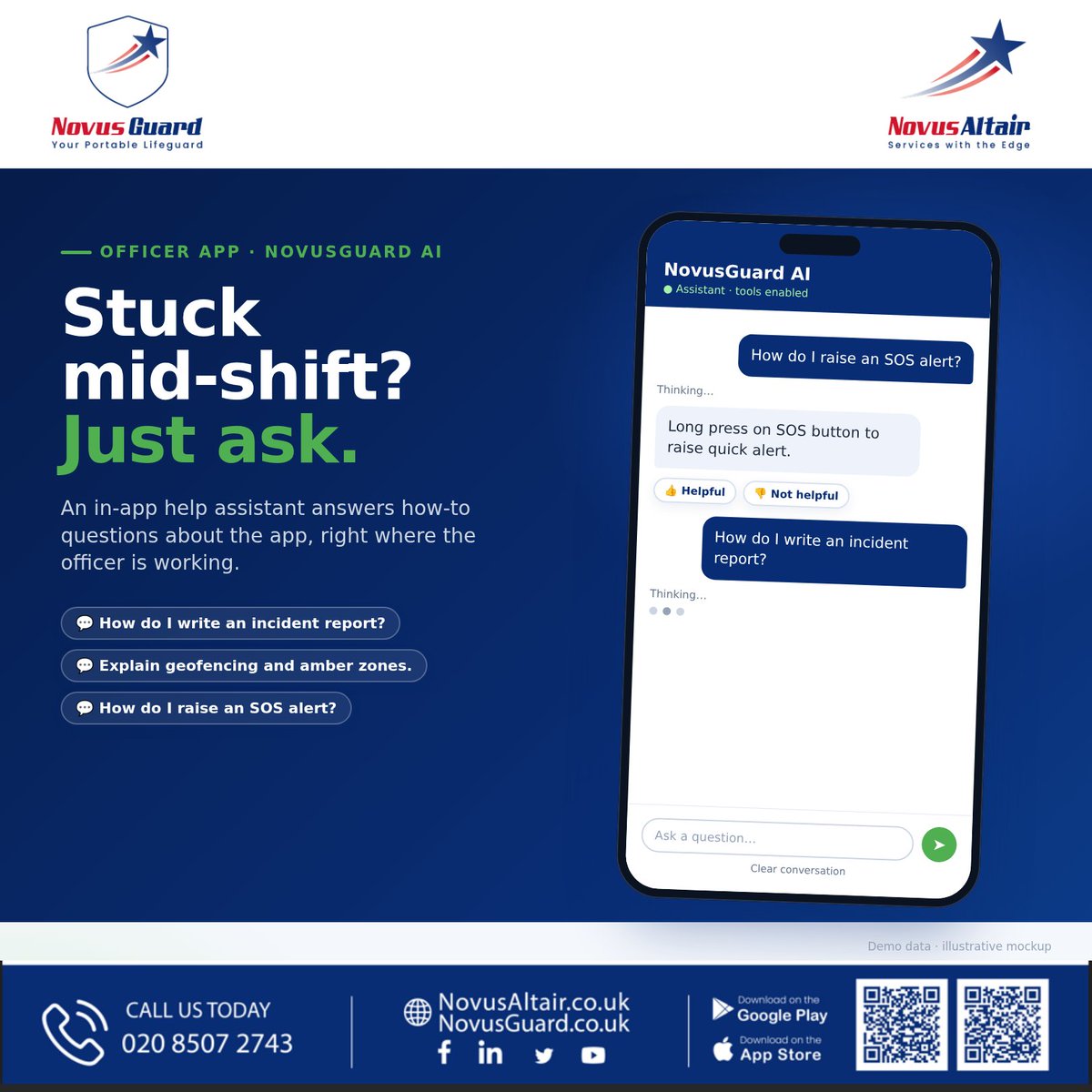
Stuck mid-shift? Just ask.
Officers shouldn't have to ring the office to find their way around the app. NovusGuard AI is an in-app help assistant in the Novus Guard officer app, answering how-to questions right where the officer is working.
• Ask "How do I raise an SOS alert?" or "How do I write an incident report?"
• "Explain geofencing and amber zones."
• Rate answers "Helpful" or "Not helpful", or "Clear conversation"
See Novus Guard → https://t.co/5b6juoEOz8
New site? Follow the arrow.
The first shift on an unfamiliar site is when checkpoints get missed. The patrol guide in the Novus Guard officer app shows an on-screen arrow pointing to the next checkpoint along the floor route.
• "Add floor plan" and "Add waypoints to plan a floor route."
• An arrow to the next checkpoint, "Along the floor route"
• "Camera is off. The arrow still points to the checkpoint."
See Novus Guard → https://t.co/5b6juoEOz8
#MannedSecurity #GuardPatrol #ProofOfPresence #SecurityOperations #NovusGuard