𝐃𝐚𝐲 𝟏𝟕 𝐨𝐟 𝐦𝐲 𝐃𝐚𝐭𝐚 𝐀𝐧𝐚𝐥𝐲𝐭𝐢𝐜𝐬 𝐉𝐨𝐮𝐫𝐧𝐞𝐲 — 𝐋𝐨𝐠𝐢𝐜𝐚𝐥 𝐅𝐮𝐧𝐜𝐭𝐢𝐨𝐧𝐬 𝐢𝐧 𝐄𝐱𝐜𝐞𝐥📊
Today I learned how Excel handles decision-making using logical functions:
• IF → Test a condition and return results
• AND →
🧵
TRUE only if all conditions are met
• OR → TRUE if at least one condition is met
• NOT → Reverses a logical result
• IFS → Cleaner alternative to nested IF statements
𝐁𝐢𝐠 𝐭𝐚𝐤𝐞𝐚𝐰𝐚𝐲:
Analysis is not just about numbers.
Count non-empty cells
• COUNTBLANK → Count empty cells
• AVERAGE → Find the mean
• MIN / MAX → Find smallest & largest values
• SMALL / LARGE → Find nth smallest or largest
𝐁𝐢𝐠 𝐭𝐚𝐤𝐞𝐚𝐰𝐚𝐲:
Great analysis starts with accurate calculations.
Master the basics.
𝐃𝐚𝐲 𝟏𝟓 𝐨𝐟 𝐦𝐲 𝐃𝐚𝐭𝐚 𝐀𝐧𝐚𝐥𝐲𝐭𝐢𝐜𝐬 𝐉𝐨𝐮𝐫𝐧𝐞𝐲 — 𝐎𝐫𝐠𝐚𝐧𝐢𝐳𝐢𝐧𝐠 𝐃𝐚𝐭𝐚 𝐢𝐧 𝐄𝐱𝐜𝐞𝐥📊
Today I learned how to structure and extract insights using:
• SORT → Organize data (A–Z, smallest to largest, newest to oldest)
• FILTER → Display only data
🧵
that meets specific criteria
• Advanced Filter → Apply complex criteria and extract unique or refined datasets
𝐁𝐢𝐠 𝐭𝐚𝐤𝐞𝐚𝐰𝐚𝐲:
You cannot analyze what you cannot organize.
SORT brings order.
FILTER brings focus.
Advanced Filter brings control.
Day 15 done. 🚀
𝐃𝐚𝐲 𝟏𝟒 𝐨𝐟 𝐦𝐲 𝐃𝐚𝐭𝐚 𝐀𝐧𝐚𝐥𝐲𝐭𝐢𝐜𝐬 𝐉𝐨𝐮𝐫𝐧𝐞𝐲 — 𝐄𝐱𝐜𝐞𝐥 𝐓𝐞𝐱𝐭 𝐂𝐨𝐧𝐭𝐫𝐨𝐥 📊
Today I learned how to find and replace text more precisely in Excel.
Here’s what I explored:
• FIND → Returns position of a character in a text (case-sensitive)
🧵
• SEARCH → Returns position of a character in a text (not case-sensitive)
• REPLACE → Replaces text by position
• SUBSTITUTE → Replaces matching text (can replace all or specific occurrences, case-sensitive)
𝐁𝐢𝐠 𝐥𝐞𝐬𝐬𝐨𝐧:
Cleaning data is about control.
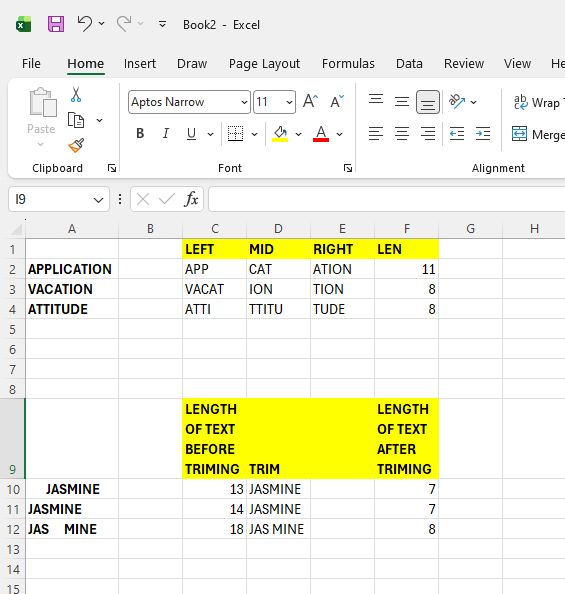
𝐃𝐚𝐲 𝟏𝟑 𝐨𝐟 𝐦𝐲 𝐃𝐚𝐭𝐚 𝐀𝐧𝐚𝐥𝐲𝐭𝐢𝐜𝐬 𝐉𝐨𝐮𝐫𝐧𝐞𝐲 — 𝐄𝐱𝐜𝐞𝐥 𝐓𝐞𝐱𝐭 𝐅𝐮𝐧𝐜𝐭𝐢𝐨𝐧𝐬📊
Today I learned how powerful text functions are for data cleaning.
In real datasets, text is rarely perfect. Extra spaces, mixed formats, embedded codes, it’s messy.
🧵
Here’s what I implemented:
• LEFT() → Extract from the beginning
• RIGHT() → Extract from the end
• MID() → Extract from a specific position
•TRIM() → Remove extra spaces
• LEN() → Count characters
Example:
=LEFT("Hello", 2) → "He"
=TRIM(" Hello ") → "Hello"