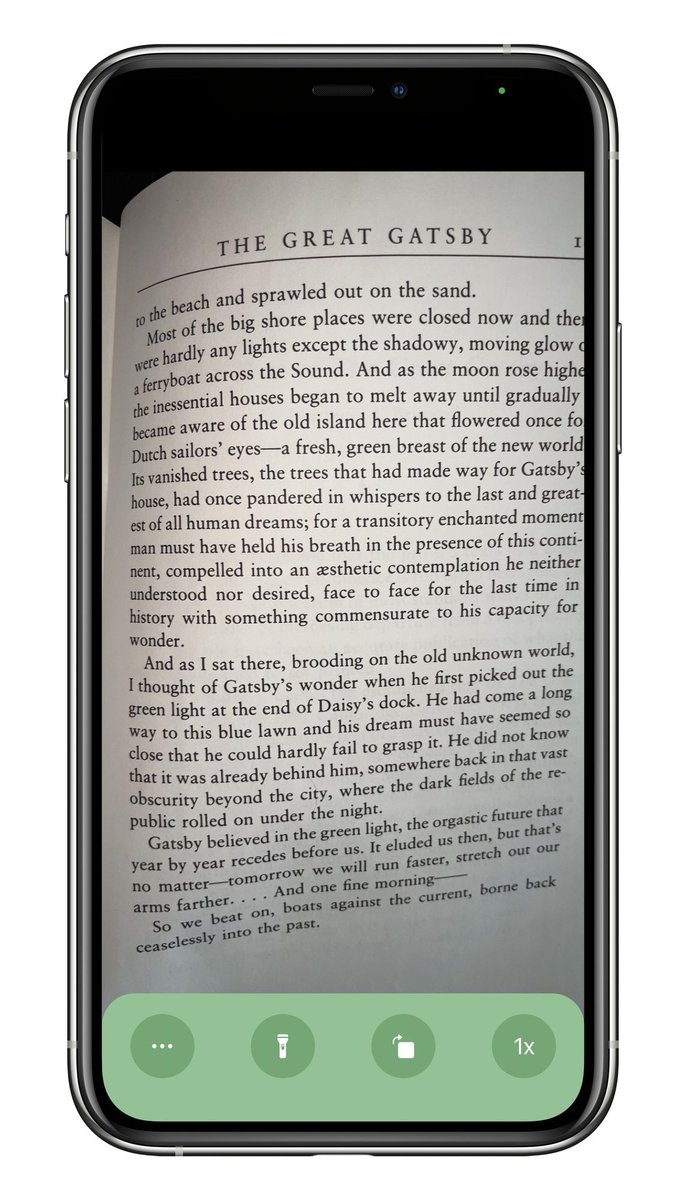
Today I’m launching @OverviewerApp, a free iOS app for turning your iPhone into a document camera on Zoom or other video conferencing apps for teachers doing virtual learning.
This has proven to be a difficult app to explain but I gave it my best shot 👇
https://t.co/PkJGvnsWxS
@BildungGanzOben So when you AirPlay it actually doesn’t mirror the screen, it sends the camera view straight to the TV in the proper aspect ratio of the TV and turns your phone screen into controls (that box at the top is a trackpad for zooming/panning)
Overviewer 1.2 is now available in the store!
This version includes:
- Ability to rotate upside down
- iOS 13 support
- Updated links to new tutorials page
@mattbaldwn @_chuckyc Unfortunately it’ll probably stay iPhone only since I don’t know Android development at all. Hopefully somebody on the Android side will take the idea and run with it though?
I just released a new beta to TestFlight with:
- iOS 13 backwards compatibility
- The ability to rotate fully upside down
Join here to try it out and let me know if you run into any issues! 🙏
https://t.co/4OOYNsSA6h
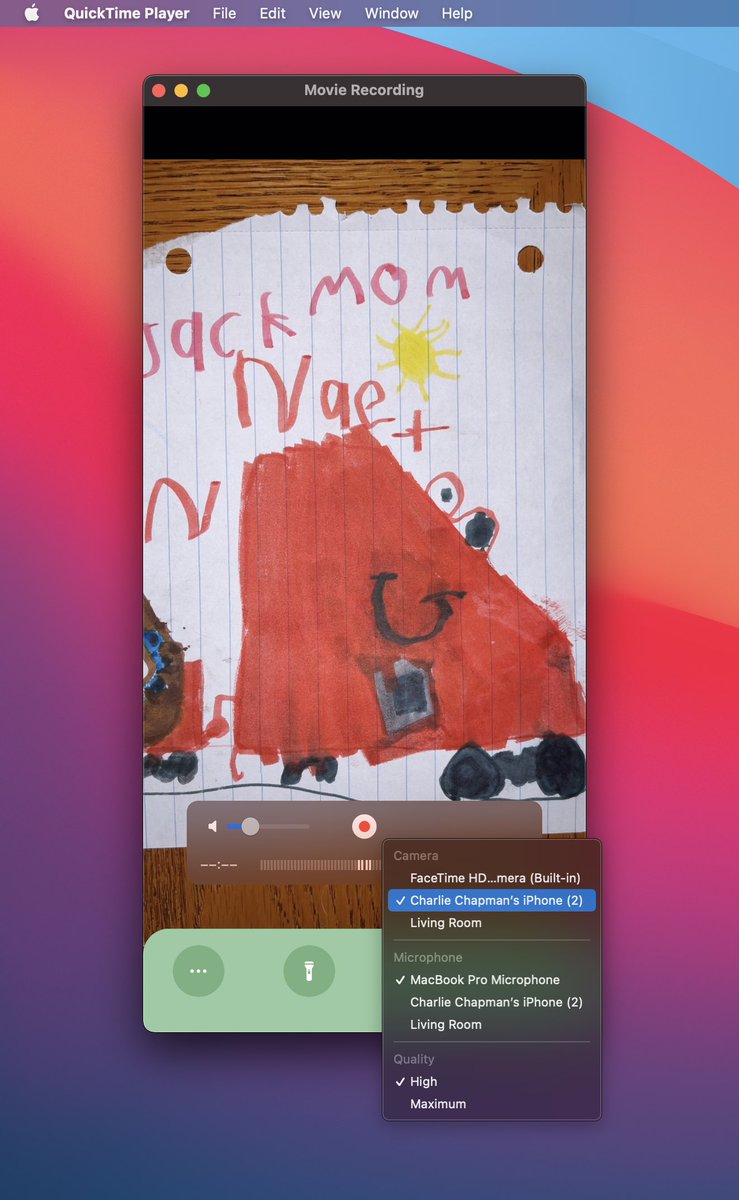
On a Mac but not using Zoom? You can share your iPhone in any video conference software that lets you share your Mac’s screen:
- Open QuickTime
- Click File -> New Movie Recording
- Tap the caret next to the record button and select your iPhone
- Share QuickTime app in call
Today I’m launching @OverviewerApp, a free iOS app for turning your iPhone into a document camera on Zoom or other video conferencing apps for teachers doing virtual learning.
This has proven to be a difficult app to explain but I gave it my best shot 👇
https://t.co/PkJGvnsWxS
A minor update has been released to the store that fixes a few small UI bugs and adds a close button to settings to make it more clear how to dismiss
Thank you so much to everyone for the all the feedback and bug reports! 🙏🙏🙏
https://t.co/zYUbK0eEY5
On a Mac but not using Zoom? You can share your iPhone in any video conference software that lets you share your Mac’s screen:
- Open QuickTime
- Click File -> New Movie Recording
- Tap the caret next to the record button and select your iPhone
- Share QuickTime app in call
On a Mac but not using Zoom? You can share your iPhone in any video conference software that lets you share your Mac’s screen:
- Open QuickTime
- Click File -> New Movie Recording
- Tap the caret next to the record button and select your iPhone
- Share QuickTime app in call