PDF Reader Pro is an all-in-one PDF office supporting to Read, Annotate, Edit, OCR, Convert, Create & Fill Forms, Sign PDFs on Mac, iOS, Android, and Windows
PDF Reader Pro Web 1.0.0 is live.
Open PDFs in your browser, organize cloud files, and share links with access permissions. No installation needed.
Explore your new PDF workspace:
https://t.co/FXwfweN3CZ
#PDFReaderPro#pdf
Filled in the PDF. Saved it. Someone else opens it—and sees blank fields?
For a final copy, PDF Reader Pro for Windows offers Save as Flattened PDF. Keep the editable original.
See how: https://t.co/GUqiEQwxFu
#PDFTips
What’s the most annoying PDF error you’ve run into lately?
A file that won’t open? Text you can see but can’t copy? Something else?
Tell us below, or contact us here:
https://t.co/4XCI05Uj9N
#PDF
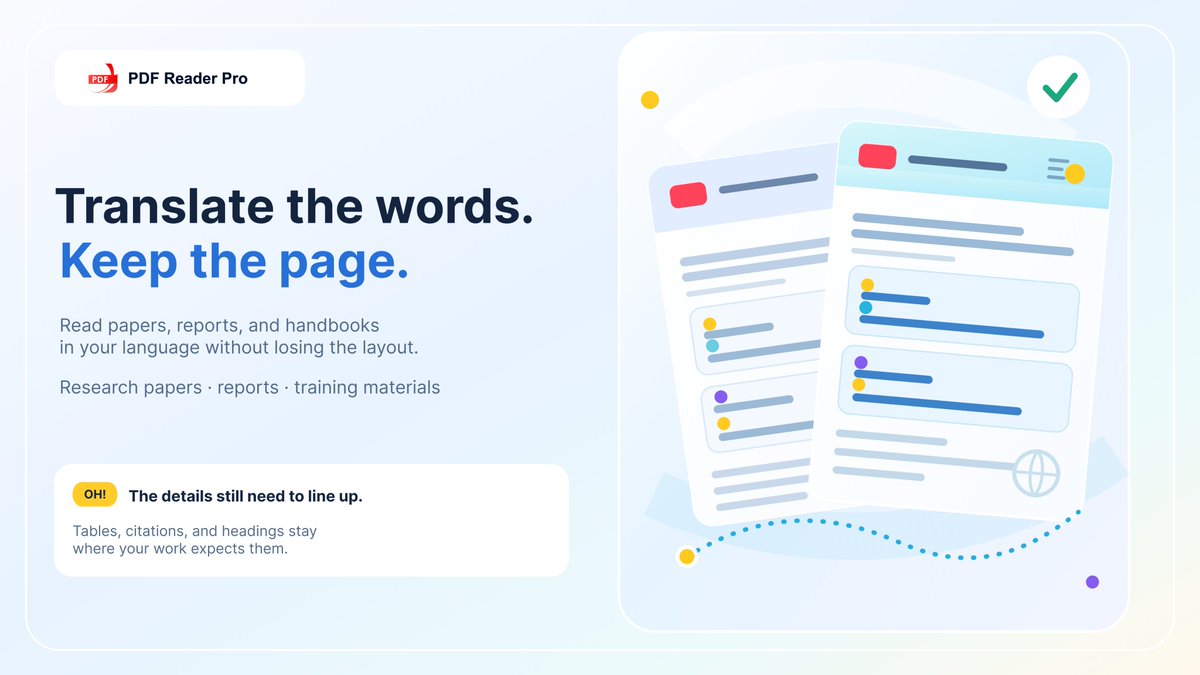
“Translate only the text. Keep all images, formatting, and layout unchanged.”
PDF Reader Pro’s Document Translation is designed to preserve the page’s structure, not just change the words.
Learn more:
https://t.co/3Q4DMYc9dF
#PDFTranslation#TravelTools#PDFReaderPro
“I’m a medical postgrad. I want to listen to my textbook PDFs while commuting or working out. How can I do this?”
Open Text-to-Speech in PDF Reader Pro, you can listen the knowledge you need, and adjust the voice and speed.
https://t.co/dKV02PnXq0
#PDFTips#PDFReaderPro
“Is there a PDF reader that exports highlights like Kindle?”
Export PDF annotations for later review. One Pro account also works across iPhone, Android, Mac, and Windows on eligible annual plans.
Explore PDF Reader Pro:
https://t.co/ZSzm3sD4PA
#PDFTips#PDFReaderPro
Your hotel guide is in Japanese. The rental agreement is in Spanish. The museum handbook is in French.
PDF Reader Pro helps you work with it: recognize scanned text in 90+ languages, then translate the PDF you need.
https://t.co/tx1Gz7Wgk8
#Travel#OCR#PDFReaderPro
"How do I actually remove the text?"
Covering text and redacting it is totally different. PDF Reader Pro’s Redact tool permanently deletes selected sensitive information after you apply the redactions.
Redact before you share:
https://t.co/kFSjM1w0WR
#PDFTips#DataPrivacy
“How much of your month is still just retyping numbers off PDFs by hand?”
OCR finds the text. Data extraction turns key invoice fields into a structure you can review and reuse.
Try it in PDF Reader Pro:
https://t.co/NbZmzAgxw1
#PDFTips#InvoiceProcessing
“Why do two PDF columns paste into one Excel column?”
A table in a PDF may look structured, but its rows and columns aren’t always stored as reusable cells.
Extract the table to Excel instead:
https://t.co/TXing6QKpu
#PDFTips#Excel
“Convert 1,500 images to PDF?”
One image is easy. A whole folder is where it gets messy: wrong order, sideways pages, huge output.
A folder of images isn’t a document yet.
Turn the pile into one PDF:
https://t.co/MLykYj9qOs
#PDFTips#PDFReaderPro
“The PDF reader can’t recognize the text in it, so it’s not searchable.”
Quick check: try selecting one sentence.
Nothing highlights? Your PDF is probably a scanned image, not searchable text.
https://t.co/Sleq9snQhD
Run OCR. Search again. Check the result.
#PDFTips#OCR
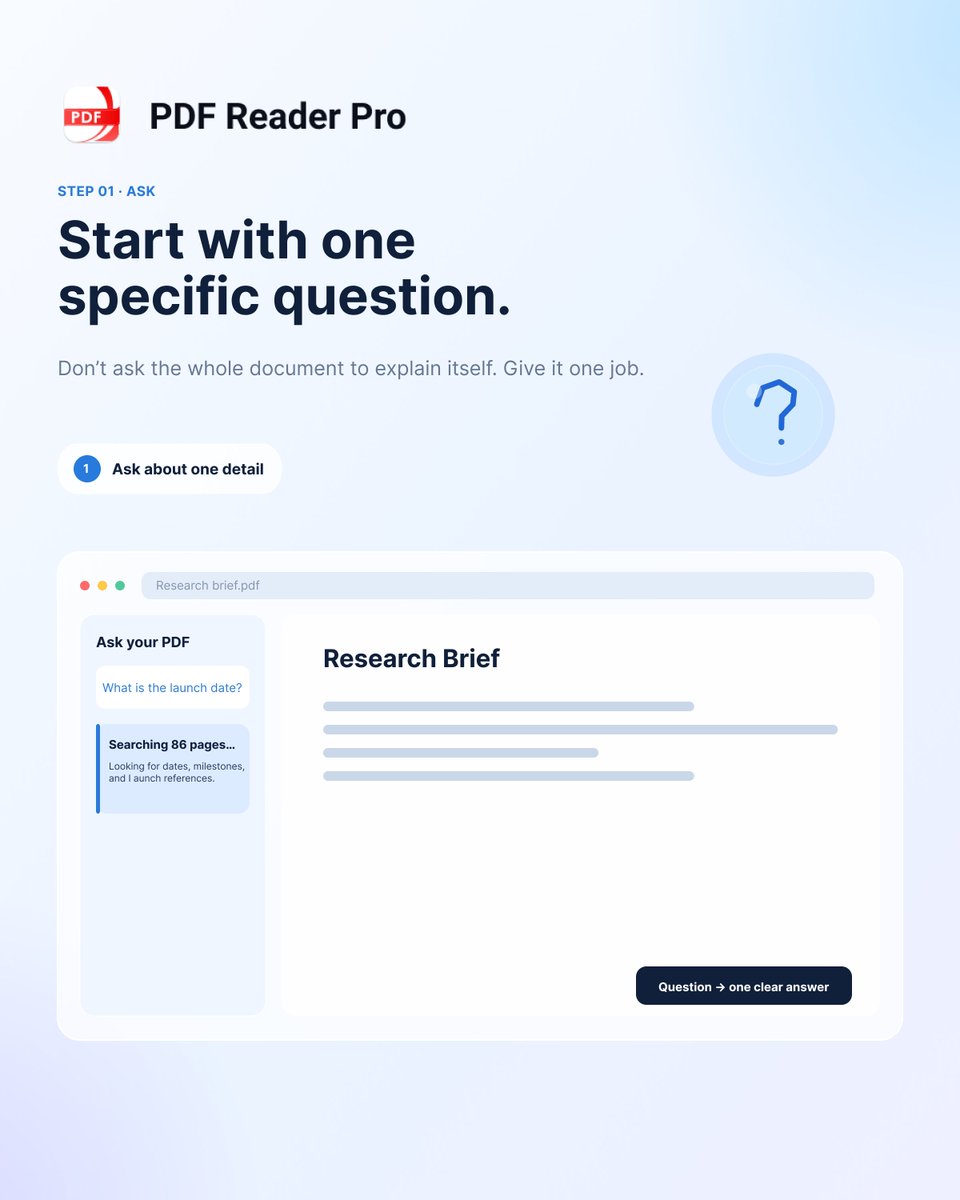
Got a long PDF and one question?
With PDF Reader Pro V6.0:
1. Ask the PDF about one specific detail.
2. Jump to the matching page.
3. Check the original wording.
Ask. Jump. Verify. Less scrolling, faster answers.
Explore V6.0:
https://t.co/Gv02pRFsST
#PDFReaderPro#PDFAI
Add the PDFs, arrange them in the right order, and export one clean package.
One file to open. One clear sequence to follow. Fewer attachments to manage.🗂️🪄
Explore PDF Reader Pro:
https://t.co/s1zIZmrOp8
#PDFTips#PDFReaderPro
Still looking for a lightweight tool for your PDF tasks?
Just prompt, merge PDFs, extract tables, convert files, and more, all within your chat.
Install the PDF Reader Pro plugin inside ChatGPT and start getting your PDF tasks done today.
#PDFReaderPro#ChatGPT#AI#plugin
Your PDF to-do list just got shorter.
Convert files, merge PDFs, extract tables, and more — right inside ChatGPT with PDF Reader Pro.
Learn more: https://t.co/Jfd26Tgp55
#PDFReaderPro#ChatGPT#PDF#plugin
On desktop, press Ctrl+F on Windows or Command+F on Mac. Enter a word or phrase, then jump directly to the matching page.
Working with a scanned PDF? Run OCR first to make the text searchable.
https://t.co/75PWOtAbEK
#PDFTips#Productivity#PDFReaderPro