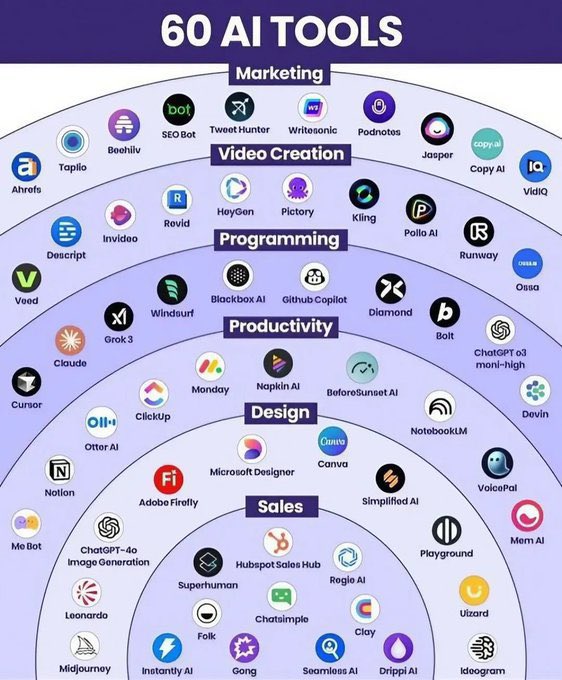
These AI Tools Can Help You Save $100 Every Month
1. Image - https://t.co/SZ2bm2AlEf
2. Design - https://t.co/Xt0JijHaNb
3. Education - https://t.co/GvKBAVS1Tp
4. Image Generation - https://t.co/yF2ha8Zz7c
5. Video Editing - https://t.co/3wMOtuw95y
6. AI Chat - https://t.co/VihQi4GL0q
7. Management - https://t.co/vpV3MTAYfX
100 Useful Computer Shortcuts 🤏
1. F1 ➔ Help
2. F2 ➔ Rename
3. Ctrl + X ➔ Cut
4. F2 ➔ Edit cell
5. Ctrl + C ➔ Copy
6. Ctrl + Z ➔ Undo
7. Ctrl + Y ➔ Redo
8. Ctrl + S ➔ Save
9. Ctrl + F ➔ Find
10. Ctrl + B ➔ Bold
11. Ctrl + V ➔ Paste
12. Ctrl + P ➔ Print
13. F11 ➔ Full screen
14. Ctrl + I ➔ Italic
15. Alt + = ➔ AutoSum
16. Ctrl + H ➔ Replace
17. Ctrl + R ➔ Refresh
18. Ctrl + T ➔ New tab
19. Ctrl + H ➔ History
20. PrtScn ➔ Screenshot
21. Ctrl + O ➔ Open file
22. Ctrl + W ➔ Close tab
23. Ctrl + J ➔ Downloads
24. Ctrl + U ➔ Underline
25. Ctrl + A ➔ Select all
26. Ctrl + Tab ➔ Next tab
27. Ctrl + L ➔ Left align
28. Ctrl + R ➔ Right align
29. End ➔ Go to end of line
30. Ctrl + E ➔ Center align
31. Windows + S ➔ Search
32. Ctrl + ` ➔ Show formulas
33. Windows + I ➔ Settings
34. Ctrl + 1 ➔ Single spacing
35. Ctrl + 2 ➔ Double spacing
36. Ctrl + D ➔ Bookmark page
37. Ctrl + N ➔ New file/window
38. Home ➔ Go to start of line
39. Shift + Space ➔ Select row
40. Windows + Tab ➔ Task view
41. Windows + L ➔ Lock screen
42. F7 ➔ Spell check (MS Word)
43. Ctrl + M ➔ Indent paragraph
44. Ctrl + 5 ➔ 1.5 line spacing
45. Ctrl + K ➔ Insert hyperlink
46. Ctrl + Shift + L ➔ Bullet list
47. Windows + A ➔ Action center
48. Alt + Right Arrow ➔ Forward
49. Alt + D ➔ Select address bar
50. Ctrl + L ➔ Focus address bar
51. Windows + R ➔ Run dialog box
52. Ctrl + Space ➔ Select column
53. Windows + H ➔ Start dictation
54. Windows + K ➔ Connect devices
55. Alt + Space ➔ Open window menu
56. Alt + F4 ➔ Close current window
57. Windows + V ➔ Clipboard history
58. Shift + Arrow Keys ➔ Select text
59. Windows + E ➔ Open File Explorer
60. Ctrl + Mouse Scroll ➔ Zoom in/out
61. Ctrl + Shift + Tab ➔ Previous tab
62. Ctrl + "-" ➔ Delete selected cell
63. Windows + D ➔ Show/hide desktop
64. Ctrl + Shift + Esc ➔ Task Manager
65. Ctrl + N ➔ New folder (in Explorer)
66. Ctrl + Shift + "+" ➔ Insert new cell
67. Shift + Delete ➔ Permanently delete
68. Ctrl + Shift + > ➔ Increase font size
69. Ctrl + Shift + < ➔ Decrease font size
70. Ctrl + Shift + N ➔ Create new folder
71. Ctrl + Shift + T ➔ Reopen closed tab
72. Windows + M ➔ Minimize all windows
73. Ctrl + Up Arrow ➔ Move paragraph up
74. Windows + U ➔ Ease of Access Center
75. Windows + Pause/Break ➔ System info
76. Ctrl + Page Up/Down ➔ Switch sheets
77. Windows + Shift + S ➔ Snip & Sketch
78. Alt + Tab ➔ Switch between open apps
79. F5 ➔ Refresh (also works in browsers)
80. Ctrl + Arrow Keys ➔ Move to cell edge
81. Ctrl + Alt + Delete ➔ Security options
82. Ctrl + Enter ➔ Enter in all selected cells
83. Ctrl + D ➔ Delete item (to Recycle Bin)
84. Ctrl + Shift + Esc ➔ Open Task Manager
85. Ctrl + Q ➔ Remove paragraph formatting
86. Alt + Enter ➔ Properties of selected item
87. Windows + Up Arrow ➔ Maximize window
88. Ctrl + Down Arrow ➔ Move paragraph down
89. Windows + Left Arrow ➔ Snap window left
90. Windows + Right Arrow ➔ Snap window right
91. F12 ➔ Save As (Word/Browsers - Dev Tools)
92. Windows + Down Arrow ➔ Minimize window
93. Ctrl + Shift + N ➔ Incognito mode (browser)
94. Alt + Esc ➔ Cycle through open apps in order
95. Ctrl + Right Arrow ➔ Move cursor word forward
96. Ctrl + Left Arrow ➔ Move cursor word backward
97. Alt + Print Screen ➔ Screenshot active window
98. Alt + Left Arrow ➔ Back (browser/File Explorer)
99. Ctrl + Shift + Esc ➔ Open Task Manager directly
100. Ctrl + Shift + Arrow Keys ➔ Select word/paragraph
📌 If you enjoyed this, please consider Bookmarking it and sharing it with others. Also, don't forget to follow me for more content like this.
95% of people use ChatGPT like a Google search.
But I used it to build a 90-page eBook.
Now it's making $2,300/month.
Here's how to use AI to create and launch your first $5,000 eBook in 6 steps:
(Free system doc at the end)
1/ Don't write about what you like.
Skip fiction. Ask ChatGPT to list urgent problems people need help with right now.
Choose a hyper-specific topic.
Bad example: "How to sleep better"
Good example: "How to stop your husband's snoring in 7 days (without surgery)"
Specific = less competition, more buyers.
2/ Create a 10-chapter outline.
Ask ChatGPT to build a 10-chapter outline for your eBook.
Make each chapter title intriguing...people preview your table of contents on Amazon before buying.
Boring index = no sales.
Curiosity-driven index = instant clicks.
3/ Switch to Claude AI for writing.
ChatGPT is great for ideation and outlines.
But Claude is 10x better at writing long-form content that doesn't sound robotic.
Use Claude to write each chapter. Feed it your outline and let it expand.
4/ Polish your eBook for readability.
Step 1: Run your draft through Hemingway App
Make sure it reads at a 7th-grade level.
Easier to consume = more 5-star reviews.
Step 2: Run it through Grammarly
Catch any grammatical mistakes ChatGPT or Claude missed.
Clean copy = credibility.
5/ Design a cover that sells.
Turns out, people DO judge a book by its cover.
Your content could be gold, but if the cover looks amateur, no one clicks.
Use Canva + Ideogram to create professional-looking covers in 10 minutes.
6/ Publish on Amazon KDP.
Upload your eBook to Amazon KDP (Kindle Direct Publishing).
Amazon handles everything: delivery, payments, customer service.
You just collect royalties.
Total cost: $0 (if you use free tools)
Better approach: $200–$800 (hire freelancers for covers, editing, formatting. It's faster and higher quality)
I just created a detailed guide breaking down my 6-figure eBook business.
Inside:
• How to find topics people actually want to read
• AI prompts for perfect outlines + writing
• Tool stacks that made me $51,000 in a single month
Like this + Comment "DOC" and I'll send it to you for free.
(Must follow to receive)
I’ve spent the last year building, breaking, and selling AI agents and honestly, the real learning didn’t come from courses.
It came from GitHub.
These 10 repos shaped the way I understand AI agents today (and they’ll do the same for you) 🔥👇
1. Hands-On Large Language Models
A complete playground of notebooks from LLM fundamentals to fine-tuning like a pro.
🔗 https://t.co/IYdXB9EWI2
2. AI Agents for Beginners
A friendly 11-part walkthrough that helps you build your very first working agent.
🔗 https://t.co/VSJxLKECsW
3. GenAI Agents
If you want to see how real generative agents are built from scratch → this repo is a goldmine.
🔗 https://t.co/m4Q5NRvcVe
4. Made With ML
Production-grade ML lessons that show you how to deploy and iterate like an engineer.
🔗 https://t.co/33kHjGiorj
5. Prompt Engineering Guide
Every technique, paper, and framework you need to master prompts — all in one place.
🔗 https://t.co/hkztkBd6SZ
6. Hands-On AI Engineering
Code examples + agent architectures you can directly use for your next project.
🔗 https://t.co/yUwYWNlBTn
7. Awesome Generative AI Guide
A beautifully curated list of tools, concepts, and resources for anyone going deep into GenAI.
🔗 https://t.co/5HY68kZiZX
8. Designing Machine Learning Systems
Simple summaries + supplemental resources from the book perfect for system-level thinking.
🔗 https://t.co/tgSysRCAty
9. Machine Learning for Beginners (Microsoft)
A free, hands-on intro to ML that even non-engineers can follow.
🔗 https://t.co/heKyBGAxGI
10. LLM Course
Roadmaps, notebooks, and practical demos to help you build end-to-end LLM apps.
🔗 https://t.co/nCK7zKPITf
👉 Follow me for more AI related stuffs.