05/30
How To Use Find & Replace To Correct Misspelling
1. On the Home tab, click Find & Select
2. Click find, in find what type what you want to search for and click find all
3. Click Replace. You can choose to click replace all of it appears multiple times.
#DataScience
06/30
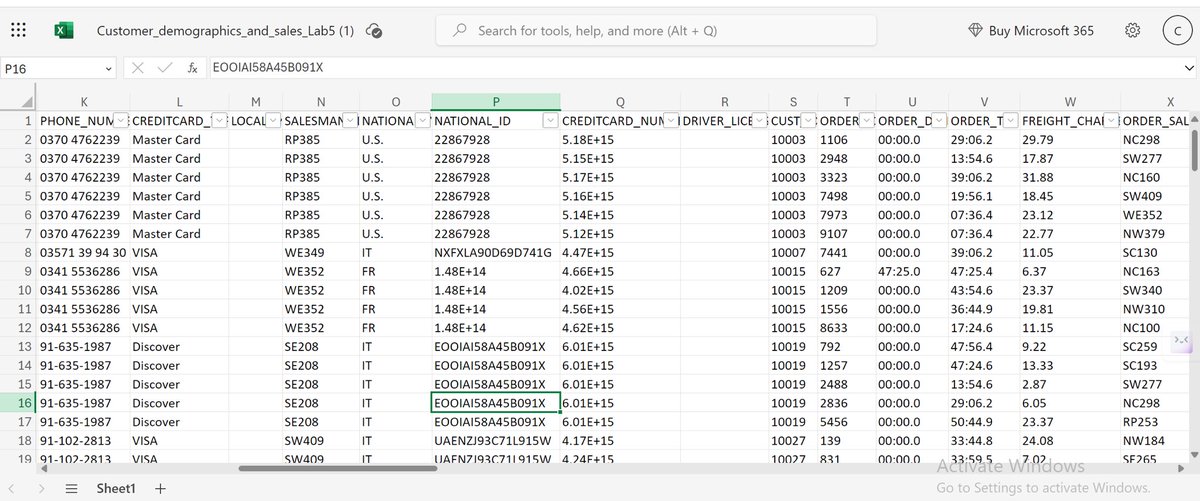
How To Sort Out Data In Excel
When working with data, especially large datasets, you might need tools like sorting to enable you understand the data better, sorting could be in terms of ascending or descending orders and more.
1. Open your dataset on Excel
04/30
How To Format Data Using Filters In Excel
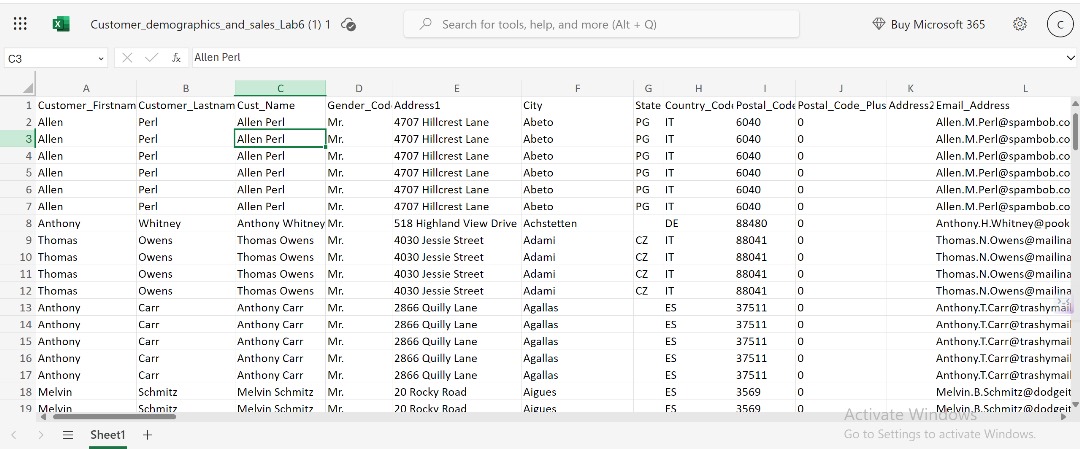
Using filters is important when formating a large data set. This feature allows you to have sub-sets of data that have one or two things in common.
1. In this example, we have customer data of a delivery company.
05/30
How To Use Find & Replace To Correct Misspelling
1. On the Home tab, click Find & Select
2. Click find, in find what type what you want to search for and click find all
3. Click Replace. You can choose to click replace all of it appears multiple times.
#DataScience
How To SpellCheck in Excel 03/30
When working with data, especially data from different sources, one of the first things you want to do while formating the data is to spellcheck.
Excel makes this easy to do
1.
Open your data then go to review tab
04/30
How To Format Data Using Filters In Excel
Using filters is important when formating a large data set. This feature allows you to have sub-sets of data that have one or two things in common.
1. In this example, we have customer data of a delivery company.
4.
We selected Baby Boomers, this automatically formats the data to only show data for the Baby Boomers generation alone while hiding the other data.
This tool is very important and can help you clean a large data & sorting out important information.
How To Use AutoFill in Excel 02/30
Autofill allows you to automatically populate a list of items on a spreadsheet based on a formula or reference to a range of cells
This can be also be applied when populating a dataset that follows a chronological order or specific pattern
How To SpellCheck in Excel 03/30
When working with data, especially data from different sources, one of the first things you want to do while formating the data is to spellcheck.
Excel makes this easy to do
1.
Open your data then go to review tab
2.
Click on review tab, then click on spelling, a dialog box would open up ny the side showing spelling errors and possible corrections.
You can then choose to correct from the suggestion on the list or ignore if the data is correct.
How To Freeze Panes in Excel. 01/30
Freezing a row, column or both can be very important especially when dealing with a very large data set and you need to keep tabs of what you’re doing per time.
In this short thread, I show you how
1. Open your file in Excel and click view
How To Use AutoFill in Excel 02/30
Autofill allows you to automatically populate a list of items on a spreadsheet based on a formula or reference to a range of cells
This can be also be applied when populating a dataset that follows a chronological order or specific pattern
It automatically populates the cells with the other months in a calendar year, this also works for numbers, days of the week and even formular when dealing with more complex data sets.
#DataScience#learnDataScienceWithMe#Excel
I’ll be starting by taking a course on Excel by @edXOnline
And for the next 30days, I’ll be tweeting about what I’m learning here.
This is to keep me accountable 🫡
So help me God, Amen.
#datascience#data#Excel
How To Freeze Panes in Excel. 01/30
Freezing a row, column or both can be very important especially when dealing with a very large data set and you need to keep tabs of what you’re doing per time.
In this short thread, I show you how
1. Open your file in Excel and click view
4. After step 3, you can scroll around and format your data as you please without having to worry about locating the column or row.
#DataScience#Excel#data