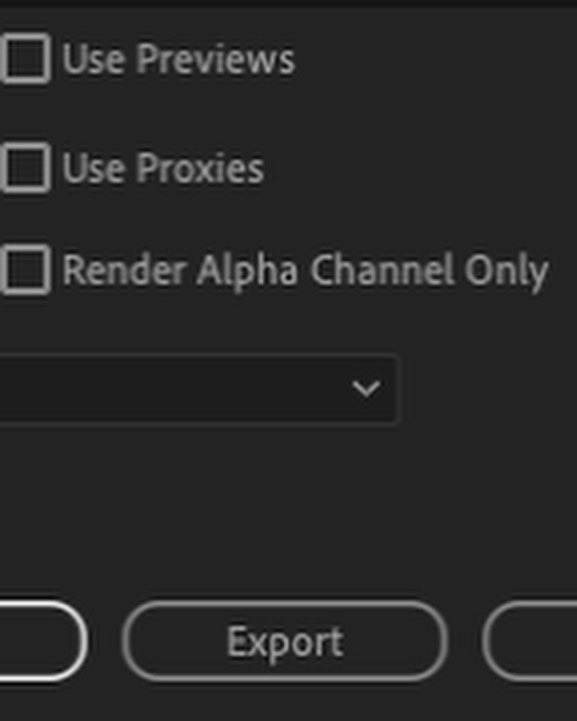
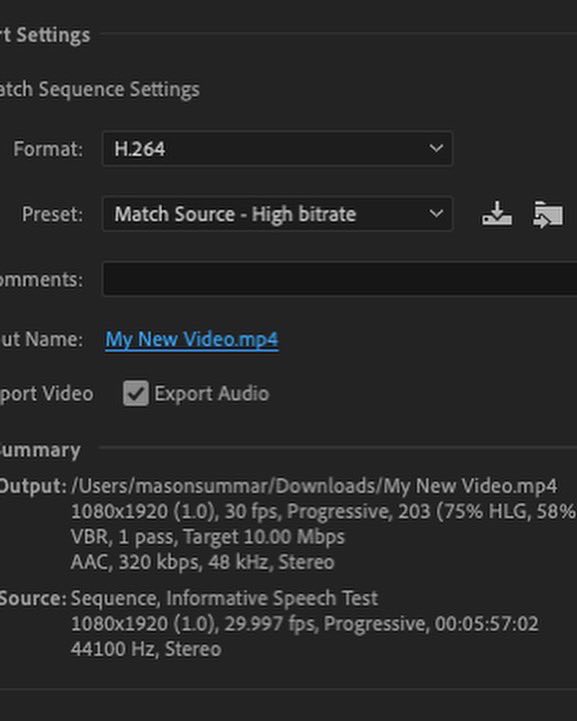
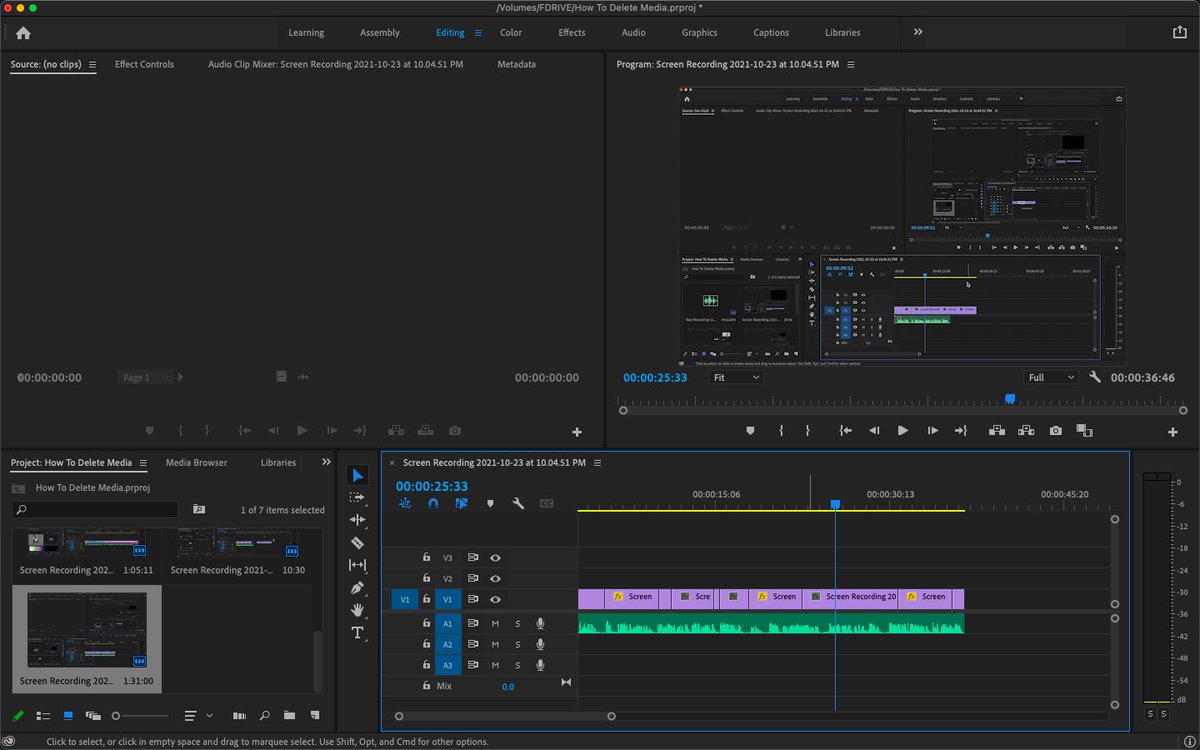
To get your video out there, exporting is the way to go. Just make sure you have your format and preset set up correctly, and your video renamed.
This marks the final lesson on the editing basics. Thank you for reading over my posts. Until we meet again, everyone!
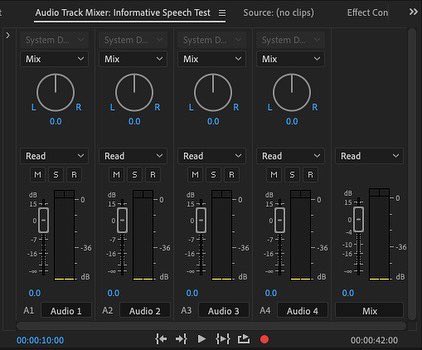
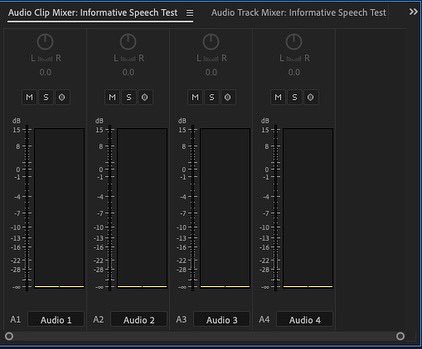
Turning the knob on your mixers can change the location of where you hear the audio. Perfect for knowing where the voice is if someone’s offscreen.
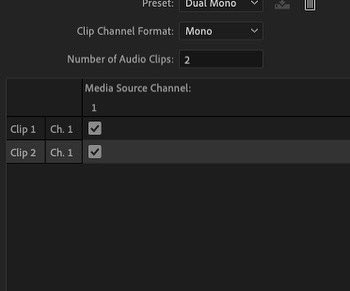
Dual-Mono-ing your audio is also an important thing to do, in order to make it longer for you to hear. Practice using them!
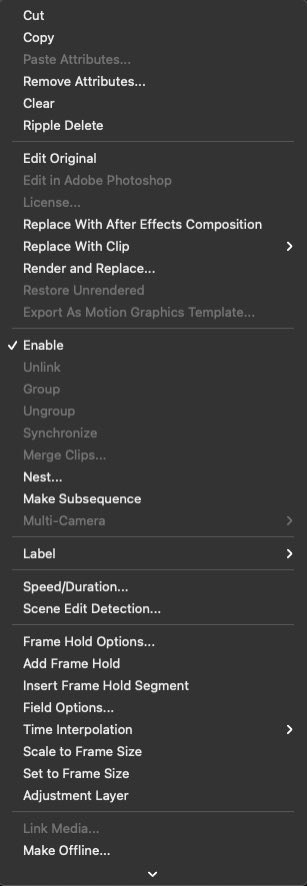
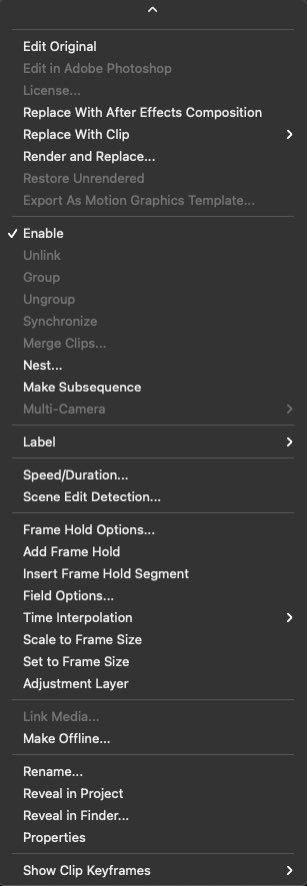
Right clicking has its use when editing. You can change the speed and volume of your video, nest two videos together, unlink and relink your video and audio, and much more. Give them a whirl!
This video shows you how to add camera movement into your video. It’s not that complicated, but it follows a few steps. Still, it’s a handy way to add it in! Give it a test drive, if you want!
Captions - the perfect thing for making what we say visible. Create a new caption track, click the ellipsis, and click on the only thing highlighted to make them! As I’ve said before, practice using it!
If you want to fade into the video, or fade out or exit any other way, then transitions are for you! They only work at the beginning and end, but they connect to each other if they are bladed next to each other! Test them out for yourself!
There are different styles of text to add into your video. Look at Essential Graphics, and you’ll be able to find them. If you see which text type/style you want, drag it onto the video.
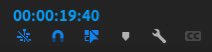
Snapping is not something to ignore. If it’s on, then you can prevent empty spaces in your video. It’s always blue if it’s on, so make sure it’s blue instead of white, because that means is off.
Click on the stopwatches to be able to make your footage move while it’s on, zoom in or out, and rotate it a different angle. Practice it as much as it takes so that you remember how to do it!
Premiere Pro has way too many pathways to color correcting. Which one you use is up to you, but I would suggest you use the Colors tab because it’s a quicker way to get to correcting.
Lumetri Presets can alter the color of your video by a bit. I would recommend recoloring your video yourself, but if you want it to look like a Noir film, then take a look there!
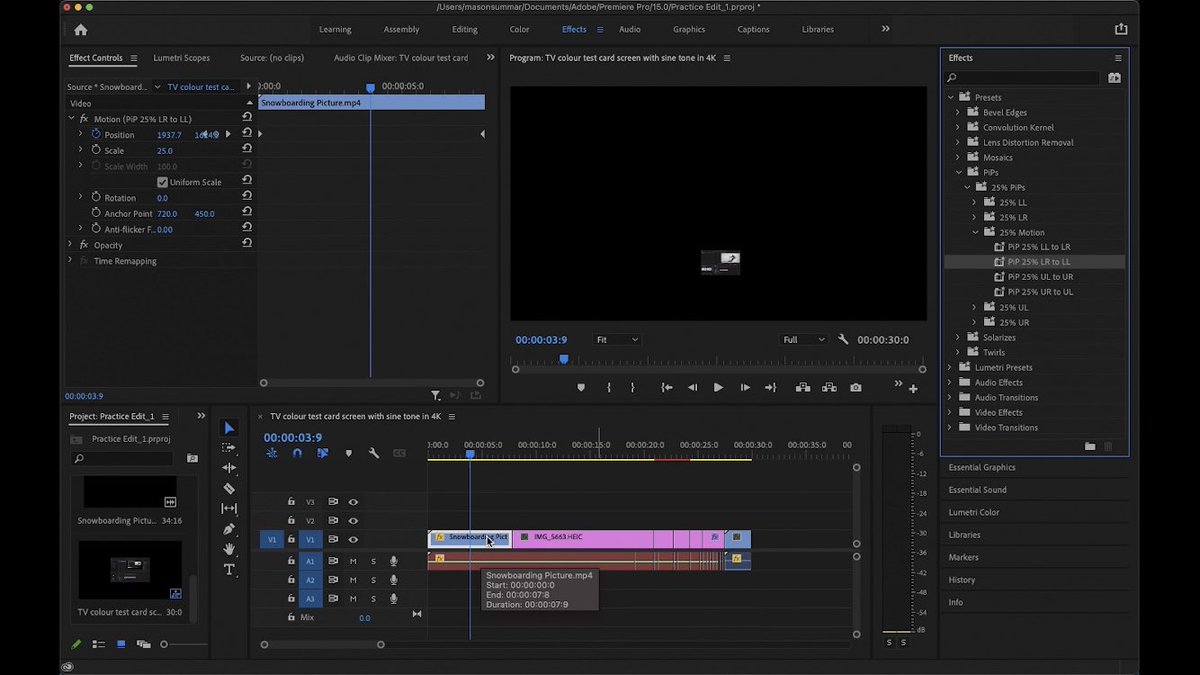
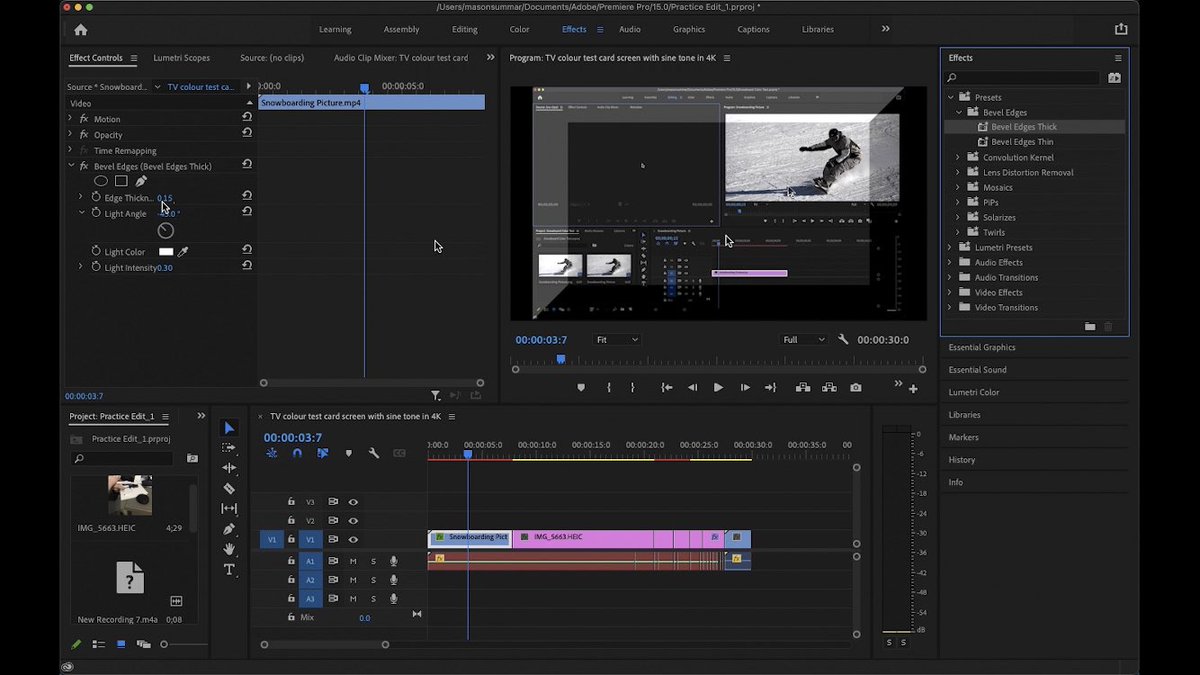
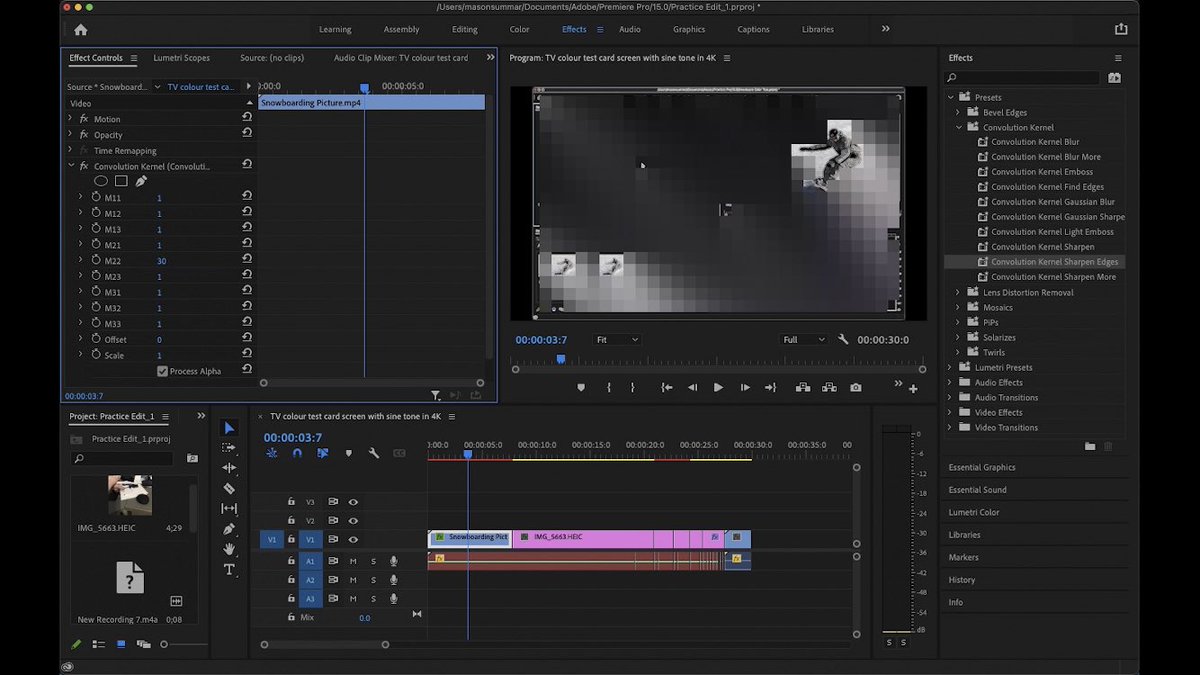
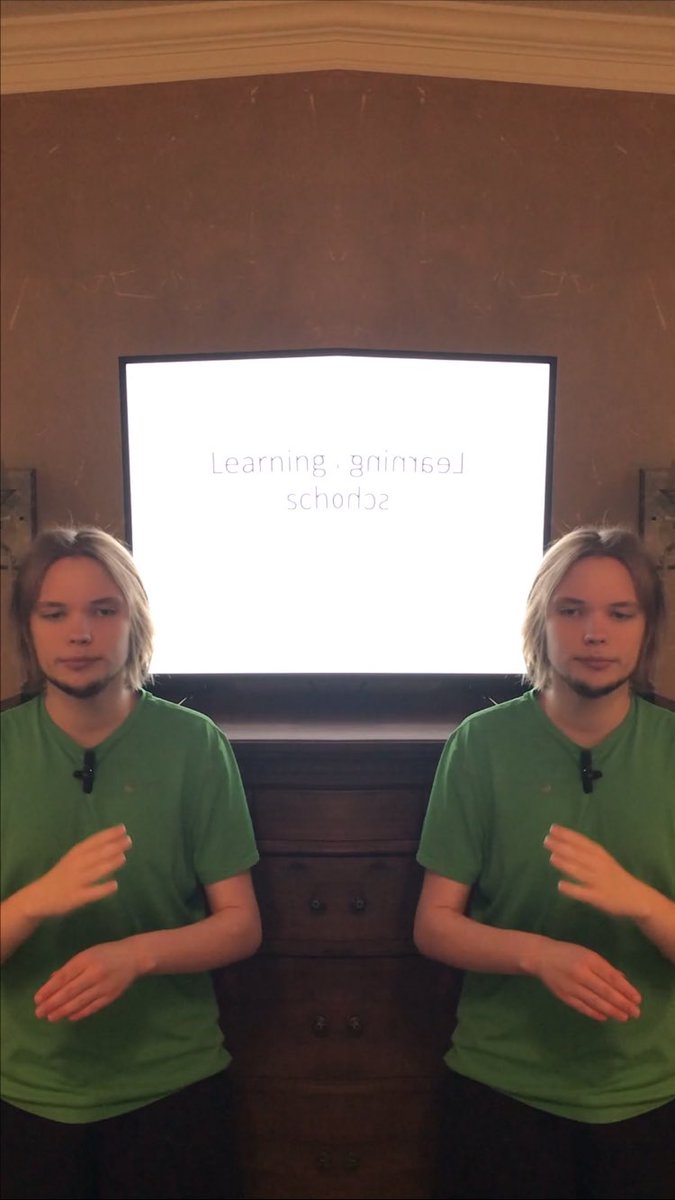
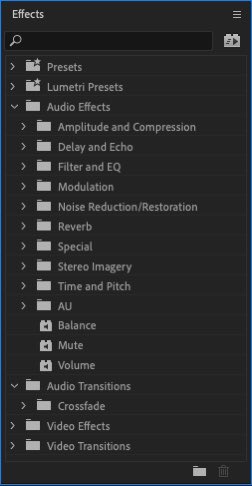
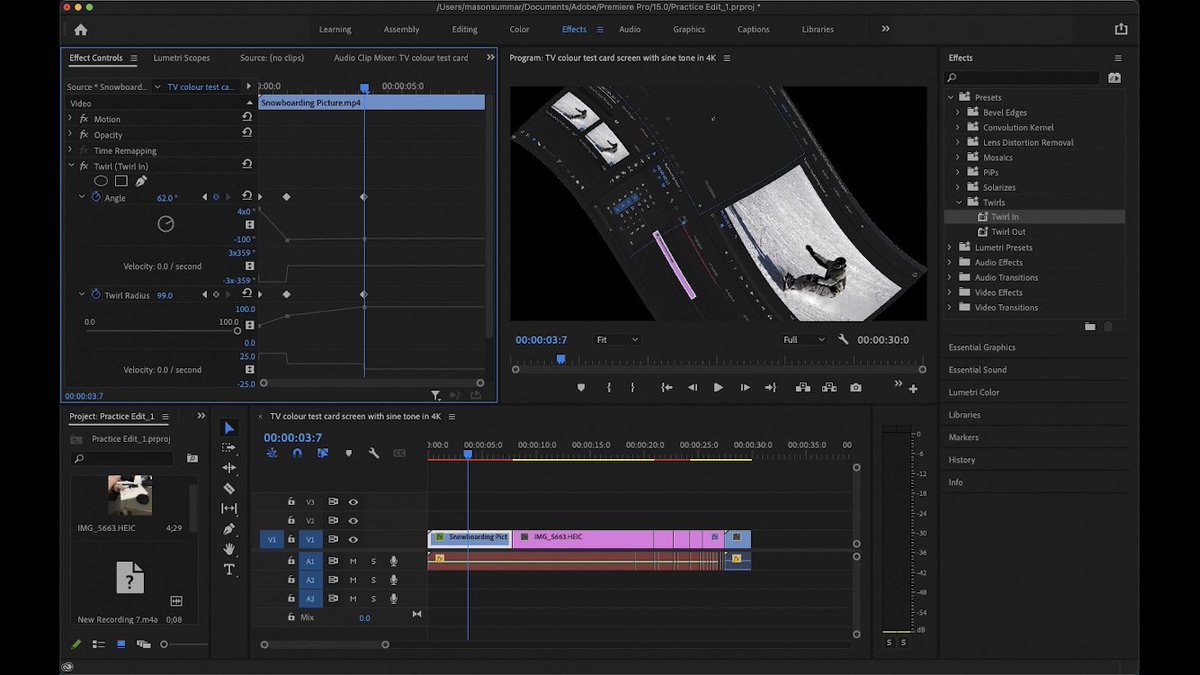
Video effects are fun to use, but it takes a bit to get used to them because there are just so many. Here are just a few examples on the “Presets” side of the effects on Premiere Pro.