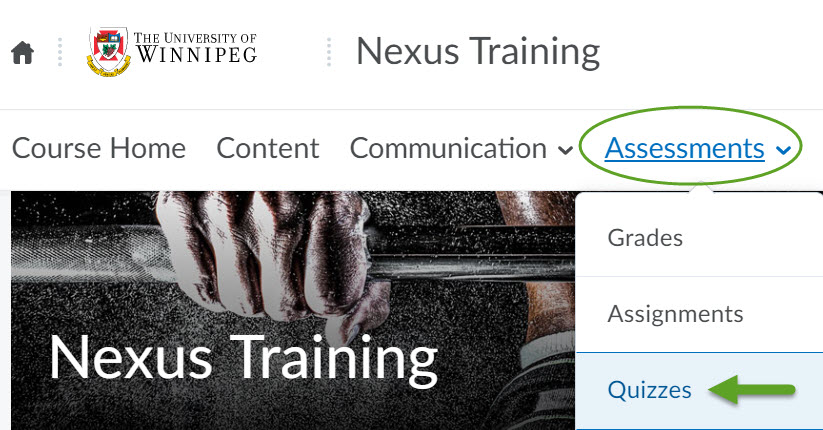
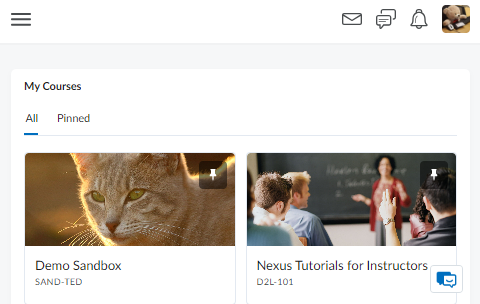
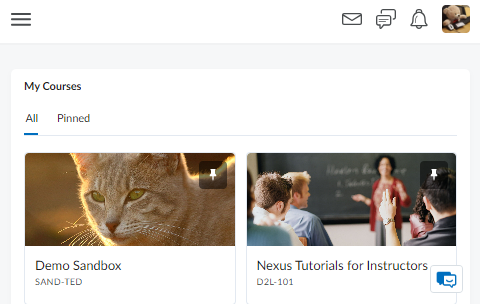
🧑💻How to log into Nexus:
https://t.co/PyA3DNY0C8
🆘Finding help within Nexus:
https://t.co/ipEw4xM1eA
ℹ️More info on UWinnipeg Student Learning Technologies (Nexus, Panopto, ReadSpeaker, Respondus):
https://t.co/19hjkHP7lw
⏪If you officially withdrew from a course, contact [email protected] to be removed from its Nexus course site, but note also that some Instructors may be doing their own Nexus Classlist management in the coming weeks. https://t.co/SNGI8Wn5ag
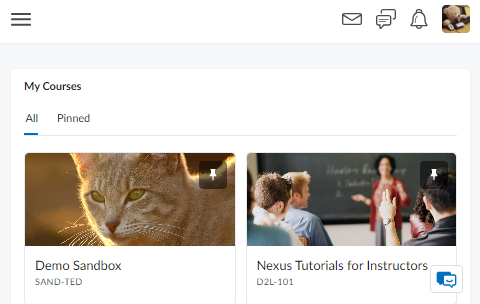
Need help with Nexus (D2L Brightspace tools)? Technical support from a live agent is available in minutes - 24 hours/day, 7 days/week, 365 days/year - through the blue "smiling dialog boxes" button found in the lower right of any Nexus page. For more info: https://t.co/ipEw4xM1eA
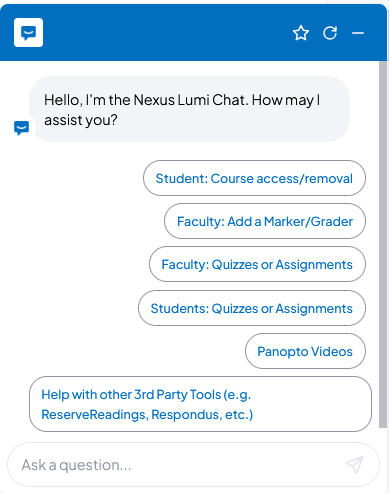
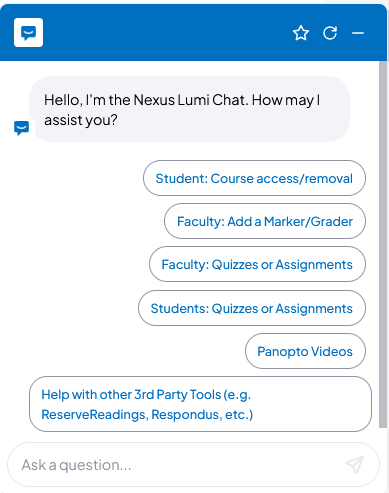
ℹ️Did you know that answers to frequently asked questions can be found through the "Lumi Chat" ("smiling blue dialog box") button in the lower right on any Nexus page - or type in your question to be provided with more info on how to use Nexus:
If your instructor has set up Discussions for your course in Nexus, then you can post, read and reply to those discussion threads on different topics, ask questions, share files, and communicate with other students and instructors. Here's a quick overview: https://t.co/SkZow8eZBr
🔔Did you know that you can customize your Nexus course notifications so that you don't miss announcements, deadlines, or other new online course activities? Here's how: https://t.co/SNPvWGJ93r
🔏If your instructor is using Respondus LockDown Browser or Monitor on their Nexus tests/exams, here’s info for students on how it works: https://t.co/c6vvGuTUZA
Have you noticed the📢ReadSpeaker text-to-speech accessibility tools in Nexus:
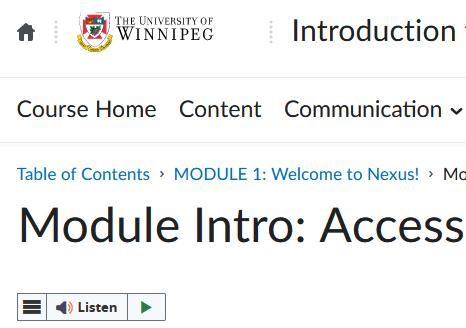
🕸️ webReader ("Listen" button in Content, Assignments, Discussions & Quizzes)
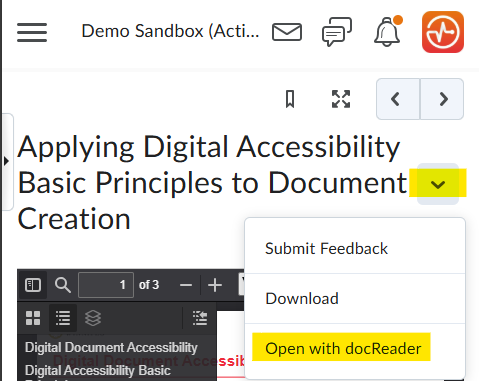
📄 docReader ("Open with docReader" dropdown option for Content document files)
For more info: https://t.co/zDFtjQWTNN
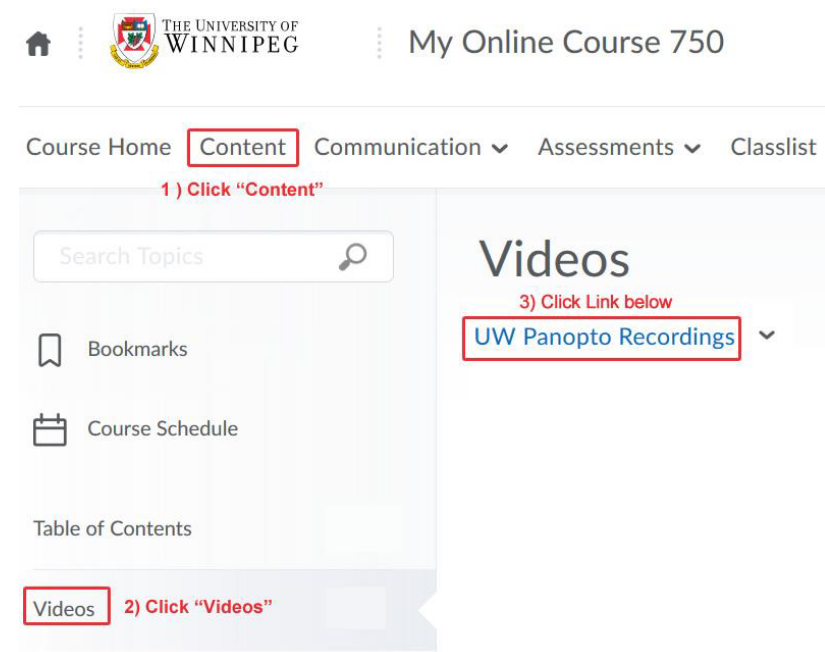
📹If your Instructor is using Panopto to stream your course videos, these videos are accessed through your Nexus course site. Information on video access and playback instructions: https://t.co/FNX4jhdU07
✍️If your instructor has set up any tests, exams, or quizzes for you to take through your Nexus course, then the Quizzes tool is where you will find those "assessments" to do online. A quick overview: https://t.co/wKnar63plg
🧑💻Technical issues during a Quiz? 24/7/365 support is available from a live agent via chat in 2 minutes - on any Nexus page, click on the floating blue "smiling dialog boxes" button in the lower right and follow these instructions:
https://t.co/ipEw4xLtp2
📄If your instructor has set up your Nexus course to accept assignments, then you can upload and submit those assignments to your instructor through Nexus. Simply upload your submission to the link labeled with the name of the assignment. A quick overview: https://t.co/QDQPzpbJc7
If your instructor has set up Discussions for your course in Nexus, then you can post, read and reply to those discussion threads on different topics, ask questions, share files, and communicate with other students and instructors. Here's a quick overview: https://t.co/SkZow8erLT
📚The Content area of your Nexus course is where you access course materials, complete required activities, and monitor your completion progress on topics contained within each course module. Here's a quick overview: https://t.co/SjEhSYZiww
Need help with Nexus (D2L Brightspace tools)? Technical support from a live agent is available in minutes - 24 hours/day, 7 days/week, 365 days/year - through the blue "smiling dialog boxes" button found in the lower right of any Nexus page. For more info: https://t.co/ipEw4xM1eA
Have you noticed the📢ReadSpeaker text-to-speech accessibility tools in Nexus:
🕸️ webReader ("Listen" button in Content, Assignments, Discussions & Quizzes)
📄docReader ("Open with docReader" dropdown option for Content document files)
For more info: https://t.co/zDFtjQWTNN
ℹ️Did you know that answers to frequently asked questions can be found through the "Lumi Chat" ("smiling blue dialog box") button in the lower right on any Nexus page - or type in your question to be provided with more info on how to use Nexus:
🔒If your instructor is using Respondus LockDown Browser or Monitor on their Nexus tests/exams, here’s info for students on how it works: https://t.co/c6vvGuUsP8
📝If your instructor has set up any tests, exams, or quizzes for you to take through your Nexus course, then the Quizzes tool is where you will find those "assessments" to do online. A quick overview: https://t.co/wKnar62RvI
📄If your instructor has set up your Nexus course to accept assignments, then you can upload and submit those assignments to your instructor through Nexus. Simply upload your submission to the link labeled with the name of the assignment. A quick overview: https://t.co/QDQPzpbbmz