WPBeginner is the largest unofficial #WordPress resource offering WordPress tips, tricks, and tutorials. Run by @syedbalkhi part of @awesomemotive family.
Take a look at the top WordPress plugins that we use everyday. These must-have WordPress plugins can help your site grow faster!
https://t.co/Rx1fmH1TtW
Here’s what we recommend:
· WPForms (@easywpforms): The best WordPress contact form plugin
· AIOSEO (@aioseopack): The OG and most popular WordPress SEO plugin
· Duplicator (@duplicatorwp): Most reliable WordPress backup and site migration plugin
· @SeedProd: One-stop and powerful WordPress site builder
· @MonsterInsights: The top WordPress Google Analytics plugin
Click on the link above for a full list of our recommended WordPress plugins!
Ranking #1 on Google is no longer the finish line. 🤖
AI Overviews now appear in over 47% of Google searches. ChatGPT, Perplexity, and Claude are answering questions your customers used to Google.
And if your content is not the one being cited, a growing part of your audience will never know you exist.
Getting cited by AI tools is not magic. It comes down to structuring your content so machines can find, understand, and quote it.
We share the exact playbook we use on WPBeginner to get our content cited by ChatGPT, Google AI, Perplexity, and other AI tools.
Here is what you will learn:
✅ Write With the "Answer First" Principle: Put your main answer at the very top of every article, ideally in a Key Takeaways or Summary box. AI scans for the fastest, clearest answer to a user's query.
✅ Use Simple, Direct Language: Skip jargon and passive voice. Short, declarative sentences (Subject-Verb-Object) are easier for AI to parse and quote accurately.
✅ Structure With WordPress Blocks: Use clear H2 and H3 headings, numbered lists for tutorials, tables for comparisons, and quote blocks for key stats. AI reads structure before it reads content.
✅ Prove Your Expertise (E-E-A-T): Detailed author bios, "last updated" dates, first-person voice ("In my experience..."), and citations to authoritative sources. AI trusts real experts over anonymous content.
✅ Add Schema Markup and llms.txt: Use @aioseopack to add FAQ, HowTo, and Product schema in one click. Also enable llms.txt, a new file that tells AI crawlers exactly what to index.
Ready to make your WordPress content the answer AI tools cite first? Read the full step-by-step guide 👇
(Link is in the thread below)
Ever felt intimidated by the idea of installing WordPress yourself? 💻
You want to launch a blog, an online store, or a business site. But the moment you hear phrases like "FTP", "database", or "cPanel", your motivation quietly disappears.
The good news? Installing WordPress in 2026 takes just a few clicks, no technical skills required. 😃
And the best hosting providers have made it so simple that anyone can go from zero to a live website in under 10 minutes.
We share the complete step-by-step tutorial on how to install WordPress the right way, using every popular method.
Here is what you will learn:
✅ 1-Click Installation With Bluehost: Sign up for WordPress hosting and Bluehost installs WordPress automatically. Perfect for beginners. Just $2.99/month with a free domain.
✅ 1-Click Install With SiteGround, HostGator, and DreamHost: Every major WordPress host now offers a 1-click WordPress installer directly from the hosting dashboard.
✅ Manual Installation (Famous 5-Minute Install): For users who want full control. Upload files via FTP, create your database, and configure wp-config.php step by step.
✅ Install WordPress in a Language Other Than English: Perfect if you want to run your site in French, Spanish, Arabic, or any of 100+ supported languages.
✅ Install WordPress on Your Computer (Localhost): Set up a test WordPress site on Windows or Mac using tools like Local, MAMP, or WAMP. Great for practicing without going live.
Ready to install WordPress the right way and finally launch that website you've been putting off? Read the full step-by-step tutorial 👇
(Link is in the thread below)
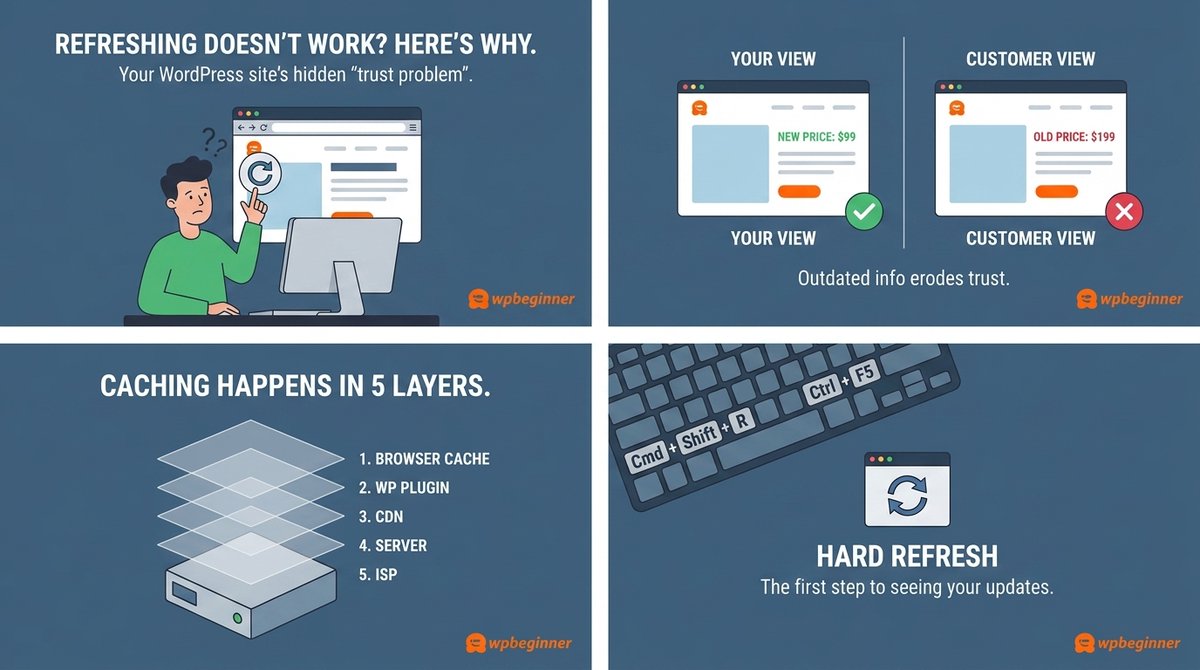
Ever updated your WordPress site, hit refresh, and seen absolutely nothing change? 😤
That moment of panic when your new content, design tweaks, or plugin updates just refuse to show up is almost always one thing: an outdated cache.
The tricky part? Caching happens at multiple levels, your browser, your plugin, your hosting provider, and even your security firewall. Clearing just one rarely does the trick.
We will show you exactly how to clear every layer of cache in WordPress so your changes always go live.
Here is what you will learn:
✅ Clear Your Browser Cache: Use a hard refresh or wipe cached images and files from Chrome in seconds.
✅ Purge Your Caching Plugin: One-click cache clearing inside WP Rocket, WP Super Cache, and W3 Total Cache.
✅ Flush Your Hosting Cache: Clear built-in server caching on Bluehost and SiteGround directly from your WordPress dashboard.
✅ Clear Your Firewall Cache: Wipe Sucuri's firewall cache so security layers serve your latest version.
✅ Bonus: Clear Your DNS Cache: A must-do step after moving your WordPress site to a new host or domain.
Tired of changes not showing up on your live site? Read the full step-by-step guide 👇
(Link is in the thread below)
Losing traffic to language barriers? Your best content might be invisible to half the world. 🌍
When we translated WPBeginner into Portuguese, German, Italian, and Japanese, our traffic grew dramatically.
Millions of people searching for WordPress help every month, and until then, most of them couldn't find us.
The good news? You no longer need expensive translators or weeks of manual work.
AI-powered WordPress plugins like Universally can translate your entire site into 100+ languages in minutes.
We share the 2 easiest ways to automatically translate your WordPress site.
Here is what you will learn:
✅ Method 1 - Universally (Easiest): AI-powered translation in 110+ languages. Free plan for 2,000 words in 1 language, paid plans from $7.50/month. Auto-translates new posts the moment you publish.
Set It Up in Under 10 Minutes: Add your project, pick your source and target languages, install the plugin, and paste your API key. Universally handles pages, posts, menus, image alt tags, and even WooCommerce product descriptions.
✅ Method 2 - WPML (Most Control): Uses WPML AI, DeepL, Google Translate, or Microsoft Azure. Perfect if you want to review every translation before publishing. Paid plans only, starting at Multilingual CMS tier.
✅ Bonus - @SeedProd AI Assistant: If you just want to translate specific landing pages (not the whole site), SeedProd translates any block content into 50+ languages inside the drag-and-drop editor.
Why It Matters for SEO: Multilingual sites rank in every language they're published in, so a French visitor searching in French can actually find your French version. Massive traffic upside.
Ready to reach a global audience and dramatically grow your traffic? Read the full step-by-step translation guide 👇
(Link is in the thread below)
Managing your WordPress website just got easier with WPVibe, an innovative AI connector that integrates with tools like Claude, ChatGPT, and any other AI or LLM of your choice.
WPVibe allows you to automate tasks like updating plugins, managing content, uploading images, and more, all for free.
In most cases, it prompts to confirm a backup is in place, and then it proceeds with the tasks you assigned to it.
Visit https://t.co/dHiqU0dkTJ to explore this game-changing tool.
Follow @WPBeginner for more tips on optimizing your website!
What if your blog could pay your bills? Or replace your full-time job entirely? 💰
Most people think making money online means clicking ads or chasing one big payday. The truth is way more interesting.
Bloggers today are stacking multiple income streams from a single WordPress site, and many of them earn six figures or more.
But here is the catch: this is not a "get rich quick" path. It takes time, the right strategy, and choosing the monetization methods that actually fit your audience.
We share 30 proven ways to make money online with a WordPress blog, every single one tested by real bloggers and the WPBeginner team since 2009.
Here is what you will learn:
💰 Affiliate Marketing: Recommend products you already use and earn commissions on every sale. Manage links with @PrettyLink and join programs through Amazon, Awin, or Commission Junction.
💲 Display Ads (AdSense & Direct): Start with Google AdSense for instant CPC income, then graduate to selling ad space directly with AdSanity for higher margins.
✍️ Sponsored Posts & Paid Reviews: Companies pay you to feature their products. Build a media kit, disclose properly (FTC rules), and pitch brands in your niche.
🔒 Membership Sites: Lock premium content behind a paywall using @MemberPress. Recurring monthly revenue is a game-changer.
📖 Sell Digital Products: eBooks with Easy Digital Downloads (@eddwp), online courses with @MemberPress's built-in course builder, or paid webinars to combine teaching with audience growth.
💼 Sell Services: Freelancing, consulting, and coaching require zero upfront cost. Add a quote form with WPForms (@easywpforms) and start landing clients this week.
🛒 Sell Physical Products: Set up a store with WooCommerce, launch a T-shirt shop with Spreadshirt, or start dropshipping with zero inventory.
🏬 Build a Marketplace or Directory: Charge for paid business listings, event submissions, or take a cut on every transaction with a Fiverr-style micro-job platform.
Ready to stop guessing how to monetize your blog and start building real income streams? Read the full guide with details on all 30 methods 👇
(Link is in the thread below)
Confused about the difference between a domain name and web hosting? 🤔
You are not alone. It is one of the most common questions we get from anyone starting their first website.
Here is the simplest way to think about it: your domain name is like your street address, and web hosting is the building where your website actually lives. You need both to have a working website.
We break down exactly what each one does, how they connect, and what you need to get your website online.
Here is what you will learn:
🏠 What a Domain Name Actually Is: Your website's address (like https://t.co/KIDAkaTE8L) that people type into a browser. It is what makes your site findable without needing to remember long strings of numbers.
📦 What Web Hosting Actually Does: The service that stores all your website's files, images, and data. Without it, your domain has nowhere to point to.
🔗 How They Work Together: When someone types your domain, DNS servers look up your host's IP address and load your site's files from there. Two different services, one seamless experience.
💰 What You Should Pay: Domain names typically start around $14.99/year. Web hosting starts around $7.99/month. Providers like Bluehost offer a free domain for the first year plus 70% off hosting.
🔄 Can You Change Either One Later? Yes to both. Move your domain to a new registrar, or switch your website to a new host without changing your domain. Full control on both fronts.
Ready to understand exactly what you need to launch your first WordPress website? Read the full beginner-friendly guide 👇
(Link is in the thread below)
If you have a WordPress website, here’s an important update for you!
📢 WordPress recently rolled out a major update, 7.0.2, which includes critical security fixes.
It's important to update your site as soon as possible to stay protected. Keep everything from WordPress core to plugins up to date to avoid potential issues.
We will attach some links in the 🧵on updating your WordPress site and plugins securely.
The best part? You don't need advanced tech skills or a huge budget.
Just the right stack:
▶ Bluehost hosting
▶ @MemberPress plugin
▶ @SeedProd for landing pages
▶ @MonsterInsights for analytics
We covered every step (with screenshots) in our full guide on WPBeginner 👇
https://t.co/g6IJAz3x6d
https://t.co/g6IJAz3x6d
Step 2: Pick the right membership plugin.
We use @MemberPress for WPBeginner's own video academy.
It handles:
▶ Content restriction
▶ Multiple membership tiers
▶ Recurring payments
▶ Built-in online courses
▶ Content dripping
▶ Member-only events
All in one plugin.
@memberpress@seedprod@monsterinsights Bonus tip: Take your membership site to the next level.
▶ @MemberPress AppKit: Build a branded iOS/Android app (no code)
▶ Courses addon: Sell full online courses
▶ Quizzes, Assignments, Gradebook: LMS-style learning
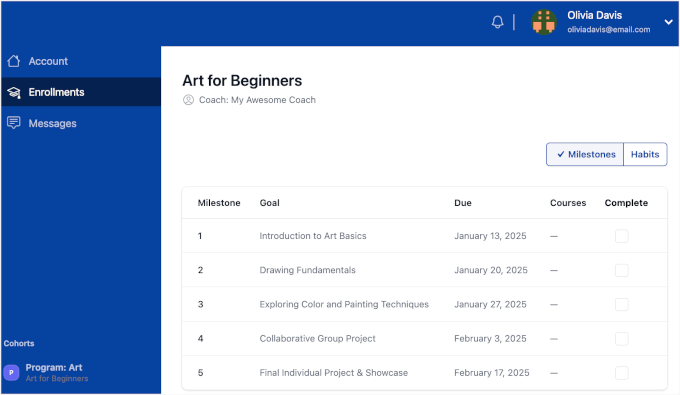
▶ CoachKit: Coaching programs with cohort learning
Your hard-earned content is being copied right now. 😬
Bloggers scrape your articles within minutes of publishing. Photographers right-click and save your images. Premium courses end up shared on torrent sites.
Most WordPress site owners do not realize how much content theft is happening behind the scenes until they see their words show up on someone else's blog.
The good news? The right content protection plugin can lock things down without ruining the experience for your real readers.
We tested some of the best WordPress content protection plugins on real sites. Here are a few standouts worth checking out:
🥇 @MemberPress (Members-Only Content): The all-in-one powerhouse we use at WPBeginner. Drip content, paywalls, expiration dates, and unlimited membership levels.
🥈 @OptinMonster (Email List Subscriber Content): Lock content behind an email signup. Trigger the popup after a reader scrolls to the third paragraph for maximum conversions.
🥉 @EnviraGallery (Anti Image Theft): The go-to for photographers. Disables right-click, adds watermarks automatically, and password-protects galleries.
Ready to stop content thieves and image scrapers from stealing your work? Read the full comparison of all 10 plugins 👇
(Link is in the thread below)