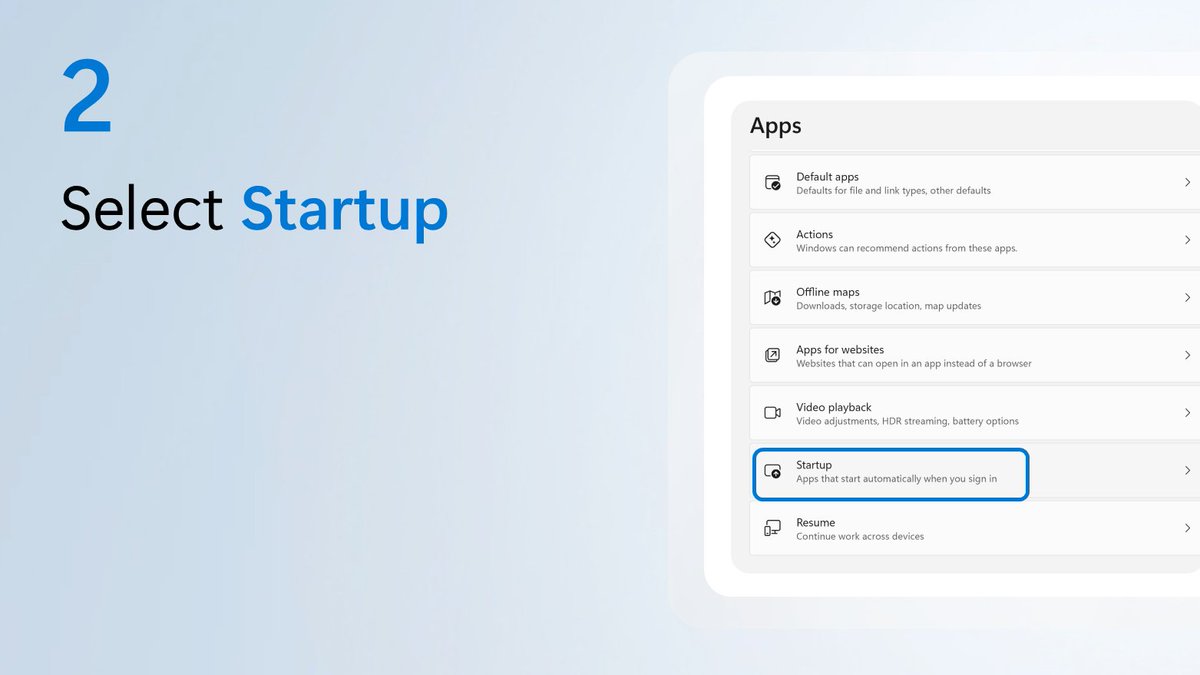
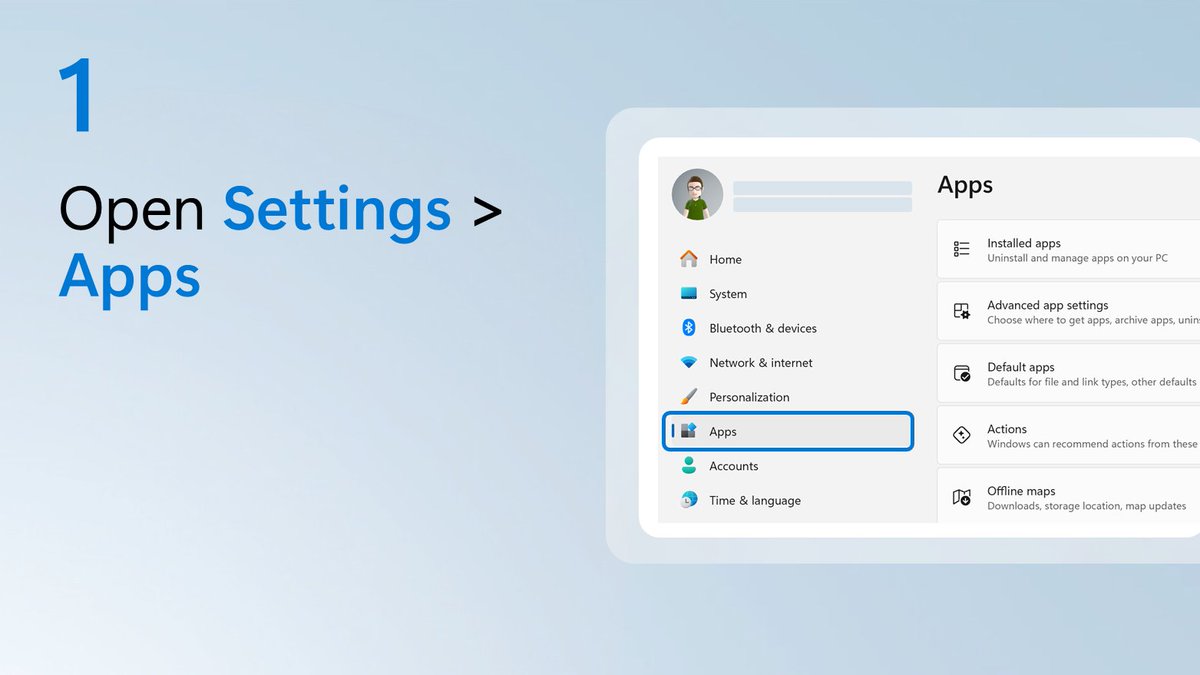
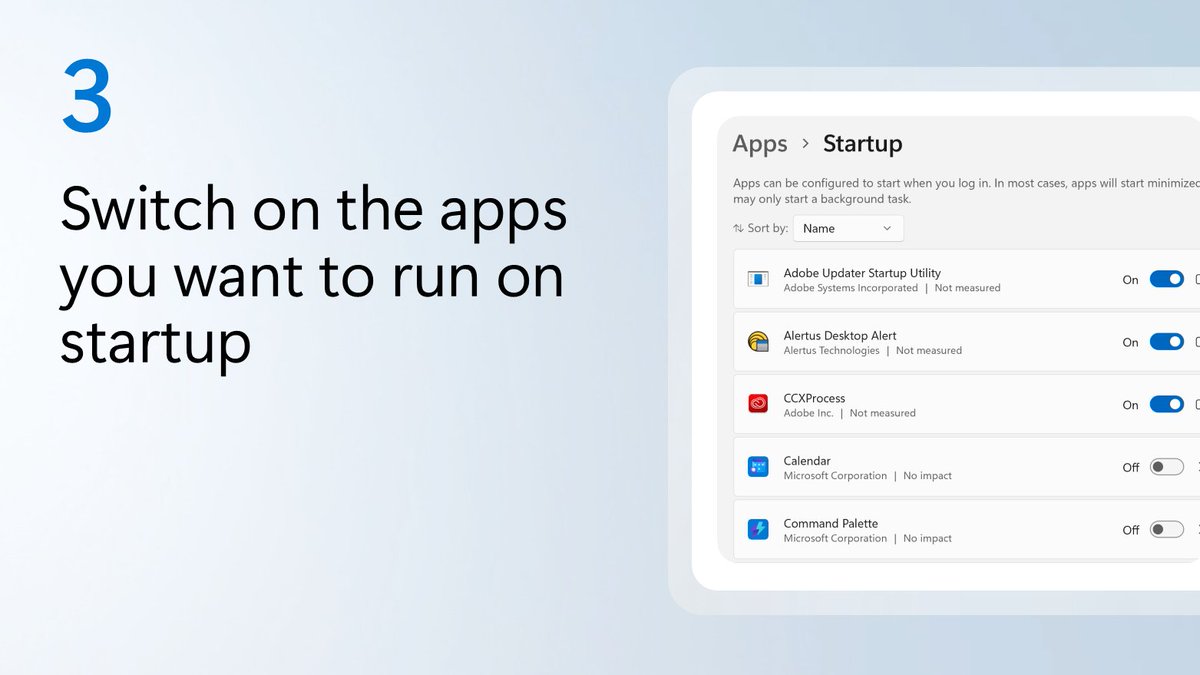
You maybe know about WIN + D to minimize all your apps, but did you know about WIN + Home that minimizes all apps except the one in focus?
Both are great for clearing up clutter
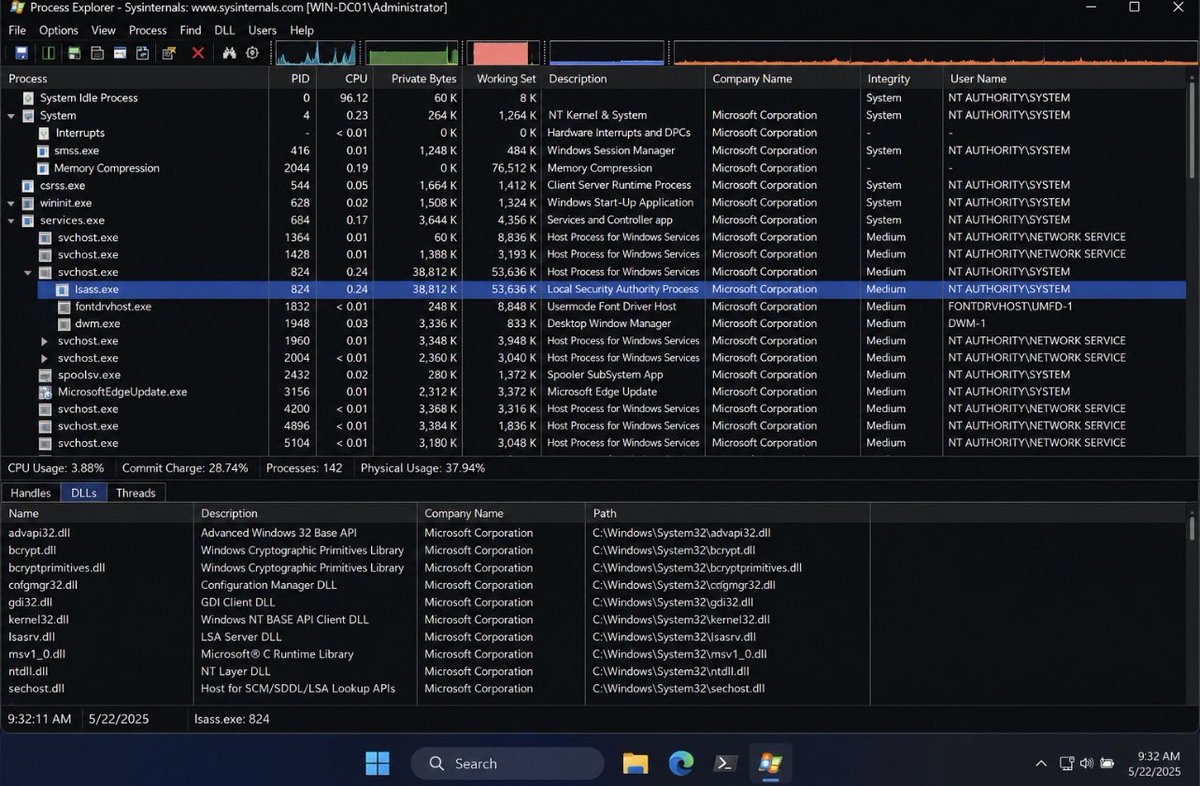
One of the first places I look during a Windows investigation is Process Explorer, especially when something doesn’t feel right on a system. Most people use it as a better Task Manager, but it exposes far more than CPU and memory usage. It shows process hierarchies, loaded DLLs, handles, integrity levels, digital signatures, parent-child relationships, and much more. That extra visibility often tells the real story.
Take lsass.exe for example. Seeing the process isn’t enough. I want to know where it was launched from, which modules are loaded into it, what handles it has open, whether it’s properly signed by Microsoft, and if its parent-child relationship makes sense. Malware that targets credential theft often leaves subtle clues here before traditional antivirus raises an alert.
For defenders and DFIR analysts, Process Explorer is also a quick way to validate suspicious behavior. A process running from an unusual directory, an unsigned executable masquerading as a Windows binary, or an unexpected DLL injected into a trusted process can immediately change the direction of an investigation. Those small details are often the difference between finding the root cause in minutes instead of hours.
The biggest lesson is this. Don’t just memorize Windows process names. Learn what “normal” looks like. Once you understand how Windows behaves under the hood, abnormal activity becomes much easier to spot, even before an alert is generated. That’s where real Windows security starts.
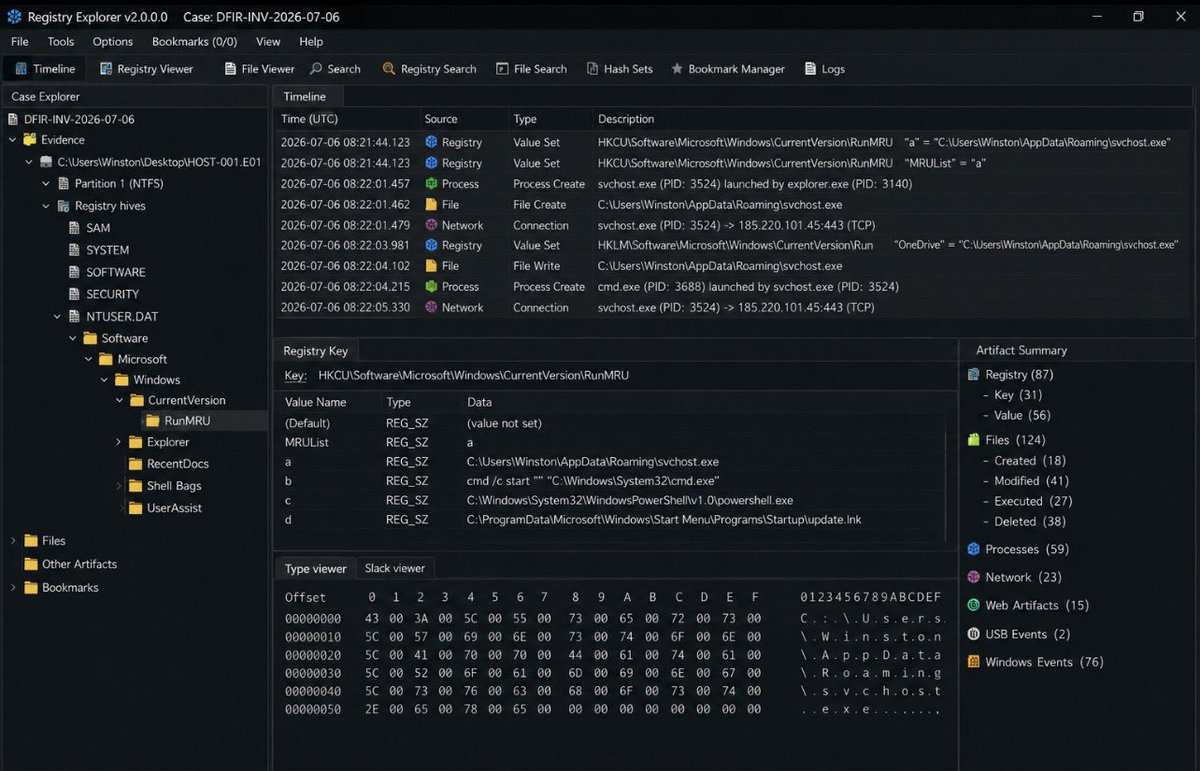
One thing I always tell my students is that malware investigations rarely start with the malware itself. More often than not, they begin with the Windows Registry.
What you’re looking at here is a registry-focused forensic investigation where multiple artifacts have been correlated into a single timeline. Notice how registry modifications, process creation, file writes, and outbound network connections are all aligned chronologically. This allows an investigator to answer important questions like what executed first, what changed on the system, and what happened immediately afterwards.
The highlighted RunMRU key records commands entered through the Windows Run dialog, while other artifacts such as RecentDocs, UserAssist, and Run keys help reconstruct user activity and identify persistence mechanisms. Even if an attacker deletes their malware, these registry artifacts often remain behind, making them invaluable during incident response.
This is why experienced DFIR analysts don’t rely on one artifact. They build a timeline using the registry, event logs, file metadata, network activity, and process execution until the evidence tells a complete story. The registry isn’t just a configuration database—it’s one of the richest sources of forensic evidence on a Windows system.
#LaOdiseaCantosIalIV
«Háblame, Musa, de aquel hombre de multiforme ingenio que, después de destruir la sagrada ciudad de Troya, anduvo peregrinando larguísimo tiempo... mientras navegaba por salvar su vida y la vuelta de sus compañeros».
Así comienza la Odisea.
#LaOdiseaIntroducción
La Odisea es, junto con la Ilíada, una de las dos grandes epopeyas de la literatura griega. Tradicionalmente se considera posterior a la Ilíada y su composición suele situarse a finales del siglo VIII a. C.
Ambas se atribuyen a Homero.
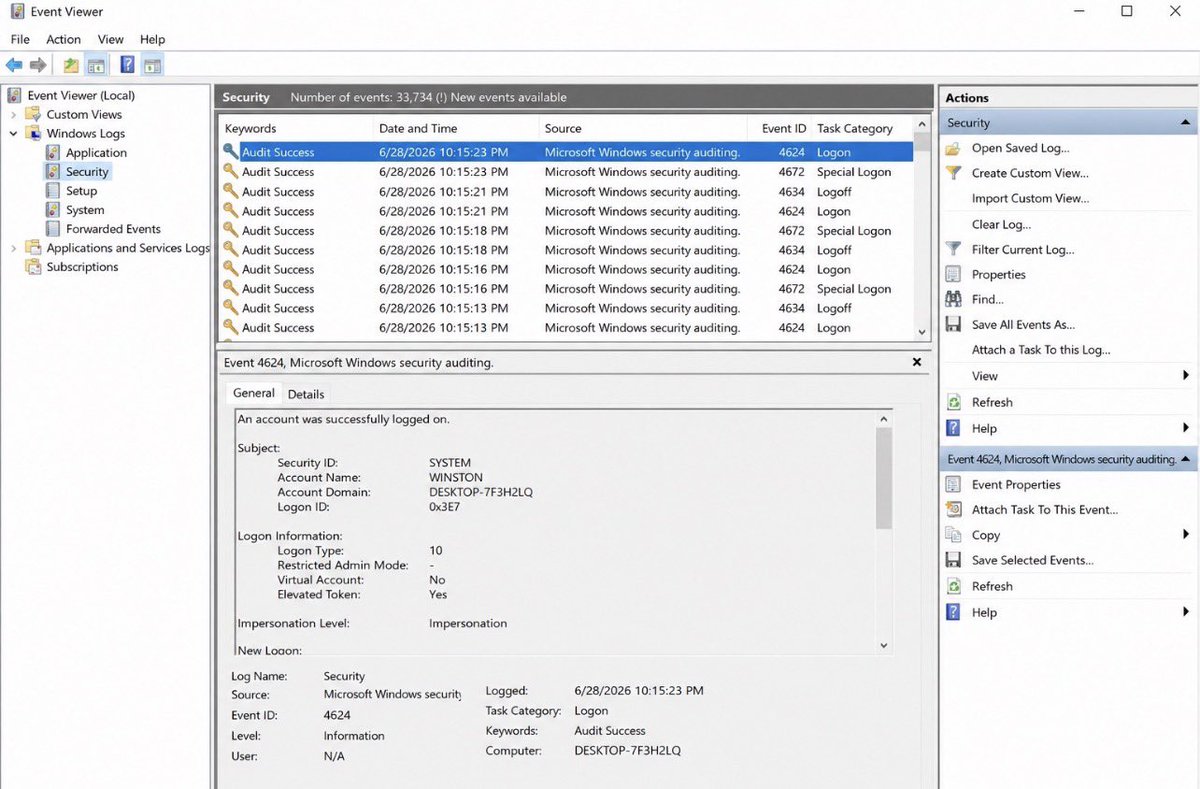
One of the first places I check during a Windows investigation is Event Viewer, specifically the Security log.
The event highlighted here is Event ID 4624, which means a successful logon. A lot of people see “Audit Success” and immediately assume everything is fine, but that’s not how investigators think. A successful login simply tells us that Windows accepted someone’s credentials, it doesn’t tell us whether that login was expected.
Look at the details pane below. You can see information like the account name, the logon type, the time it happened, and the computer involved. Those details become incredibly useful when you’re investigating suspicious activity. Was the user supposed to be logged in at that time? Was it an interactive login at the keyboard or a remote session? Does it match what the user says they were doing?
This is why digital forensics is about asking questions, not jumping to conclusions. One log entry rarely tells the whole story. But when you correlate Event ID 4624 with failed logons (4625), privilege changes, process creation events, and network connections, you begin to build an accurate timeline of what really happened on the system.
Luego no diréis que no os quiero.
Con motivo de mi cumpleaños, os voy a dar el regalo yo mismo.
SOLO HOY, pinchando en el enlace que pondré en el siguiente del tuit del hilo, podrás descargar cualquiera de mis novelas en digital.
Sí, GRATIS.
¿Compartes MUCHÍSIMO?
It’s been a busy week, preparing for a big customer migration this weekend and scripting for it… I realized that I use some Terminal things that are worth sharing in this small blog 🙂
#PowerShell#Tips#Tricks
https://t.co/eBO6GWsWI4
Les dejo esta excelente guía rápida de direccionamiento IP que resume perfectamente lo que DEBEN dominar:
🔹 Rangos IPv4 privados (Clases A, B y C)
🔹 Prefijos CIDR básicos y sus máscaras
🔹 Direcciones IPv4 especiales (como APIPA y Loopback)
🔹 Lo esencial que hay que saber de IPv6
#Redes #Networking
La última actualización 0.100 de las #PowerToys en #Windows11 tiene una nueva herramienta.
Se trata de una guía de métodos abreviados de teclado para poder saber más rápidamente que atajos tienes configurados en tu equipo.
Así funciona 👇
Llevas años pagando Netflix, Spotify y no sé cuántas suscripciones más.
Y hay una tarjeta gratuita que te da acceso a cientos de libros, películas, música y wifi gratis por toda la Comunidad de Madrid.
La mayoría no sabe que existe. Hilo 👇
Mind NO siempre es mente:
1, Never mind > Déjalo así
2. Keep in mind > Tener en cuenta
3. Change your mind > Cambiar de parecer/opinión
4. Make up your mind > Decidirse
5. Do you mind? > ¿Te importa? / ¿Se puede?
6. Be out of your mind > Estar loco
7. Mind your own business > ???
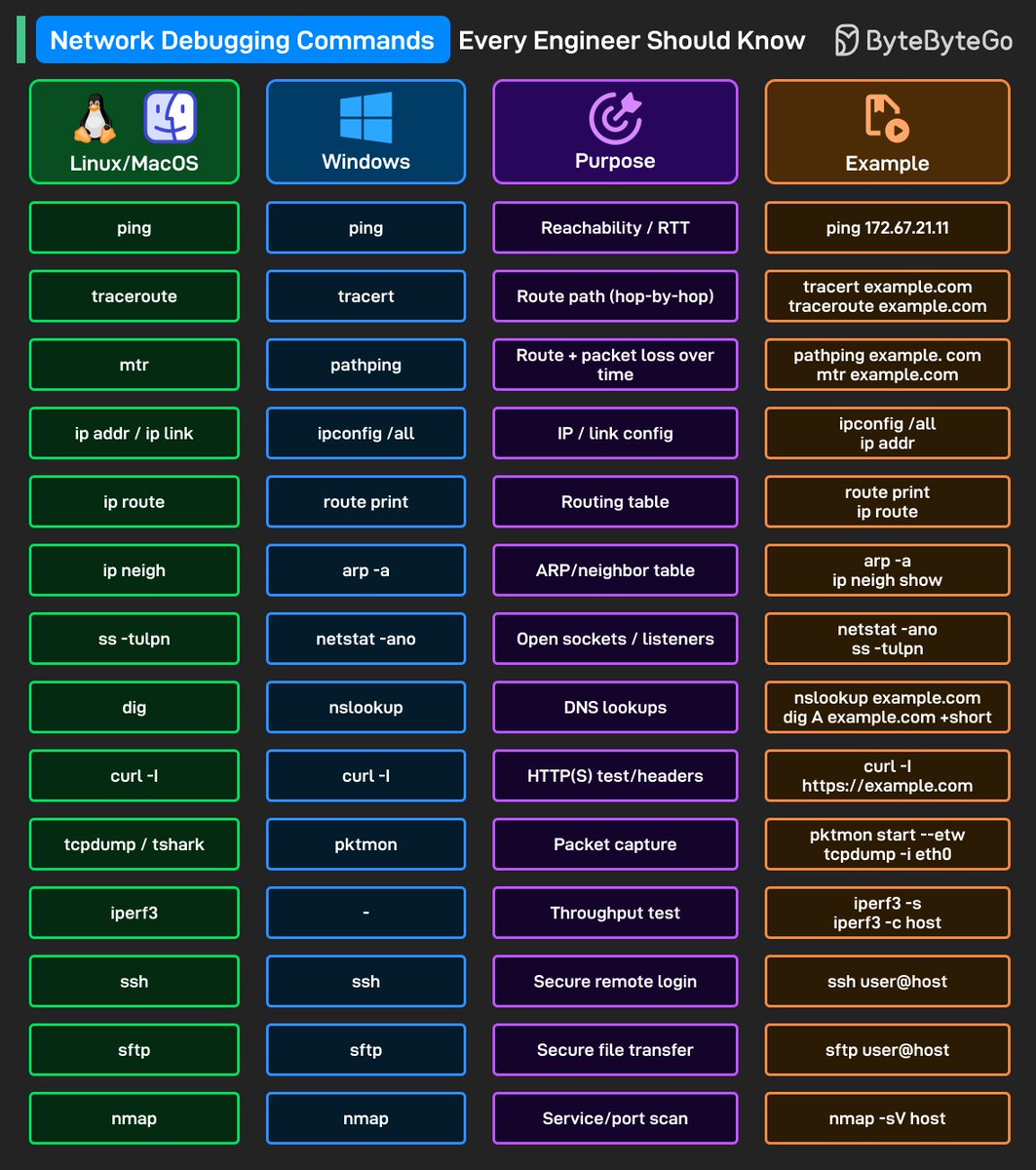
🌐 Guía de comandos fundamentales para la depuración de redes que todo #Sysadmin debe conocer.
Comparando las herramientas utilizadas en sistemas #Linux/#MacOS frente a #Windows
I once watched a junior engineer troubleshoot a company website that users said was down. The first thing he did was run ping against the server. The replies came back immediately, so he turned around and confidently said the network was fine and the server was up. Many people make this mistake because ping is usually the first tool they learn when dealing with network issues.
I asked him one simple question. I said, “Are users connecting with ICMP or with HTTP?” He paused for a moment because he realised he had not actually tested the real service users depend on. So I told him to check the web service directly instead of relying on ping.
We ran curl -I <website> and immediately the response came back with 502 Bad Gateway. At that point it became clear that the server itself was alive, but the web service sitting on top of it had a problem. Ping only confirmed that the system could reply to ICMP packets. It did not prove that the application running on the server was functioning properly.
After checking the services with systemctl status nginx, we discovered that the web server process had crashed during a deployment earlier in the day. The machine never went offline, so ping continued to respond the entire time. Users however could not access the site because the actual service handling requests was no longer running.
That situation taught him an important lesson that many engineers learn the hard way. Network tools are only useful when you understand what they actually test. Ping confirms that a host can respond to ICMP traffic, nothing more. When troubleshooting, you must always test the exact service users rely on, not just the machine itself.