A user insisted that a video-conferencing application had never been permitted to use the Mac’s microphone.
The application was already removed, so checking its current settings would not help. But macOS had kept something useful behind.
Inside the user’s Library is a database called TCC.db. TCC means Transparency, Consent and Control, the system responsible for managing access to sensitive resources such as the microphone, camera, contacts and screen recording.
In the terminal image, the database shows that us.zoom.xos received microphone access. The auth_value of 2 means permission was allowed, while 0 beside Terminal means access was denied.
The timestamp is also important, but it must be interpreted correctly. It records when the permission entry was last changed, not necessarily the last time the microphone was used. This evidence proves the application had permission, but it does not prove that it recorded audio at that exact moment.
Terminal may require Full Disk Access before it can read this protected database.
macOS privacy prompts may disappear from the screen, but the decisions behind them can remain valuable during an investigation.
We nearly ignored this one because the laptop was not doing anything obviously malicious.
No strange login attempts.
No big upload to the internet.
No antivirus alert.
But while going through our DNS logs, I noticed one Windows machine making a query almost exactly every 60 seconds.
The domain names were changing, but the pattern was the same.
Something like:
m4n2p7q1.sync-check.example
Then one minute later:
v8c1k5t9.sync-check.example
Then another one.
At first I thought it could be some application doing normal background checks.
So I checked Sysmon Event ID 22 to see which process was generating the DNS requests.
That was where things became interesting.
Every request was coming from:
ReaderSync.exe
The name looked like something Adobe could install.
But the file was sitting here:
C:\Users\nora\AppData\Roaming\Adobe\ReaderSync.exe
I checked the signature.
Unsigned.
Now I really wanted to know how it was starting.
There was a scheduled task called:
Adobe Reader Sync
and it pointed directly to the same executable.
So we had an unsigned program inside the user’s profile, pretending to be Adobe software, running automatically and making DNS requests at a fixed interval.
At that point, we isolated the machine.
The user later remembered opening an attachment the previous evening that looked like a PDF from a supplier.
She said the document opened normally, so she never suspected anything.
We could not say from the DNS requests alone exactly what data had been exchanged, but the behaviour looked very much like beaconing.
That distinction matters.
Seeing suspicious DNS traffic does not automatically mean you have proven data exfiltration.
What we had proven was that an unknown executable was repeatedly contacting attacker-controlled-looking infrastructure and had persistence on the endpoint.
That was already enough to treat the machine as compromised.
The funny thing is, if we were only watching normal HTTPS connections, this could have stayed quiet for much longer.
Sometimes the traffic that exposes malware is not a huge connection leaving your network.
It is one small DNS request repeating itself every minute.
A smart door lock looks simple from the outside, but internally it is a small IoT computer controlling something very physical: access to your home.
Inside, the main processor (SoC) handles the lock’s logic, checks commands, processes user input and decides when the motor should move the deadbolt. The motor driver and actuator then convert that digital command into physical movement, locking or unlocking the door.
The Wi-Fi or Bluetooth module allows the lock to communicate with your phone, home router and, depending on the product, cloud services. That is what makes features like remote unlocking, activity history, temporary guest access and mobile notifications possible.
A secure element can be used to protect cryptographic keys and other sensitive information, while flash memory stores firmware and configuration data. The battery pack powers the electronics and motor, and sensors can tell the system whether the door is open, closed, locked or unlocked.
From a cybersecurity perspective, this is where things get interesting.
The attack surface is not only the physical lock. It can include the mobile app, Wi-Fi network, Bluetooth connection, firmware, cloud account, authentication system and the device itself. Weak PINs, reused passwords, outdated firmware, insecure wireless networks or a compromised phone can all weaken the security of the entire system.
The communication path also matters. A command might start from your phone, travel through an encrypted internet connection to cloud infrastructure, pass through your home network and finally reach the lock. At every stage, authentication and encryption are important because the final result is not just access to data — it can be access to a physical door.
This is why IoT security is different from protecting a normal computer. When an IoT device controls something in the real world, a cybersecurity failure can become a physical security problem.
The sketch is a simplified educational representation. Internal layouts and components vary between manufacturers and models, but the security principle remains the same:
A smart lock is not just a lock. It is hardware, firmware, wireless communication, cloud infrastructure, an application and a user account all working together.
To secure the system properly, you have to think about every one of those layers.
AI Has Started Hacking Governments
Cybercriminals are no longer using AI only to write convincing phishing emails.
Researchers reported that hackers built an AI-powered system that attacked Taiwanese government networks for four days. Multiple AI agents allegedly worked together to map systems, find weaknesses, change strategies and compromise at least 85 accounts.
More than 2,500 personnel records were reportedly stolen.
AI has officially moved beyond helping students finish assignments. It is now applying for APT positions without submitting a résumé. 😭
The attackers reportedly relied mainly on exposed APIs and weak authentication, not magical zero-days. That is the important lesson: advanced AI becomes far more dangerous when it meets basic security mistakes.
The future SOC analyst will not only investigate what an attacker did. They will investigate what ten AI agents did simultaneously.
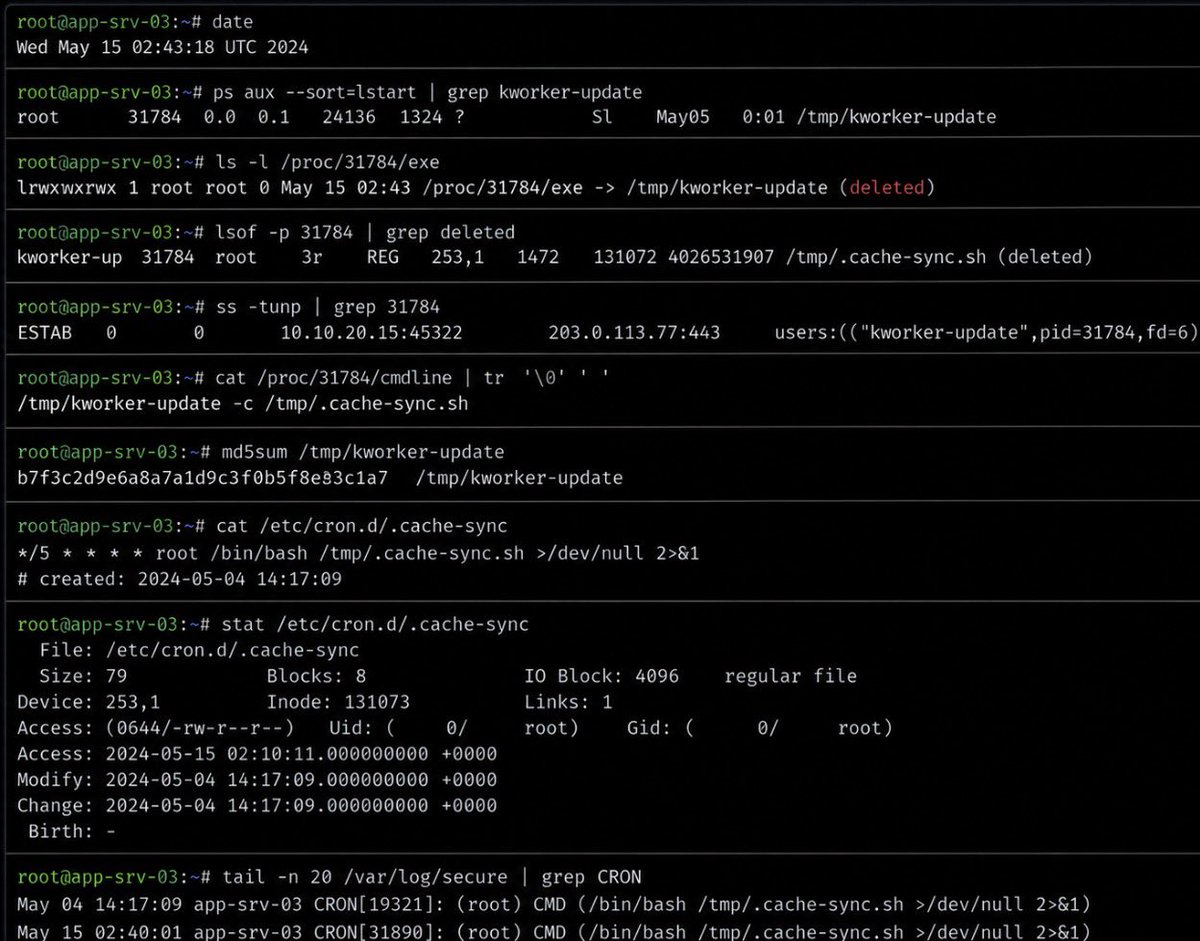
At 2:43 AM, a Linux application server started making one outbound connection every 60 seconds.
Nothing else looked wrong.
CPU usage was normal. There were no strange login attempts. No new users had been created. The antivirus had not detected anything, and none of our high-priority alerts had fired.
It looked like noise.
But the connection kept happening at almost the exact same interval.
So I logged into the server and started checking the running processes.
That was when I noticed something strange.
A process called kworker-update was running as root.
At first glance, the name looked normal because Linux actually has kernel processes with names similar to kworker.
But there was one problem.
This process was running from:
/tmp/kworker-update
A real kernel worker should not be executing from /tmp.
Now I knew something was wrong.
I checked the process again and discovered it still had a deleted shell script open:
/tmp/.cache-sync.sh (deleted)
Someone had deleted the script from the filesystem, probably hoping an investigator would not find it.
But because the process was still running, Linux still had a reference to the deleted file.
Then I checked the network connections.
The suspicious process had an active HTTPS connection to an external IP address.
I searched the cron directories next.
That was when the persistence mechanism appeared.
Hidden inside /etc/cron.d/ was a cron job configured to recreate and execute the script every five minutes.
The timestamp showed it had been placed there 11 days earlier.
For eleven days, this server had been quietly communicating with an external system without causing enough damage to trigger a serious alert.
No ransomware.
No files being destroyed.
No dramatic screen telling us we had been hacked.
The malware was simply maintaining access and waiting.
One small network connection every 60 seconds was the only thing that exposed it.
That is something people misunderstand about malware.
The dangerous ones are not always the loudest.
Sometimes the most important alert in the SOC is the one that almost looks too boring to investigate.
One thing I’ve learned with networking is that you should not just start guessing when something stops working.
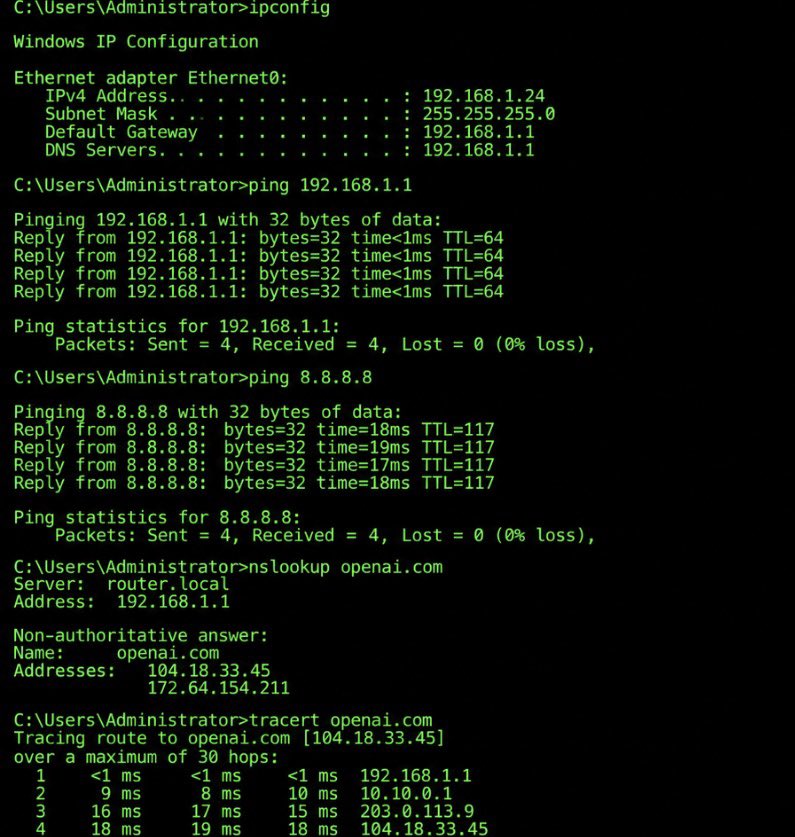
I normally start with ipconfig to make sure the system has the right IP address, subnet mask, gateway and DNS server.
From there, I ping the default gateway. If that works, then I know the device can at least communicate on the local network.
Next, I test a public IP like 8.8.8.8. If that works but I still cannot reach websites by name, then I start looking at DNS with nslookup.
If I need to see where the connection is breaking, that is where tracert comes in.
The main thing is to troubleshoot step by step.
Check the local configuration first, then the gateway, then internet access, then DNS, and finally the route.
That way you are not just guessing. You are actually narrowing down where the problem is.