5️⃣ Annotate Screenshots with Your iPad + Apple Pencil
Open a screenshot → Markup → Select your iPad.
Now you can draw directly on the screenshot using Apple Pencil and save the edits back to your Mac instantly.
https://t.co/ezulHpcfBS
99% of Mac users only use screenshots to capture their screen.
But macOS hides several powerful screenshot features that can save time, reduce clutter, and make them look more professional.
Here are 5 screenshot tricks every Mac user should know 👇
https://t.co/ezulHpcfBS
4️⃣ Use the Hidden Magnifier Tool
Need to highlight something important?
Open the screenshot → Markup → Shapes → Magnifier
You can:
• Move it
• Resize it
• Adjust zoom level
Perfect for tutorials, guides, and presentations.
https://t.co/ezulHpcfBS
You've been unlocking your Apple Watch the hard way this whole time. Stop entering your Apple Watch passcode right now! Here's the one setting that fixes this forever.
https://t.co/B4qF4TNsFc
You don’t need expensive apps to be productive.
Some of the best Mac tools are completely free — and actually useful.
Explore all 28 free productivity apps 👇
https://t.co/B8wGVcO0rw
Some insanely useful free #Mac apps 👀
No subscriptions. No fluff. Just tools that actually make your Mac better.
Starting with: TypeWhisper 🎙️
→ Speak, and it writes for you (locally, no cloud)
→ Shockingly accurate + fast
Full list 👇
https://t.co/B8wGVcO0rw
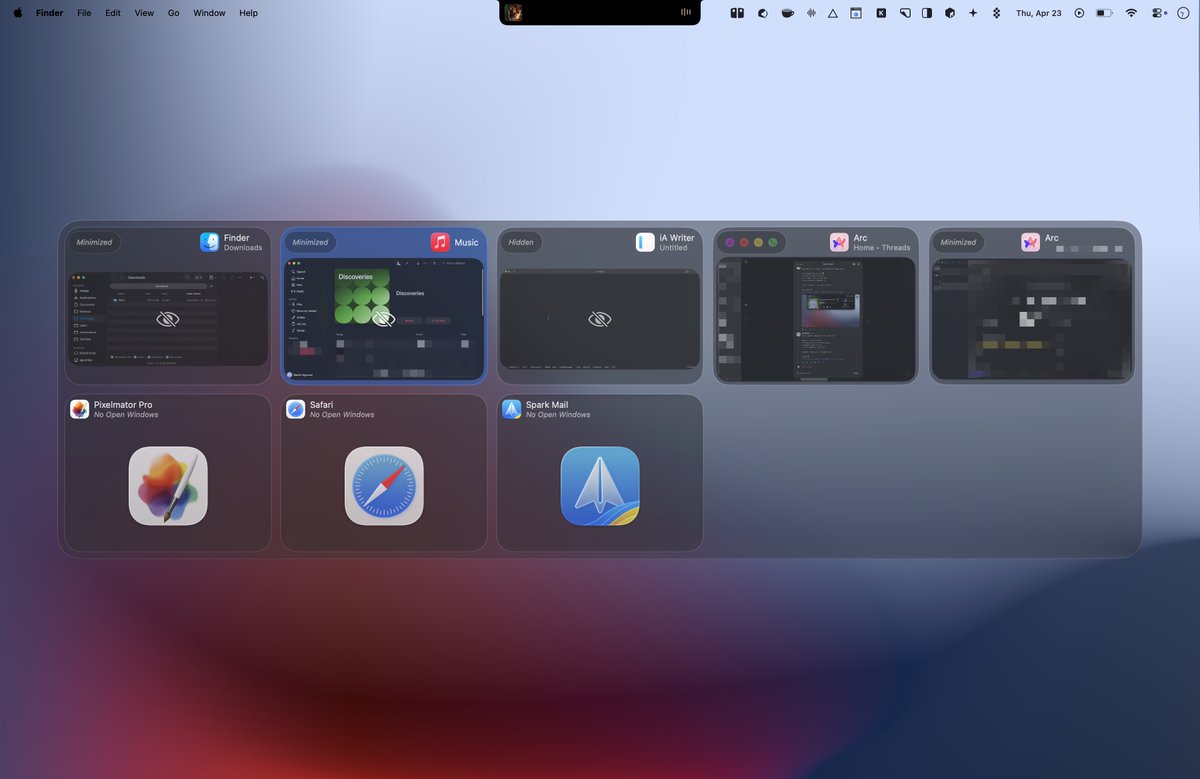
Mac window switching still feels… outdated.
DockDoor changes that ⚡
→ Hover over Dock = see all windows
→ Windows-style previews
→ Faster multitasking instantly
Feels like a feature Apple forgot to ship.
Full list 👇
https://t.co/B8wGVcO0rw
#iOS 26.4 makes it easy to see which devices are using your #iPhone hotspot and how much data each one has consumed. Here's where to find it.
https://t.co/N3mgcowfwW