My dream is to explore the world, discover cultures, taste exotic foods and collect travel stories to various incredible countries! With Lingo, I believe this is closer to becoming a reality. Let's turn dreams into achievements together?
My dream reward is:
#Dreamscometrue $Lingo
"There's even more exciting technologies and coins out there. There's another one called Zano that allows anybody to create their own privacy tokens where nobody can see what's going on. Then there's a project called Confidential Layer ( @ConfidentialLyr ), which is creating a bridge from $BTC, $BCH, and $ETH onto Zano, and when it's on Zano, you have very, very strong privacy with that as well." ~Roger Ver
Learn more about Zano: https://t.co/Tjxh3nomkH.
Don't miss the $CLONE Airdrop!
Make sure you're ready to receive your allocation by connecting your wallet to the $CLONE Airdrop campaign website. Time is running out—there are only a few days left!
Connect your wallet now!
https://t.co/qpPiaJV62s
The Zano Ecosystem Task for the Confidential Layer airdrop just went live!🔥
Find the tasks here: https://t.co/ZgPrt6nxUc
I have prepared a step-by-step guide, including a list of Frequently Asked Questions (FAQ) to walk you through the entire process. Let's dive in!🪂
If you already have a Zano Desktop Wallet app connected with the Zano Companion browser extension and a registered Zano alias, click ''Connect Wallet'' and ''Connect X Profile'', then proceed to click on ''Claim''. That's all you'll have to do!
If you are new to the Zano Ecosystem, then follow my steps below.👇
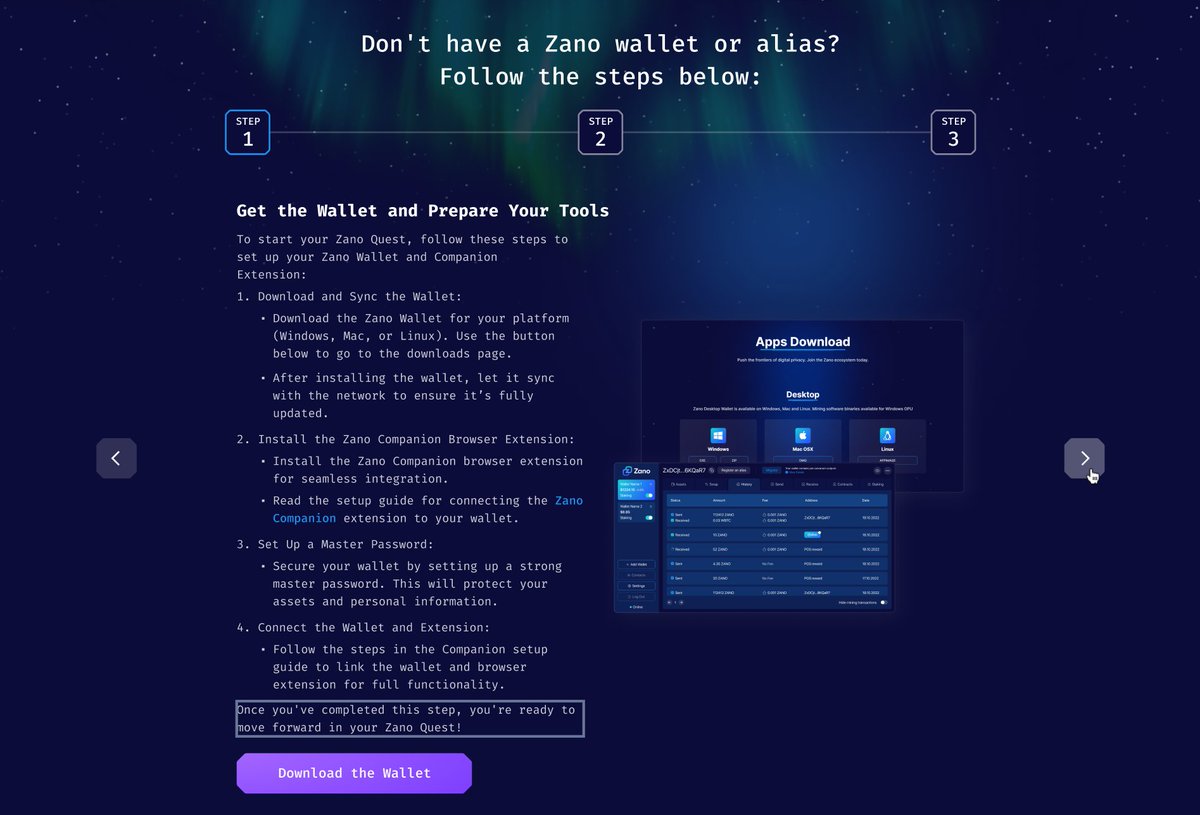
As you can see on the screenshot, the first thing you'll have to do is install the Zano Desktop Wallet via this link: https://t.co/ZwiB59qeh7.
Navigate to "Desktop" and select your computer's operating system (Windows, Mac OS, or Linux).
After installing, let the wallet sync with the blockchain. Once its synced, it'll say ''Online'' with a green dot.🟢
Why is the syncing taking so long?⌛️
The Zano desktop wallet runs on a full node that you run yourself. Therefore, you have to download the blockchain data, and while this is great for network decentralization, it can take some time. You can track the status of your synchronization at the bottom left corner of your wallet. The Zano team is working on a Lite Wallet that runs on a remote node for fast syncing so that people can choose which wallet they want to use.
While your Zano Desktop Wallet is syncing, you can proceed with downloading the Zano Companion browser extension.
You can find the browser extension here: https://t.co/oIFnu23WlH
Once installed, you can find a guide on how to connect your Zano Companion with your Zano Desktop Wallet here: https://t.co/F9UbBHXCab
If you prefer a video instead, check out this guide made by @Zanolist: https://t.co/HmQKE8glq6
Now that we've set you up with both the Zano Desktop Wallet and the Zano Companion app, we can proceed to buy some $ZANO from an exchange, which you'll need to register your Zano alias.🪪
There are a number of exchanges you can use, as shown on the ecosystem task page, with a full list available here: https://t.co/OsCHOl0Gcy
If you haven't used an exchange before, we have this step-by-step guide on how to buy $ZANO on @MEXC_Official: https://t.co/GkQDVVxC7L
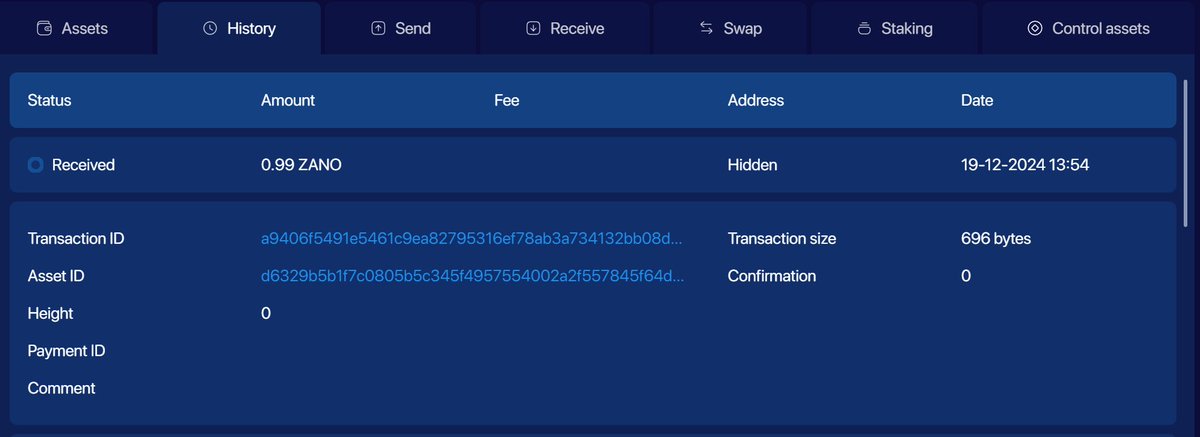
After you have received the $ZANO into your Zano Desktop Wallet, wait for ten block confirmations, approximately ~10 minutes, before you can proceed to respend your $ZANO and register the Zano alias.
Once you click on the transaction that you've just received, you can check the number of confirmations, as seen in the image below.
After waiting for the ten confirmations, you can proceed to register your Zano alias!
You can do this at the top of your Zano Desktop Wallet via the ''Register an alias'' button or directly via the Zano Ecosystem task page by following the instructions.
Congratulations! Now you're all set and can claim your 4000 Space Miles!🎉
I hope this guide was helpful to you. Make sure to retweet and help someone else. Want to further connect and engage with the Zano ecosystem and community? Check out all of our links here: https://t.co/Ucd9FsFrTs