Extract street names from addresses with this powerful Excel formula trick! 🏠📍 Perfect for cleaning address data and organizing locations. Master text functions like a pro! 💡✨🚀 #excel#byteplane#textformulas#dataanalysis#productivity
Learn how to SUM by day of week using Excel's powerful SUMIF function! Perfect for analyzing weekly patterns in your data 📊💡 Track Monday sales, Tuesday performance, any day you want! 🗓️✨🔥 #byteplane#excel#sumif#weekday#dataanalysis
Learn how to format dates professionally in just 3 clicks! 📅✨ No more ugly 3/15/2024 dates - make them beautiful! Perfect for reports and presentations 🔥📊💡 #byteplane#excel#dates#formatting#productivity
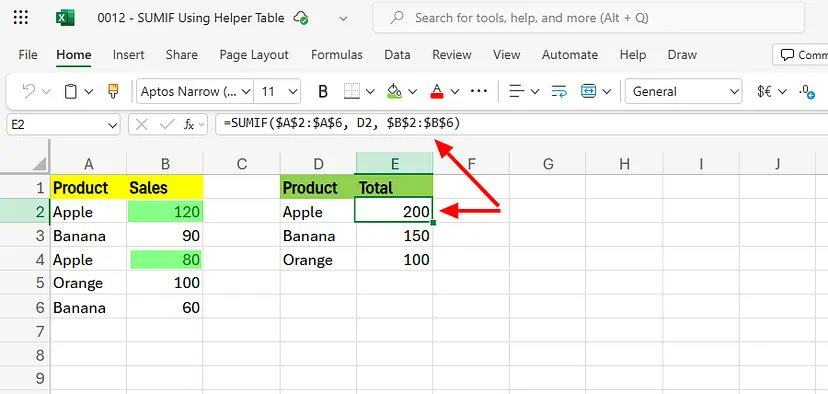
SUMIF with helper table = instant category totals.
In E2:
=SUMIF($A$2:$A$6, D2, $B$2:$B$6)
Drag it down. Each product summed.
#excel#exceltips#sumif#microsoft#analyst
How to split datetime into date and time in Excel with no formula:
Type the date in B2
Press Ctrl + E
Watch Flash Fill split the rest
Repeat for time in C2
Clean results. No functions used.
#excel#exceltips#microsoft#flashfill#byteplane#exceltutorial
Need to remove all symbols and keep just digits?
In B2, use this:
=REGEXREPLACE(A2, "[^0-9]", "")
Now drag it down. That’s your digit-only cleanup done.
Perfect for phone numbers, forms, and reports.
#excel#exceltips#regexreplace#byteplane#exceltricks#datasheets
Start in cell B2
Use this formula:
=LEFT(A2,3) & RANDBETWEEN(100,999) & ROW()
Drag down to apply
Result: A code like Joh2172, Jan3823
Works for employee IDs, tags, anything that needs a unique touch.
Generate clean, unique codes in Excel or Google Sheets — in seconds.
Formula:
=LEFT(A2,3) & RANDBETWEEN(100,999) & ROW()
Use it to build short IDs from names.
Reusable. No duplicates. Looks clean.
#ExcelTips#GoogleSheets#Productivity#UniqueID#ExcelShorts#BytePlane
Turn boring sales data into clean pie charts in 60 seconds.
You can do it in Excel or Google Sheets.
Clear. Fast. Professional.
Watch it: https://t.co/HpLZXN0joC
Follow for more: https://t.co/CfxKzTGTnp
#ExcelTips#GoogleSheets#PieChart#DataHacks#BytePlane
Want to auto-number your task list ONLY when tasks are filled?
Just use this formula in A2:
=IF(B2<>"", COUNTA($B$2:B2), "")
No gaps. No manual typing. Just clean automation.
Works in both Excel and Google Sheets.
#excel#autonumber#googlesheets