Privacy switches.
Turn off anonymous crash reports or automatic update checks in Settings. Both help keep Cozy healthy, so they're on by default.
Your journal, your computer, your call.
Step through your photos.
Double-click any photo in an entry to see it full-screen. Use the arrow keys to move through every photo in that entry, one by one.
A small thing, but if you journal with photos, you'll use it every day.
Cloud journals now feel local.
iCloud, Google Drive, and more open instantly, even before downloads. See titles, previews, and map locations right away. Cozy syncs when you’re back online.
Edit on two devices? Cozy keeps both versions and lets you choose.
Format without reaching for the toolbar.
Type / while writing to open a menu at your cursor. Pick from headings, lists, checklists, quotes, photos, and everything else you can add to an entry.
For those who'd rather not use Markdown.
Reworked the command bar and keyboard shortcuts.
Control Cozy from your keyboard instead of reaching for the mouse. Insert photos, audio, or video. Log a tracker. Add a tag. Open a random entry.
Find all available commands in the keyboard shortcuts section and command bar docs.
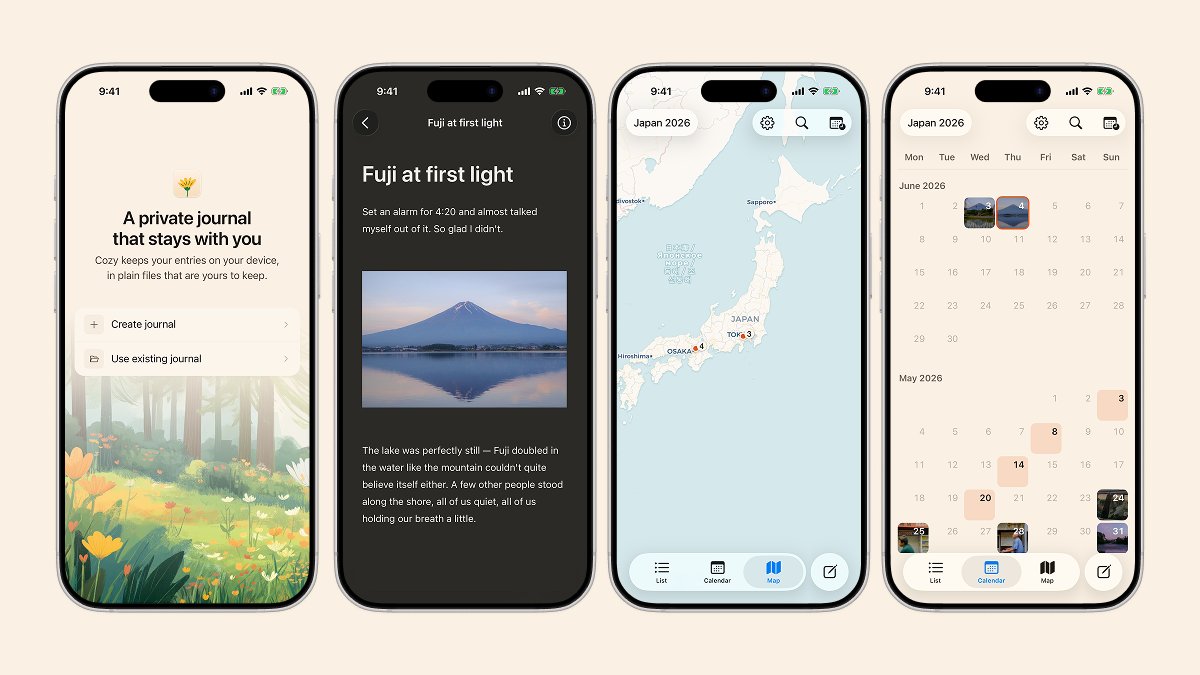
Cozy 1.0.5 is out with better image handling, tracker emojis, and a few nice extras.
Double-click any image to view full-screen. Click an image to see layout options: block-left, centered, block-right, wrap-left, wrap-right. Text now wraps around images.
Import Notion journal entries into Cozy.
Export your Notion workspace as Markdown & CSV, then select the folder in Cozy to bring in entries with dates, titles, and tags.
Find it under File → Import, or during new journal setup.
Customize what shows beneath each entry.
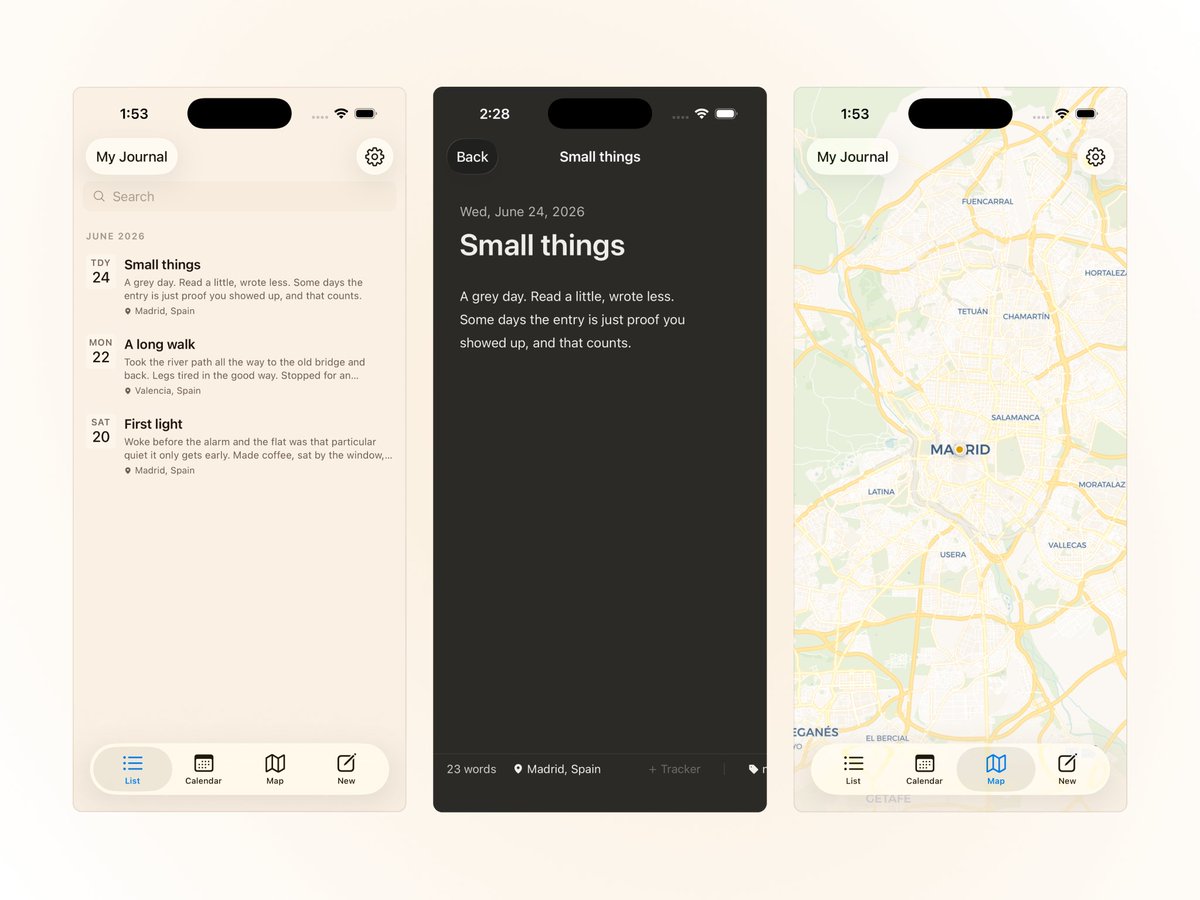
Now you can choose whether location, tags, or trackers appear below the title in your entry list.
Location is on by default. Add tags and trackers when you need them. Your choice applies to the calendar, map, and On This Day views too.
The sidebar toggle follows the rail.
When the rail is open, it sits at the right edge. Collapse the rail and it moves to the top-left corner beside the traffic lights.
In writing mode, it disappears with the rest of the chrome.