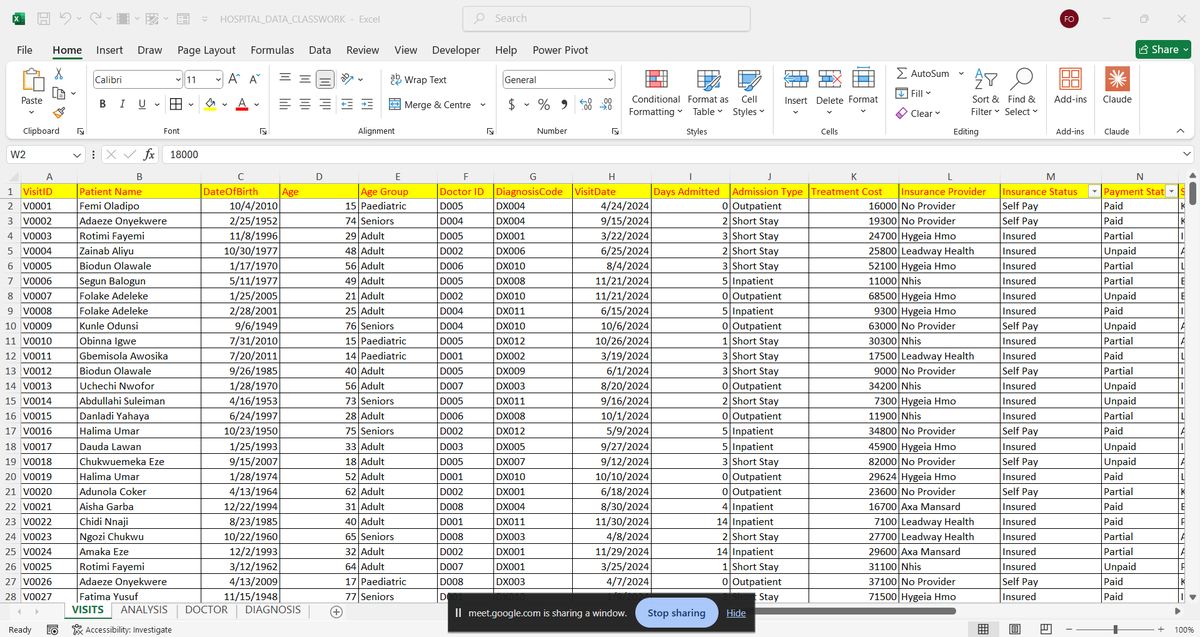
Many businesses celebrate strong sales and growing profits. But what happens when a portion of those sales quietly finds its way back?
Kindly click the link below for full project details
https://t.co/hYksVsFfPB
#excel#dataanalyticslockedIn#buildinginpublic#datafam
You see someone who just started learning, and a few months later they get a job, while you’ve been at it for 2 years and nothing yet
Comparison is a thief of joy.🥹❌
They are not better than you,it’s just TIMING 🤍
And your own win is closer than you think… keep pushing.💪
The June Data Visualization Challenge is Live📊
This month, you’re stepping into the role of a Data Analyst at SkyLink Travel Group, helping leadership uncover opportunities for revenue growth, route optimization, and smarter business decisions.
Before I got into data analytics, I came across countless roadmaps online. Some said start with Excel. Others said jump straight into SQL. A few bold ones even said begin with Power BI���. But the most common recommendation by far was Excel.
So I went with Excel even though I didn't know the reasoning behind it but because so many people pointed there, I assumed it was the easiest entry point.
Even after I finished learning Excel, I still couldn't tell you why it was the right place to start.
That answer didn't come until I began learning SQL.
SQL didn't just teach me querying, it also taught me Excel. I was literarylly doing the same things in SQL that I had done in Excel, just with different syntax. And because Excel had already wired my brain to think about data in a structured way, I was able to understand some of the SQL topics faster.
That's when it finally made sense to me that Excel isn't just a tool you start with, it's the foundation for your learning. It teaches you how to think about data before you ever write a line of code or build a dashboard. Every other tool builds on that foundation.
So if you're standing at the beginning of your data analytics journey, staring at ten different opinions and wondering where to start, here's my answer, not as someone who read it in a blog post, but as someone actively in the thick of it:
Start with Excel...
#datafam
One of the clearest signs that you're growing is becoming embarrassed by your old work.
A few days ago on TikTok Live, I started reviewing some of my old projects and dashboards.
At the time I built them, I was proud of every single one.
I thought they were clean.
I thought they were efficient.
I thought I had figured things out.
Then I opened them again with a few more years of experience.
Suddenly, all I could see were mistakes.
Charts I would never use today.
Metrics that didn't matter.
Processes that took 10 steps when they could have taken 3.
Entire dashboards that could have been simplified into something much more useful.
What's interesting is that the projects didn't change.
I did.
Experience has a funny way of doing that.
It gives you better context.
Better judgment.
Better questions.
And most importantly, a better understanding of what actually matters.
The goal isn't to look back and criticize your old work.
The goal is to appreciate it.
Because that version of you built the foundation that allowed the current version of you to see things differently.
If your old work makes you cringe a little, that's probably a good sign.
It means you've learned something.
I'm curious:
What's something you built, wrote, designed, or believed 2��3 years ago that you would approach completely differently today?
Data Nerds.. what if i tell you there’s a lookup function better than XLOOKUP and also INDEX and MATCH, would you believe??
And the crazy thing is it’s not even a look up function
If you know the function, tell us in the comments
@iam_daniiell FILTER() entered the chat.
XLOOKUP finds one match. FILTER finds all of them and spills the results automatically.
The day I discovered this I went back and rebuilt three client reports from scratch.
Week 2 of EXCEL101 is done… and this was the week the class started thinking differently about data.
Week 1 gave us the foundation.
Week 2 introduced something more important:
The idea that analysts don’t “fix data manually.”
They build systems that clean, structure, and automate the work for them.
That mindset shift changed the atmosphere in the room almost immediately.
We opened with one principle:
"GIGO — Garbage In, Garbage Out."
It didn’t matter how beautiful a dashboard looked or how advanced a formula was.
If the underlying data was dirty, inconsistent, or poorly structured, the analysis would always be unreliable.
And honestly, that realization hit a lot of people hard 😂
Because most spreadsheet frustration doesn’t come from Excel “misbehaving.”
It comes from bad data.
So this week became all about control.
We explored text cleaning functions:
TRIM, CLEAN, SUBSTITUTE, PROPER, UPPER, LOWER, LEFT, RIGHT, MID, LEN, CONCAT, TEXTJOIN…
…and for the first time, students started seeing Excel less as a calculator and more as a transformation tool.
One of my favourite moments was introducing function nesting.
Watching:
=PROPER(TRIM(CLEAN(A2)))
go from “confusing formula” to “wait… this is actually genius” was satisfying to watch.
Because that’s when people begin understanding that formulas are not isolated tools.
They can work together.
And once you understand that, Excel becomes significantly more powerful.
We also spent time on:
📌 Aggregate Functions — SUM, AVERAGE, MIN, MAX, COUNT, COUNTA
📌 Conditional Aggregates — SUMIFS, COUNTIFS, AVERAGEIF
📌 Ranking Functions — LARGE, SMALL, RANK
📌 Logical Functions — IF, Nested IF, AND, OR, IFS
📌 Lookup Functions — VLOOKUP, XLOOKUP, INDEX+MATCH
The Lookup session especially changed the energy in the room.
Because once people realize they no longer need to manually search through tables or repeatedly type the same information…
…there’s no going back.
Then came the assignment.
This week’s challenge came from @TheBoyAnalyst
A Banking Loan Data Cleaning & Analysis task involving 300 rows of dirty loan data spread across 3 tables:
LOANS, OFFICER, and PRODUCT.
Students had to:
✔ Clean the LOANS dataset
✔ Standardize the structure
✔ Use XLOOKUP to retrieve officer and product details
✔ Automate calculations instead of manually typing values
And this part mattered most:
An analyst never types what already exists in a table.
That sentence alone summarizes half of data analysis.
Corrections have already been reviewed and returned — and honestly, the quality of submissions this week showed growth.
The deliverable at the end of Week 2:
A fully cleaned dataset and automated calculation sheets with minimal manual intervention.
That’s real progress.
Next up:
📊 PivotTables
📈 Dashboards
📉 Descriptive Statistics
Week 3 is where the datasets start talking back.
Decided to try out my dashboard presentation using Ai
Used a very basic prompt on chat GPT and this came out clean
I mean my really good and my dashboards are goated, but this elevates it with one attempt
What y’all think??
#Datafam
@vheeorji22 One at a time. In that order. Thank me later 🙌
✅ Excel (think in data)
✅ SQL (pull the data)
✅ Python (transform it)
✅ Power BI (visualize it)
One of the biggest mindset shifts in Excel is understanding "Cell References"
Most people learn formulas like:
=SUM(B2:B10)
…but don’t really understand *why* formulas behave differently when copied across rows and columns.
That’s where Cell References come in.
There are 3 major types:
📌 Relative Reference → `A1`
📌 Absolute Reference → `$A$1`
📌 Mixed Reference → `A$1` or `$A1`
And understanding when to use each one changes everything.
Relative Reference (`A1`)
This changes automatically when copied.
Example:
If you copy:
```excel
=A1+B1
```
down one row, it becomes:
```excel
=A2+B2
```
Excel assumes you want the formula to move with the data.
Best used for:
✔ Row-by-row calculations
✔ Totals
✔ Repetitive calculations across datasets
Absolute Reference (`$A$1`)
This locks both the row and the column.
No matter where the formula is copied, the reference stays fixed.
Example:
```excel
=A2*$F$1
```
If `$F$1` contains a tax rate or exchange rate, every calculation will always reference that exact cell.
Best used for:
✔ Fixed rates
✔ Constants
✔ Parameters
✔ Tax/discount calculations
Mixed Reference (`A$1` or `$A1`)
This locks either:
* the row
or
* the column
but not both.
Example:
`A$1`
→ Row is locked
→ Column can change
`$A1`
→ Column is locked
→ Row can change
This becomes extremely useful in:
✔ Dynamic tables
✔ Matrix calculations
✔ Forecast models
✔ Advanced reporting structures
The interesting thing is this:
Most Excel mistakes are not formula mistakes.
They’re reference mistakes.
People think Excel is “calculating wrong” when in reality the formula is pointing to the wrong cells after being copied.
That’s why understanding references is such a major turning point.
Once you understand how Excel thinks about references, formulas stop feeling random and start becoming predictable.
I'm back and better. I'm glad to be fully back and ready to continue.
From preparing for ICAN exams and a lot more, it has been quite a journey. I was worried and felt behind at some point, but I understood that progress sometimes requires a pause.
#DataAnalyticsLockedIn
Today hits different🥳
It's a "thank you, Lord," kind of day.
365 days around the sun and still, God kept me.
Through highs and lows, His grace never left me
Lord, thank You for bringing me this far. Thank you for every lesson and victory.
Happy birthday to me🎊🎂
We celebrate the strength, impact, and courage of every woman around the world.
To women who know their dreams are valid.
Women who remain brave through every challenge.
To every rising female:
Keep thriving.
Keep showing up.
#HappyInternationalWomensDay2026#IWD