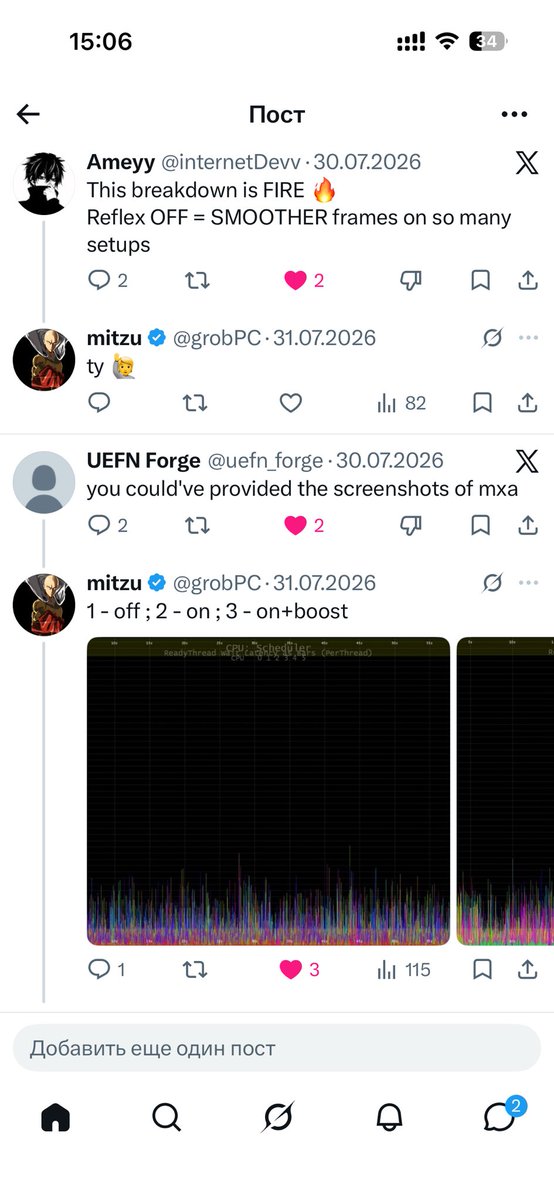
@snowWKoc In any case, this won't add to your knowledge—it will only boost your standing in the eyes of those who aren't very discerning—but if you plan to continue collaborating in this manner, please cite the author of the research.
Jedem das Seine.
A Message Regarding Stolen Post 31.07.2026.
Hi, I see you have some very specific content in the field of low-level PC engineering. which is fine—everyone has their own level of expertise and goals. The point is this: if you’re using information for which you don’t hold intellectual property rights and which you haven’t personally researched (since posting this kind of content—especially when you’re seeing the utility used to generate it for the first time—while claiming authorship is wrong on every level).
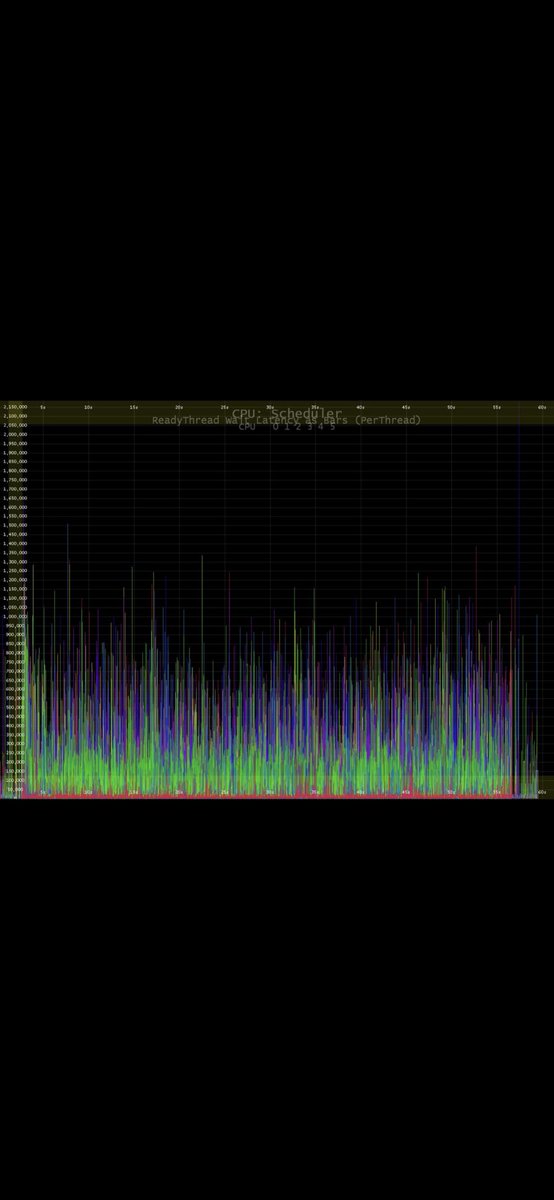
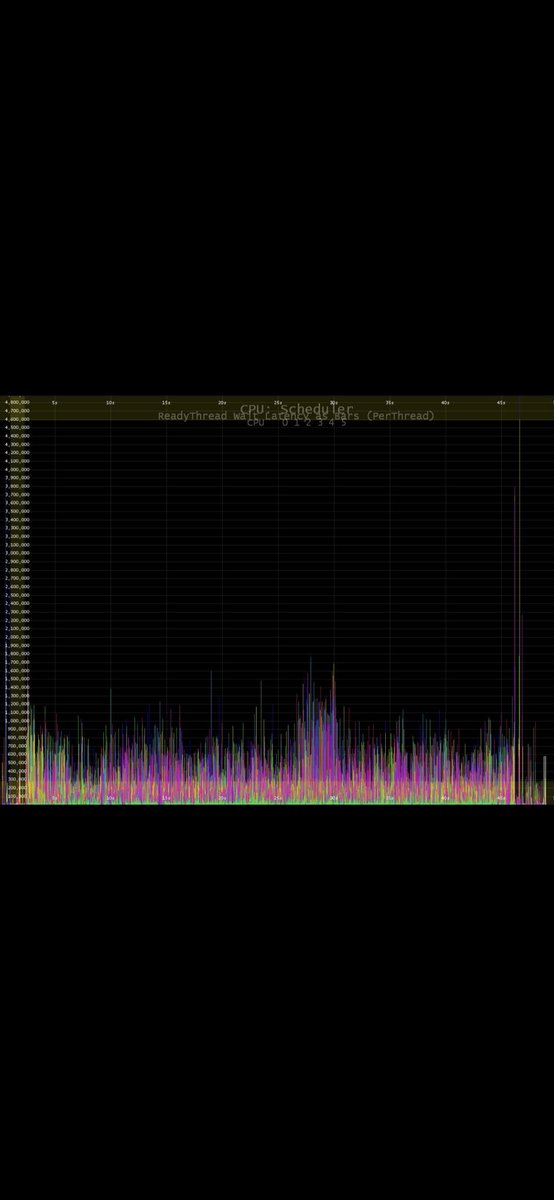
These traces were created at the request of grobPC by a member of our team—zero_wake. Next time you use similar research material—which, again, is our intellectual property—PLEASE CREDIT THE AUTHOR OF THIS MATERIAL!
Thanks for your attention, everyone.
Specifically with this processor, it’s best to stick with the standard undervoltage settings to maintain its base clock speed, and focus more on tightening the RAM timings—provided you have a good motherboard and memory modules—as this will give you the best results for what you’re looking for. 🥲
Why more cores doesn’t mean better
CS2 performance 🤔
9800X3D / 9850X3D vs 9950X3D in CS2
A CCD is one chiplet of cores with its own L3. 9800X3D and 9850X3D are one CCD: 8c/16t, 120 W TDP, 96 MB L3 on every core. The match has one cache to sit on. Nowhere for the game to miss it. 9850X3D is a better-binned 9800X3D — 5.6 GHz boost instead of 5.2. Same topology. You pay for clocks, not a new design.
9950X3D is two CCDs on one IOD. Cache CCD: 96 MB L3. Frequency CCD: higher boost, up to 5.7 GHz, 32 MB L3. The spec sheet says 16 cores / 32 threads and 128 MB L3. That is two pools, not one. Crossing them costs Infinity Fabric. A driver can hide the hop. It cannot remove it.
CS2 does not use the core count on the box. It uses L3 on the cores running the match, boost on those cores, and threads that stay on one CCD. The game will not feed 16 cores in a match. The second CCD is extra scheduler work, not extra aim. On the 8-core parts the scheduler cannot pick the wrong cache. On the 9950X3D it can. Average FPS can look fine. Frametime will not.
What actually steers a 9950X3D: Provisioning Packages can park the non-cache CCD. The 3D V-Cache optimizer does not park anything — it only favors a CCD. Current AMD chipset, including the Application Compatibility Database. An old chipset is how CS2 ends up on the frequency CCD and “feels inconsistent.”
When that stack works, a 9950X3D plays like a 9800X3D with spare silicon. Reviews already have them trading blows. When it does not, threads leak, 1% lows fall over, and average FPS still looks fine. 170 W TDP (≈230 W PPT) versus 120 W TDP (≈162 W PPT) is not free. Published CS2 wall-power tests showed about 40–60 W more even with the frequency CCD mostly idle.
9950X3D is the right buy if the second CCD has a job: OBS, browser, compile, VM. A CS2-only box does not need it.
If you already own a 9950X3D
BIOS: CPPC on. CPPC Dynamic Preferred Cores set to Driver — that is the correct handoff to Windows, not Cache “just in case.” C-states on. Do not kill core C-states to chase latency; cut DF C-States if fabric wake is the issue. Leave SMT on. Skip vendor Turbo modes that disable the frequency CCD and SMT unless you want to pay for 16 cores and play as 8.
Windows: Balanced. Not High Performance, not Ultimate — those plans fight parking. Let the AMD services run. Current chipset. Do not stack Process Lasso or ParkControl on top of AMD’s policy. PCI Express Link State Power Management off. USB selective suspend off.
9800X3D / 9850X3D still belong on Balanced with C-states on. They just do not depend on parking.
Buy: CS2-first → 9850X3D if the price delta is small, 9800X3D if it is cheaper. Mixed workload → 9950X3D and leave the setup alone. Already on a 9950X3D and CS2 feels off → fix Balanced, chipset, Driver, and C-states before you buy another chip. If it only “gets fast” after a Turbo mode kills the frequency CCD, you became a 9800X3D with extra IOD tax.
Do not treat 16 cores as a CS2 upgrade.
Do not compare a frequency-CCD-disabled 9950X3D to a 9800X3D.
Do not mix 9950X3D with 9950X3D2.
Do not prove scheduling with a warmup overlay on an empty map.
Buy the topology the game does not have to be talked into.
— mitzu
We have talked a lot about our PC optimization, but never about the foundation behind every setup we deliver
Every grobPC optimization starts with AerialOS, our own Windows 11 build designed for competitive gaming, minimal latency and consistent performance
Why AerialOS instead of another “lite” Windows
1 // Lite builds
Most custom builds strip Windows to make it smaller and supposedly faster. They cut Store, Defender, updates, Edge, and pieces of servicing. On traces, that system no longer behaves like Windows. Components look for things that aren’t there. Services break. Behavior drifts
2 // AerialOS
Is a normal Windows 11 that wasn’t gutted. Defender, Microsoft Store, and Windows Update stay. The ecosystem is intact, so the system still behaves like regular Windows — without ads in the UI and without tweak guides from the 2010s
Full Windows at stock level: less hassle than assembling a custom image yourself, and the machine still has to run as one piece
3 // How it’s built
The image is serviced through official DISM. AerialOS moved off NTLite to DISM, so servicing stays in the official stack instead of an NTLite lite-build. The CBS / WinSxS store isn’t stripped. Kernel, drivers, and services stay stock
Needed components, drivers, services, and SxS have no right to be removed just to cut the process count or make the system look lighter. This isn’t an NTLite lite-build in the SapphireOS, KernelOS, GhostSpectre, or X-Lite sense, where packages get pulled out of the component store
4 // Why this isn’t placebo
The system was checked with the same tools Microsoft uses on Windows: WPR, WPA, Xperf, GPUView, Media eXperience Analyzer (MXA), WinDbg, and powercfg. Development follows Windows Internals, not recycled registry packs or “gaming tweaks” cherry-picked from 2000–2019
If a change doesn’t show up on a trace, it doesn’t go into the build
5 // Power
The base is the Balanced power plan — that’s the scheme Microsoft documents and Windows Internals treat as the reference. The plan is built with powercfg only. No third-party power-plan software
Disk and monitor timeouts and selected power-saving policies are adjusted so the machine responds faster in-game. This isn’t a homemade “Ultra Gaming” plan, and it isn’t High Performance with everything turned off
6 // Standalone utilities
A few utilities ship in the image so you don’t have to hunt forums after setup: MouseTester, UsbTreeView, MSI Mode Utility, GoInterruptPolicy, and ReservedCpuSets. Don’t stack third-party tweak packs on top. They overwrite what’s already set
7 // Who it’s for
Esports first: CS2, Valorant, low latency, steady frame times. Work components are still there — Store, Defender, updates, office apps, the browser. The system is meant to run as one piece, not as a Windows that only exists for a match
8 // What you need on your side
Basic Windows skills: a clean, correct reinstall, then the right drivers for your PC so the system runs properly
Post-install stays minimal. Fewer cosmetic tweaks means fewer conflicts and a more stable system. If you want to change individual settings later, use the post-install folder. That part takes more than basic Windows skills. You need to understand what you’re changing. If you don’t, leave it alone
9 // What you get
No promised “plus a hundred frames.” No claim that this is some separate real-time OS. What you get is a complete Windows that runs better than stock, with settings you can verify on the same Microsoft toolchain
Even before individual tuning, AerialOS provides a cleaner, more responsive and more consistent baseline than an untouched Windows installation
But the OS is only the foundation
We then configure Windows, drivers, BIOS and registry parameters, tune the RAM, and safely overclock individual components for the exact PC and player
To book an appointment dm me💌
@titan_z9027 yes a 14900K or 285K can play CS2 fine if you already own it ,high average FPS is not the problem what you don’t get is the X3D L3, so the scheduler has P/E cores to get wrong and frametime will not match a 9800/9850X3D. Decent box. Not the CS2-first buy..
Balanced is the right plan.
On the 9850X3D leave CPPC on Auto — Driver/Cache/Frequency is the 9950X3D handoff between two CCDs, and this chip only has one, with the 96 MB L3 on every core, so that switch has nothing to pick. Same setup as a 9800X3D: Balanced, C-states on, don’t copy the 9950X3D Driver step onto it..
NVIDIA Reflex Technical Analysis: Core Mechanics, FPS Myths, and Real Impact on Stuttering
After my post about CS2 settings, a lot of people asked about NVIDIA Reflex, so here’s how it actually works
The debate over using NVIDIA Reflex in competitive titles like CS2 is ongoing. Some players view the technology as essential for minimizing latency, while others report degraded overall frame smoothness
This breakdown objectively examines how Reflex functions in theory, alongside frametime analytics gathered from real-world systems
1. Frame Queue Architecture and Input Lag
To understand what Reflex aims to fix, consider the rendering pipeline
1. The CPU processes user inputs (clicks, keypresses, mouse movement) and builds the frame command buffer
2. The GPU executes shader calculations, rasterization, and outputs the rendered frame to the display
When the system becomes GPU-bound, the CPU prepares frames faster than the GPU can render them. This creates a backlog queue of pre-rendered frames
If a player fires a weapon during this bottleneck, the frame containing that input sits at the end of the queue. The GPU must finish rendering the older frames first, causing a delay in visual feedback on screen. This delay is what manifests as high input lag
2. How NVIDIA Reflex Solves the Bottleneck
NVIDIA Reflex is an API integrated directly into the game engine designed to eliminate this GPU queue
Reflex synchronizes CPU and GPU pacing by holding back CPU render calls until the GPU is ready to process the next frame. Ideally, this delivers fresh input to the renderer without buffering delays
In-game, it offers two modes
- ON: Standard engine frame queue management
- ON + BOOST: Queue management combined with forced GPU clock states to prevent frequency downclocking
3. Reflex vs. NVIDIA Control Panel Low Latency Mode
- Low Latency Mode (Ultra) in the NVIDIA Control Panel operates at the driver level. It attempts to cap the frame queue externally without direct access to game engine events
- NVIDIA Reflex is integrated within the game engine itself, giving it higher priority. When Reflex is enabled in-game, driver-level low latency settings are overridden automatically
4. Empirical Testing: API Overhead, Frametime, and Micro-Stutters
While Reflex theoretically reduces input latency under GPU-bound scenarios, system profiling shows distinct trade-offs in practice
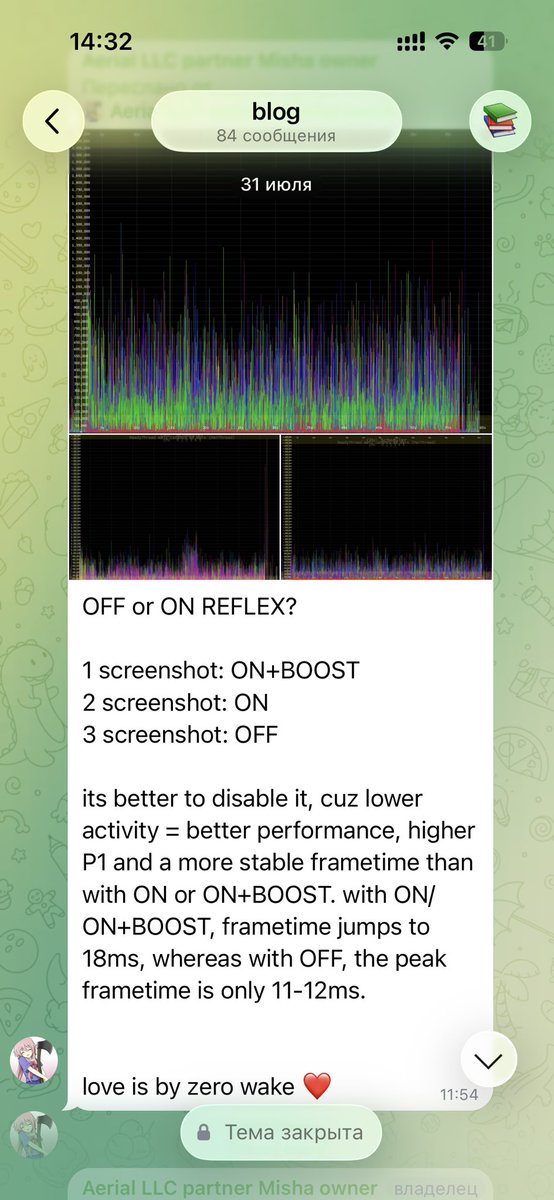
Across multiple test configurations analyzed using GPUView and Media eXperience Analyzer (MXA), several key behaviors were observed
1. API Overhead
Enabling ON or ON + BOOST introduces additional software overhead layer calls from the Reflex API stack. While intended to optimize latency, these extra processing layers can add system overhead depending on the hardware setup
2. Frame Drops and Micro-Stutters
On certain hardware configurations, artificial CPU pacing enforced by Reflex disrupted frame delivery consistency. In profiling tools, this appeared as intermittent frame drops and micro-stutters
3. Frametime Fluctuations
Due to this added overhead and altered pipeline timing, the frametime graph can become less consistent, directly impacting average FPS and frame pacing
Conclusion
- Reflex is theoretically effective in GPU-bound scenarios where minimizing frame queue latency is the top priority
- Performance varies by system: While Reflex works seamlessly on many PCs, it can induce frametime instability and micro-stutters on others
If you experience micro-stuttering with Reflex enabled, testing the game with Reflex set to OFF is recommended. Disabling it on affected systems can yield a smoother frametime graph, higher overall FPS, and cleaner visual pacing. Ultimately, your choice should be guided by how the game feels on your specific setup