Che cuanto tiempo más nos vamos a hacer los boludos con esta LOCURA de que es imposible escuchar un audio en el oído en whatsapp porque se corta y se prende la pantalla y se activa el tactil solo cada 30 segundos???
[CONCURSO] Dale RT a este tweet y participa por pases diarios para ir a @lollapaloozacl el día domingo, y disfrutar de los shows de Sza, Phoenix, Jungle, Sam Smith y más🤩 #CencoMallsLollaCL
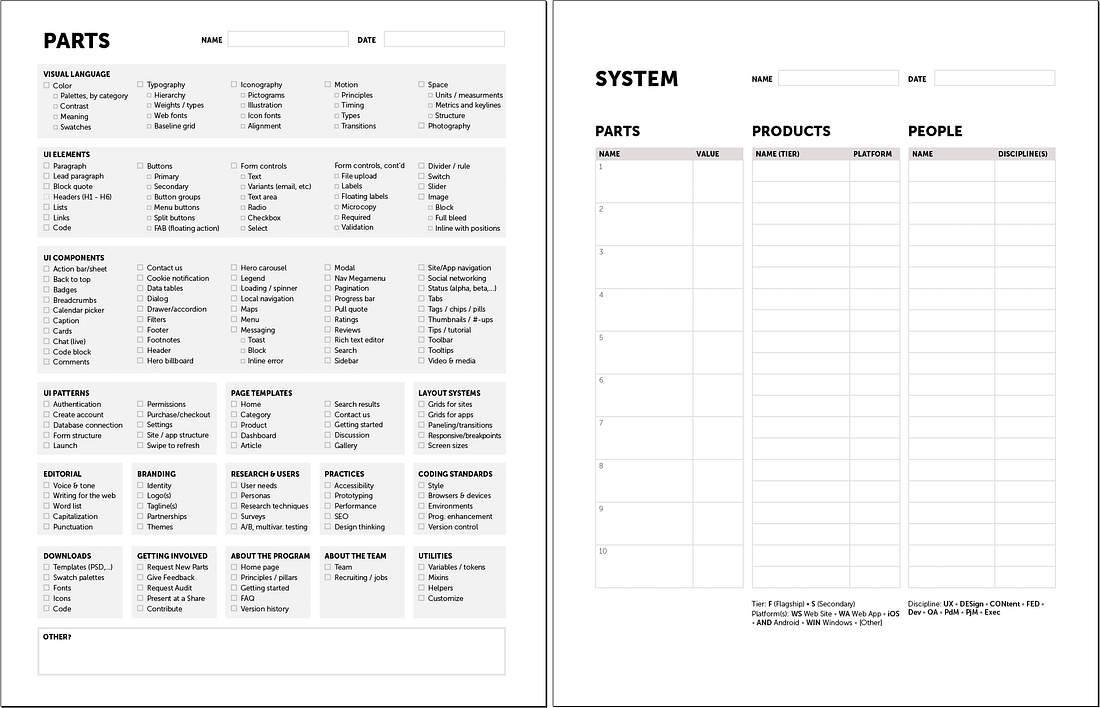
Excellent Design System Checklist with downloadable PDF 🔖
Overview:
Stage 1: Pick the Parts
The first stage orients the group around tangible parts. Each person identifies what matters—and doesn’t matter—to them.
1. Draw a thick line or X through irrelevant categories.
2. Circle the labels of up to the 5 most-important categories (such as Design Language, Patterns, or Editorial) for your system.
3. Check up to 25 important parts for your system. Each item (Typography) and sub-item (Web Fonts) is a separate check, and checking an item does not imply all subitems are checked.
4. Of the 25 checked, circle labels of up to the 10 most-important parts.
The Discussion
- Breadth & Realism
- What We All Value
- What We All Don’t Value
- What Few / One Value
- Breadth vs Depth?
- Things That Surprise Us (including the Moderator)
Stage 2: Prioritize the System
The system’s tangible Parts are familiar to beginners and experts alike. Using a second worksheet, you can bridge their appreciation of these parts to equally important and complicated concerns prioritization, Products to which the system applies and People that may be involved.
Column 1: Prioritized Parts
1. Transcribe the 10 most-important parts to the second worksheet
2. Asking “How much should we work on each important part?”
Column 2: Products
1. Freelist as many products by name in your organization’s portfolio that you’ll apply the system
3. Asking “What are our most important products?”, prioritize products by tier up to 4 “Flagship” (most important) and 4 “Secondary” (next most important), marking them with an F or S, respectively
Column 3: People
1. Name centralized team members who already have or will have nontrivial allocated time dedicated to the effort, and designate their primary discipline (such as UX, FED: Front End Development, or PdM: Product Management)
2. Identify federated influencers
3. Include more distant leaders to align with, such as a director in Brand/Marketing, portfolio manager in Product 3. Management, or similar systems experts in the enterprise
Discussion
Generally, it’s good to provoke discussion after each column (Parts then Products then People) but that can elongate the session and limit discussion on Products and especially People.
Closing the Activity
End with “Closing Standup,” where each person articulates the 1 or 2 key themes or impressions one-by-one, around the circle.
Read the full post and download the PDF: https://t.co/GYg37LfuxX
by @nathanacurtis
#ux #ui #uxdesign #uidesign #designsystem #productdesign #prototype #userexperience #uxstrategy #userresearch #uxresearch #design #research #webdesign #appdesign #mobile #ios #android #google #apple #color #business
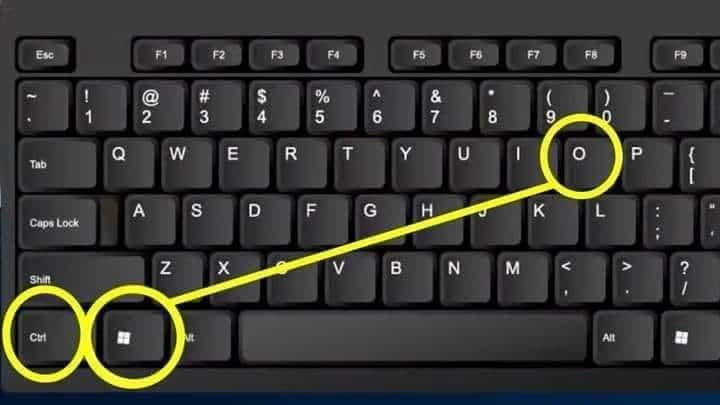
Comparto el dato, para quienes hacen trabajos por computadora.
Ctrl + E - Seleccionar todo
Ctrl + N - Negrita
Ctrl + C - Copiar
Ctrl + D - Rellenar
Ctrl + B - Buscar
Ctrl + G - Guardar
Ctrl + L - Reemplazar
Ctrl + K - Italic
Ctrl + U - Nuevo libro de trabajo
Ctrl + A - Abrir
Ctrl + P - Imprimir
Ctrl + R - Nada bien
Ctrl + S - Subrayado
Ctrl + V - Pegar
Ctrl W - Cerrar
Ctrl + X - Cortar
Ctrl + Y - Repetir
Ctrl + Z - Deshacer
F1 - Ayuda
F2 - Edición
F3 - Pegar el nombre
F4 - Repite la última acción.
F4 - Al ingresar una fórmula, cambie entre referencias absolutas / relativas
F5 - Ir a
F6 - Panel siguiente
F7 - Corrector ortográfico
F8 - Ampliación del modo.
F9 - Recalcular todos los libros
F10 - Activar la barra de menú
F11 - Nueva gráfica
F12 - Guardar como
Ctrl +: - Insertar la hora actual
Ctrl +; - Insertar la fecha actual.
Ctrl + "- Copia el valor de la celda arriba
Ctrl + '- Copia la fórmula de la celda de arriba
Cambio - Ajuste de compensación para funciones adicionales en el menú de Excel
Shift + F1 - ¿Qué es?
Shift + F2 - Editar comentario de celda
Shift + F3 - Pegar la función en la fórmula
Shift + F4 - Buscar siguiente
Mayús + F5 - Buscar
Mayús + F6 - Panel anterior
Mayús + F8 - Añadir a la selección
Shift + F9 - Calcular la hoja de cálculo activa
Shift + F10 - Visualización del menú emergente
Shift + F11 - Nueva hoja de cálculo
Mayús + F12 - Guardar
Ctrl + F3 - Establecer nombre
Ctrl + F4 - Cerrar
Ctrl + F5 - XL, tamaño de la ventana de restauración
Ctrl + F6 - Ventana del siguiente libro de trabajo
Shift + Ctrl + F6 - Ventana del libro de trabajo anterior
Ctrl + F7 - Mover ventana
Ctrl + F8 - Cambiar tamaño de ventana
Ctrl + F9 - Minimizar el libro de trabajo
Ctrl + F10 - Maximizar o restaurar ventana
Ctrl + F11 - Insertar 4.0 hoja de macros
Ctrl + F1 - Abrir archivo
Alt + F1 - Insertar un gráfico
Alt + F2 - Guardar como
Alt + F4 - Salida
Alt + F8 - Cuadro de diálogo macro
Alt + F11 - Editor de Visual Basic
Alt + 64 - @
CTRL + Esc. Puedes regresar rápidamente a la pantalla de inicio. Y aquí no ha pasado nada.
Ctrl + Shift + F3 - Crear un nombre usando los nombres de las etiquetas de fila y columna
Ctrl + Shift + F6 - Ventana anterior
Ctrl + Shift + F12 - Impresión
Alt + Shift + F1 - Nueva hoja de cálculo
Alt + Shift + F2 - Guardar
Alt + = - AutoSum
Ctrl + `- Cambiar valor / visualización de la fórmula
Ctrl + Shift + A - Insertar los nombres de los argumentos en la fórmula
Alt + flecha abajo - lista de vista automática
Alt + '- Formato de diálogo de estilo
Ctrl + Shift + ~ - Formato general
Ctrl + Shift +! - Formato de coma
Ctrl + Shift + @ - Formato de hora
Ctrl + Shift + # - Formato de fecha
Ctrl + Shift + $ - Formato de moneda
Ctrl + Shift +% - Formato de porcentaje
Ctrl + Shift + ^ - Formato exponencial
Ctrl + Shift + & - Coloque el borde del contorno alrededor de las celdas seleccionadas
Ctrl + Shift + _ - Eliminar el borde del contorno
Ctrl + Shift + * - Seleccione la región actual
Ctrl ++ - Insertar
Ctrl + - - Eliminar
Ctrl + 1 - Formato del diálogo de celda
Ctrl + 2 - Negrita
Ctrl + 3 - cursiva
Ctrl + 4 - Subrayado
Ctrl + 5 - Tachado
Ctrl + 6 - Mostrar / Ocultar objetos
Ctrl + 7 - Mostrar / Ocultar barra de herramientas estándar
Ctrl + 8 - Alternar símbolos de esquema
Ctrl + 9 - Ocultar líneas
Ctrl + 0 - Ocultar columnas
Ctrl + Shift + (- Mostrar líneas
Ctrl + Shift +) - Mostrar columnas
Alt o F10 - Activar el menú
Ctrl + Tab - En la barra de herramientas: Siguiente barra de herramientas
Shift + Ctrl + Tab - En la barra de herramientas: Barra de herramientas anterior
Ctrl + Tab - En un libro: activa el siguiente libro
Mayús + Ctrl + Tab - En una c arpeta: activar la carpeta anterior
Ficha - Siguiente herramienta
Mayús + Tabulador - Herramienta anterior
Entrar - Hacer el pedido
Mayús + Ctrl + F - Lista desplegable de fuentes
Mayús + Ctrl + F + F - Formato de cuadro de diálogo de celdas Fuente de pestaña
Mayús + Ctrl + P - Lista desplegable de tamaño de punto.
David Charles Grusch, Oficial de la Agencia de Inteligencia Espacial; Fuerza Aérea; para el sector UAP del Pentágono en retiro, ha declarado bajo total juramento en el Capitolio de los Estados Unidos que; hay Cuerpos de Inteligencia No Humana en nuestro Planeta. #AudienciaOVNI
🚨 Airbnb just eliminated its traditional product management function.
This is one of the boldest experiments in product management we have seen in quite some time.
→ Who’s going to own the roadmap?
→ Who will cross-functional teams collaborate with?
→ Who will be responsible for writing the team’s charter, focus problems, and metrics?
Brian has been posting Twitter threads of each of Airbnb’s two most recent product releases. So it sounds like the executives are re-taking over the roadmap.
And, presumably, engineering managers and designers will split the other tasks. It will be an interesting experiment to watch.
The crowd erupted in applause. Is there something broken with today’s product management? What do you think of the change?
“My biggest learning was to put passion into my speech. Not only when presenting work but especially when talking in meetings. Be truly excited about your work and show this excitement to everyone working around you.” — Andrea Pacheco
https://t.co/bNzNBLJb26





![CencoMallsCL's tweet photo. [CONCURSO] Dale RT a este tweet y participa por pases diarios para ir a @lollapaloozacl el día domingo, y disfrutar de los shows de Sza, Phoenix, Jungle, Sam Smith y más🤩 #CencoMallsLollaCL https://t.co/Lg9ACjKUHk](https://pbs.twimg.com/media/GIf_CsCXkAE_dOk.jpg)