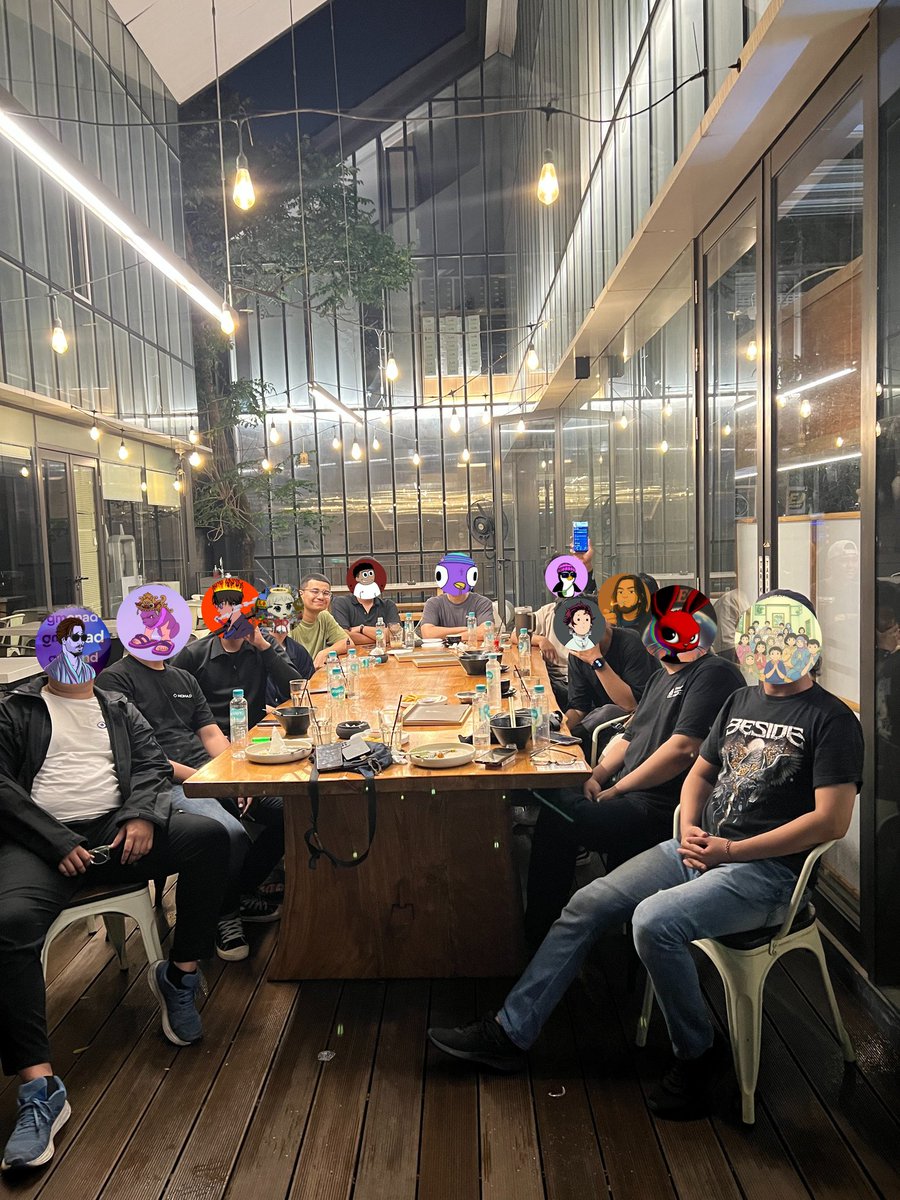
Coffee nads meet nads💜 @monad_xyz
Thank you for your experience and knowledge, applause for all of us geesss, greetings from me THANOS.
Tangerang Nads @indonads_
02.05.25 imTHAN0(nad)ss💜
Final leaderboard of the Momentum Campaign is live.
Distribution will begin over the next few days.
Thank you to every sentinel supporting the KINETK IP Protection Network.
This is only the beginning.
Tutorial: Deploying Smart Contracts with Foundry on the @arc Network (for Windows Users)
Step 1: Download and Install Git
https://t.co/5FVv3iBVUF
Step 2: Open Git Bash
Step 3: Run the Foundryup Installation
In the Git Bash terminal window, type or paste the following main installation command:
curl -L https://t.co/xmAoSTPKS4 | bash
Wait until the process is complete. The script will install the necessary basic components.
Step 4: Reload the Environment and Run foundryup type or paste:
source $HOME/.cargo/env
foundryup
Step 5: Verify Installation
forge --version
If the installation is successful, you will see output in the form of the forge version number (for example, forge Version: 1.4.4-stable
Commit SHA: 05794498bf47257b144e2e2789a1d5bf8566be0e
Build Timestamp: 2025-11-03T23:47:37.546275200Z (1762213657)
Build Profile: maxperf)
Congratulations! Foundry is now installed on your Windows and ready to use via the Git Bash terminal.
Continuing the Tutorial: Deploying Contracts to the Arc Network with Git Bash
Section 1: Creating and Compiling a Foundry Project
We will create a simple smart contract called Counter and compile it.
Step 1: Initialize the Foundry Project
- In your Git Bash terminal, create a project folder and navigate into it.
Type or paste the following command:
mkdir hello-arc
cd hello-arc
forge init
This command creates the hello-arc folder, enters it, and initializes the default Foundry project.
Step 2: Create a .env file for the RPC URL
Open your project in VS Code (code .) and create a new file named .env in the root folder hello-arc/.
Add the Arc Testnet RPC URL to it:
ARC_TESTNET_RPC_URL="https://t.co/daVOTPW3DW"
Step 3: Write the HelloArchitect Contract
Delete the default contract file:
rm src/Counter.sol
Create a new file named src/HelloArchitect.sol and add the following code:
// SPDX-License-Identifier: MIT
pragma solidity ^0.8.30;
contract HelloArchitect {
string private greeting;
// Event emitted when the greeting is changed
event GreetingChanged(string newGreeting);
// Constructor that sets the initial greeting to "Hello Architect!"
constructor() {
greeting = "Hello Architect!";
}
// Setter function to update the greeting
function setGreeting(string memory newGreeting) public {
greeting = newGreeting;
emit GreetingChanged(newGreeting);
}
// Getter function to return the current greeting
function getGreeting() public view returns (string memory) {
return greeting;
}
}
Step 4: Delete the Default Script
rm -rf script
Step 5: Write the Unit Test
Delete the default test file, then create a new file test/HelloArchitect.t.sol:
rm test/Counter.t.sol
Tambahkan kode tes berikut ke dalam test/HelloArchitect.t.sol:
// SPDX-License-Identifier: MIT
pragma solidity ^0.8.30;
import "forge-std/Test.sol";
import "../src/HelloArchitect.sol";
contract HelloArchitectTest is Test {
HelloArchitect helloArchitect;
function setUp() public {
helloArchitect = new HelloArchitect();
}
function testInitialGreeting() public view {
string memory expected = "Hello Architect!";
string memory actual = helloArchitect.getGreeting();
assertEq(actual, expected);
}
function testSetGreeting() public {
string memory newGreeting = "Welcome to Arc Chain!";
helloArchitect.setGreeting(newGreeting);
string memory actual = helloArchitect.getGreeting();
assertEq(actual, newGreeting);
}
function testGreetingChangedEvent() public {
string memory newGreeting = "Building on Arc!";
// Expect the GreetingChanged event to be emitted
vm.expectEmit(true, true, true, true);
emit HelloArchitect.GreetingChanged(newGreeting);
helloArchitect.setGreeting(newGreeting);
}
}
Step 6: Run the Test and Compile
forge test
(Ensure that all tests run successfully.)
Compile your contracts to create bytecode (/out):
forge build
- Deployment to Arc Testnet
Now we will set up a wallet, obtain funds, and deploy the contract to the actual Arc network.
Step 7: Generate a Wallet and Get a Private Key
Use cast to create a new wallet (FOR TESTING ONLY):
cast wallet new
The terminal will display the Address and Private Key. Keep this Private Key very safe!
Add your Private Key to the .env file:
ARC_TESTNET_RPC_URL=“https://t.co/daVOTPW3DW”
PRIVATE_KEY="0x................................................................"
# Replace with your Private Key
Reload the environment variables in your terminal:
source .env
Step 8: Fund Your Wallet (Get Testnet USDC)
- Visit Arc Faucet (Fund Finder) at: https://t.co/Synd3v2f0n.
- Select Arc Testnet.
- Paste your wallet address (generated in Step 7).
- Request testnet USDC. (USDC is used as Arc's native gas token.)
Step 9: Deploy the Contract
Use the forge create command to deploy your contract:
forge create src/HelloArchitect.sol:HelloArchitect \
--rpc-url $ARC_TESTNET_RPC_URL \
--private-key $PRIVATE_KEY \
--broadcast
Step 10: Save the Contract Address
Add the newly deployed contract address to your .env file:
# ... (previous variable)
HELLOARCHITECT_ADDRESS="0x........................................" # Replace with the newly deployed contract address
Reload the environment variables again:
source .env
Step 11: Verify in Explorer
- Open Arc Testnet Explorer.
- Paste the Transaction hash to view your deployment details.
Step 12: Call the getGreeting Function
Use a cast call to read the state from the live contract:
cast call $HELLOARCHITECT_ADDRESS "getGreeting()(string)" \
--rpc-url $ARC_TESTNET_RPC_URL
- A successful output will display the initial greeting: “Hello Architect!”
Congratulations! You have successfully developed, tested, and deployed your first smart contract to the Arc Testnet using Foundry.
Finish.
Next, I will create an app to deploy on Arc using Vercel.
@silencexlm@samconnerone