give this to your grokbot so it can use your https://t.co/8sKNWCWutv subscription, too:
SuperGrok Plus + GrokBot — Full Copy-Paste Rundown
Give this to anyone using SuperGrok Plus with GrokBot. It covers what the plan unlocks and how to actually use Skills, Connectors, Automations, Grok Build, and Grok Imagine.
What SuperGrok Plus is
SuperGrok Plus is the $100/month mid-tier on https://t.co/8sKNWCWutv. It includes everything in SuperGrok, plus:
Significantly higher shared weekly usage across Chat, Imagine, Voice, and Build
1080p video generation
Lightning-fast replies
Priority access at peak times
Early access to new features
Grok Bot (always-on agent teammates with their own cloud computer)
Connectors to real apps (Gmail, Drive, GitHub, Canva, etc.)
Grok Build (apps, sites, dashboards from a prompt; CLI for coding)
Latest frontier models and Expert mode
Longer conversations, Voice, and real-time web + X search
Grok Bot usage is separate from your Chat / Imagine / Voice / Build pool. Work you hand a Bot does not burn the same weekly allowance as chatting or generating video.
Plans page: https://t.co/jiA3ScHuPA
Pricing: https://t.co/g8bddDxs5H
Capability list (what you can actually do)
Chat / reasoning
Long, multi-step conversations with the latest model
Expert / deeper reasoning modes
Real-time web search and X search
File upload (PDFs, spreadsheets, docs, images)
Memory across conversations where enabled
Grok Bot (the teammate layer)
Named Bots with a job description
Shared always-on cloud computer (browser + desktop + terminal)
Sign into tools and work inside the real app, not just draft in chat
Multiple Bots in parallel + group chats where Bots coordinate
Skills (reusable playbooks)
Routines (scheduled or event-triggered jobs)
Teach-by-demonstration (“watch me do this once”)
Approval gates for send / buy / delete / publish / production changes
Desktop app (macOS/Windows) + iOS
Work continues in the cloud when your laptop is closed
Skills
Saved, reusable instructions for how to do a task
Invoked with /skill-name or by asking the Bot to use it
Shared across Bots (each Bot may need the matching connector)
Packaged skills + your private skills under Settings → Plugins
Connectors / plugins
Link Grok to real accounts: Gmail, Google Calendar, Google Drive, Outlook, OneDrive, SharePoint, Microsoft Teams, Notion, GitHub, Linear, Canva, Salesforce, Box, and more
Custom MCP / “bring your own” tools
Mention a connector with @ so it is used on that run
Read and write where permissions allow (draft email, edit docs, open PRs, create issues)
Automations (Grok chat layer)
Describe a job once; Grok runs it on a schedule or trigger
Schedules: once, daily, weekdays, weekly, monthly, yearly (your timezone)
Email triggers (incoming mail matching sender / recipient / subject)
Webhook triggers (external POST starts a run)
Attach files, skills, connectors, and a mode
Each run is a full saved conversation
Report back via email, app notification, both, or neither
Create from chat or from https://t.co/CELmpypHZF
Grok Bot routines (Bot layer)
A routine belongs to one Bot
Schedule or event trigger (e.g. Slack / GitHub events via Cursor integrations)
Up to 50 routines per Bot
Test run before enabling
Pause / resume / edit / delete
Background runs while you are offline
Grok Build
Describe an app, game, site, or dashboard; Grok builds a working version in chat
One-tap publish / share / remix
Optional custom domain
Apps can call Grok for chat, images, and voice from inside the app
CLI coding agent for repos: plan → approve → diffs → subagents
Install CLI: curl -fsSL https://t.co/Eg3Ni8Vci4 | bash
Headless mode (-p) for scripts
Grok Imagine
Text-to-image
Image edit / image-to-image
Image-to-video
Text-to-video
Native 1080p on Plus
Imagine Video 1.5: better motion, physics, audio
References: lock a face, product, location, or voice (up to 7 image refs)
Character + voice consistency across scenes
Available at https://t.co/Z3E5P9Qx7j, in the Grok apps, and often directly in chat
Voice
Spoken conversations
Longer sessions on paid tiers
Voice references for Imagine video characters
How to use Skills and Connectors with Grok / GrokBot
Connectors first (do this before fancy workflows)
Open https://t.co/InBXH7tFL8 or Settings → Plugins / Connectors.
Click New Connector, pick the service, complete OAuth.
Grant only what the Bot needs. Prefer read-first; add write after the workflow is proven.
In chat or a Bot, mention the tool with @Gmail, @GitHub, @Canva, etc.
Example:
Using @Gmail and @Google Drive: find last week’s invoices, extract totals into a sheet in Drive called “August invoices,” and draft (do not send) a summary email to me.
Rule: Connectors beat “open the website and click around” when an official connector exists. Use the Bot’s computer/browser only when there is no connector.
Skills (turn a good run into a repeatable playbook)
A skill should state:
When to use it
Required inputs and access
Sequence of work
How to validate the result
What to return
What requires human approval
Create from a finished task:
Save the process we just used as a skill called “Weekly account health.” Include the source systems, risk definitions, output format, and the rule that customer contact always requires approval.
Invoke later: type / in the desktop composer and pick the skill, or say:
Use /Weekly account health on this week’s list.
If the skill does not show under /, open Settings → Plugins → Yours and enable it for that Bot.
Teach by demonstration (Grok Bot):
Open a 1:1 Bot conversation and its computer view.
Choose Teach a task.
Describe the result you are about to show.
Perform the workflow once (up to ~10 minutes; no mic audio).
Stop, review the draft skill, add failure rules and approval gates.
Test on a safe example before scheduling.
Do not type passwords into the demo. Use the secure handoff for credentials.
How to use Automations
There are two layers. Use the right one.
A. Grok Automations (https://t.co/8sKNWCWutv — good for briefs, research, inbox flags)
Go to https://t.co/CELmpypHZF or ask in chat:
“Create an automation that checks pricing news every weekday at 8:00 AM and flags anything that mentions our competitors.”
Write instructions like a normal prompt. Attach files. @ connectors. Attach skills.
Choose trigger:
Schedule (time + timezone)
Email (sender / recipient / subject filters) — included with SuperGrok and up
Webhook (external system POSTs to start a run)
Choose how it reports: email, notification, both, or silent.
Hit Run now once. Read the full thread. Then enable.
Every run is a fresh conversation with current data. Open any run and continue the thread if you want to steer it.
B. Grok Bot routines (good for jobs that live in real tools)
Ask the Bot that should own the job:
Every weekday at 8:00 AM Eastern, run the Daily customer-risk skill against the current account list. Post a linked watch list in this conversation. Do not contact customers. If the source data is unavailable, report the failure instead of using old data.
Confirm: owning Bot, schedule + timezone, input source, expected output, approval boundary, missing-data behavior.
Then Test run. A test run does real work. Keep writes behind approval until it is trustworthy.
Manage routines from the Bot → conversation details → Routines (enable, pause, test, edit, history, delete). Deleting a routine is immediate.
Trust rules that actually matter
Automate preparation first (draft, reconcile, recommend).
Require approval for send, purchase, delete, publish, or production changes.
Define a no-data / stale-data policy.
Keep event listeners narrow (“#customer-escalations contains ‘needs repro’”), never “every new message.”
Re-test after a site, connector, or source format changes.
How to build most effectively with Grok
Use this order. Most people skip 1–3 and waste usage.
1. Name the outcome, sources, constraints, and deliverable
A strong first message looks like:
Outcome: a working landing page that captures emails.
Sources: this brand PDF and our existing site.
Constraints: no paid fonts, mobile-first, do not publish until I say so.
Deliverable: preview link + the copy in a doc.
2. Connect the real systems
If the job needs email, files, code, or design, connect those first. Then @ them. Do not paste 40 pages of context if Drive or GitHub already has it.
3. Do the job once in a Bot or chat until it is correct
Correct the tone, format, and edge cases on a live example. This is cheaper than automating a bad process.
4. Skillify it
Save this as a skill called “Launch-page v1.” Include brand voice, section order, CTA rules, and “never publish without approval.”
5. Only then schedule it
Routine or Automation. Test run. Then unattended.
6. For software / apps
Simple product or demo: describe it in Grok Build in chat and iterate live.
Real repo work: Grok Build CLI, plan mode first, approve the plan, then let it execute diffs.
Split large work across Bots or subagents with non-overlapping ownership.
Put conventions in AGENTS.md so Build picks up your rules.
Publish when ready; remix if others should fork it.
7. Run a small team of Bots, not one god-Bot
Pattern that works:
One “chief of staff” Bot that assigns and reports
Specialist Bots: inbox, research, design/Imagine, engineering, ops
Group chat for shared projects
Each specialist owns its own skills + connectors
8. Protect usage
Plus has a large shared weekly pool across Chat, Imagine, Voice, and Build. Bots have a separate pool, but sloppy loops still waste it.
Narrow triggers
Draft-then-approve for writes
Don’t regenerate 1080p video until the still image is right
Pause routines when you will be away
How to use Grok Imagine
Where: https://t.co/Z3E5P9Qx7j or the Imagine tab in the Grok / X apps. You can also ask for images and video in normal chat.
Plus-specific: native 1080p video. Higher weekly Imagine quota than SuperGrok. Image + voice references rolled to Plus first.
Image workflow
Write a specific prompt: subject, body/wardrobe, setting, time of day, camera, lens feel, lighting, mood.
Generate a batch. Pick the strongest still.
Edit with a follow-up (“same framing, warmer light, remove the extra person”) instead of starting over.
Save the winning prompt. Reuse it as a skill if you generate the same style often.
Video workflow (most effective order)
Lock the still first. Do not animate a weak frame.
Add a motion prompt: camera move, subject action, duration feel, what stays still.
Use references when identity must hold:
Character image
Scene / product / location image
Voice clip for talking characters
Up to 7 image references; keep the character and swap only the action when you want consistency
Generate at 720p while iterating. Switch to 1080p for finals only.
Text-to-video if you have no still; image-to-video if you already like the frame.
Prompt pattern that works
[Subject + distinctive details]
[Wardrobe / props]
[Location + time + weather]
[Shot: wide / medium / close, camera height, movement]
[Lighting]
[Motion for video: what moves, what does not, pace]
[Style: photoreal / cinematic ad / etc.]
[Constraints: keep face identical to reference 1, no extra people]
Imagine + Bot / Automations
A content Bot can generate stills, pick one, animate, and drop files into Drive or Canva via connectors.
Do not put unattended 1080p batches on a tight loop. Generate, review, then upscale/finalize.
Save a “brand visual system” skill: color, crop, end-card rules, forbidden looks.
Suggested first week setup for a new GrokBot user
Download Grok Bot desktop + iOS. Sign in with the SuperGrok Plus account.
Create one Bot with a single job (not “do everything”).
Connect only the 2–3 apps that job needs.
Run one real task end to end. Correct it.
Save that as a skill.
Test-run a routine or https://t.co/8sKNWCWutv automation.
Add a second specialist Bot only after the first one is trusted.
Open Imagine separately and lock one visual style before you automate content.
Official starting points:
Grok Bot intro: https://t.co/k0EKDUjPzP
Bot get-started: https://t.co/QdoCGcyTKt
Skills & routines: https://t.co/gPEd9XFZdw
Automations: https://t.co/tB1rAbwd2Z and https://t.co/CELmpypHZF
Connectors: https://t.co/InBXH7tFL8 and https://t.co/5b8AxATP4a
Imagine Video 1.5: https://t.co/GpP4bWthJs
Build on web/mobile: https://t.co/CEYzLCMhPO
@jessomzy i've had this thought before and you're right. i think we're moving into the age of wearable technology too. eventually it won't be really a need for phones like we've got now
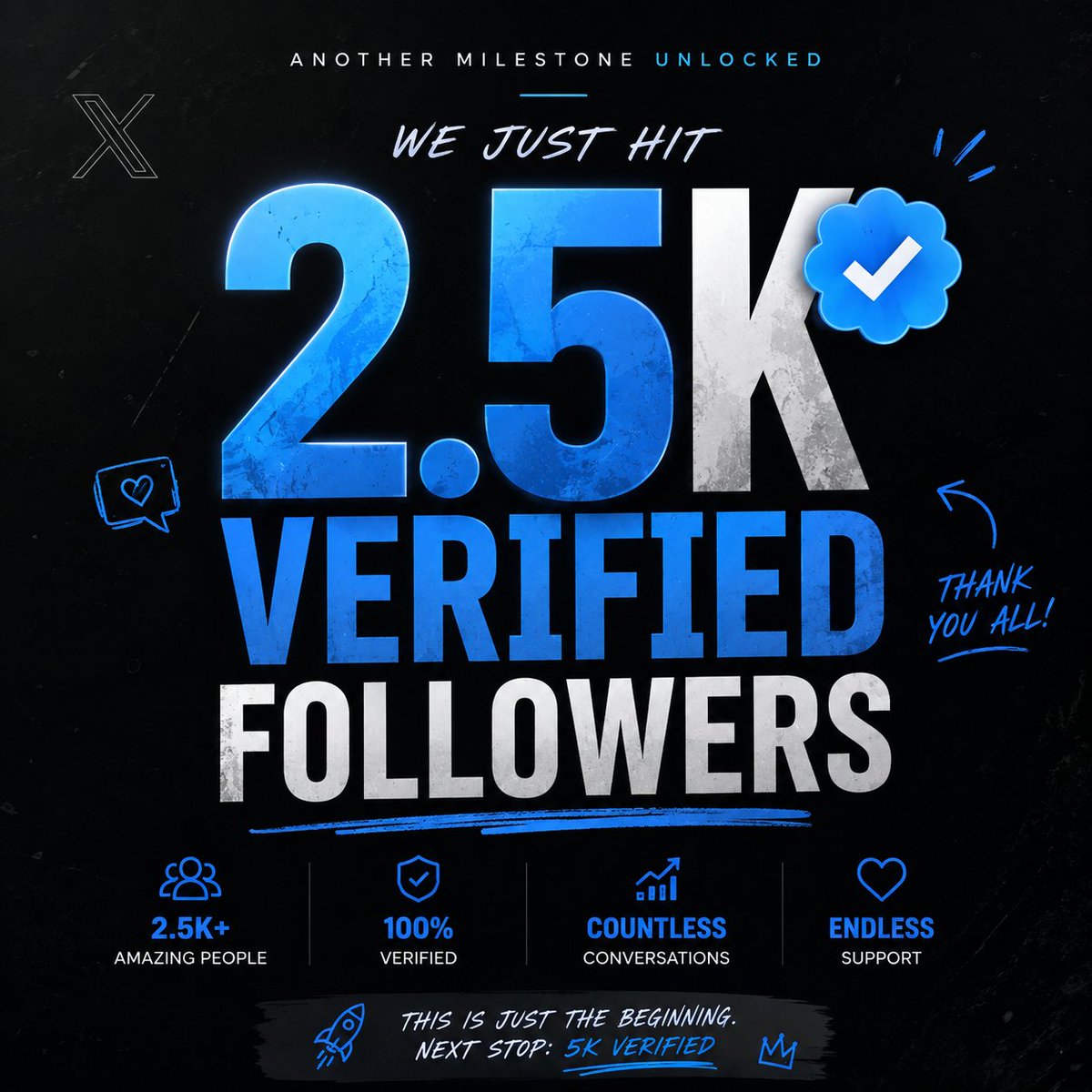
2.5K VERIFIED FOLLOWERS. 🚀
From posting random shit to actually building a community here.
X really is a weird place — you can go from 0 attention to thousands of people seeing your thoughts if you just keep showing up.
Next target: 5K verified. 👀
We keep building. 🫡