Introducing Nito AI ⚡
Inspired by the confidential-compute work highlighted by @SolanaFndn and @trynitoai, we built an independent workspace to help people explore Nito inference and take more control over what they share with AI.
Solana mint: 7LmNxnGSNDz6551wvMCk86rh9dVce2GyJve5j5cFnito
Here’s what you can do:
• Connect to Nito inference from a dedicated AI workspace.
• Discover and compare models for research, coding and everyday tasks.
• Redact sensitive information locally before sending a prompt.
• Encrypt saved drafts directly in your browser.
• Bring your own Nito or OpenRouter API key and choose your provider.
Our approach starts before inference: prepare your question, remove details you don’t want to share, then choose where to send it.
Local tools process data in your browser. Submitted prompts go to your selected provider, whose execution environment determines the inference protections.
Credit to @SolanaFndn and @trynitoai for advancing the conversation around confidential AI. Nito AI is independently built and is not an official or endorsed product of either team.
Explore → https://t.co/0EJUUivoEk
Private AI, verified onchain.
Introducing Solana Confidential Compute, open-source tools for building private AI, with hardware attestations verified onchain.
Built with @TryNitoAI. Now in beta on Solana devnet.
Start building: https://t.co/YsA2Q8jYgH
Put your shortlist side by side with NitoAI Model Comparison.
Choose up to three models and inspect their provider pricing, context limits, maximum output, and available metadata in one view.
The video compares GPT-4.1, Gemini 2.5 Pro, and DeepSeek V3 0324 using the public catalog, then prepares a shared prompt for the selection.
Try it:
1. Reset the selection.
2. Add three models you are considering.
3. Compare input pricing, context, and maximum output.
4. Write one shared prompt for a consistent starting point.
Missing metrics remain N/A. Catalog comparisons are not performance benchmarks. Running a model requires a separate provider connection and usage approval.
Which three models would you put on your shortlist?
https://t.co/IYaQKwpSAA
Find your next model with NitoAI Model Discovery.
Search by model family, provider, or capability. Narrow the catalog with cost and context filters, then sort the results around your requirements.
The video starts with a DeepSeek search, applies Low cost, sorts by input price, and then explores Long context models across the catalog.
Try a shortlist of your own:
1. Search for a model family or capability.
2. Apply Low cost or Long context.
3. Choose a sort order.
4. Inspect input pricing and context limits before opening a model.
Prices shown are provider catalog input-token rates, not total request estimates. Actual cost also depends on output usage and the provider's billing rules.
What comes first in your model selection: price, context capacity, or capability?
https://t.co/wWgAjmwcBf
Pick up where you left off with encrypted drafts in NitoAI.
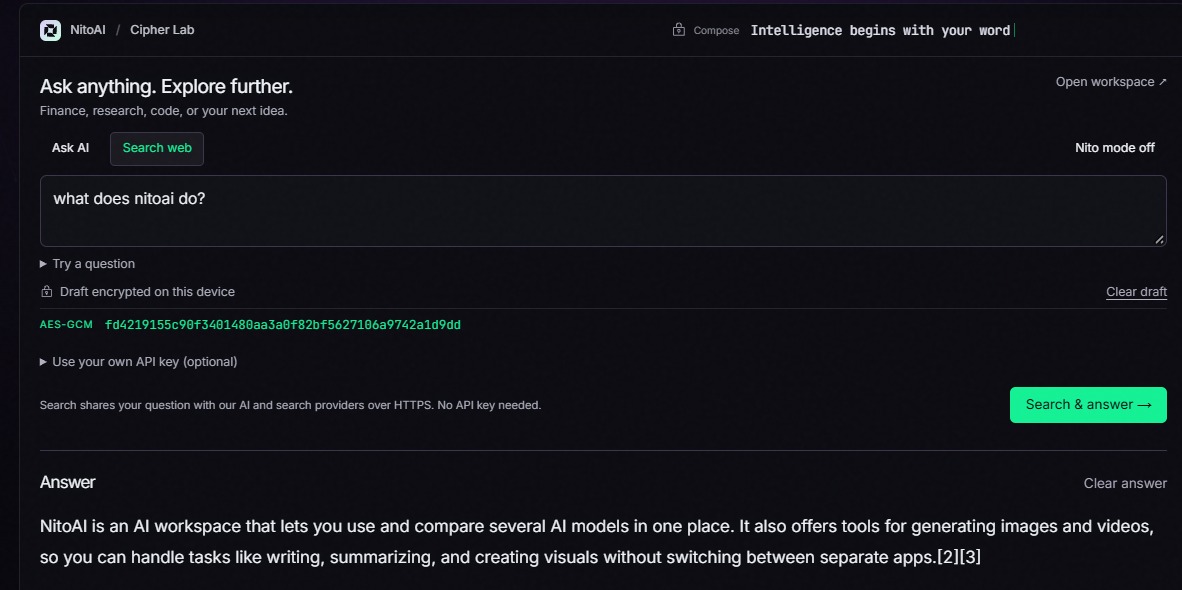
Your Ask draft is encrypted with AES-256-GCM before it is stored in this browser. Leave the workspace, return, and continue from the restored text.
The video follows the complete flow: compose a draft, wait for the encrypted status, navigate away, return, and clear it.
Try it yourself:
1. Write a short question or planning note.
2. Wait for Draft encrypted on this device.
3. Open another section, then return to Ask.
4. Confirm your draft is restored.
5. Use Clear draft when you are finished.
Drafts stay in that browser. They do not sync across devices. The encryption key is stored in the same browser, so this does not protect against someone with access to the browser or site scripts.
How often do you lose a useful prompt before you are ready to send it?
https://t.co/V09J3se9n6
Meet Nito mode: screen privacy for your NitoAI workspace.
Switch it on to mask your question and replace readable answer content with a ciphertext display. Switch it off when you want to read the content again.
The video shows the same draft moving between readable and protected screen states without losing its contents.
Try this:
1. Write a question in the Ask workspace.
2. Turn Nito mode on.
3. Check the masked input and encrypted display.
4. Turn it off and continue editing your original draft.
Useful when you want less readable content visible on a shared screen.
Nito mode controls what appears on screen. If you submit a request, the AI provider still receives readable text over HTTPS.
Would you keep screen privacy on by default or enable it only when needed?
https://t.co/V09J3se9n6
Meet Cipher Lab in NitoAI.
See your own text move through a real encryption and decryption cycle, directly in the browser.
Enter a question, open Inspect browser encryption, and select Encrypt & decode. The interface displays the encrypted payload alongside the recovered text, making the round trip visible.
Try this:
1. Write a short sentence.
2. Encrypt and decode it.
3. Check that the decoded text matches your input.
4. Run the operation again and inspect the new ciphertext.
The operation uses Web Crypto and AES-256-GCM. It does not send your question to an AI provider.
This is a browser encryption inspection tool. It is separate from submitting a prompt for inference.
What would you inspect first: a sentence, a code snippet, or a structured payload?
https://t.co/gF2b9NhIdY
Meet the NitoAI Secret Generator.
Generate a fresh 128-bit random secret directly in your browser. Copy it, generate another, or move it into Lock a note for password-encrypted storage.
The generator uses the browser's cryptographic random-number API. Every click creates a new value instead of assembling predictable words or timestamps.
Try the workflow shown in the video:
1. Open Create a secret in the Privacy Toolkit.
2. Generate a secret and copy it.
3. Generate another and compare the values.
4. Select Encrypt secret to move it into the note-encryption form.
Use a separate strong passphrase if you encrypt it. Store important secrets in your password manager; NitoAI does not recover them.
The values visible in this recording are public examples. Do not use them as credentials.
Where would you use a fresh random secret in your workflow?
https://t.co/UitmHViJHP
Meet Private Notes in NitoAI.
Turn a note into a password-encrypted file, then reopen it when you need it. Encryption and decryption run in your browser without an account or API key.
The file uses AES-256-GCM with a key derived from your passphrase through PBKDF2-SHA256. Your passphrase is not included in the download.
Watch the complete round trip: write a note, confirm a passphrase, encrypt it, import the file, and unlock the original text.
Try it yourself:
1. Write a short note.
2. Choose a unique passphrase of at least 12 characters.
3. Export the encrypted file.
4. Import it and verify the restored text.
Keep the passphrase separately. There is no password recovery.
What would you protect first: research notes, an early idea, or a project brief?
https://t.co/UitmHViJHP
Introducing Encrypted Session Export in NitoAI Playground.
Download your current draft and retained responses as a password-encrypted session file.
Encryption uses AES-256-GCM, with a key derived from your passphrase through PBKDF2-SHA256 and 600,000 iterations.
Try the complete flow:
1. Run a request and review the response.
2. Enter and confirm a passphrase of at least 12 characters.
3. Download your encrypted session.
4. Open it through Lock a note in the homepage Privacy Toolkit.
Your passphrase is not included in the export and cannot be recovered. Store it separately from the file.
Export encryption protects the downloaded session. Prompts submitted for inference still reach the AI provider over HTTPS.
What would you save first: a code review, a research session, or an implementation plan?
https://t.co/IywxNNFp7q
Compare Runs is now live in NitoAI Playground.
Inspect your two most recent successful responses together, including the submitted prompt, requested response format, and returned model identifier.
Make prompt iteration measurable through direct comparison.
Try this:
1. Run a baseline prompt.
2. Add one specific requirement.
3. Run it again.
4. Compare correctness, coverage, and unsupported assumptions.
For a coding task, try adding:
“Handle empty inputs, explain the time complexity, and include a test for an edge case.”
Does the second response actually satisfy the new requirements?
A third successful run replaces the oldest response. Comparisons stay in the current tab and are not restored after refresh.
What improves your results most: constraints, examples, or context?
https://t.co/mHeK9A5pOW
Introducing Prompt Recipes in NitoAI Playground.
Start with a structured prompt for code review, decision analysis, document summarization, or concept explanation.
Every recipe is editable. Add your context, define constraints, and inspect the request before submitting it.
Try this:
1. Select Review code.
2. Paste a function and describe its expected behavior.
3. Ask for edge cases, failure conditions, and a proposed fix.
4. Run the request and evaluate the response.
Selecting a recipe only updates your draft. Nothing is submitted until you click Run request.
Which recipe should we add next: security reviews, API debugging, or architecture planning?
https://t.co/7FVImtnlSF
Introducing Text Import in NitoAI Playground.
Bring a short technical brief, code excerpt, requirements document, or meeting notes directly into your prompt editor.
Import .txt or .md files, review the contents, and add your instructions before running inference.
Try this:
1. Import a short Markdown specification.
2. Remove anything you do not want to share.
3. Add: “Identify ambiguous requirements, missing dependencies, and three implementation risks.”
4. Run the request and review the findings.
Files must fit within 8 KB and 1,800 characters. Oversized content is rejected instead of silently truncated.
Importing replaces the current draft. It does not automatically send the file contents to an AI provider.
What would you import first?
https://t.co/ASOjG6jojT
New in NitoAI Playground: Response Formats.
Choose how you want the model to structure its answer:
• Standard for general responses
• Concise for direct answers
• Step by step for detailed explanations
• JSON for structured output
Your selection adds format instructions to the request while preserving your original question.
Try this:
1. Enter a technical question.
2. Run it in Concise mode.
3. Switch to Step by step and run it again.
4. Compare the detail, clarity, and assumptions in both responses.
Building with JSON? Validate the generated output before using it in code. Format instructions do not guarantee schema compliance.
Which format would you use most?
https://t.co/rwjYuQ3nIn
What happens to your prompt after you press Send?
Explore Nito AI’s approach to confidential inference, model discovery and browser-based privacy tools in the Solana ecosystem.
Read the article below ↓ https://t.co/QiRSgCV1vx
Introducing the NitoAI Playground: an AI workspace with encrypted draft storage and on-screen privacy controls.
Encrypted drafts
Drafts are encrypted in your browser while you compose and edit prompts.
Nito mode
Hide readable prompts, responses, and source references on screen. Toggle it off to inspect the content.
Inference workflow
Compose a request, submit it for inference, and review the response in the same interface.
Security boundaries
Draft encryption protects stored drafts. Nito mode controls on-screen visibility. Neither makes inference end-to-end encrypted: submitted prompts are sent as readable text to the AI provider over HTTPS.
Explore the playground:
https://t.co/OVKURJwF7y
Nito mode ON: keep questions, answers, and sources hidden on screen.
Nito mode OFF: reveal them when you’re ready.
A little more privacy, one toggle away. AI still receives your prompt when you send it.
Your screen. Your choice.