I build powerful, automated spreadsheet systems that save businesses and individuals hours every week, turning messy data, manual processes, and chaotic workflows into clean, intelligent, and fully automated solutions.
Whether you’re a small business owner drowning in spreadsheets or an individual who needs a smarter way to track finances, projects, inventory, or personal goals..I design tailor-made systems that work exactly the way you do.
What I Deliver:
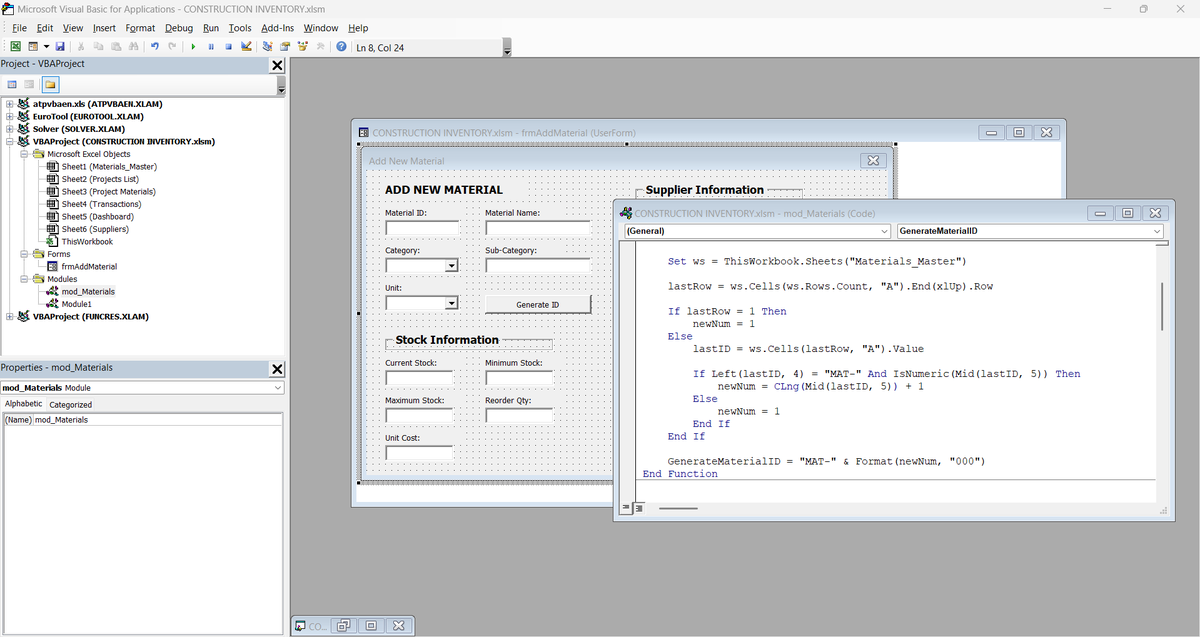
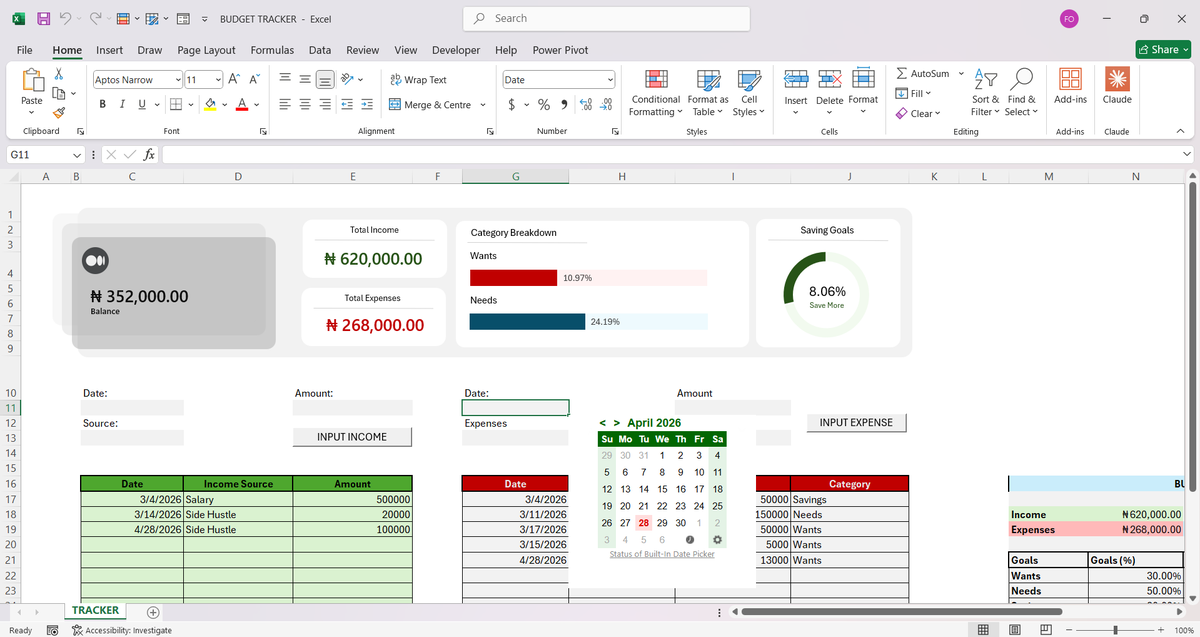
Microsoft Excel solutions with VBA & Macros — advanced automation, interactive dashboards, custom forms, and intelligent reporting
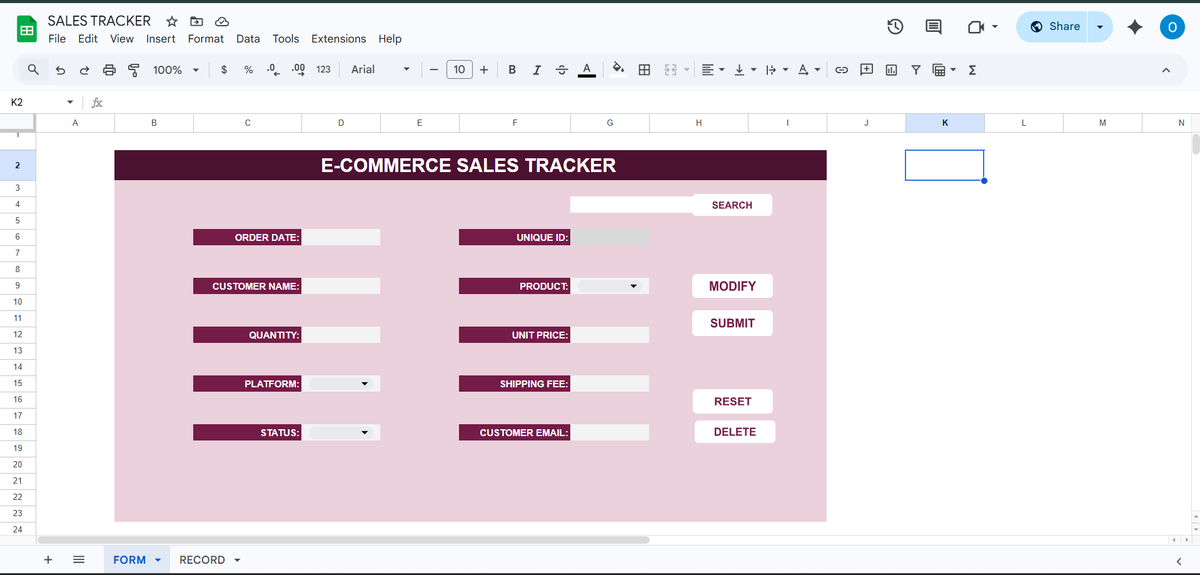
Google Sheets systems powered by Apps Script — cloud-based, collaborative, real-time automation with seamless integrations (Zapier, APIs, databases, etc.)
Custom tools for inventory management, financial forecasting, CRM, project tracking, sales pipelines, budgeting, data analysis, and much more
Training & hand-holding so you (or your team) can confidently use and maintain the system
Who I Help: Businesses looking to scale without hiring extra staff
Entrepreneurs & Freelancers who want to reclaim their time
Professionals & Power Users tired of repetitive Excel drudgery
Teams needing collaborative, error-proof Google Sheets workflows
Result? Less time clicking, fewer errors, faster decisions, and more focus on what actually grows your business or life.
Ready to upgrade your spreadsheets?
Drop me a message with a quick description of your current pain point or goal. I’ll reply with: A short video audit of your existing sheet (if you share it) or we can jump on a call to discuss it..
Mail: [email protected]
Let’s turn your spreadsheets from a headache into a superpower.
Every Monday morning, Aisha, the VP of Sales at a fast-growing B2B hardware company, joins the executive leadership meeting with the same question:
*"How healthy is our pipeline?"*
It sounds simple.
But getting the answer wasn't.
Sales data lived in different CSV files.
Account information sat in one report.
Product details lived in another.
Sales team records were maintained separately.
And the pipeline itself existed in a transactional export filled with typos, missing values, and incomplete deals still in progress.
The team wasn't struggling because they lacked data.
They were struggling because they lacked a single source of truth.
Without it, critical questions took hours to answer:
* Are discounts helping us win more deals?
* Which products generate the most revenue?
* How long does it take to close a deal?
* Which sales managers are outperforming their targets?
* Where are opportunities getting stuck in the pipeline?
To solve this, I built an end-to-end sales analytics solution in Excel using Power Query and Power Pivot.
The project started with four raw CSV files:
• Accounts
• Products
• Sales Teams
• Sales Pipeline
Using Power Query, I designed an ETL process to clean, standardize, and prepare the data for analysis.
This included:
* Correcting data inconsistencies and typos
* Preserving blank values that represented active opportunities
* Standardizing text fields and data types
* Replacing missing account values
* Creating a dedicated calendar table for time intelligence
Once transformed, the data was modeled into a Star Schema using Power Pivot.
Instead of working with one large spreadsheet, the solution separated transactional data from descriptive data using Fact and Dimension tables connected through relationships.
The model was then enriched with DAX calculations to answer key business questions, including:
* Total Revenue
* Win Rate
* Average Days to Close
* Average Discount Percentage
* Quarter-over-Quarter Growth
One of the most interesting insights came from the Agent Efficiency Matrix.
By comparing average discount percentages against win rates, we discovered that higher discounts had little impact on deal success.
The assumption that "bigger discounts close more deals" simply wasn't supported by the data.
The final dashboard provides executives with a single, interactive view of sales performance through:
• Revenue and pipeline KPIs
• Funnel analysis of deal stages
• Product performance rankings
• Agent efficiency analysis
• Dynamic quarter and manager filters
• Automated narrative insights that update based on user selections
What used to take multiple files and hours of manual reporting can now be answered in seconds.
Because effective analytics isn't about building more charts.
It's about connecting data, asking better questions, and creating systems that help people make decisions faster.
**Tools Used:** Excel, Power Query, Power Pivot, DAX, PivotTables, PivotCharts, Slicers
#DataAnalytics #Excel #Powerquery
If you’re starting your journey to become a Data Analyst and want to learn in a way that’s easy to follow, check out these YouTube channels:
https://t.co/HQmQ4Pcb4P
And
https://t.co/2OS8Yh2NdY
They take their time to explain concepts clearly and make learning data analytics much easier to understand.
Happy learning ☺️🤗
@ObohX@officialladi_T Boss adey greet.
You don’t know me but you don’t know what you have done for me.
Your view inspired me to build this.
This is my first ever complete project.
Thanks a lot
First time creating a wireframe in Excel for a dashboard. Before now I had no idea where to start but watching @ObohX on YouTube made it click. Learning and building at the same time ❤️
At the end of every quarter, Sandra has the same challenge.
As the Commercial Analytics Lead at Nestlé Nigeria, she's responsible for preparing performance reports for management.
The problem isn't the reporting itself.
The problem is that the data comes from different regions.
For Q1, sales reports arrived from the North, South-West, and South-East regions as separate CSV files. Each region maintained its own report, which meant slight differences in formatting, naming conventions, and data quality.
Before management could answer questions like:
• Which region generated the most revenue?
• Which products performed best?
• Who were the top-performing sales representatives?
• How did revenue trend throughout the quarter?
The data first had to be prepared.
This project started with three regional sales datasets.
Using Power Query, I imported the files, standardized the structure, corrected data types, cleaned inconsistencies, and appended all three datasets into a single master table.
Once the foundation was in place, I created additional fields to support analysis, including:
• Revenue
• Profit
• Profit Margin
• Week Number
• Month Name
• Performance Indicators
With the transformed dataset ready, the next step was analysis.
Before building any visuals, I summarized the data using PivotTables to identify the key insights and answer the business questions that mattered most.
Only after the analysis phase did I move into dashboard design.
I wireframed the layout, defined the KPI structure, selected the appropriate visualizations, and built an interactive dashboard featuring:
• Revenue, Profit, Quantity, and Transaction KPIs
• Revenue by Channel and Category
• Top Performing Sales Representatives
• Best Selling Products
• Weekly Revenue Trends
• Interactive filters for Region, Month, and Sales Representative
What began as three separate CSV files became a centralized reporting solution capable of delivering insights in seconds.
One lesson I keep reinforcing in my classes:
Most people think dashboards start with charts.
They don't.
Dashboards start with clean data, a structured process, and the right business questions.
Tools Used: Excel, Power Query, PivotTables, PivotCharts, Slicers, Dashboard Design
#DataAnalytics #Excel #PowerQuery #BusinessIntelligence
Week 4 of EXCEL101 was the week students stopped cleaning data manually and started building systems.
Up until now, we had been working with datasets that were already structured enough to analyze.
This week introduced a different reality:
Data rarely arrives analysis-ready.
It comes from different files, different teams, different systems, and often in different formats.
That's why we spent the week learning "Power Query" — Excel's built-in data transformation engine.
And once students saw what it could do, the conversation changed.
We started with the concept of ETL:
Extract – Bring data in from external sources.
Transform – Clean, standardize, reshape, and enrich the data.
Load – Push the refined dataset into Excel for reporting and analysis.
The most important lesson wasn't the buttons.
It was understanding that Power Query doesn't change your original data.
Every transformation becomes a recorded step.
Fix it once.
Refresh forever.
That's a completely different way of working.
For the practical session, students worked with multiple CSV files based on regional sales data.
The datasets were intentionally messy.
Different date formats.
Inconsistent name formats.
Extra spaces.
Blank rows.
The kind of problems analysts deal with every day.
Step by step, students learned how to:
* Remove blank rows
* Fix incorrect data types
* Standardize text fields
* Create calculated columns
* Generate date-based attributes
* Load clean datasets back into Excel
The highlight for many students was "Appending".
Instead of manually copying and pasting multiple reports into one sheet, they combined separate datasets into a single master table using Power Query.
More importantly, they learned the principle behind it:
Automation only works when structure is respected.
If column names, formats, and data types are inconsistent, automation breaks.
If the structure is right, the process scales.
From there, we moved into "Data Modeling concepts".
Students were introduced to Fact and Dimension tables and the idea that not all data belongs in one giant spreadsheet.
We discussed:
* Fact Tables (transactions and measurable events)
* Dimension Tables (descriptive information)
* Primary Keys
* Foreign Keys
These concepts laid the foundation for one of the most important topics of the week:
Merge.
Many students initially saw Merge as another lookup feature.
By the end of the session, they understood that it is much more than that.
Append adds rows.
Merge adds context.
Append is vertical.
Merge is relational.
We explored different join types and discussed why choosing the wrong join can change the results of an analysis without generating an error.
That insight alone was worth the session.
Then came the assignment.
Students received data from a fictional logistics company containing shipment transactions, customer information, route details, and driver records.
Their task was to:
* Clean and standardize the shipment data
* Merge multiple dimension tables into the fact table
* Create new calculated fields
* Build KPI summaries
* Develop PivotTable reports and charts
* Answer business questions using the transformed dataset
The objective wasn't simply to build reports.
It was to create a repeatable workflow that could handle changing data.
That's what analysts do.
They don't just analyze data.
They design processes that make analysis possible.
Week 4 introduced that mindset.
And with Power Query now in place, students are beginning to see Excel as more than a spreadsheet application.
They're starting to see it as a complete data transformation and reporting platform.
Next up: Power Pivot, Data Modeling, DAX, and KPI Reporting.