Learning to design digital experiences that feel simple, human, and helpful. Still building, always curious. Open to feedback, collabs, and real conversations.
Useful websites, apps, tools for creators 👇
- https://t.co/jLywQy0XAm all your revenue in one macOS app
- https://t.co/9jguzEDm1r manage projects and tasks, create beautiful proposals and invoices
- https://t.co/jZPrpmxV33 more cureted tools and resources
- https://t.co/Mr2G9WRo3C screen recorder
- https://t.co/BXBqAwUlSb website widgets
- https://t.co/hCWvphiHYe website builder
- https://t.co/a5zOEYGTwE useful resources for Mac users
Here’s the truth most people won’t tell you:
Your Excel model isn’t wrong.
You are.
And it shows up the moment you drag a formula, and everything breaks.
Most Excel errors don’t come from complex formulas.
They come from one thing:
👉 You don’t control how your references move
So Excel does exactly what you told it to do, and your numbers quietly go off.
No warning.
No error message.
Just wrong results.
Let me show you what’s really happening:
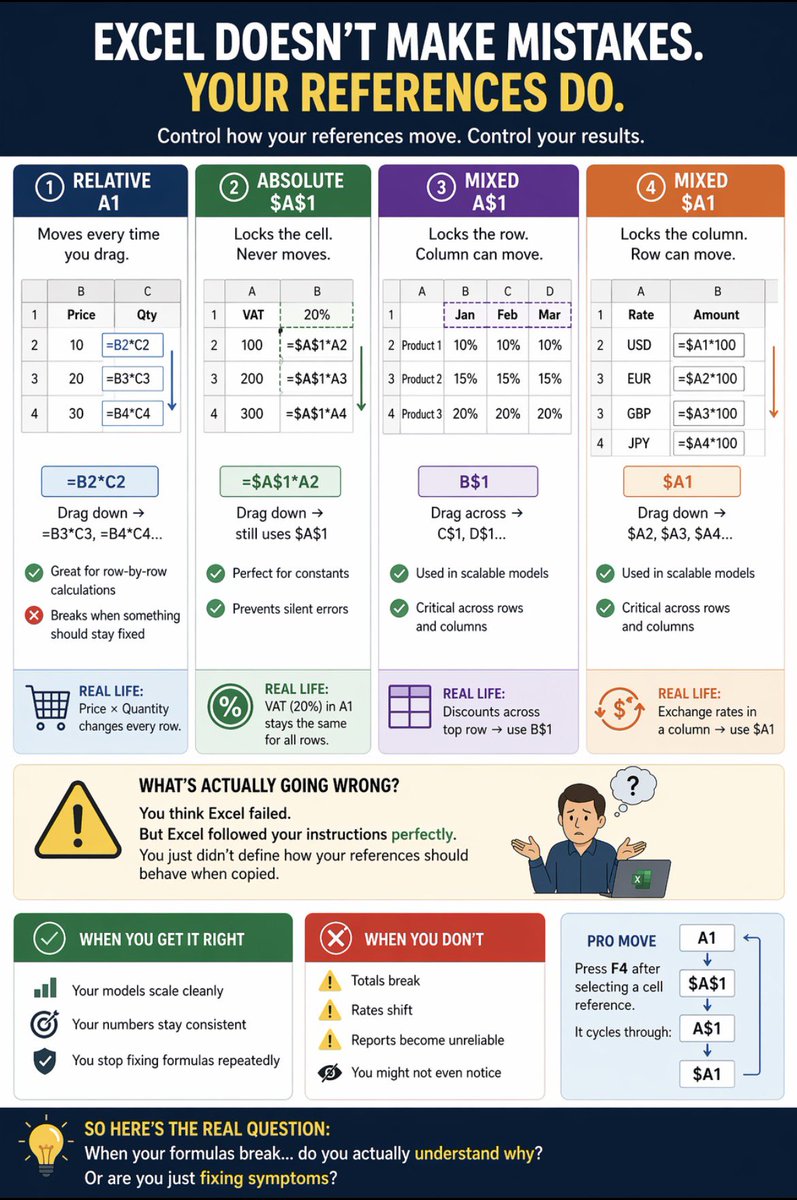
The rule is simple:
• Don’t want it to move at all → use $A$1
• Don’t want it to move down → use A$1
• Don’t want it to move across → use $A1
• Want it to move freely → use A1
If you don’t control movement, your model will break.
1️⃣ Relative Reference (A1)
This is the default. And where most mistakes start.
You write:
=B2*C2
Drag it down → Excel shifts it:
=B3C3,
=B4C4
✔ Works for row-by-row calculations
❌ Breaks when something should stay fixed
Real life:
You’re calculating total sales (Price × Quantity).
Works, until you introduce a constant.
2️⃣ Absolute Reference ($A$1)
This is control.
You lock the cell so it never moves.
=$A$1*B2
Drag it down → still uses $A$1
✔ Perfect for constants
✔ Prevents silent errors
Real life:
VAT (20%) sits in A1.
Every calculation must use that exact cell.
Without this? Your tax logic quietly breaks.
3️⃣ Mixed Reference (A$1 or $A1)
This is where most analysts get exposed.
You lock part of the reference:
• A$1 → Row locked
• $A1 → Column locked
✔ Used in scalable models
✔ Critical for working across rows and columns
Real life:
• Discounts across top row → use B$1
• Exchange rates in a column → use $B2
Miss this, and your logic collapses at scale.
What’s actually going wrong?
You think Excel failed.
But Excel followed your instructions perfectly.
You just didn’t define how your references should behave when copied.
When you get it right:
• Your models scale cleanly
• Your numbers stay consistent
• You stop fixing formulas repeatedly
When you don’t:
• Totals break
• Rates shift
• Reports become unreliable
And worst of all, you might not even notice.
Pro move most people ignore:
Press F4 after selecting a cell reference.
It cycles through:
A1 → $A$1 → A$1 → $A1
One key. Full control.
So here’s the real question:
When your formulas break.
Do you actually understand why?
Or are you just fixing symptoms?
#Excel #DataAnalytics #PowerBI #DataSkills #AnalyticsTips