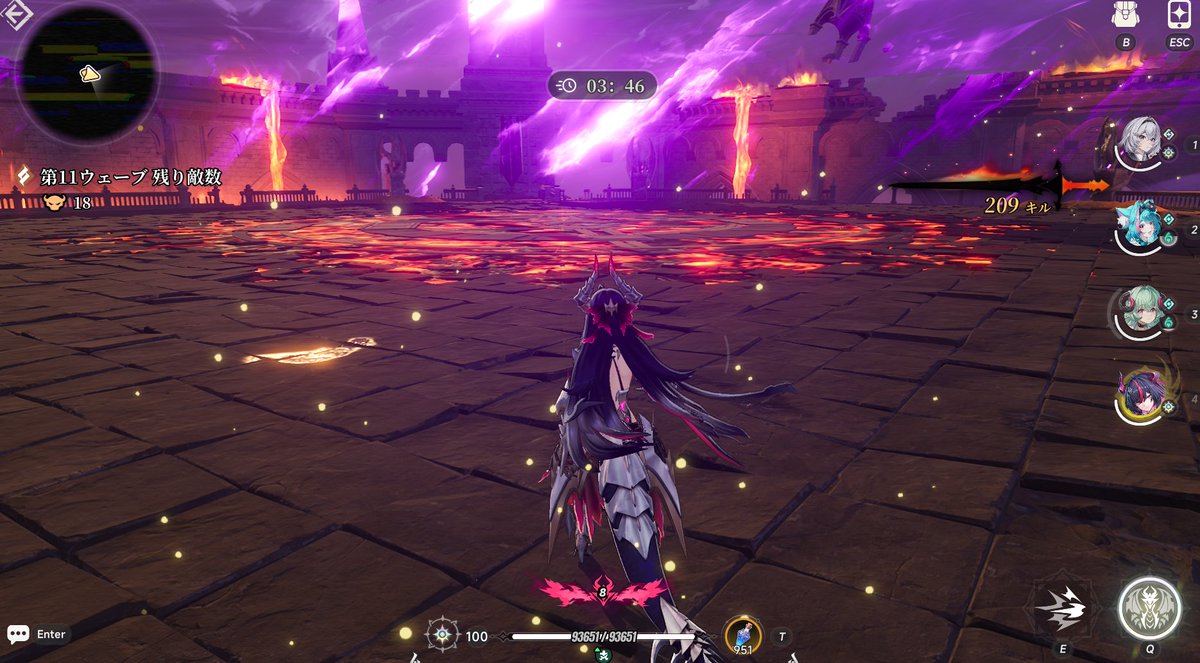
🔥 HOW TO UNLOCK NTE'S HIDDEN GRAPHICS SETTINGS, PART 2
After setting up NVIDIA's new DLSS 4.5 Ray Reconstruction, I noticed something important.
NTE still wasn't showing me:
✅ Lumen
✅ Ray Tracing
✅ Full Ray Tracing
The NVIDIA App does NOT unlock these menus.
To make them appear:
1️⃣ Completely close NTE
2️⃣ Press Win + R
3️⃣ Paste this:
%LOCALAPPDATA%\HT\Saved_Global\Config\Windows
Press Enter.
4️⃣ Inside that folder, find: Engine.ini
5️⃣ BACK IT UP FIRST
Right click Engine.ini → Rename, Rename it to:
Engine_backup.ini
Do NOT delete it.
This keeps your original file safe in case you ever want to restore everything.
6️⃣ Now create a NEW file
Right click an empty area inside the folder → New → Text Document
Name it:Engine.ini
⚠️ IMPORTANT
Make sure Windows did NOT name it:
Engine.ini.txt
Make sure the file is exactly:
Engine.ini
7️⃣ Open the NEW Engine.ini with Notepad
Paste this inside:
[SystemSettings]
UI.ShowLumenSettings=1
UI.ShowRayTracingSettings=1
UI.ShowFullRayTracingSettings=1
8️⃣ Save it
9️⃣ Right click the new Engine.ini → Properties
Enable:✅ Read only
Click Apply → OK
🔟 Launch NTE
Go to:
Settings → Graphics
Set Graphics Quality to:
Cinematic
You should now see the hidden options:
✅ Lumen
✅ Ray Tracing
✅ Full Ray Tracing
And BOOM, that's it.
IMPORTANT TO UNDERSTAND:
NVIDIA DLSS 4.5 override = changes the Ray Reconstruction model
Engine.ini tweak = makes NTE's hidden graphics options appear
They are 2 completely separate things.
And yes, obviously I immediately turned everything on with my RTX 3060...
That experiment lasted about 10 seconds. 💀😂
Part 3, actual performance and visual testing.
#NTE #NevernessToEverness #NTEネバエバ #NTECreator




![FroGGyNTE's tweet photo. 🔥 HOW TO UNLOCK NTE'S HIDDEN GRAPHICS SETTINGS, PART 2
After setting up NVIDIA's new DLSS 4.5 Ray Reconstruction, I noticed something important.
NTE still wasn't showing me:
✅ Lumen
✅ Ray Tracing
✅ Full Ray Tracing
The NVIDIA App does NOT unlock these menus.
To make them appear:
1️⃣ Completely close NTE
2️⃣ Press Win + R
3️⃣ Paste this:
%LOCALAPPDATA%\HT\Saved_Global\Config\Windows
Press Enter.
4️⃣ Inside that folder, find: Engine.ini
5️⃣ BACK IT UP FIRST
Right click Engine.ini → Rename, Rename it to:
Engine_backup.ini
Do NOT delete it.
This keeps your original file safe in case you ever want to restore everything.
6️⃣ Now create a NEW file
Right click an empty area inside the folder → New → Text Document
Name it:Engine.ini
⚠️ IMPORTANT
Make sure Windows did NOT name it:
Engine.ini.txt
Make sure the file is exactly:
Engine.ini
7️⃣ Open the NEW Engine.ini with Notepad
Paste this inside:
[SystemSettings]
UI.ShowLumenSettings=1
UI.ShowRayTracingSettings=1
UI.ShowFullRayTracingSettings=1
8️⃣ Save it
9️⃣ Right click the new Engine.ini → Properties
Enable:✅ Read only
Click Apply → OK
🔟 Launch NTE
Go to:
Settings → Graphics
Set Graphics Quality to:
Cinematic
You should now see the hidden options:
✅ Lumen
✅ Ray Tracing
✅ Full Ray Tracing
And BOOM, that's it.
IMPORTANT TO UNDERSTAND:
NVIDIA DLSS 4.5 override = changes the Ray Reconstruction model
Engine.ini tweak = makes NTE's hidden graphics options appear
They are 2 completely separate things.
And yes, obviously I immediately turned everything on with my RTX 3060...
That experiment lasted about 10 seconds. 💀😂
Part 3, actual performance and visual testing.
#NTE #NevernessToEverness #NTEネバエバ #NTECreator](https://pbs.twimg.com/media/HQwtOzqWEAA5yil.png)
![FroGGyNTE's tweet photo. 🔥 HOW TO UNLOCK NTE'S HIDDEN GRAPHICS SETTINGS, PART 2
After setting up NVIDIA's new DLSS 4.5 Ray Reconstruction, I noticed something important.
NTE still wasn't showing me:
✅ Lumen
✅ Ray Tracing
✅ Full Ray Tracing
The NVIDIA App does NOT unlock these menus.
To make them appear:
1️⃣ Completely close NTE
2️⃣ Press Win + R
3️⃣ Paste this:
%LOCALAPPDATA%\HT\Saved_Global\Config\Windows
Press Enter.
4️⃣ Inside that folder, find: Engine.ini
5️⃣ BACK IT UP FIRST
Right click Engine.ini → Rename, Rename it to:
Engine_backup.ini
Do NOT delete it.
This keeps your original file safe in case you ever want to restore everything.
6️⃣ Now create a NEW file
Right click an empty area inside the folder → New → Text Document
Name it:Engine.ini
⚠️ IMPORTANT
Make sure Windows did NOT name it:
Engine.ini.txt
Make sure the file is exactly:
Engine.ini
7️⃣ Open the NEW Engine.ini with Notepad
Paste this inside:
[SystemSettings]
UI.ShowLumenSettings=1
UI.ShowRayTracingSettings=1
UI.ShowFullRayTracingSettings=1
8️⃣ Save it
9️⃣ Right click the new Engine.ini → Properties
Enable:✅ Read only
Click Apply → OK
🔟 Launch NTE
Go to:
Settings → Graphics
Set Graphics Quality to:
Cinematic
You should now see the hidden options:
✅ Lumen
✅ Ray Tracing
✅ Full Ray Tracing
And BOOM, that's it.
IMPORTANT TO UNDERSTAND:
NVIDIA DLSS 4.5 override = changes the Ray Reconstruction model
Engine.ini tweak = makes NTE's hidden graphics options appear
They are 2 completely separate things.
And yes, obviously I immediately turned everything on with my RTX 3060...
That experiment lasted about 10 seconds. 💀😂
Part 3, actual performance and visual testing.
#NTE #NevernessToEverness #NTEネバエバ #NTECreator](https://pbs.twimg.com/media/HQwtL0bXEAAlpgA.jpg)


![FroGGyNTE's tweet photo. 🔥 HOW TO UNLOCK NTE'S HIDDEN GRAPHICS SETTINGS, PART 2
After setting up NVIDIA's new DLSS 4.5 Ray Reconstruction, I noticed something important.
NTE still wasn't showing me:
✅ Lumen
✅ Ray Tracing
✅ Full Ray Tracing
The NVIDIA App does NOT unlock these menus.
To make them appear:
1️⃣ Completely close NTE
2️⃣ Press Win + R
3️⃣ Paste this:
%LOCALAPPDATA%\HT\Saved_Global\Config\Windows
Press Enter.
4️⃣ Inside that folder, find: Engine.ini
5️⃣ BACK IT UP FIRST
Right click Engine.ini → Rename, Rename it to:
Engine_backup.ini
Do NOT delete it.
This keeps your original file safe in case you ever want to restore everything.
6️⃣ Now create a NEW file
Right click an empty area inside the folder → New → Text Document
Name it:Engine.ini
⚠️ IMPORTANT
Make sure Windows did NOT name it:
Engine.ini.txt
Make sure the file is exactly:
Engine.ini
7️⃣ Open the NEW Engine.ini with Notepad
Paste this inside:
[SystemSettings]
UI.ShowLumenSettings=1
UI.ShowRayTracingSettings=1
UI.ShowFullRayTracingSettings=1
8️⃣ Save it
9️⃣ Right click the new Engine.ini → Properties
Enable:✅ Read only
Click Apply → OK
🔟 Launch NTE
Go to:
Settings → Graphics
Set Graphics Quality to:
Cinematic
You should now see the hidden options:
✅ Lumen
✅ Ray Tracing
✅ Full Ray Tracing
And BOOM, that's it.
IMPORTANT TO UNDERSTAND:
NVIDIA DLSS 4.5 override = changes the Ray Reconstruction model
Engine.ini tweak = makes NTE's hidden graphics options appear
They are 2 completely separate things.
And yes, obviously I immediately turned everything on with my RTX 3060...
That experiment lasted about 10 seconds. 💀😂
Part 3, actual performance and visual testing.
#NTE #NevernessToEverness #NTEネバエバ #NTECreator](https://pbs.twimg.com/media/HQwtPmhWkAAfEp2.png)