Disability is the only group anyone can join, any day.
- An accident.
- An illness.
- Or just getting old.
So when we are building with accessiblity in mind, we are building for our future selves.
We have seen reports regarding an incident involving 14 Indian nationals on board a yacht off the coast of Yemen today. We are ascertaining further details about the incident and will provide all possible help for ensuring the safety and well-being of the Indian nationals.@MEAIndia
For the past few days, I’ve been sharing my bits on accessibility on LinkedIn, and also on Substack and X.
I started noticing how accessible each platform is when I publish. Here is what I found so far just from the process.
LinkedIn
What works:
- You can add alt text to post images.
- You can upload an accessible PDF. This is the popular “carousel” format, and readers can download it. (Until now, I was putting all the carousel text in the post itself as an alternative. So I found this truly helpful.)
- Images inside an article (other than the banner) can have alt text.
What’s missing:
- When I opened an uploaded document with TalkBack, its title was not announced.
- No alt text for the article banner. You can only add a caption.
- No formatted lists in posts. I get it, posts are meant to be short. But I love lists, so this one bothers me.
- Once you post, you can’t edit the image again. So no fixing alt text later.
- When you share an accomplishment, LinkedIn suggests GIFs that move non-stop. I used one recently too.
- I didn’t find any reduce motion option.
Substack
What works:
- You can add alt text to images in articles.
- What’s missing:
- No alt text option for images in Notes.
- Links only change color. They are not bold or underlined.
- I didn’t find any reduce motion option.
X
What works:
- You can add alt text to images in posts.
- Links are clearly underlined.
- There is a Reduce motion setting.
What’s missing:
- No alt text for images in X Articles.
- No platform gets it all right. Each one gets some things right and misses others.
Once you start working in this field, you start seeing these gaps all around you. It kind of becomes a game.
Have you noticed similar gaps? Please share in the comments.
#Accessibility #A11y #DigitalAccessibility #InclusiveDesign #ContentCreation
Is it a button or a link?
You just need to do this two-question test.
Does it change something on the page?
It’s a button.
Does it take you someplace else?
It’s a link.
“Buttons do things. Links go places.”
That line sums up the behaviour perfectly.
But it gets really confusing when you are auditing a web app.
Sometimes a banner looks like a button.
You click it.
The page doesn’t reload.
But the URL changes.
So what is it?
I call it a link, because:
- The URL changed.
- You can bookmark this view.
- You can press Back to go to the previous view.
All these point to going places.
Now take a submit button.
It often loads a new page.
But I still prefer to call it a button.
Its job is to submit values.
The new page is just the result.
When testing for accessibility, always prioritise what the control does over how it looks.
For someone using a screen reader, a context change is a big deal.
They can’t just glance at a page and get the structure.
They trace it with landmarks, headings and lists.
That takes time.
So the role matters.
“Button” or “link” tells them what will happen before they press.
Wrong role = surprise.
A few more cases I keep revisiting:
Log out is a button
Skip to main content is a link
Load more is a button
Next page with a new URL is a link
I’m sure I’ll find more scenarios where I have to weigh this again.
What’s your opinion? Which button vs link case confused you the most?
I batch every accessibility audit into 4 passes:
- Keyboard
- Screen reader
- Color
- Zoom
This article explains it all in detail: which criteria go in which pass, why the order matters, and where automation fits in. https://t.co/VxJO6kdDIr
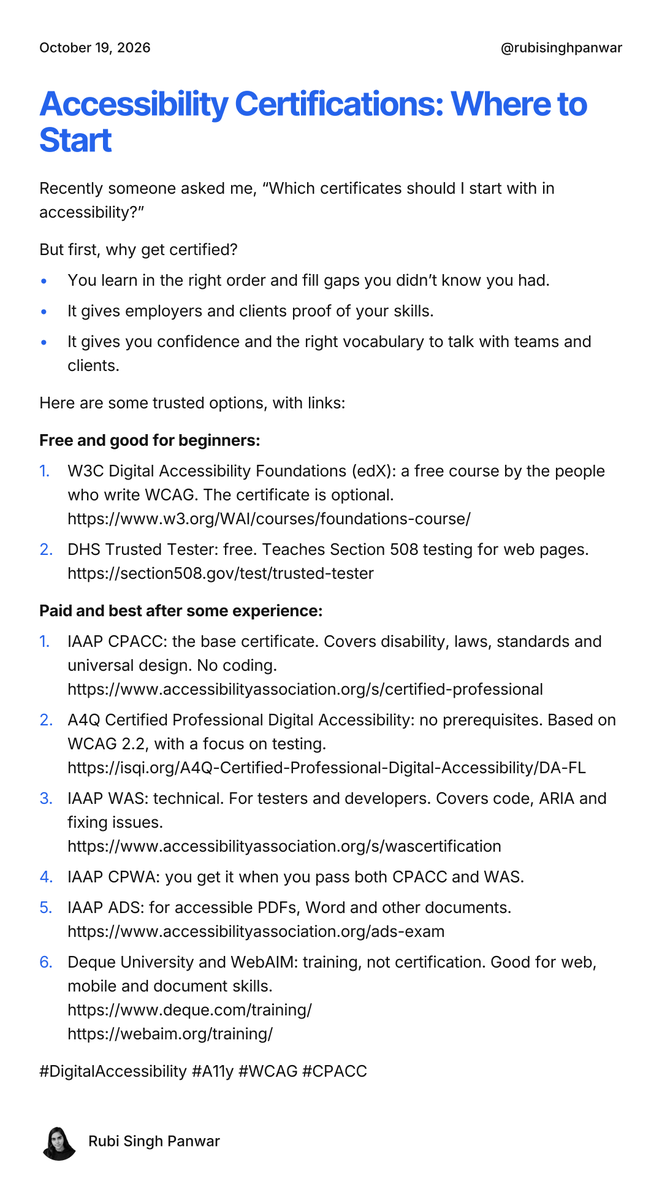
Recently someone asked me, “Which certificates should I start with in accessibility?”
But first, why get certified?
You learn in the right order and fill gaps you didn’t know you had.
It gives employers and clients proof of your skills.
It gives you confidence and the right vocabulary to talk with teams and clients.
Here are some trusted options, with links:
Free and good for beginners:
1. W3C Digital Accessibility Foundations (edX): a free course by the people who write WCAG. The certificate is optional. https://t.co/HwQIrHYN9W…
2. DHS Trusted Tester: free. Teaches Section 508 testing for web pages. https://t.co/c97z5VRj6C…
Paid and best after some experience:
3. IAAP CPACC: the base certificate. Covers disability, laws, standards and universal design. No coding. accessibilityassociatio…
4. A4Q Certified Professional Digital Accessibility: no prerequisites. Based on WCAG 2.2, with a focus on testing. https://t.co/2yN8RpyKNw…
5. IAAP WAS: technical. For testers and developers. Covers code, ARIA and fixing issues. accessibilityassociatio…
6. IAAP CPWA: you get it when you pass both CPACC and WAS.
7. IAAP ADS: for accessible PDFs, Word and other documents. accessibilityassociatio…
8. Deque University and WebAIM: training, not certification. Good for web, mobile and document skills. https://t.co/61YzLJvpuD
#DigitalAccessibility #A11y #WCAG #CPACC
Here is one more reason to fix accessibility.
Found some interesting reads on this topic.
Cassidy Williams’ blog post on accessibility and AI agents:
https://t.co/sSLbKqsKTw
Weekly news on AI agents and accessibility:
https://t.co/xJOPhqRdxF
Deque on how AI agents read web pages:
https://t.co/e0W02Mmpua
A lot of people are making their applications accessible because if a human cannot navigate a website, an agent might not be able to either.
~ Cassidy Williams
What does a screen reader user hear when they reach a button, slider or checkbox?
That’s what WCAG 4.1.2 Name, Role, Value is about.
Every control needs to tell 3 things:
Name: What is it called?
Role: What is it?
Value/State: What is it set to right now?
Screen reader users rely on these announcements to use controls on a website.
Here are 7 examples based on NVDA 2024.4.2 on Chrome and Windows 11.
Example 1: Submit button
“Submit, button”
“Submit, button, unavailable” (when disabled)
Example 2: Volume slider
“Volume, slider, 50%”
“Volume, slider, 75%”
Example 3: Remember Me checkbox
“Remember Me, checkbox, checked”
“Remember Me, checkbox, not checked”
Example 4: Search field
“Search, edit, blank”
“Search, edit, accessibility testing”
Example 5: Star rating
“Star rating, grouping, 1 star, radio button, not checked, 1 of 5”
“5 stars, radio button, checked, 5 of 5”
Example 6: Play/Pause button
“Play, button”
“Pause, button”
Example 7: FAQ (expand/collapse)
“How to reset my password?, button, collapsed”
“How to reset my password?, button, expanded”
Example 8: Notifications toggle
“Notifications, toggle button, pressed”
“Notifications, toggle button, not pressed”
Where this fits in WCAG 2.2:
Principle: Robust
Guideline: 4.1 Compatible
Success Criterion: 4.1.2 Name, Role, Value
I love stories. I believe everyone does.
I remember long summer afternoons during childhood.
Everyone in the house would be asleep. I’d wander from room to room, looking for something to read. Out of boredom, I’d open anything. But I was really hunting for words like “Once upon a time...” or “Long, long ago...”
That little dopamine boost beats anything I get from reels today.
I found myself following the same pattern when I started my first job as an accessibility tester.
This time, I was searching for "How to test a website or app for accessibility."
I searched YouTube, Quora, and blogs. I even searched "accessibility" on Instagram. I just wanted one video showing someone actually doing the work.
There weren’t any. At least, not free ones.
But I found other stories and facts about accessibility. They helped me build the right mindset.
Things are much better now. But I still see the gap. So, here I am trying to fill it one piece at a time.
Image: The Flammarion engraving, artist unknown, 1888.
A traveller at the edge of the world pushes his head through the sky to see what lies beyond.
“Automation doesn’t work.”
If you have ever come across digital accessibility, you have heard this a thousand times.
The truth is, automation does work. Just not for everything. And that gives you a false sense of accessibility.
Let’s take images as an example.
Automation can tell if an image has alt text.
It can’t tell if the alt text is correct. alt="photo" will pass.
Automation can tell if an image has empty alt text.
It can’t tell if the image is really decorative. A chart with empty alt will pass.
Automation can find images added in the HTML.
It can’t tell if an image added using CSS is important.
Automation can flag a custom image (role="img") with no name.
It can’t tell if the aria-label describes the image correctly.
Automation can tell if a chart has alt text.
It can’t tell if the chart has a proper detailed description.
And here is where it fails badly.
Automation can’t tell when real text is marked as an image. If role="img" is put on text, a screen reader may skip that text and read only the label. It’s rare, but it can fully block content for screen reader users.
So automation can find what is missing. But it can’t understand context.
Can AI fix this? Someday, for sure. But for now, manual testing is still the only way to be sure.
Image: The Treachery of Images, René Magritte, 1929.
A painting of a pipe with the words ‘This is not a pipe’ written below it.
No accessibility auditor shares a blank VPAT with clients.
A VPAT is just a template. When it is filled in, it becomes an ACR.
VPAT means Voluntary Product Accessibility Template.
ACR means Accessibility Conformance Report.
The ACR is the document that tells people how accessible a product is. Here is what you should know about the VPAT:
- It is made by the Information Technology Industry Council (ITI).
- It is a self-reporting document, not a certificate. The company that makes the product is responsible for what it says.
- It explains how a product, like a website, app, software, or document, meets accessibility standards.
- It comes in four editions: WCAG, Section 508 (US), EU, and INT (International). Which one you use depends on which rules you need to meet. INT covers all of them.
- Each criterion is marked with one of four terms: Supports, Partially Supports, Does Not Support, or Not Applicable. There is also ‘Not Evaluated,’ but it is only for Level AAA.
So why does an ACR matter?
Governments, schools, hospitals, and big companies often ask for an ACR before they buy a product. This buying process is called procurement. The ACR helps them check if the product will work for people with disabilities.
Next time someone asks you for a “VPAT,” you’ll know they most likely want the ACR.
A Beginner’s Guide to Automated Accessibility Scans (5 Real Examples)
Does your ethical compass stop you from logging automation issues during an accessibility audit?
I mean, it’s only logical. Left and right you keep hearing how automation tools don’t work. But as soon as an audit is handed to you, there they are in the “scope”.
So which one is it?
Both. Tools do work. They just work on a small slice of issues.
@_includify made this point well in his talk on automated testing. The common claim is that tools find 20 to 30% of issues. He thinks it is closer to 10 to 15% today, because websites have become far more complex.
Goal here is to be able to choose which scan results to pick for the final audit report.
To be able to do this you should have clarity on the following three things:
- Identify false positives
- Identify the valid results
- Identify where results are only partially valid (and how to tackle them)
Example 1: Image with no alt
Every image needs an alt attribute. An informative image needs a description. A decorative image needs an empty alt (alt=""). The tool can flag the missing alt, but it cannot tell the two apart. So you can’t rely on the tool’s suggestion for the fix.
Final verdict: Valid. Log it, but write the fix yourself.
Example 2: Low contrast on a logo
Text that is part of a logo is exempt from 1.4.3 Contrast (Minimum).
Final verdict: False positive. Do not log it.
Example 3: Role image on a paragraph
Here role="img" is added to a piece of text. The tool flags it as a missing aria-label. There is an issue, but it is not the one the tool flagged.
If you follow the tool’s instructions here, you will hide the real content from screen reader users.
For example: This is the code after adding the label the tool asked for:
<p role="img" aria-label="Our services">Our team helps you plan, test and fix accessibility across your products.</p>
A screen reader now reads only “graphic, Our services”. The whole paragraph is blocked for assistive technology users.
Final verdict: Partially valid. Thank the tool for bringing your focus here (although you would’ve easily caught it during screen reader testing). Then log a different issue: the paragraph is exposed as an image. The fix is to remove role="img".
Example 4: Heading going back up a level
A scan might flag an h3 followed by an h2 as an issue. It expects every next heading to be the same level or one lower.
For example:
<h1>Plan your trip</h1> <h2>Flights</h2> <h3>Baggage rules</h3> <h3>Seat selection</h3> <h2>Hotels</h2> <h3>Check-in times</h3>
Nothing is skipped. The subsection closed, and a new section started.
Final verdict: False positive. Do not log it.
Example 5: Custom image without alternative text
The image is added through CSS, so the developer added role="img" to tell assistive technology it is an image. But there is no aria-label to give the image a name.
For example:
<div class="hero" role="img"></div>
Final verdict: Valid. Log it.
A page can get a Lighthouse accessibility score of 100/100 and still be inaccessible for people with disabilities. If tools find only 10 to 15% of issues, 85 to 90% still need your manual effort.
So here’s the deal:
- Log the valid ones.
- Rewrite the partially valid ones in your own words.
- Drop the false positives, and note why.
Your ethical compass can relax. You can log automated scan issues. Just don’t copy-paste them.
I have been working as an accessibility tester for 5 years.
These are the 5 things I’d tell anyone about automation:
1. You don’t have to log every issue an automation tool throws at you. Even when the tool is part of the scope. Some are wrong. Some are repeats. Some are not WCAG issues at all. Use your judgement.
2. Not every right finding is a big deal. Always ask who will be impacted here, and how much. Log it, but rate it by the harm it does.
3. Test everything manually first. You will have to verify every automation finding manually anyway. Run the tool at the end. By then, you will find you have already logged most of what it finds.
4. Your typing speed matters. I find people rely on automation so they can skip the writing part. When you can write as fast as you think, you don’t mind writing or rewriting an issue.
5. Can’t type that fast? Try an AI transcribe tool. Good ones are quite accurate and let you write as fast as you speak, up to 125 words a minute.
6. Write the suggested fix yourself. Automation doesn’t understand context, so its fixes are generic. The developer fixing the issue may not know much about accessibility. She will build the solution she “thinks” is right.
In the next post, I’ll walk through examples where automation gets it right, and where it gets it wrong.
Three things that make you a great accessibility auditor:
• Prioritize the end-user experience over compliance checklists.
• Manually verify all results from AI and automation tools.
• Make an effort to understand the lived experiences of people with different disabilities
I believe working in digital accessibility demands empathy. Structure, processes, and systems follow when you genuinely care.
I still remember how overwhelming it was to audit a single page for all WCAG criteria for the first time.
Testing rule by rule is exhausting.
Today, I batch my accessibility audits into these 4 core passes:
1. Keyboard navigation
2. Color contrast & visual cues
3. Screen reader testing
4. Zoom & text spacing
The trick is simple: assign every WCAG success criterion to one of these groups so you test in batches instead of scanning the page 50 times.
Batching your testing like this does three things:
• No success criteria are missed
• Audits finish with minimal repeated visits to the page
• There is a clear, repeatable structure every single time
(And before you ask: yes, automation has its place, but I have some strong opinions on that for later.)
How do you currently organize your accessibility testing workflow?