Tech Call of the Week:
How do I make a copy of a Plan Set?
Solution:
Right-click the original Plan Set in the Navigation bar and choose 'Save As Template.' When creating a new Plan Set (in this project or another), set the Method to Template and select the Plan Set Template.
https://t.co/8PvlFU2UNF
SoftPlan | web3d | Featured Project
https://t.co/I5MyrxQngu
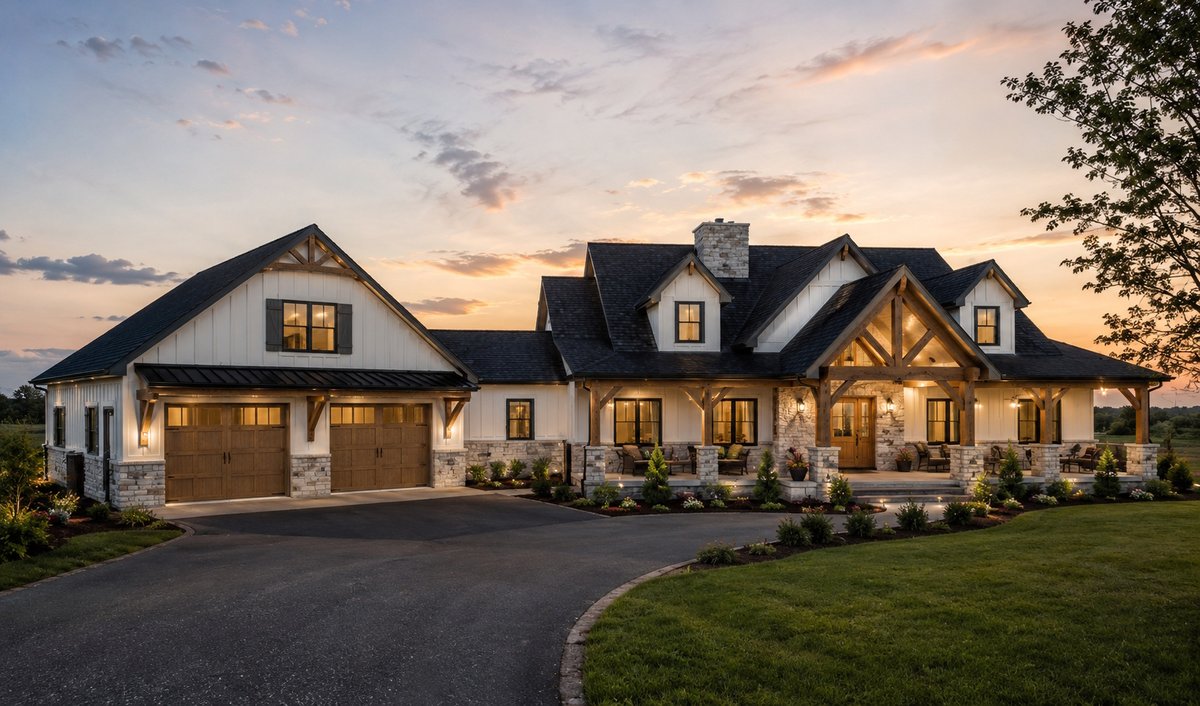
Created by Jeremy Martin and published with SoftPlan+.
Visit the complete web3d public gallery: https://t.co/svqSDKGb5k
Tech Call of the Week:
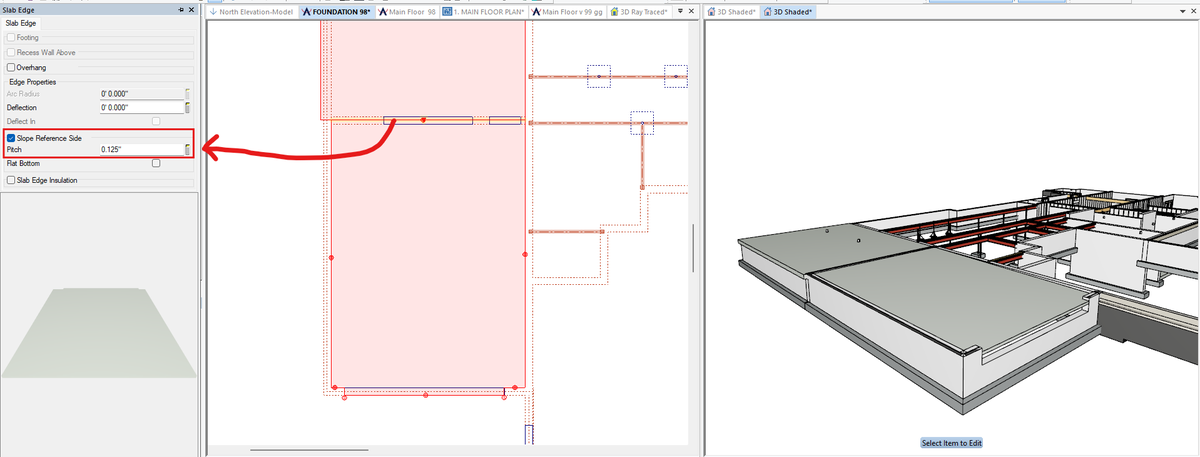
I want my garage floor to slope towards the garage door. How do I do this?
Solution:
To slope a slab, Edit the high edge of the slab and enable the "Slope Reference Side" option. In this case, Edit the top edge of the the slab and it will slope down from that edge at the specified pitch.
Tech Call of the Week:
My stair overlaps a partition wall on one side. Can I trim the stair to the inside edge of the wall?
Solution:
Right-click the partition wall and select 'Clip Stair to Wall.'
SoftPlan | web3d | Featured Project
https://t.co/AL6FTW53fg
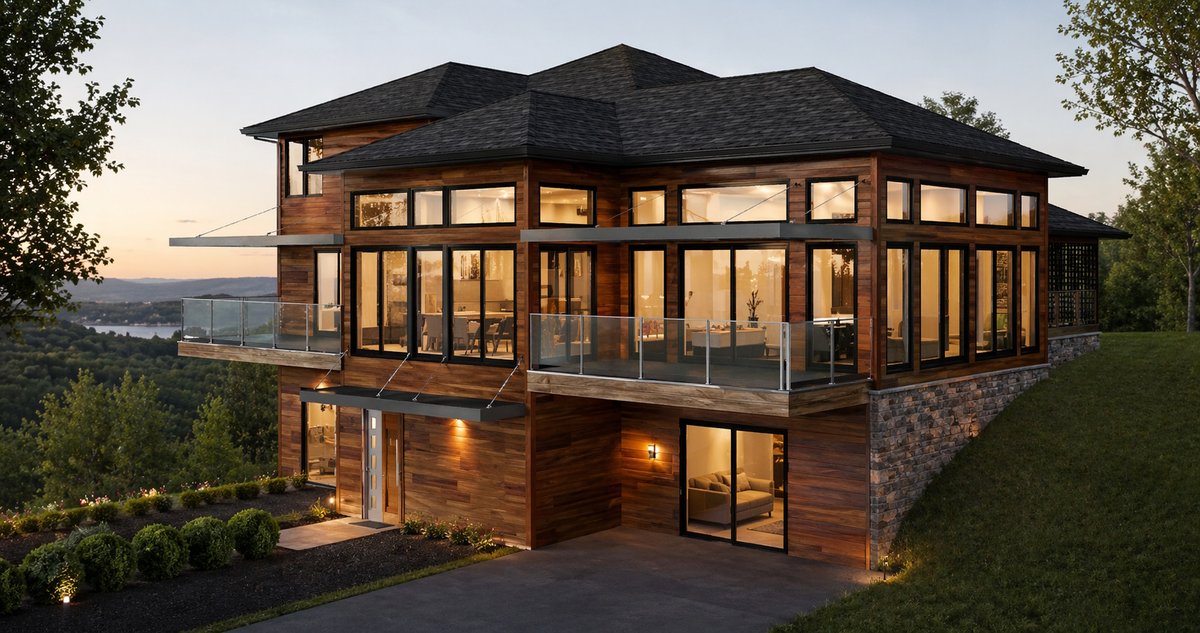
Created by Chrisha Potter and published with SoftPlan+.
Visit the complete web3d public gallery: https://t.co/svqSDKGb5k
Tech Call of the Week:
Can you tell me how I can bring AI renderings into my plan set ?
Solution:
In your AI Enhanced Render gallery, locate the rendering you want to import into the plan set and click the download button (lower right of each image). The image is saved into an AI Renders folder found within the project's folder.
You can then open a new or existing drawing file or plan set page and select File > Import > Image. Navigate to the projects folder, open the AI Renders folder, and select the downloaded image file to import.
SoftPlan Training | Barndominium
There is a new collection of tutorial videos on how to create a Barndominium in the SoftPlan Training Video Library. The full training library can be accessed from the Start Page of SoftPlan.
Click the link to view a sample chapter:
https://t.co/qzaBfFE8ub
Tech Call of the Week:
Is there a way to add a deck ramp?
Solution:
You can add a wood deck ramp by selecting Draw > Deck > Stair > Sketch > Deck Ramp.
SoftPlan | web3d | Featured Project
https://t.co/bZf663KkZn
Created by Ryan Reasoner and published with SoftPlan+.
Visit the complete web3d public gallery: https://t.co/svqSDKGb5k
Coming Next Week | SoftPlan Training | Roof Design Class
Link to sign up: https://t.co/bpMyC9r46e
SoftPlan's Roof Design class will teach you the advanced skills you need to design beautiful roofs. This class will be held May 5th - 8th.
SoftPlan’s live online training classes allow you to learn SoftPlan from the convenience of your own office. These content-rich webinars are taught by our knowledgeable training staff and are conducted using our newest version, SoftPlan 2026!
Tech Call of the Week:
What is the key to making grass look more realistic in 3D?
Solution:
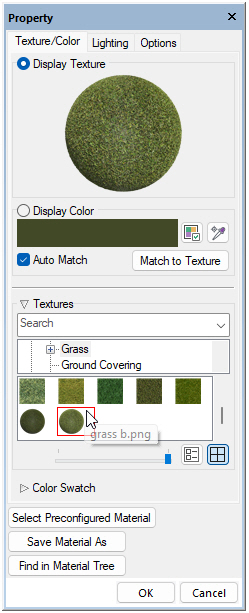
If relying solely on a texture, try using a PBR (physically based rendering) texture. There are two provided at the end of the current list of grass textures: 'grass a.png' and 'grass b.png' (PBR textures preview in a sphere). We also suggest increasing the scale (Horizontal and Vertical size in the Options tab) - try a size of about 10' x 10', as we feel a larger size makes it appear a little more realistic.
Alternatively, in your Site Plan drawing, select Draw > Vegetation > Vegetation Polygon and sketch a box around the site. This will place 3D models of hundreds upon hundreds of individual blades of grass across the area. However, to clearly see them, in your 3D view you will need to select Options > Mode Options > Face Options and turn off the global "Opacity" setting (their transparency property makes the effect work, so they cannot be opaque). Note that 3D generation times will increase with this option as each blade of grass is now modeled.
As a final option, try generating an AI Enhanced Render (File > AI Enhanced Render).