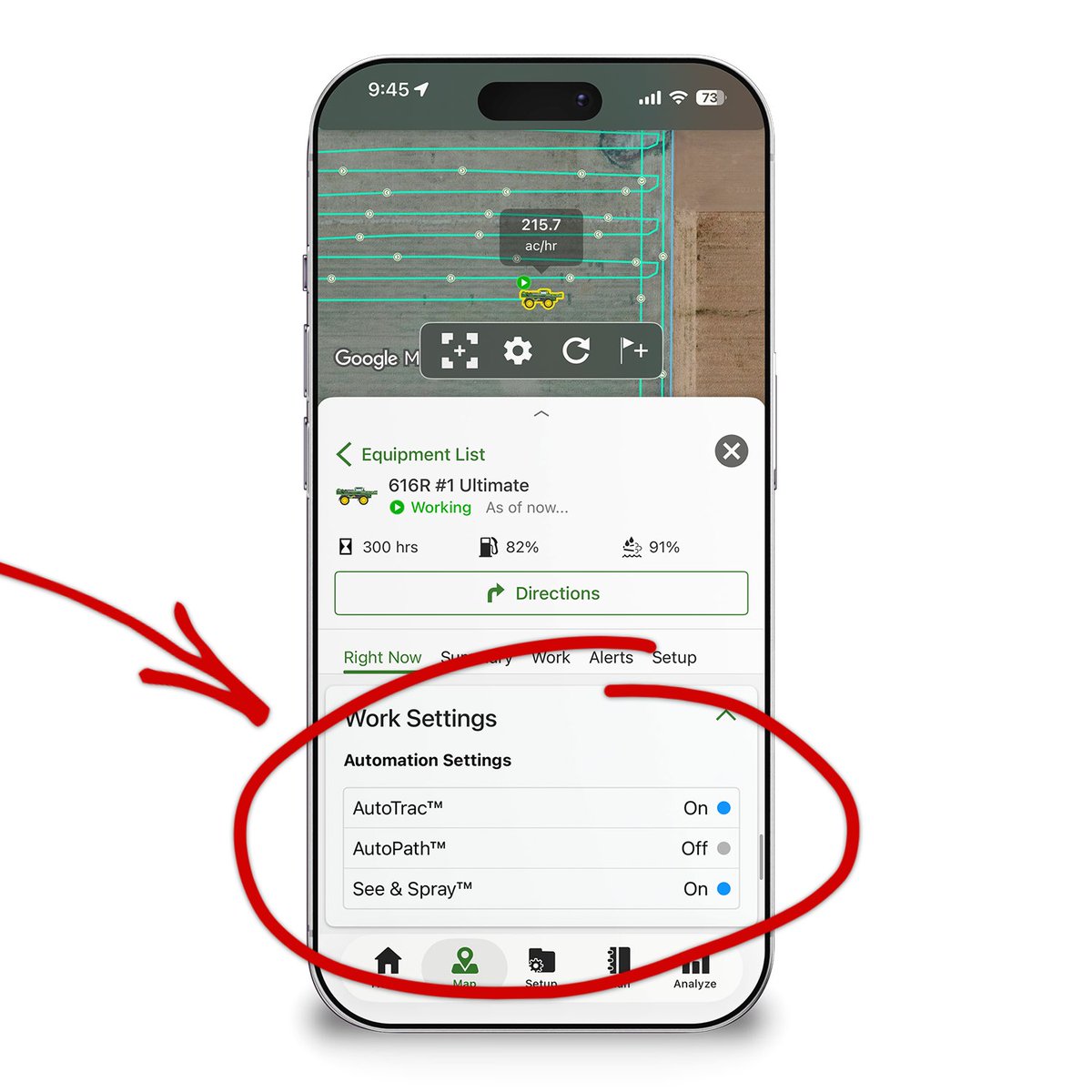
Remotely monitor whether tech, like AutoTrac, AutoPath, and See & Spray, is currently being used on your equipment from anywhere using the latest release of @JohnDeere Operations Center Mobile.
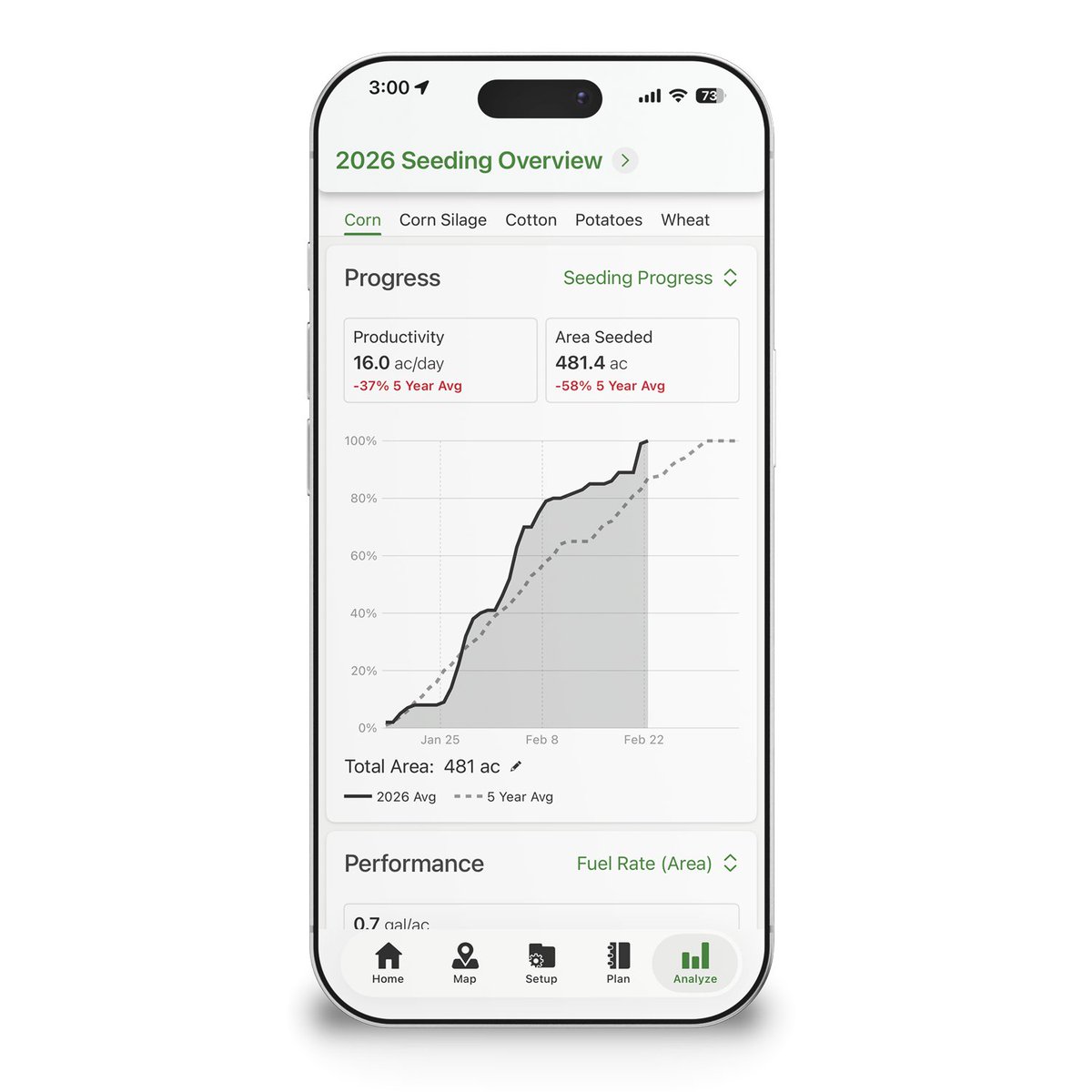
Quickly understand how your season is progressing and how your machines are performing in one simple view. The latest release of @JohnDeere Operations Center Mobile adds the Work Overview to the Analyze tab.
It's never been easier to monitor the weather in context of your operation! The latest release of @JohnDeere Operations Center Mobile overlays past and forecasted rainfall right alongside your fields and equipment. Tap the cloud icon on the Map tab to try it out.
In the latest release of @JohnDeere Operations Center Mobile, you can now view the exact location of where a Diagnostic Trouble Code was fired directly on the map while in the field. Just tap on it and view all the details.
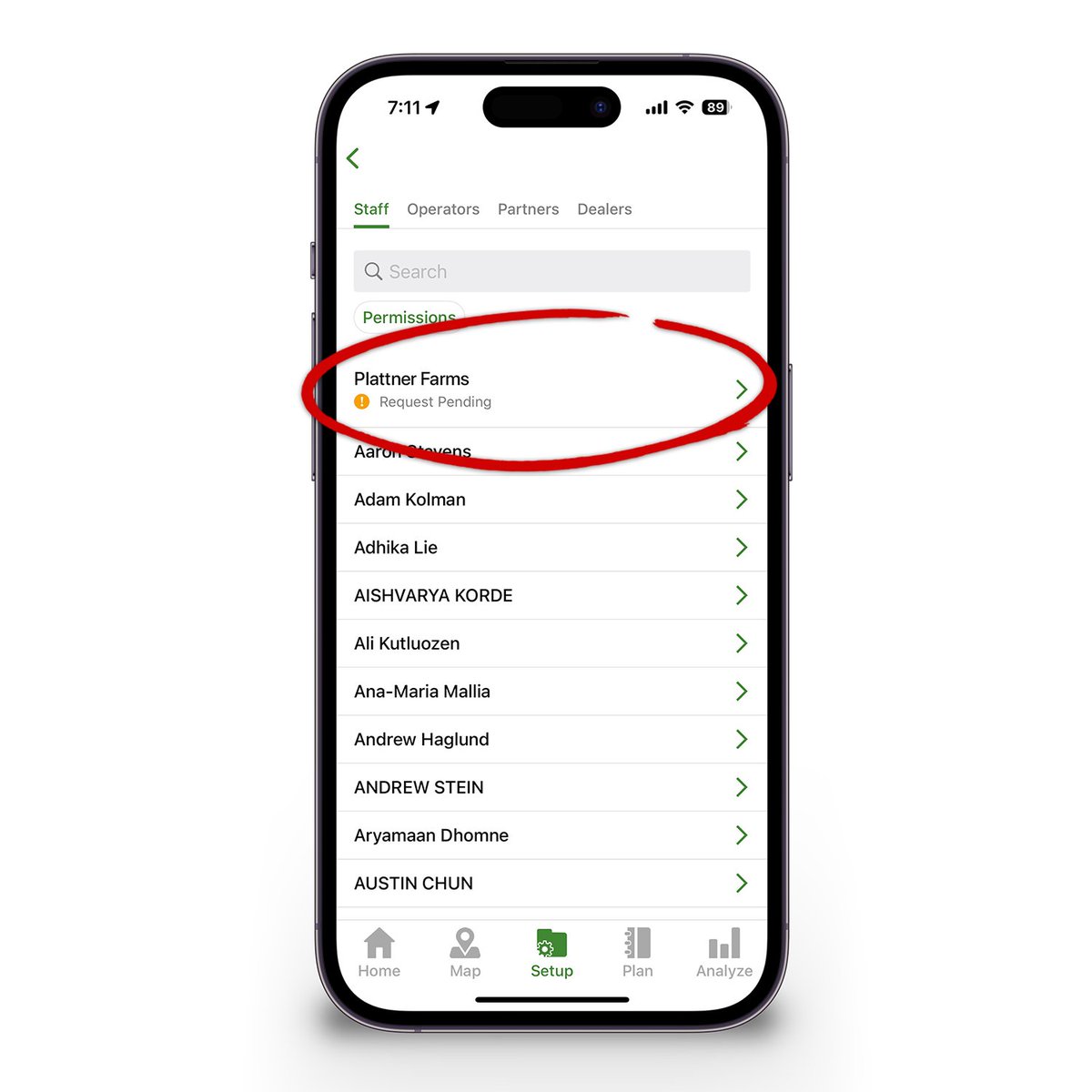
Accept Staff invites from anywhere using the latest release of @JohnDeere Operations Center Mobile. Your pending Staff invites will show up at the top the staff list under the Team section of the Setup tab.
Make quick changes to your organization's preferences from anywhere using the latest release of @JohnDeere Operations Center Mobile. Tap the gear icon in the upper right of the Setup tab.
Get an easy, at-a-glance view of where your crops are planted across your organization in the latest release of @JohnDeere Operations Center Mobile.
Tap on Map Settings -> Fields, and then select Last Seeded Crop to see boundaries colored by the last crop planted in each field.
Your best coaching happens before the match.
On game day, trust your players to execute.
Over-coaching from the sidelines slows their thinking and kills their instincts.
We've heard your feedback! In the latest release, pass lines and direction of travel are now visible on every map in @JohnDeere Operations Center Mobile.
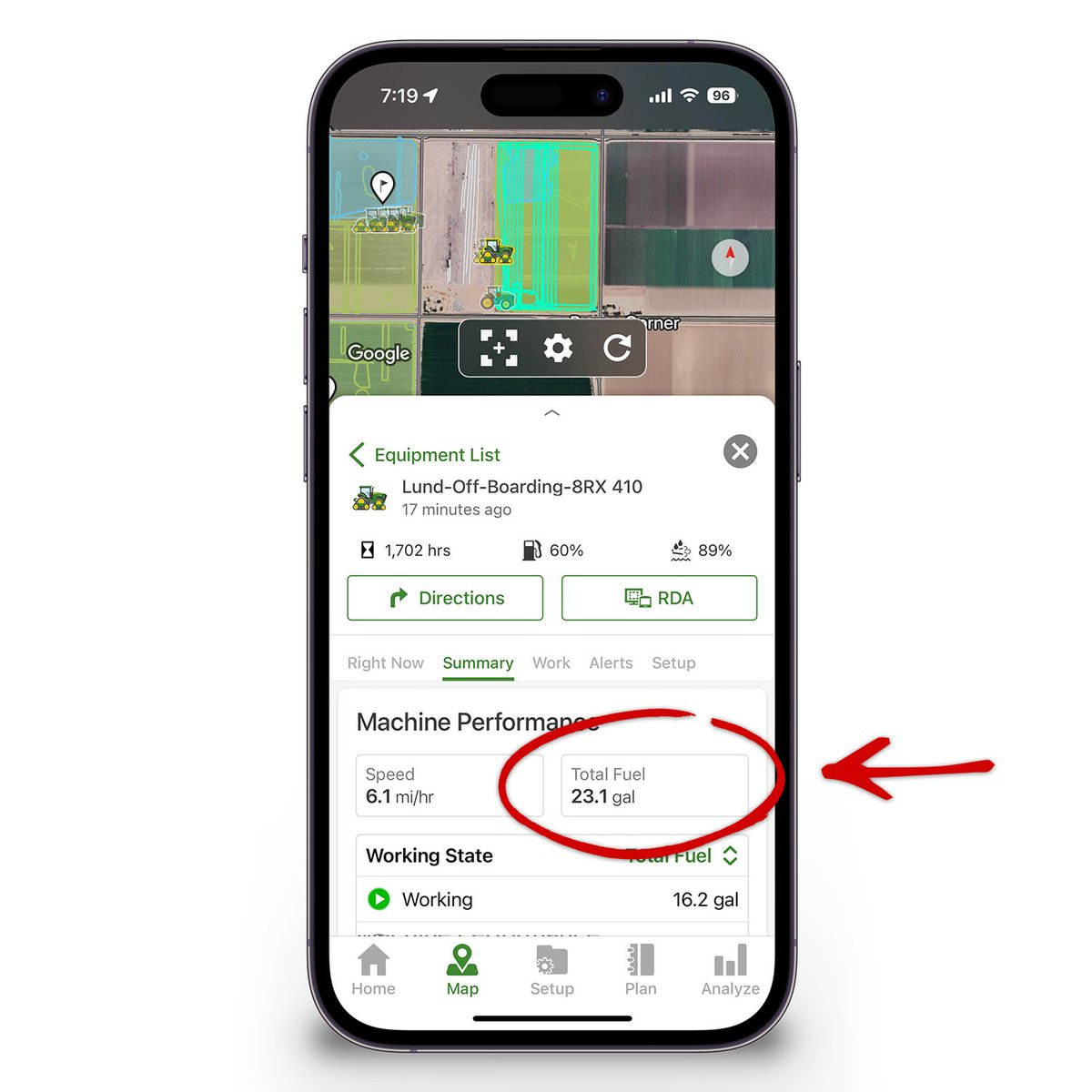
View the total fuel a machine used for any selected day using the new Summary tab in @JohnDeere Operations Center Mobile. Just select a machine, tap the Summary tab, and then select a day by tapping on the calendar icon.
View Location History and Machine Performance from any previous day using the latest release of @JohnDeere Operations Center Mobile.
To begin, just tap the Summary tab after selecting a machine, then select a date by tapping on the calendar icon.
John Deere's Operations Center is intuitive enough for anyone to use. Take a look at the full video of this episode of the FarmCast on our blog: https://t.co/8AFenm7Nky
#JohnDeere#21stCenturyEquipment#FarmCast#OpsCenter
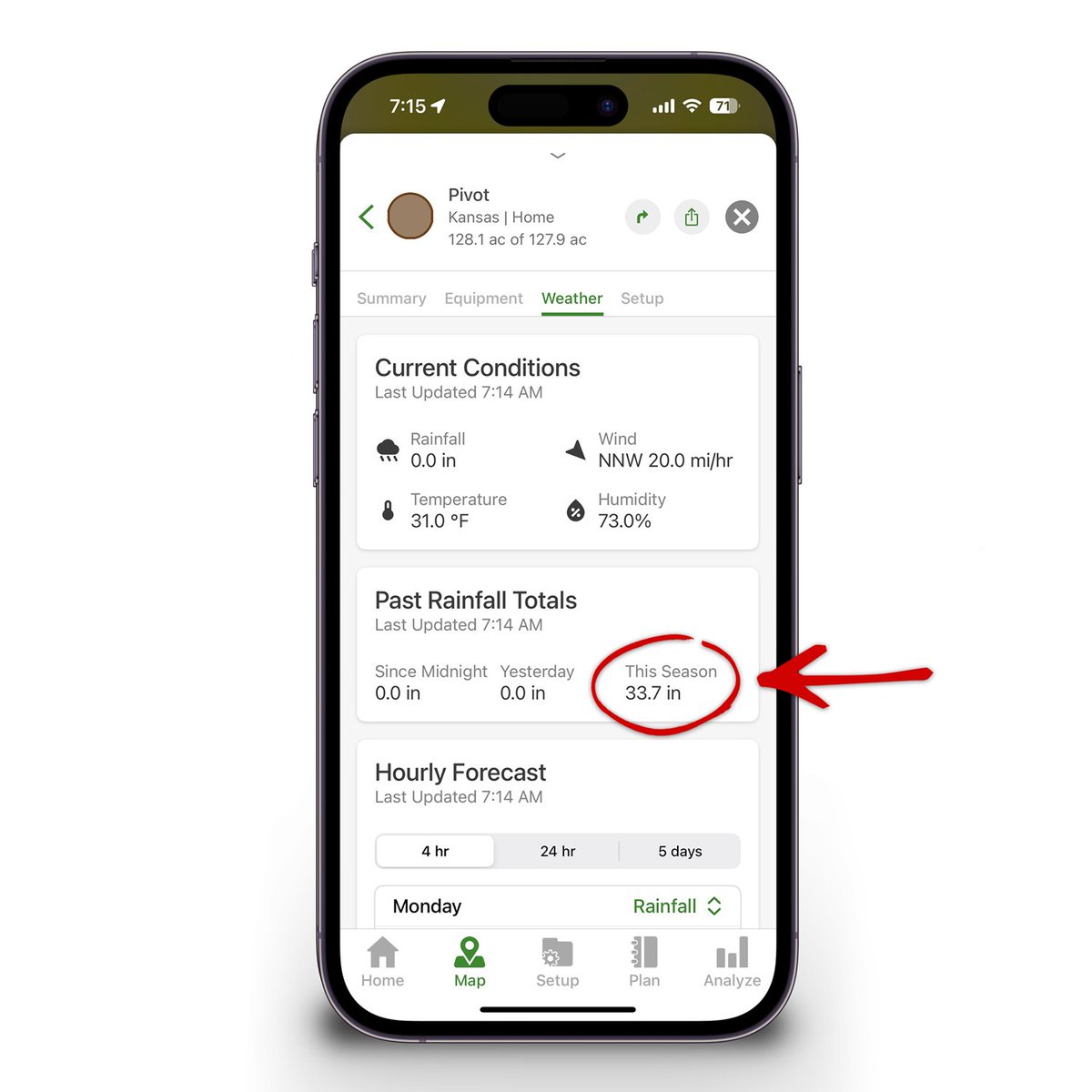
Tap on the Weather tab in the Work details card after selecting a field to see how much rainfall accumulated from planting to harvest in the latest release of @JohnDeere Operations Center Mobile.
The latest release of @JohnDeere Operations Center Mobile adds seasonal rainfall analysis. Tap the sort button in the upper right of the field list, select Rainfall Season-to-Date, and see fields sorted by cumulative rainfall from planting to harvest in each field.
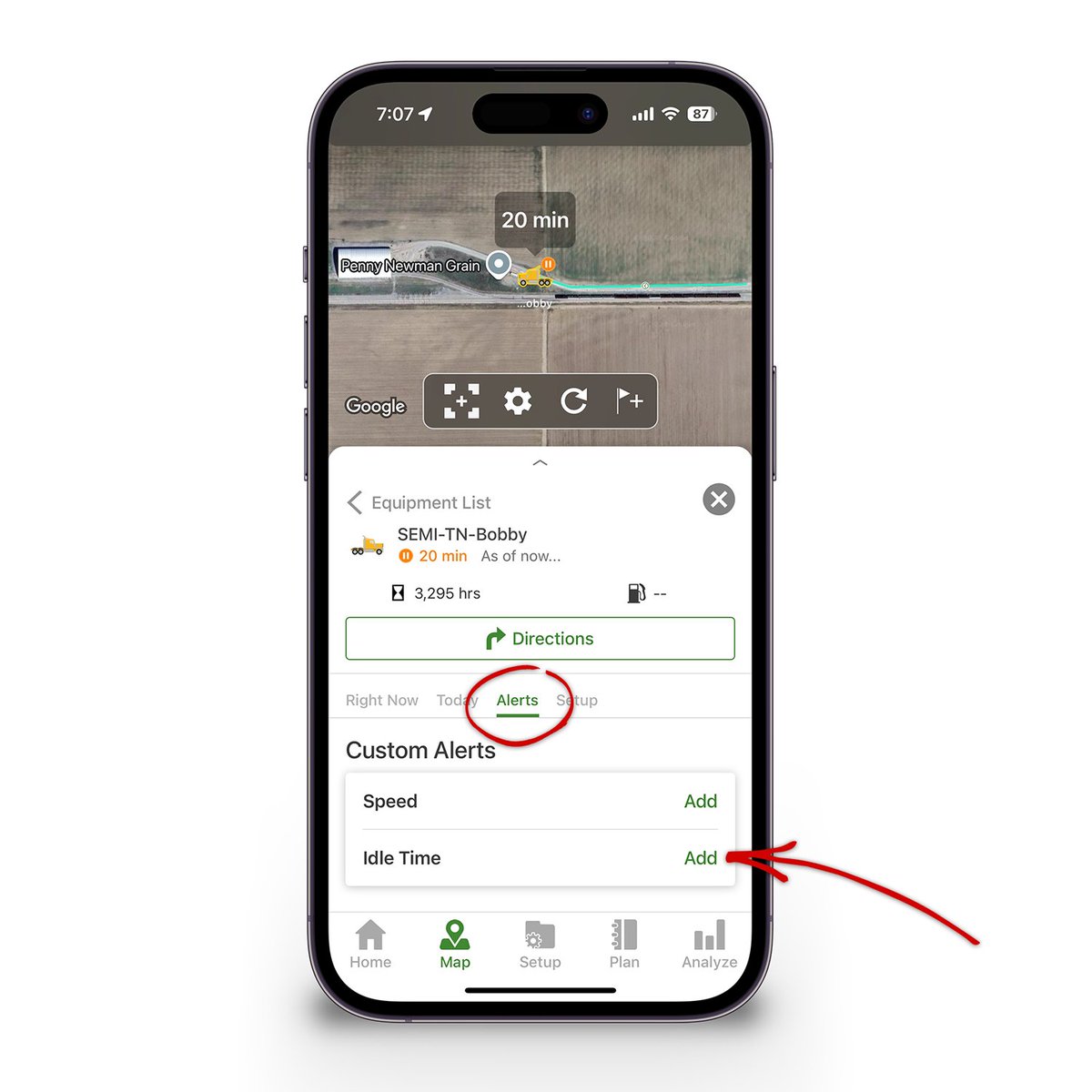
Connect your trucks to @JohnDeere Operations Center and always know where they are and how long they've been idling. It's also possible to add idle alerts to any truck so that you can be notified any time they idle longer than a time you specify.
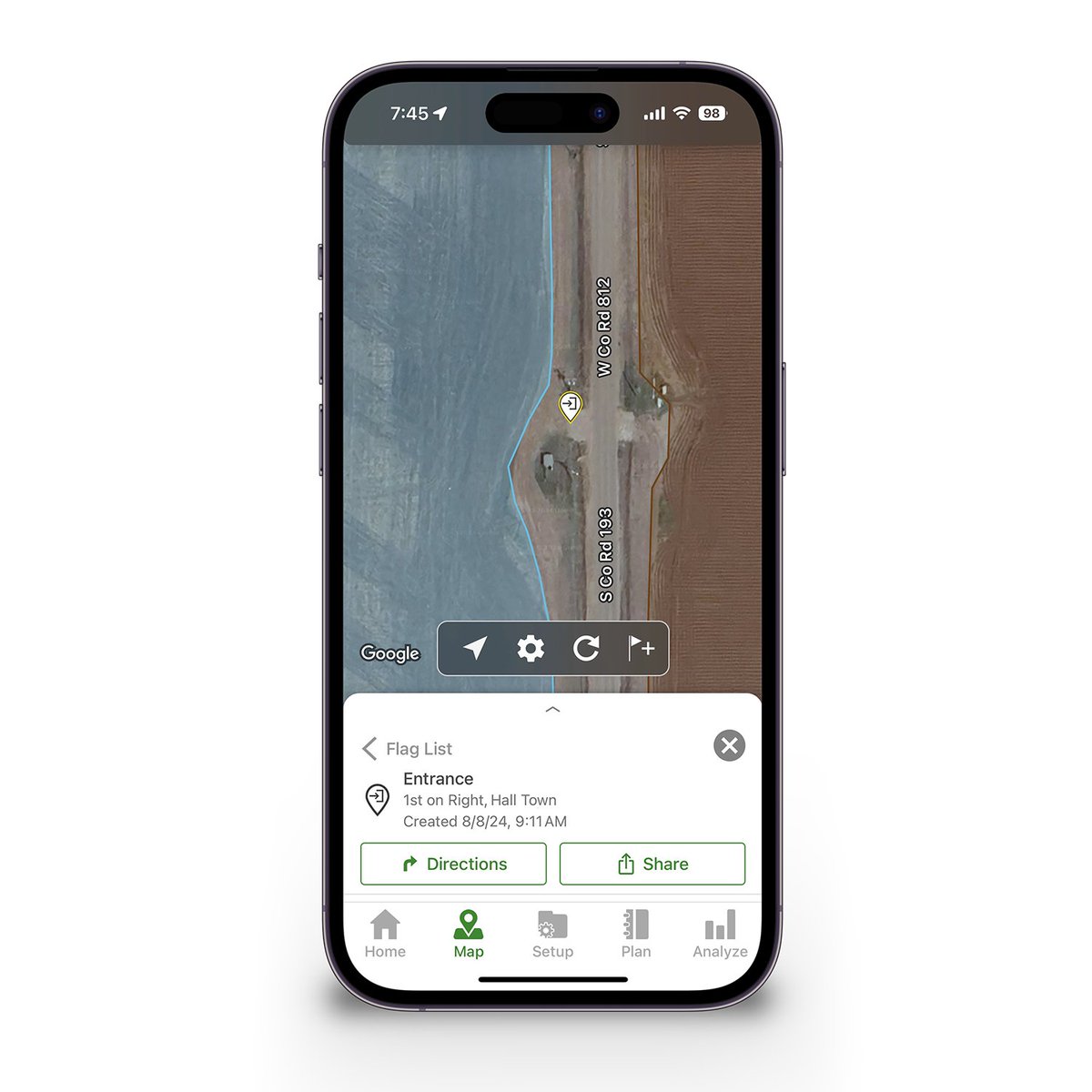
Route others in your organization directly to the correct entrance point for a field. The latest release of @JohnDeere Operations Center Mobile adds the ability to add, view, and get directions to field entrances.
Learn more here: https://t.co/Q8qTRy1Sae
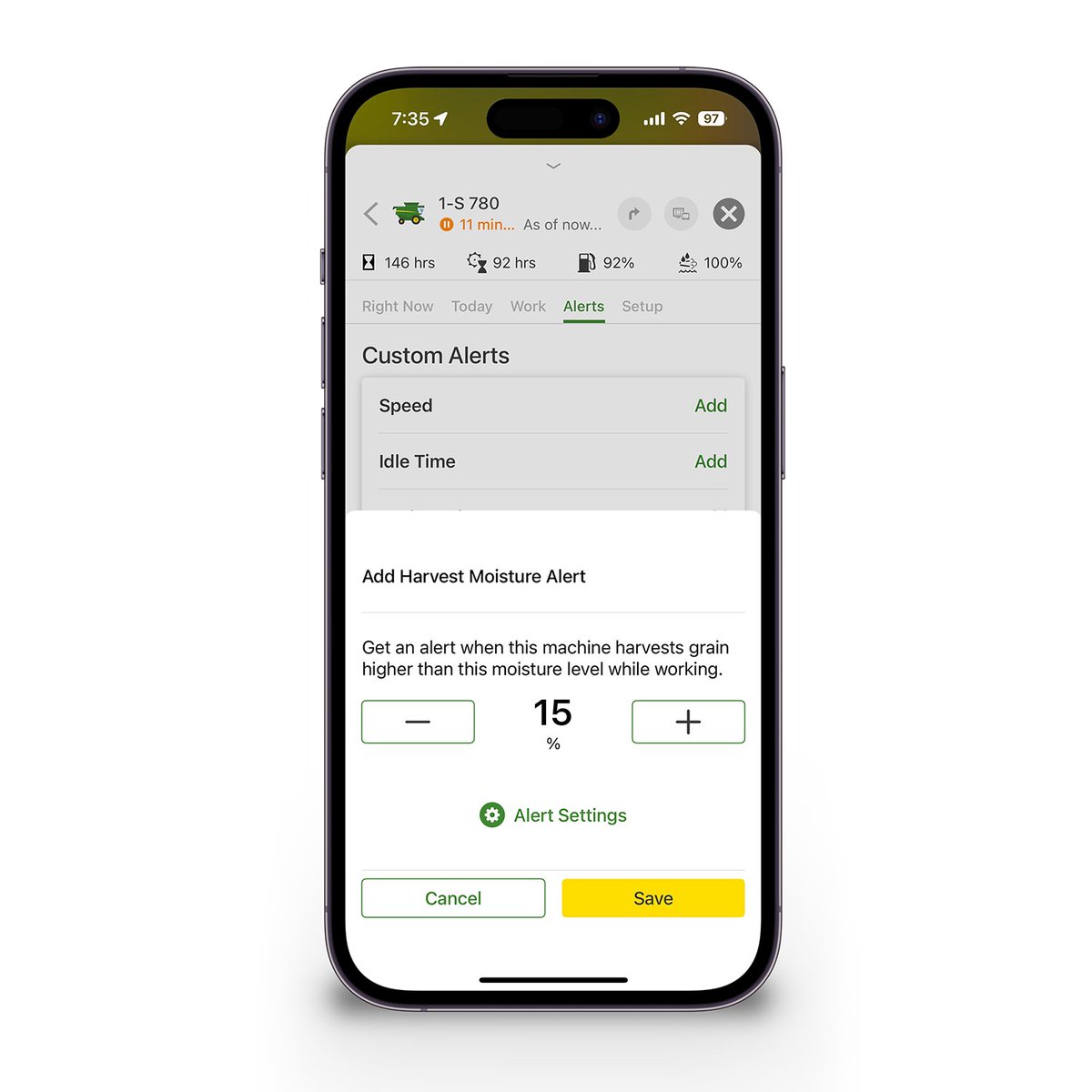
Be alerted when one of your combines harvests grain with moisture higher than a specified threshold. The latest release of @JohnDeere Operations Center Mobile adds a Harvest Moisture Custom Alert.
Tap on a combine, then tap Alerts, then tap the Add button next to Moisture.
Want to see how many bushels you harvested of each variety in a field? Tap here on the Summary tab of Work details after selecting a field in @JohnDeere Operations Center Mobile to change the way you want to see varieties are compared.