🤩🤩Good News:
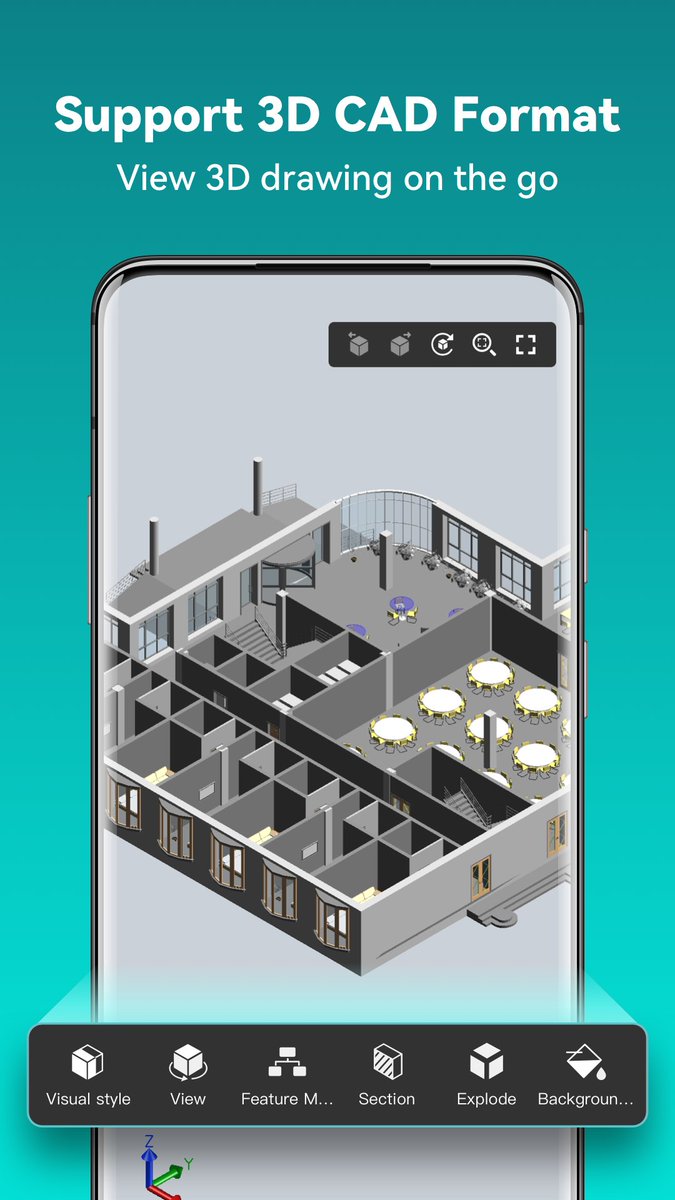
DWG FastView APP/PC supports view more 3D drawing formats, such as: RVT, Solidworks, Creo, NX, CATIA, Inventor, SolidEdge and more than 20 formats.
Come and experience it!!
DWG FastView Tip of the Day - Supports OLE objects
Now you can open the drawing with DWG FastView and see the OLE objects such as pictures, Excel, word, etc. in the drawing. You can click the OLE object to zoom in or out, and drag it to other locations in the drawing.😊😊
What's new in DWG FastView For Windows?
Version 8.4 update instructions:
1. Added Coordinate transformation
2. Added dynamic input module
3. Added default save version setting
4. Added [Command Line] button in the bottom toolbar
5. Bug fixes and performance improvements
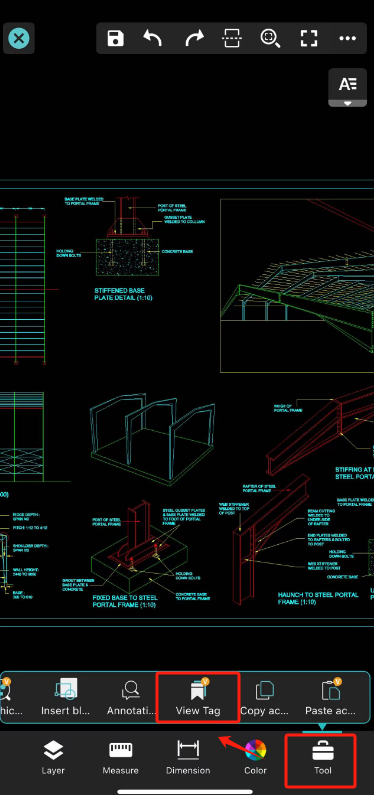
DWG FastView Tip of the Day - View Tag
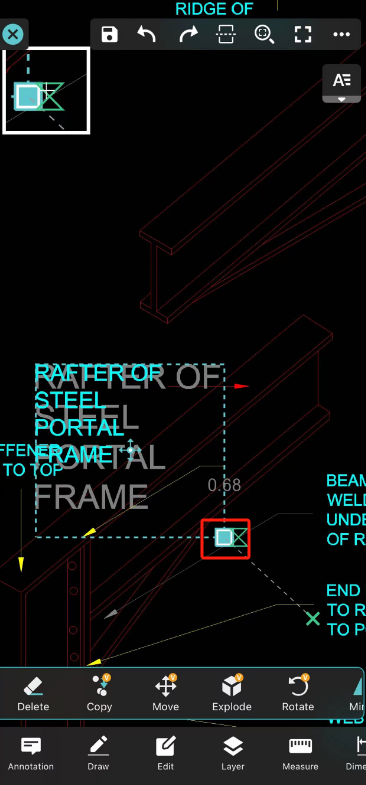
DWG FastView APP can create a tag for each annotation, and then jump to the annotation location by clicking the tag. You can create, view and edit tag.
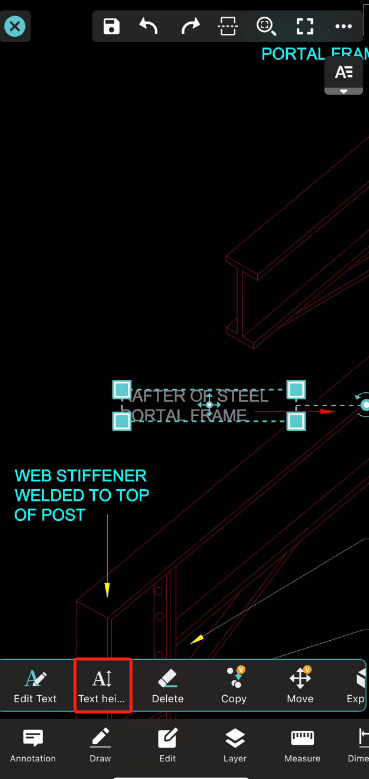
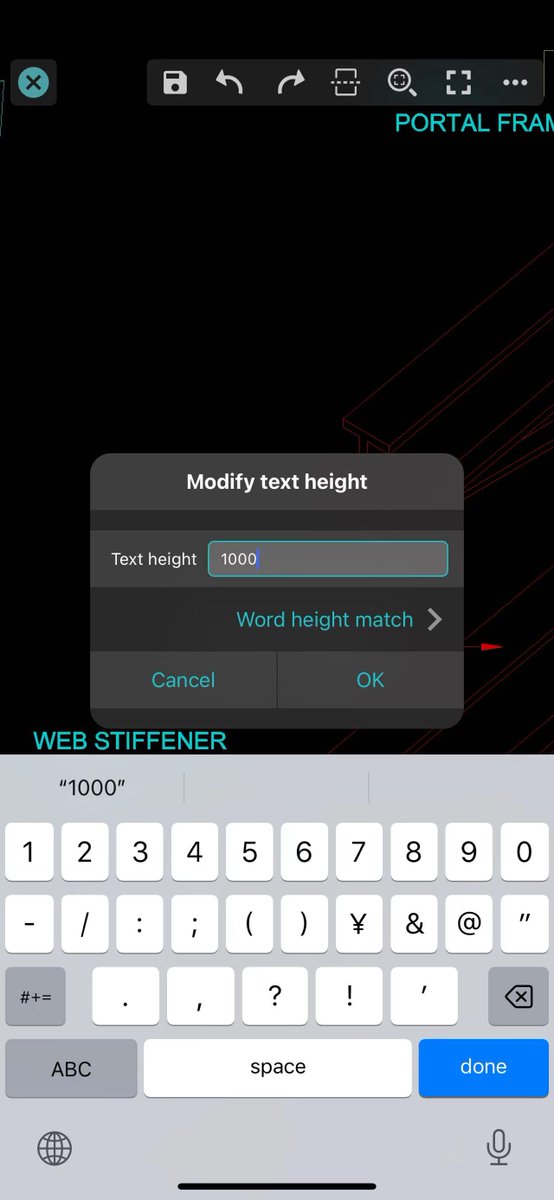
DWG FastView Tip of the Day - Text Height
Two ways:
1. Select the text, select "Text Height" in the pop-up menu bar, and enter the text height that matches the drawing;
2. After clicking the text, drag the lower right corner of the box to adjust the appropriate text height.
What's new in DWG FastView For Windows 8.2.0?
1. Added [Result Statistics] function.
2. [Measurement Record] was restructured to [View Results]
3. Optimized the switch mechanism of imperial system in measurement settings and scale setting function of measurement panel
DWG FastView Tip of the Day - Linetype
1. When you open the drawing, click [Settings] in the upper right corner
2. Select [Linetype] to choose you want.
Many Users always ask how to retrieve forgotten passwords?
When you log in to your DWG FastView account, you can click [Forgot Password] to retrieve your password through the verification code.
What's new in DWG FastView For Windows?
Version 7.7 update instructions:
1. The [Drawing compare] function is optimized.
2. Measurement annotation supports dynamic changes in results after adjustment.
3. Temporary share supports share cloud annotations.
DWG FastView Tip of the Day - Set scale
The latest version of DWG FastView APP has optimized the [Set scale].
- Support set scale when measuring;
- Automatically set new scale to current scale after adding it.




![DWGFastview's tweet photo. DWG FastView Tip of the Day - Linetype
1. When you open the drawing, click [Settings] in the upper right corner
2. Select [Linetype] to choose you want. https://t.co/e1YpEsp5K8](https://pbs.twimg.com/media/GQ_SlaEbsAAJFWr.jpg)
![DWGFastview's tweet photo. DWG FastView Tip of the Day - Linetype
1. When you open the drawing, click [Settings] in the upper right corner
2. Select [Linetype] to choose you want. https://t.co/e1YpEsp5K8](https://pbs.twimg.com/media/GQ_SlaEasAAFfs7.png)
![DWGFastview's tweet photo. Many Users always ask how to retrieve forgotten passwords?
When you log in to your DWG FastView account, you can click [Forgot Password] to retrieve your password through the verification code. https://t.co/O1WX3lwVsw](https://pbs.twimg.com/media/GL6bQe4aEAAPAcn.png)
![DWGFastview's tweet photo. What's new in DWG FastView For Windows?
Version 7.7 update instructions:
1. The [Drawing compare] function is optimized.
2. Measurement annotation supports dynamic changes in results after adjustment.
3. Temporary share supports share cloud annotations. https://t.co/ZqEjsCq4B2](https://pbs.twimg.com/media/GJqRuO-bAAAFqN0.png)
![DWGFastview's tweet photo. DWG FastView Tip of the Day - Set scale
The latest version of DWG FastView APP has optimized the [Set scale].
- Support set scale when measuring;
- Automatically set new scale to current scale after adding it. https://t.co/exSzSwpC2u](https://pbs.twimg.com/media/GJGceLYacAAssjE.jpg)


![DWGFastview's tweet photo. What's new in DWG FastView For Windows?
Version 8.4 update instructions:
1. Added Coordinate transformation
2. Added dynamic input module
3. Added default save version setting
4. Added [Command Line] button in the bottom toolbar
5. Bug fixes and performance improvements https://t.co/pIRXcKmNvV](https://pbs.twimg.com/media/GYTVsjVakAAZPZ8.png)

![DWGFastview's tweet photo. What's new in DWG FastView For Windows 8.2.0?
1. Added [Result Statistics] function.
2. [Measurement Record] was restructured to [View Results]
3. Optimized the switch mechanism of imperial system in measurement settings and scale setting function of measurement panel https://t.co/YNqcrB0E4K](https://pbs.twimg.com/media/GSrg2cFaIAAIOmp.jpg)
![DWGFastview's tweet photo. DWG FastView Tip of the Day - Linetype
1. When you open the drawing, click [Settings] in the upper right corner
2. Select [Linetype] to choose you want. https://t.co/e1YpEsp5K8](https://pbs.twimg.com/media/GQ_SlaGacAAMLx3.png)
![DWGFastview's tweet photo. DWG FastView Tip of the Day - Drawing compare
Now use the [Drawing Compare], you can [Set reference Point]! https://t.co/Sf02aZ0ItD](https://pbs.twimg.com/media/GQbTJsAaIAAyfz2.png)
![DWGFastview's tweet photo. Many Users always ask how to retrieve forgotten passwords?
When you log in to your DWG FastView account, you can click [Forgot Password] to retrieve your password through the verification code. https://t.co/O1WX3lwVsw](https://pbs.twimg.com/media/GL6bQe_b0AA_CLd.jpg)

![DWGFastview's tweet photo. What's new in DWG FastView For Windows?
Version 7.7 update instructions:
1. The [Drawing compare] function is optimized.
2. Measurement annotation supports dynamic changes in results after adjustment.
3. Temporary share supports share cloud annotations. https://t.co/ZqEjsCq4B2](https://pbs.twimg.com/media/GJqRuO_bIAAxmRr.png)
![DWGFastview's tweet photo. DWG FastView Tip of the Day - Set scale
The latest version of DWG FastView APP has optimized the [Set scale].
- Support set scale when measuring;
- Automatically set new scale to current scale after adding it. https://t.co/exSzSwpC2u](https://pbs.twimg.com/media/GJGceLZakAAEBnf.jpg)


