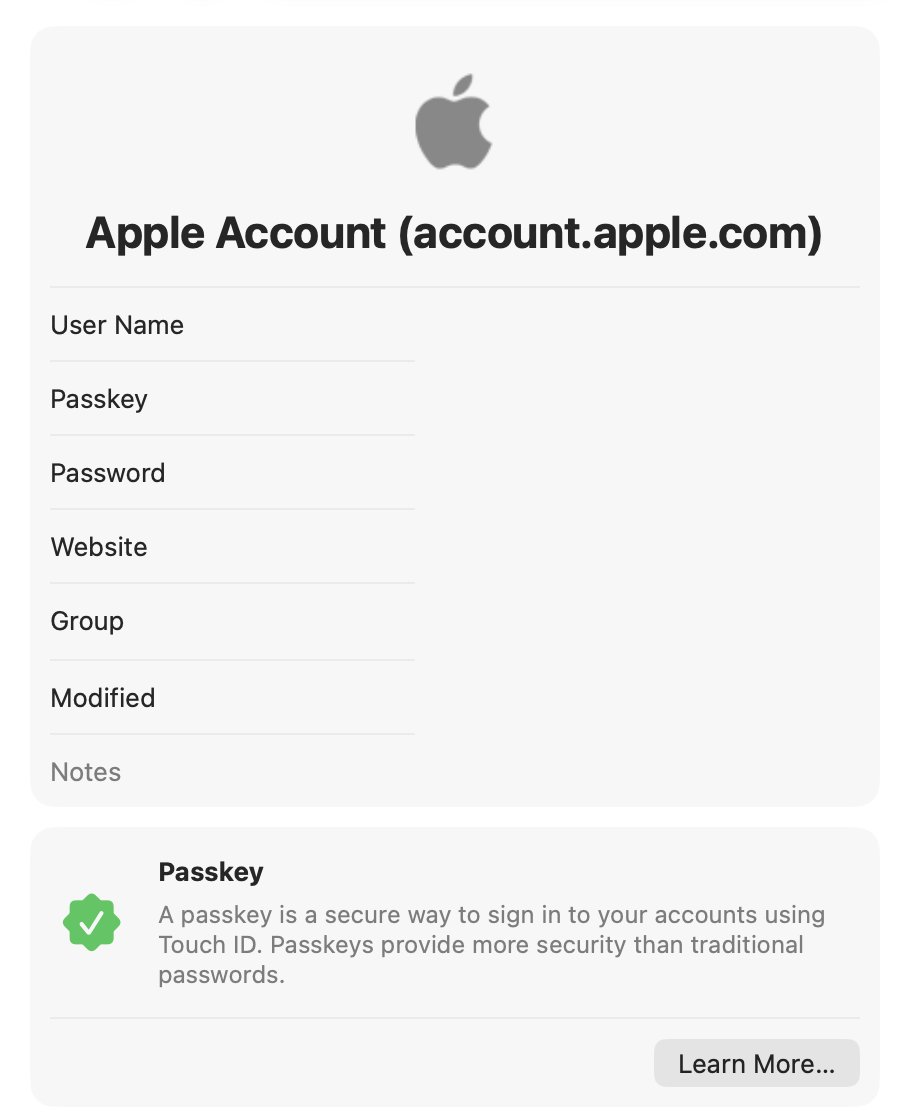
One more tip for the perfectionists out there: there’s a flag that makes your Apple Account passkey visible in the Passwords app.
It also fixes a long-standing annoyance: if you’ve changed your Apple Account email, the passkey may still show the old address.
Once the passkey appears in the Passwords app, you can click Edit and change its associated username. The next time you sign in with your Apple Account passkey, you'll see the correct email address.
Even if your other devices don't have the feature flag enabled and hide the passkey, the username change will sync across all of them.
To enable, run the following in your Terminal:
sudo mkdir -p /Library/Preferences/FeatureFlags/Domain && \
sudo defaults write /Library/Preferences/FeatureFlags/Domain/AuthKit StandardPasskeys -dict Enabled -bool true
and restart your Mac. If you don't immediately see the Apple Account passkey in the Passkeys list in the Passwords app, open Safari and log in to https://t.co/tTTWA7dfIQ.
After you make the username change, if you don’t want the passkey visible, you can restore to default with:
sudo defaults delete /Library/Preferences/FeatureFlags/Domain/AuthKit StandardPasskeys
and restart your Mac.