Windows 11 QOL tweak you need to enable 👇
Instantly close frozen apps without opening Task Manager:
1️⃣ Open Settings
2️⃣ Go to System > Advanced
3️⃣ Enable “End Task”
You can now right click on an app in task bar and end task on the app.
🚨Windows privacy tweak🚨
1. Press Win + R
2. Type services.msc
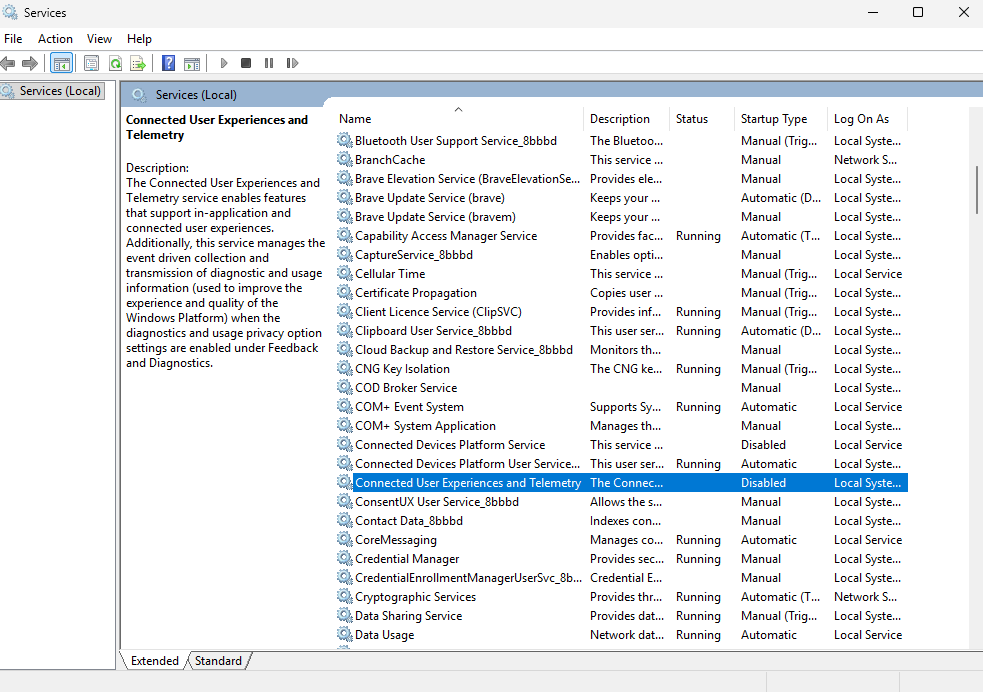
3. Find Connected User Experiences and Telemetry
4. Right-click → Properties
5. Click Stop
6. Set Startup type to Disabled
Disabling it can reduce unnecessary data collection and background diagnostic activity, limit personalised recommendations, and improve your privacy.
Windows privacy tweak👀
Go to:
Settings → Privacy & Security → Diagnostics & Feedback
Then turn OFF:
- Optional diagnostic data
- Improve inking and typing
This helps reduce unnecessary data sharing and keeps Windows a little cleaner in the background.
Bad PC airflow can kill your FPS 😬
If your case is full of dust, cables are blocking fans, or your intake/exhaust setup is poor, your CPU and GPU can run hotter and throttle under load.
Quick airflow checklist:
1. Clean dust filters
2. Keep front intake clear
3. Use intake + exhaust fans
4. Tidy messy cables
5. Make sure hot air can escape
🚨 INTEL CPU USERS 🚨
Want more FPS in games? Enable Intel APO 👇
1. Update BIOS
2. Go into BIOS and enable Intel Dynamic Tuning Technology / Intel DTT / Intel IPF
3. Update chipset drivers
4. Install Intel DTT from your motherboard support page
5. Install Intel Application Optimization UI
6. Open APO and check supported games
Free FPS if your CPU/game supports it 🔥
🚨 Windows FPS Boost Tip 🚨
Disable Widgets on your taskbar to cut down background clutter and stop Windows pulling unnecessary live content while you game.
How to do it:
Settings → Personalisation → Taskbar → Widgets → Off ✅
Less background noise. Cleaner taskbar. More focus on FPS.
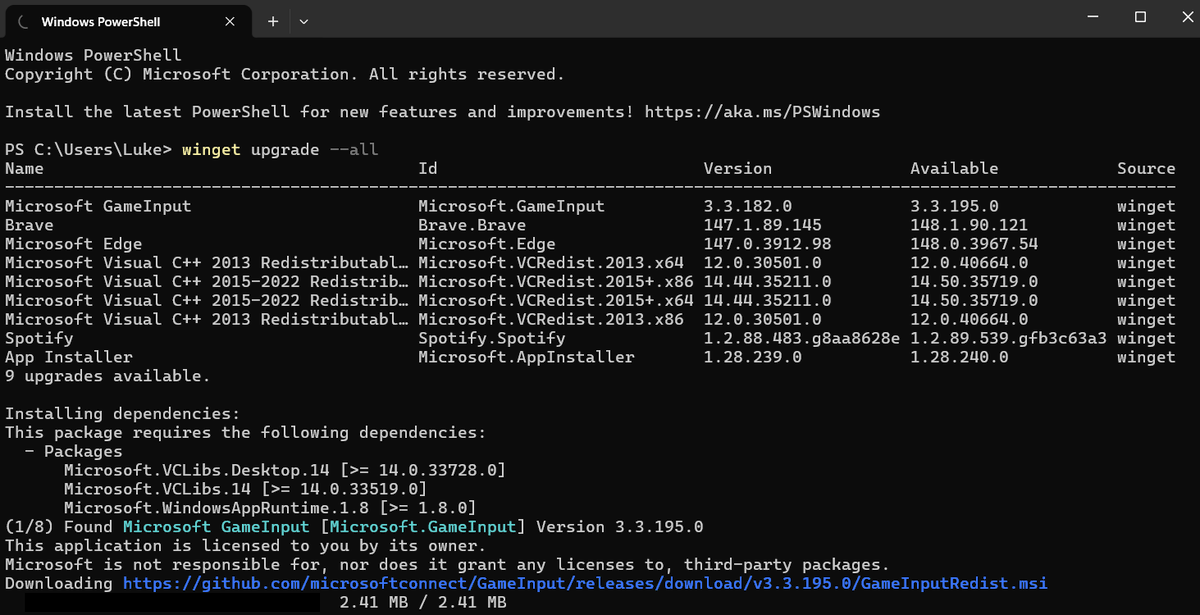
🚨 Update ALL your apps in one command
Outdated software can cause bugs, security risks and random performance issues.
Here’s how to update everything with Winget:
1. Right-click Start
2. Open Terminal / PowerShell as Admin
3. Type: winget upgrade --all
4. Press Enter
5. Let Windows update supported apps automatically
6. Reboot when finished
Free maintenance. Cleaner system. Better security. ⚡
🚨 NEW Windows Low Latency Mode?
You can enable it using ViVeTool GUI:
1. Update Windows
2. Install ViVeTool GUI
3. Go to Enable/Disable
4. Enter Feature ID: 61391826
5. Click Enable
6. Reboot your PC
This makes Windows temporarily push the CPU harder for short bursts when you launch apps, open menus or trigger high priority actions. It boosts CPU frequency for around 1–3 seconds, helping Windows feel faster and more responsive rather than waiting for the CPU to slowly ramp up.
The difference is CRAZY
🚨 New Windows 11 FPS Boost Setting? 🚨
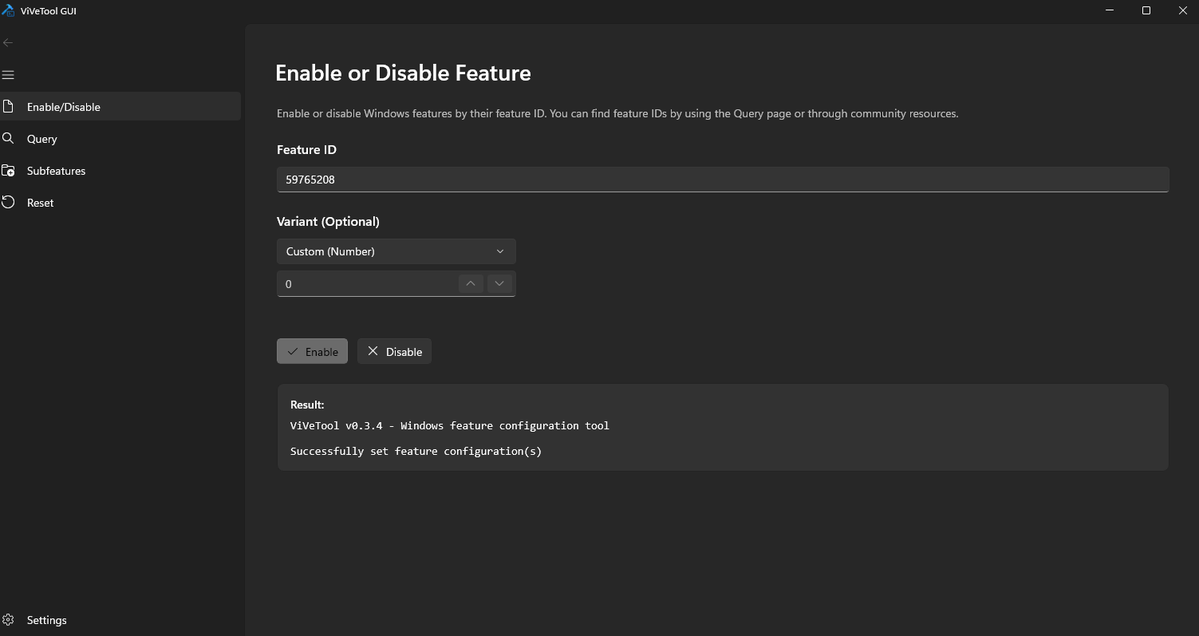
Enable Xbox Game Mode for a cleaner gaming setup and potentially better FPS/stability 👇
1. Update Windows
2. Open Microsoft Store
3. Install ViVeTool GUI
4. Enter feature code: 59765208
5. Apply + reboot
6. Go to Settings → Gaming → Enable Xbox Mode
7. Open the Xbox app — Xbox Mode should appear top right
This new mode is designed to give Windows a more console-like gaming experience, this also sleeps a lot of background processes boosting fps
Try it and test your FPS before/after 👀