🚨 PC Gamers
Your GPU might be running at HALF its PCIe bandwidth
Here's how to check ⬇️
1. Download GPU-Z
2. Find Bus Interface
3. Click the ? next to it and start the render test
4. It should read x16 4.0 @ x16 4.0 (or your card's max)
5. If the number on the right is lower, reseat the GPU in the top slot and change PCIe/GFX Lanes Configuration in your BIOS
🚨 Windows Users
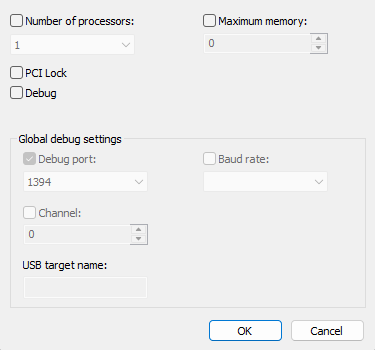
Your PC might be LIMITED to fewer CPU cores by an old tweak, causing lower FPS
Here's how to check ⬇️
1. Press Windows + R
2. Type msconfig and hit Enter
3. Boot tab, click Advanced options
4. If Number of processors is checked, uncheck it and restart
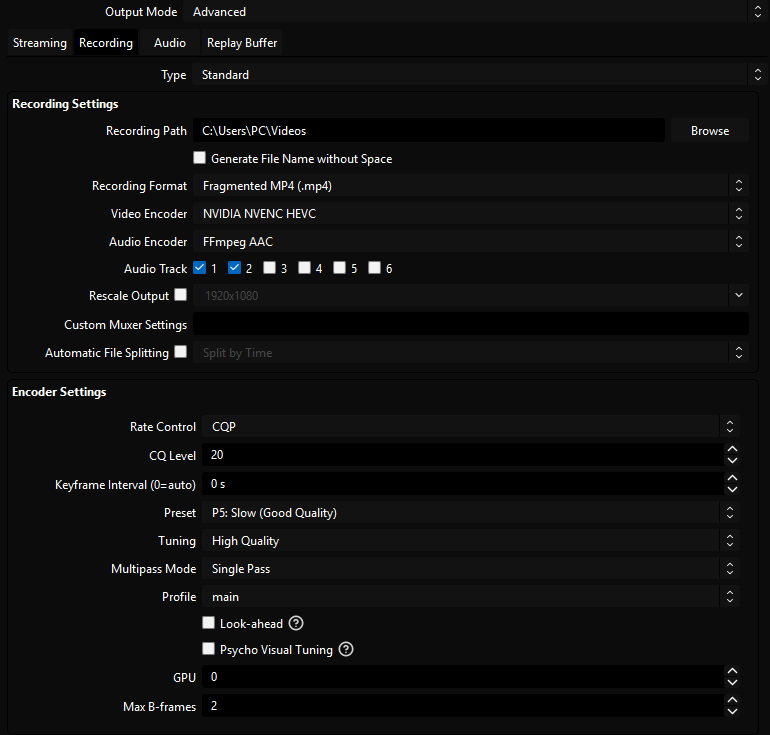
If your a PC Gamer you need to do these settings
Remove Windows AI and Reduce System Overhead with these Steps
(Higher FPS + Lower Latency) More info Below!
تقنيتين مهمتين من Microsoft وNVIDIA لتقليل التقطيع Stuttering في ألعاب PC الناتج عن معالجة Shaders
1- تقنية Advanced Shader Delivery من Microsoft
للألعاب المدعومة وتوفر ملفات Shaders مجهزة مسبقا مع تحميل اللعبة لتقليل التقطيع وتسريع التشغيل
من الألعاب المدعومة
• Gears of War: E-Day
• Call of Duty: Modern Warfare 4
تحتاج Windows 11 إصدار 24H2 أو أحدث وكرت وتعريف متوافق وتعمل تلقائيا عبر Xbox PC وMicrosoft Store ودعم Steam وEpic قادم لاحقا
2- تقنية Automatic Shader Compilation من NVIDIA
مفيدة خصوصا لألعاب DirectX 12 اللي ما تستفيد من التقنية الأولى
تعيد تجهيز Shaders أثناء خمول الجهاز بعد تحديث التعريف لتقليل إعادة المعالجة أثناء اللعب
وتقدر تستخدم Compile Now لبدء المعالجة مباشرة
تحتاج تعريف NVIDIA إصدار 595.97 أو أحدث
مهم: التقنية الثانية تجريبية ولا تلغي معالجة Shaders عند تشغيل اللعبة لأول مرة والتقنيتين ما تعالجان جميع أسباب التقطيع
طريقة تفعيل Automatic Shader Compilation 👇
🚨 Windows Users
Disable Power Throttling to stabilize frames and CPU frequency.
If the value is not there, you need to create "PowerThrottlingOFF" as DWORD (32-bit) in that path.
The automatic file is available in my discord: https://t.co/kmDPyVNLqU
NVIDIA added a GPU setting most people haven’t touched.
NVIDIA App → System → Advanced → GPU App Prioritization
Default: 80% foreground / 20% background
Set it to: 90% / 10%
The Finals, 4K max settings, max ray tracing:
Avg FPS → 78.0 to 81.7 (+4.7%)
1% lows → 74.3 to 78.4 (+5.6%)
0.2% lows → 69.5 to 76.4 (+10%) ⚡
One slider. 10% better frames.
🚨 Windows Users
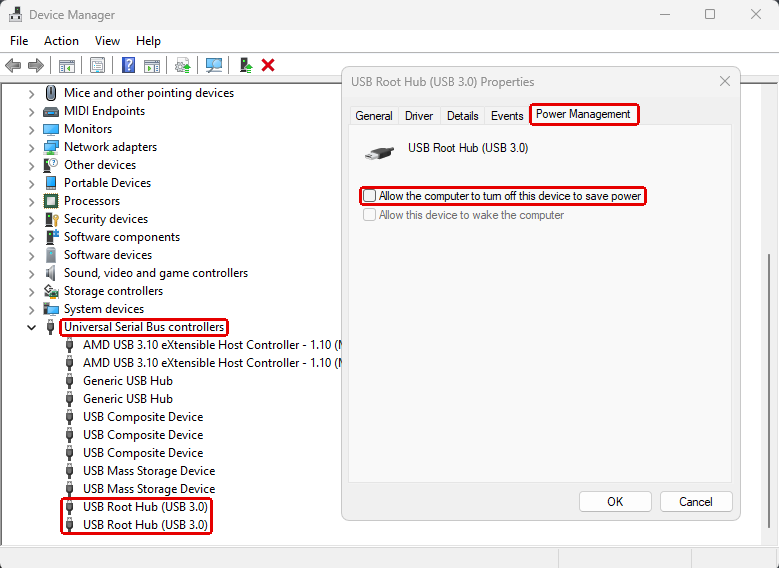
Windows might be putting your MOUSE TO SLEEP
Here's how to check ⬇️
1. Press Windows + R
2. Type devmgmt.msc and hit Enter
3. Under Universal Serial Bus controllers, open USB Root Hub
4. Power Management tab, uncheck Allow the computer to turn off this device
🚨Best NVIDIA Control Panel Settings
Issue:
Without these optimized settings, you may not be getting the best performance and responsiveness.
The good part:
Copy these settings into your NVIDIA Control Panel and apply them for a more optimized gaming experience.
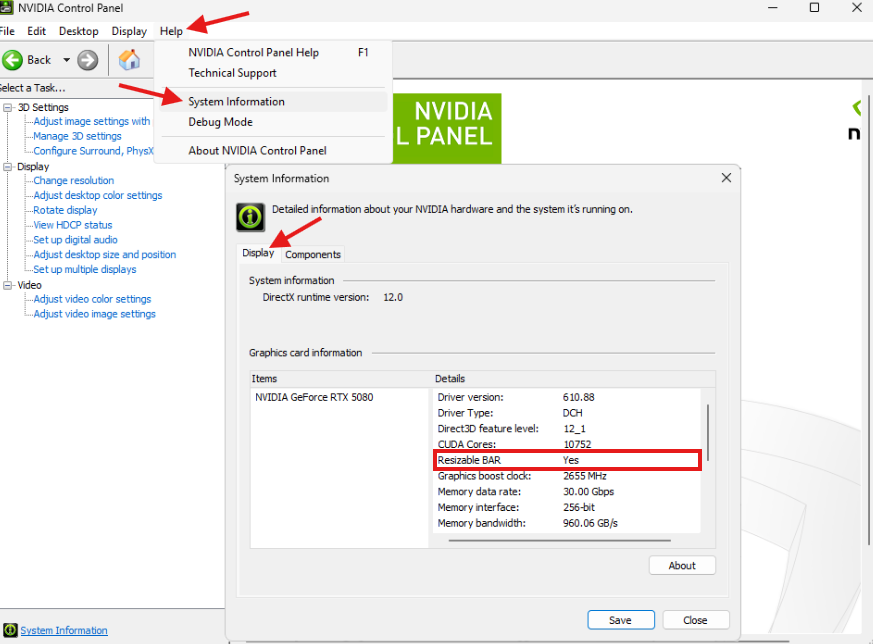
🚨 NVIDIA Users
Your GPU might be losing FREE performance
Here’s how to check ⬇️
1. Open NVIDIA Control Panel
2. Go to Help → System Information
3. Find Resizable BAR
4. Make sure it says Yes