By bridging the digital and harnessing the power of media, we aim to inspire, educate, and connect communities worldwide, fostering a better future for everyone
Unlock the power of Microsoft Excel with Nairok Solutions and take your skill to the next level.
Register for a 1-month extensive training on Microsoft Excel.
You can send us a DM to get started.
See more details on the flier.
#Tech#MicrosoftExcel
Thinking about a particular career but unsure where to start?
Get a FREE Career Clarity Consultation with experts from Nairok Solutions to help you decide the right path and find the best career fit.
Don’t miss out! Sign up now and take the first step toward your dream career. 👇
Fully Automated – No manual work required
✅ Handles Missing Middle Names – Doesn't break if there's no middle name
✅ Works with Names Containing Apostrophes & Multiple Words
Culled from Excel Formulas Unleashed
4/4
#exceltips#Excel#ExcelMagic#exceltricks
Extract First, Middle & Last Name in Excel Using Formulas
🚀 Dealing with customer names in Excel? Need to split First Name, Middle Name, and Last Name automatically? Here's how you can do it using Excel formulas like LEFT, MID, RIGHT, FIND, IFERROR, and TRIM!
1/
First, Middle & Last Name in Excel Using Formulas
🚀 Dealing with customer names in Excel? Need to split First Name, Middle Name, and Last Name automatically? Here's how you can do it using Excel formulas like LEFT, MID, RIGHT, FIND, IFERROR, and TRIM
📌 Why Use These Formulas
3
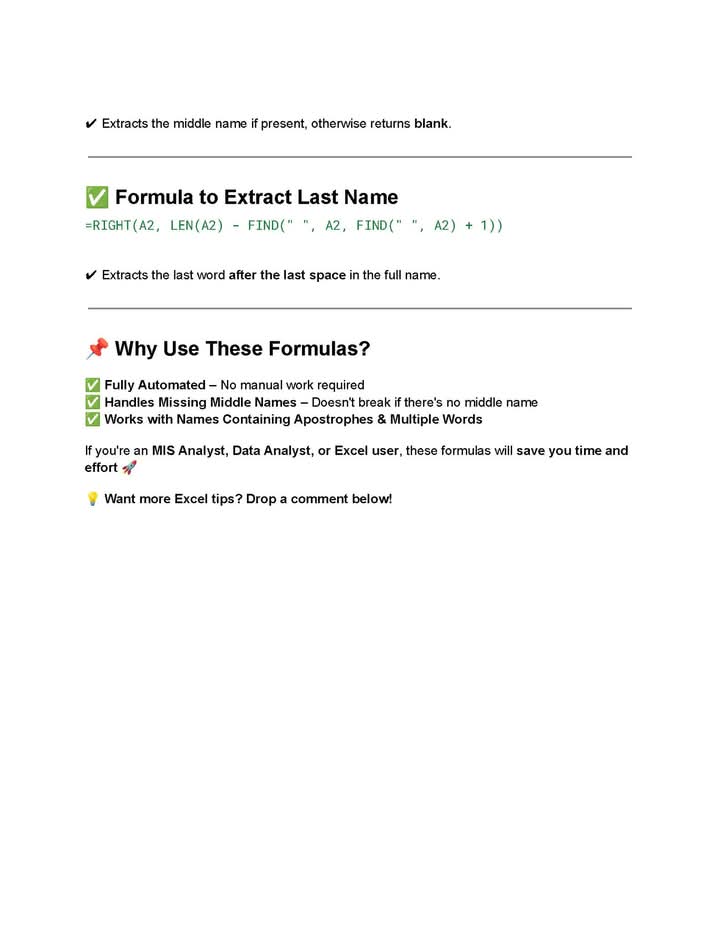
📌 Why Use These Formulas?
✅ Fully Automated – No manual work required
✅ Handles Missing Middle Names – Doesn't break if there's no middle name
✅ Works with Names Containing Apostrophes & Multiple Words
Culled from Excel Formulas Unleashed
2/
I am excited to inform you that our lead trainer, Nosa Favour, will be hosting a webinar series tomorrow at Speedlink Hi-Tech Solutions Limited tagged: Interviews: the right approach before, during and after applying for Jobs.
It promises to be an interesting session.
It's OFFICIAL!!!
We want to use this opportunity to welcome back our students, current and prospective students to a new calendar year.
We hope to give you the best this year.
Keep winning, keep building.
We are Nairok Solutions
#tech#data#solutions#nairok#learning#growth
Calculate the Average Profit of Products in a Specific Category
To calculate the average profit of products in the "Fruit" category using Excel, you can combine the FILTER and AVERAGE functions. This approach allows you to first isolate the data of interest based on a specific
1/
For example, if the profits for "Fruit" products in dataset are 300, 200 and 310, the formula will compute the average of these values, resulting in 270. This combination of FILTER and AVERAGE functions is a powerful method for analyzing specific subsets of data efficiently.
5/
FILTER(I2:I11, C2:C11="Fruit") extracts the profit values from the range I2:I11 where the corresponding category in C2:C11 is "Fruit."
AVERAGE then calculates the average of these filtered profit values.
4/
In this case, you want to find the average profit for products categorized as "Fruit."
In a selected cell where you want to display the result, enter the following formula:
=AVERAGE(FILTER(I2:I11, C2:C11="Fruit"))
Here’s a breakdown of this formula:
3/
criterion and then calculate the average of that filtered data.
Start by organizing your data with relevant columns, including one for "Category" and another for "Profit." For instance, you might have a dataset with various products, their categories, and their profits.
2/
Dear Customers, Our site "https://t.co/15ypPO7xzj" is currently on scheduled maintenance. We are sorry for any inconvenience caused by this development.
We are here to give you the best.
Cheers,
Management.