📄 A scan with the wrong filename extension should not send you straight into renaming files before you can read it.
Meet OwlOCR 7.23.0, a Mac OCR app whose October 21 release expands image imports and adds an optional way to try files with unfamiliar or missing extensions.
Try the file. Recognize the text. Export a copy you can search.
🗂️ Broader imports: Open Files, drag and drop, and folder imports now include Photoshop, TGA and portable bitmap files.
🔎 Content before extension: enable Try all file types under Settings → General → Files to try each file as an image or PDF. Files that cannot be opened are reported; this is not a promise to read every format.
📚 Searchable copies: use Apple Vision recognition to add an invisible text layer to supported PDFs. Multipage PDFs detected by their contents stay intact during import.
🧠 A second engine: Pro offers local OCR AI for difficult scans and dense layouts. It needs a model and runtime download. Apple Vision remains the default; searchable PDF export is documented for that engine.
Why it's worth watching:
✅ Inspect awkwardly named scans without renaming them first.
✅ Keep basic Apple Vision OCR and searchable PDF export on the free Core tier.
✅ Choose paid batch and CLI tools only if your workflow needs them.
This is an existing app with current maintenance, not a new launch. Requires macOS 13.3+ on Apple silicon or Intel. OCR language support depends on the macOS version.
Core is free. Pro is listed at $19.99/year or $49.99 once for a lifetime license to that software version. Pro includes batch processing, CLI access and OCR AI; do not assume those are free.
The publisher says both OCR engines process documents on your Mac, while downloads, updates and licensing use the network. Local recognition does not mean the app never connects online.
Worth exploring if you turn mixed scan folders into readable reference material. Start with a copy of one awkward file and check the recognized text before processing more. This introduction is based on official sources, not an installation test.
Now available to discover on OpenNavo, the open-source macOS app store.
🔗 https://t.co/sfgJiIFzUH
#macOS #MacApps #OCR #DocumentWorkflow
🪟 During a remote debugging call, your teammate's terminal should fit beside your editor, not disappear inside a meeting grid.
Meet Petal by Kiruna Labs, a free, open-source screen-sharing app built for small engineering syncs. Each shared window becomes a movable native window on the other person's desktop.
Arrange the shared terminal where you can read it. Keep your own editor open. Several people can share windows at the same time.
🖱️ Point and explain: live cursors show what each person means, and you can sketch over a shared window. Drawings fade after ten seconds.
⌨️ Hand over control: a teammate can click and type in a shared window. Accessibility permission is required, and the default is to ask for consent each time. Remote control is still an early feature.
🚪 Reusable rooms: keep a named room for recurring work. A browser client also lets people join by code or invite link without the desktop app.
🏠 Hosting choice: use Petal's hosted LiveKit infrastructure or run your own backend and media server. Self-hosting is an operational choice, not a promise that the default download stays local.
Why it's worth watching:
✅ Arrange shared windows around your own tools.
✅ Explain a specific line or control with cursors and temporary drawings.
✅ Choose who runs the meeting infrastructure.
Petal is pre-1.0, not a finished replacement for every meeting app. Its 0.9.33 release commit is dated October 18; that is maintenance evidence, not proof of a new launch or a major new capability.
The Mac build requires macOS 13+ and supports Apple silicon and Intel. Screen Recording is needed to share windows, microphone permission for audio, and camera permission is optional. Windows support is explicitly incomplete and buggy. Source code is Apache-2.0 licensed; the name and logo are not included in that grant.
Privacy matters here: media is encrypted in transit, but not end-to-end encrypted. The SFU operator can in principle access it. Official builds also configure crash and diagnostic reporting. Review those boundaries before sharing sensitive work.
Worth exploring for a small team that debugs across terminals, editors and browser windows. Start with a non-sensitive session and keep remote control on its consent-based default. This introduction comes from official documentation, not an installation test.
Now available to discover on OpenNavo, the open-source macOS app store.
🔗 https://t.co/wg5zjahWIl
#macOS #MacApps #OpenSource #PairProgramming
🔋 If your Mac stops charging at 80%, its battery ring does not have to look permanently unfinished.
Meet Status Trio, a native, open-source Mac utility by lingyired that combines Wi-Fi, battery and volume in one configurable menu bar or Dock icon.
Its October 15 stable release, 1.6.0, makes that compact display more useful for a charge-limited Mac. This is an existing project with a recent update, not a new launch.
⭕ Full ring level: choose what counts as full between 50% and 100%, or read the system charge limit into the slider. The menu bar and Dock follow together. This changes the indicator, not the charging limit.
🔌 Low Power Mode: an optional battery-details switch can toggle it without opening System Settings. It needs one-time background-helper approval; the helper is specifically for this power control.
🌐 Local IP: optionally show your Mac's private LAN address in the network row. It is off by default. The Internet Sharing shortcut opens the settings pane; it does not enable sharing for you.
🎧 Status at a glance: inspect paired Bluetooth devices and audio outputs from the popover, and choose menu bar, Dock or both. The Bluetooth panel is optional and asks for permission when used.
Why it's worth watching:
✅ Make the full-ring indicator match the charge limit you actually use.
✅ Keep network, battery and volume information in one place.
✅ Leave optional controls and permissions off until you need them.
Know the boundaries: switching Wi-Fi networks still opens System Settings. The full-ring setting cannot force charging past a limit. The public build is ad-hoc signed and not Apple-notarized; do not treat open source as a security certification.
The project provides a universal Apple silicon/Intel build with a macOS 13 deployment target, but explicitly says Ventura runtime validation is pending. Source code is Apache-2.0 licensed. Optional anonymous usage statistics require opting in.
Worth exploring if you use a charge limit and want a compact status panel rather than another full monitoring dashboard. This recommendation is based on official sources, not a hands-on test.
Now available to discover on OpenNavo, the open-source macOS app store.
🔗 https://t.co/fVyfVK6mVO
#macOS #MacApps #OpenSource #MenuBar
What problems does your macOS app solve? What are its strengths? How much does it cost?
Let us help you find your first batch of customers, conduct free trials, and promote it to every opennavo client.
Hey everyone! 👋
I'm building **OpenNavo** — an open-source macOS app discovery and management platform. 🚀
I'd love to connect with people interested in:
🍎 macOS apps & hidden gems
🚀 Indie Mac app developers
🛠️ Open-source software
🤖 AI & productivity tools
💻 Building cool Mac products
I'll be sharing awesome Mac apps, hidden gems, new releases, and useful open-source tools.
Let's connect, discover great apps, and support indie developers! 🤝
🌐 https://t.co/aa1MYtTm5B
#OpenNavo #macOS
🖥️ That spare Mac can hold your reference documents while you work on the other one.
Meet OpenDisplay Receiver, the receiving half of the free, open-source OpenDisplay project. Install it on the Mac you want to use as a second screen; the other Mac runs the separate sender app.
You get an extended desktop, not just a copy of the same screen. The receiver is not a standalone monitor driver: both Macs need their respective apps.
🔎 Display size: the October 1 stable 1.25.0 release adds per-device sizing on the sender. Choose Larger Text, Default, More Space or Native (1x), with the choice remembered across reconnects.
🔌 Mac-to-Mac connections: use Wi-Fi or a Thunderbolt/Ethernet connection. Do not confuse this with the iPhone's USB connection method.
🎛️ Picture tradeoffs: Best sends full resolution; Balanced and Fast send fewer pixels for smoother motion. More desktop space can mean softer text when the receiver cannot display those pixels 1:1.
Why it's worth watching:
✅ Give a spare Mac a specific desk job.
✅ Tune text size per receiving device.
✅ No OpenDisplay account or subscription.
Check both ends: the receiver requires macOS 12+, while the sender requires macOS 14+. Free under GPL-3.0. This is an existing project with a recent stable capability, not a new launch.
Important limits: no audio, and input from the receiving Mac's keyboard and mouse is still planned. Wi-Fi transport is currently unencrypted; avoid shared or public networks for sensitive screen content. The virtual display uses a private macOS API, so OS updates may break it.
Worth exploring for a second screen dedicated to reading, writing or code. If you need audio and control from the receiving Mac, this does not yet cover that workflow. This recommendation is based on official sources, not a hands-on test.
Now available to discover on OpenNavo, the open-source macOS app store.
🔗 https://t.co/YK5eq6HV5X
#macOS #MacApps #OpenSource #SecondDisplay
📝 Getting feedback on a draft should not mean letting an AI rewrite it before you have read the suggestions.
Meet Textus, a free, open-source Markdown editor by CatVinci Studio. Its October 19 stable 1.1.0 release separates AI writing into Write, Review and Revise modes.
Your document stays a local Markdown file. You can use the editor offline without connecting AI.
💬 Review: ask for feedback and get comments without changing the document. Useful for a first editorial pass before deciding what to rewrite.
✏️ Revise: changes arrive as suggestions you accept or reject. The README also describes accepting proposals sentence by sentence, with reasons beside them.
🖋️ Write: add new text after a selection, at the cursor or at the end, without changing what is already there.
🧠 Memory with controls: keep a convention for one project or all projects. Inspect, edit or delete memories in the Memory tab; automatic remembering can be turned off.
Why it's worth watching:
✅ Separate feedback from edits.
✅ Keep the underlying .md file.
✅ Use your own provider or a local model through Ollama.
Check the current patch release: 1.1.2 fixes Markdown save round-trips. Keep a backup before trying it on important drafts. Autosave is optional and off by default.
Free under MIT, with no Textus account or subscription. macOS 11+; Apple silicon and Intel downloads are available. External AI providers may charge separately and receive your requests.
Worth exploring for writers who want comments before edits and a Markdown file they can keep. This recommendation is based on official sources, not a hands-on test.
Now available to discover on OpenNavo, the open-source macOS app store.
🔗 https://t.co/XwKSqAAd8A
#macOS #Markdown #OpenSource #Writing
https://t.co/u2yz4KDIya, the Homebrew App Store with detailed info and update logs for every app, free antivirus and computer cleanup tools, and most importantly, it's open source.
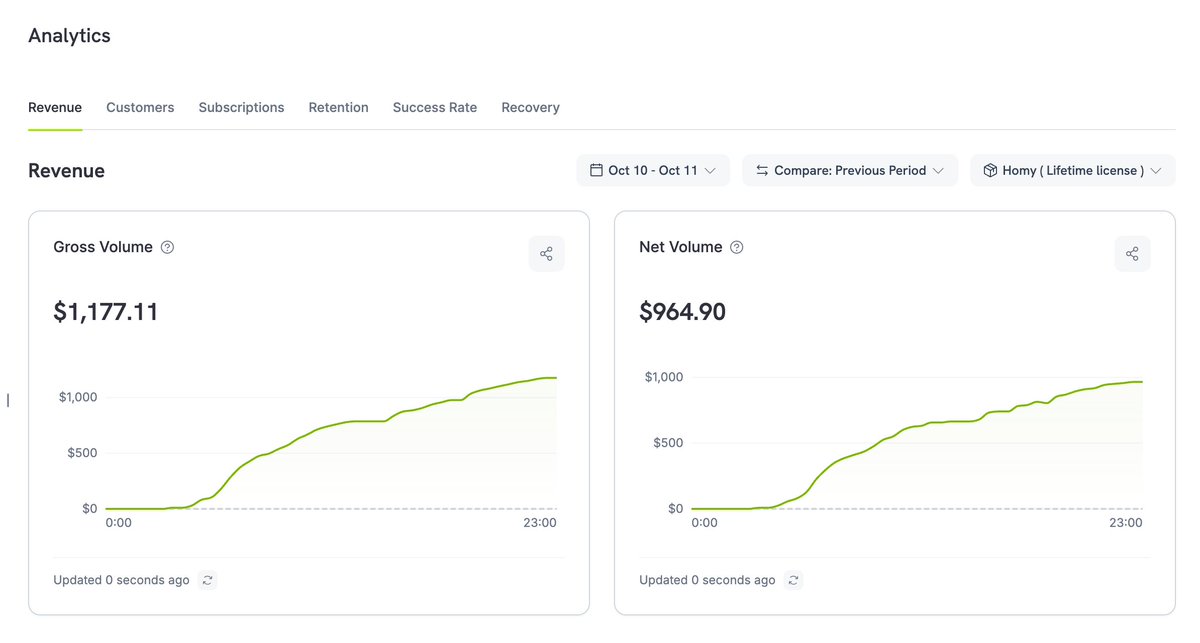
60k - 75k people buy a macbook every single day
sell a $10 Mac app to just 1k of them and that's $10k in revenue
I tried it. Not $10k but i made $1k in 24 hours
if this doesn't motivate you to build a Mac app, nothing will
🔌 A local port number does not tell you which Kubernetes context a forward belongs to.
Meet PortKiller 3.4.0, a native Mac port manager. Its October 15 stable release adds a Kubernetes context picker and a custom kubeconfig for each connection.
Keep local listeners and port-forward sessions in one workspace, with names that mean more than a number.
🧭 Explicit cluster context: choose the Kubernetes context and kubeconfig per connection instead of treating every forward as interchangeable. Check both before connecting.
🏷️ Port labels: the new release adds custom names, descriptions, folders and type overrides per port. Useful when several development services are open at once.
👀 Find the listener: search by port number or process name, keep favorites, and watch selected ports with notifications.
🔗 Follow the forward: create and manage kubectl port-forward sessions with connection logs, status monitoring and automatic reconnection. Version 3.4.0 includes a reconnection fix.
Why it's worth watching:
✅ Context and configuration are explicit per connection.
✅ Port names and descriptions give a busy local workspace more context.
✅ Forward logs sit alongside the ports you are investigating.
This is an existing app with a new stable workflow, not a new launch. It targets macOS 15+; the official build script produces Apple silicon and Intel binaries. The source is MIT-licensed.
Process termination is also available, including force kill. That is not a substitute for identifying the owner of a service: check the process and context before stopping anything, and expect active work to be interrupted.
Worth exploring if your Mac is a workstation for several Kubernetes environments. If you only need to inspect one busy port occasionally, a terminal may be enough. This recommendation is based on official sources, not a hands-on test.
Now available to discover on OpenNavo, the open-source macOS app store.
🔗 https://t.co/P6OpCfeFHk
#macOS #Kubernetes #DeveloperTools #OpenSource
⌨️ Before assigning another Mac hotkey, check what already uses it. A shortcut can look available simply because it has not caused a visible conflict yet.
Meet HotkeyClash, a free, open-source menu bar utility from Wunderlandmedia. Version 0.9.2 adds a useful question to its conflict scanner: what owns this key combination, even when it is not a conflict?
Scan before remapping. Read the competing bindings. Change the shortcut in the app that owns it.
🔎 Combo lookup: search for opt cmd t or cmd+shift+4. The new search reports a matching app or system shortcut, or says it is free within the sources scanned. App-name and action-name searches still list conflicts only.
🗂️ Several sources together: inspect running apps' menu shortcuts, macOS system shortcuts and supported configs, including Karabiner-Elements, skhd, Keyboard Maestro, BetterTouchTool, Hammerspoon and Alfred.
⚖️ Conflict context: distinguish global bindings from menu shortcuts and see which keyboard layer is likely to win. A likely winner is a prediction, not a guarantee.
🧪 Live checking and reports: test a real keypress, pin the panel while investigating, and export the conflict report as Markdown. The live test cannot always identify a single winner.
Why it's worth watching:
✅ Check a proposed shortcut before adding another binding.
✅ Keep app, automation and system claims in one investigation.
✅ Save a report to help explain a clash instead of relying on memory.
It is an existing 0.x app, newly listed on OpenNavo, not a new launch. Free under GPL-2.0, for macOS 14+ on Apple silicon and Intel. Scanning running apps requires Accessibility permission; configs and system shortcuts work without it.
Coverage has limits: Raycast's encrypted store has no parser, and Hammerspoon bindings assembled from variables or loaded from other files can be missed. A clean scan is not proof that every shortcut is unused.
Worth exploring if you maintain several hotkey-heavy tools. Start with one troublesome combo and verify the result in its original app. This recommendation is based on official sources, not a hands-on test.
Now available to discover on OpenNavo, the open-source macOS app store.
🔗 https://t.co/KBQJPMOX0U
#macOS #MacApps #OpenSource #KeyboardShortcuts
🎯 Your hand is already on the mouse. Opening a folder or pasting plain text should not always mean remembering another shortcut.
Meet Flick, a macOS command wheel built by Jack Chiu. Hold a key, move toward an action and release to run it, using a mouse or trackpad.
Keep a small set of recurring actions near the pointer instead of scattering them across menus.
📂 Files and web: open a project folder, reveal a file in Finder or send a URL to a chosen browser.
📋 Text and capture: paste as plain text, insert a saved snippet or capture a region to the clipboard or a file.
🪟 Pro actions: arrange windows, keep the Mac awake, run an Apple Shortcut or chain actions. These categories are not part of the permanent free tier.
Why it's worth watching:
✅ The free tier has one wheel with eight slots and seven action categories.
✅ A 30-day trial lets you try all Pro features without payment details.
✅ Pro opens all seven wheels when one is not enough.
This is a niche discovery with current maintenance, not a new launch. The October 19 release is 1.1.3; its main changes concern the launch offer and feedback card, not a major new workflow.
Requires macOS 14+ and Accessibility permission. Flick is proprietary, not open source. Pro is a one-time US$9.99 launch offer through December 31, 2026, versus US$19.99 normally, for up to five Macs; taxes may apply.
Worth exploring for repetitive pointer-heavy work. Start with harmless folder, text and capture actions; check any script before assigning it to a gesture. This recommendation is based on official sources, not a hands-on test.
Now available to discover on OpenNavo, the open-source macOS app store.
🔗 https://t.co/17jTeBg8n4
#macOS #MacApps #Workflow #Automation
📊 Your coding agent can rewrite a CSV. You still need a clear way to inspect what changed.
Meet Nimbalyst, an open-source visual workspace for Claude Code and Codex. Its October 16 release, 0.81.7, expands the CSV spreadsheet editor with conditional formatting, data validation, named ranges and A1-range tools for agents.
You and the agent work on the same files. The useful distinction is the review step: inspect the proposed edit before accepting it.
🧮 A proper data grid: edit CSV or TSV cells, sort and filter rows, freeze panes, and use formulas with cell references. View Source switches back to the raw text.
🔎 Red/green review: agent edits appear as a diff. The grid stays read-only until you accept or reject the pending change, so a manual cell edit does not get mixed into that review.
🛠️ Range-aware agents: 0.81.7 lets agents edit sheets with A1-range tools, including files that are not open. Ask for a specific cleanup, then inspect the result rather than assuming the transformation is correct.
Why it's worth watching:
✅ Visual editing and agent changes meet in the same CSV workflow.
✅ Pending diffs separate review from manual cell editing.
✅ The October update adds concrete spreadsheet controls, not just another chat panel.
A portability caveat: formatting, column types, filters and frozen panes need extra metadata. Depending on project settings, Nimbalyst stores it in an inline CSV comment or a .csvmeta sidecar. Check what your downstream tool accepts before sharing the file.
The MIT-licensed desktop app is free for individual use; AI access is separate and uses your own subscription or API key. macOS downloads support Apple silicon and Intel, with macOS 12+ listed in the README. It is an Electron app, not a native Swift spreadsheet. Anonymous analytics can be disabled in Settings > Advanced > Analytics.
Worth exploring if you already use coding agents to clean project exports or reshape small datasets. This is an existing workspace with new spreadsheet capabilities, not a new launch or a claim to replace Excel. This recommendation is based on official sources, not a hands-on test.
Now available to discover on OpenNavo, the open-source macOS app store.
🔗 https://t.co/icdksIrZd7
#macOS #OpenSource #CSV #Workflow