Ninja Skills: Create an animation with multiple moving objects! Remember: move each object BEFORE duplicating. A basketball and a soccer ball bouncing along the screen? FIRST move both the basketball and the soccer ball. THEN duplicate.
#EdTech#EdTechTidbit
Now it’s time to put it all together!
1. Create your base slide w/ BG and moveable image
2. Duplicate your slide
3. Move image a little
4. Duplicate & Move until done
https://t.co/2hgsTuyDjr
#EdTech#EdTechTidbit
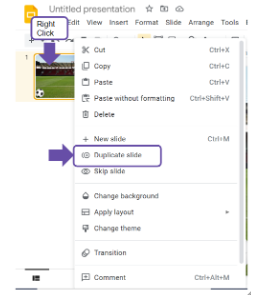
Third Stop: Duplicating Slides, Right Clicking the Slide Preview. Right click on the slide preview in the panel on the left and select “Duplicate slide.”
#EdTech#EdTechTidbit
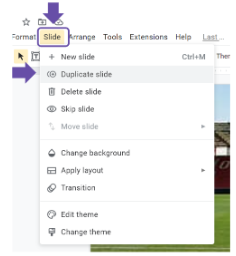
Third Stop: Duplicating Slides, Why and What is it? Stop-frame-esque animation requires only specific elements to move - enter Duplicating Slides! Google gives you two ways to duplicate a slide. (surprised?) Check back later today to find out! #EdTech#EdTechTidbit
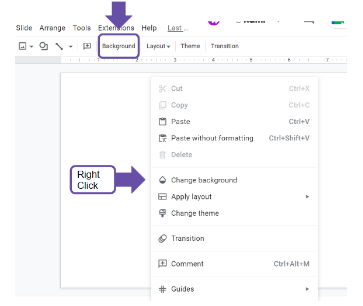
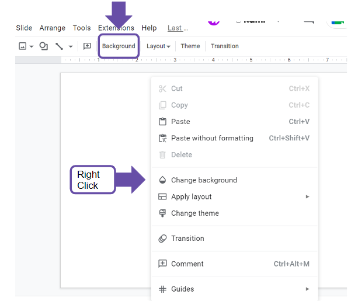
Next Stop: Inserting Backgrounds, Quick Button. You can use the “Background” quick button (found next to layout) -OR-... stay tuned!
#EdTech#EdTechTidbit
Next Stop: Inserting Backgrounds, Knowing the Difference.
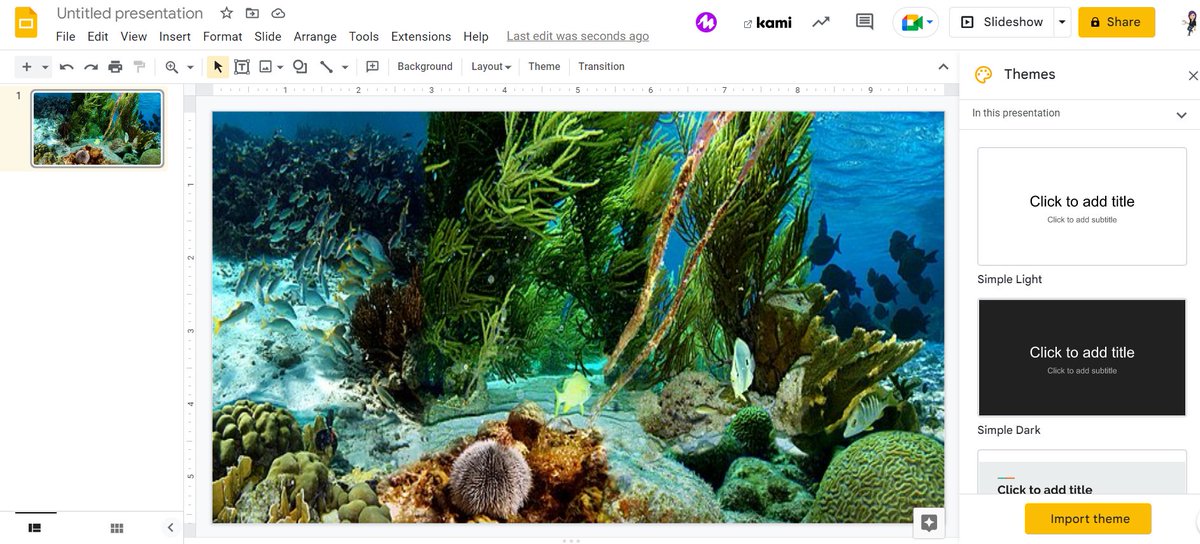
Images you can move, resize, modify, and do a lot of other fun stuff to; a bg is static and fills the entire slide a.k.a. not something likely to accidentally move and mess up your entire project…
#EdTech#EdTechTidbit
Next Stop: Inserting Backgrounds, How-To. Like most @Google functions, there are 2 ways to insert BGs. Check in later today to find out!
#EdTech#EdTechTidbit
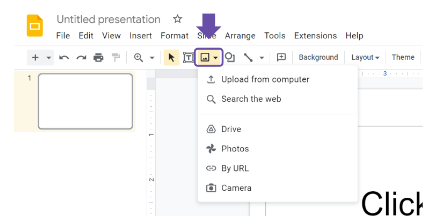
Next Stop: Inserting Images,Using the Image quick button: Found under the menu headings, the image button looks like a mountain inside a picture frame.
#EdTech#EdTechTidbit
Next Stop: Inserting Images, What Can You Do?
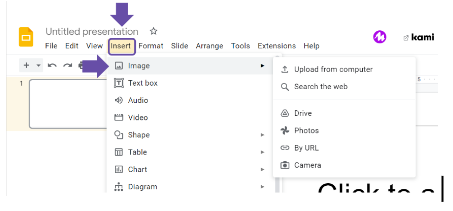
When selecting an image, you can search from the web, upload from your computer, drive, photos, camera, or attach a URL to the photo. #EdTech#EdTechTidbit
Next Stop: Inserting Images, a side note: I teach this prior to setting the background so the students can first practice simple animations such as making a soccer ball bounce along the screen. There are 2 (two) ways to add images. Stay tuned!
#EdTech#EdTechTidbit
Winter Animation: First Stop - The Basics of Google Slides - Blank Canvas Method #2: Click each and every text box and hit delete. Tedious, but it works!
#EdTech#EdTechTidbit
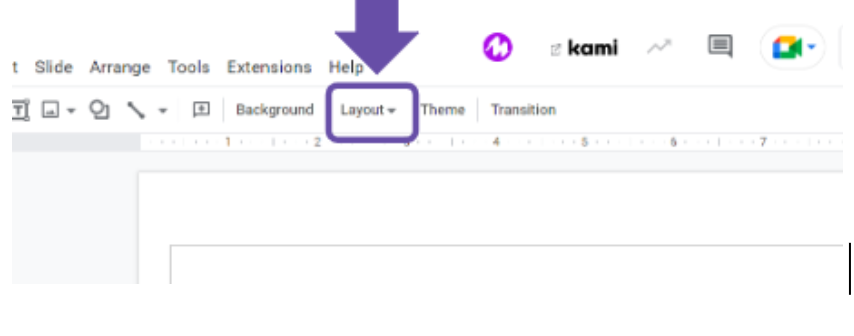
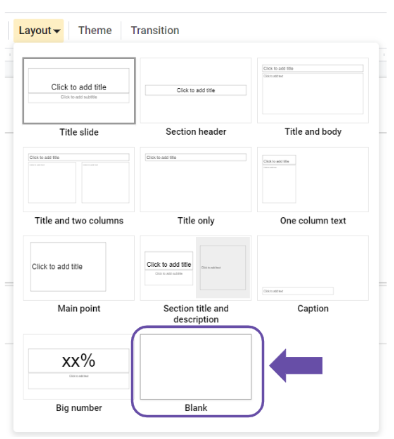
Winter Animation: First Stop - The Basics of Google Slides - Blank Canvas Method #1: Layout Quick Button > Blank. Et voilà, you have removed those pesky text boxes in one fell swoop!
#EdTech#EdTechTidbit
Get Animated w/ Winter Animations using Google Slides!
It may not be Pixar, but it IS a great way for students (and teachers!) to learn the frames and animation process. Stay tuned all* month for more information! https://t.co/hrXAQx25qB
#EdTech#EdTechTidbit
Presentation Settings: Show link to submit another response - Toggle this on only if you want an individual to submit more than one response. This isn’t usually the case for quizzes, but definitely is for a daily SEL check-in! #GettingFORMal#EdTech#EdTechTidbit
Presentation Settings: Confirmation message - show some extra by modifying it from the generic “Your response has been recorded.” Try “Thanks for completing the survey” or “Breathe a sigh of relief, you’ve completed your quiz.” #GettingFORMal#EdTech#EdTechTidbit