Excited to be part of #StocExpo2026 - the global event shaping a safer, more sustainable future for the tank storage industry.
📅 10–11 March | 📍 Rotterdam
Let’s connect 👉 https://t.co/V8TZqbzZM1
♻️🛢️🚨See more at: https://t.co/TVax3biDc1
@rubenhassid The irony of using @Ruben's password to learn how to replace @Ruben. My brain hurts. 🧠💥
Closed my eyes while pasting it. If I didn't see it, it didn't happen. 🙈🤫
Emotional damage aside, thanks @Ruben!
I couldn't ask for more. My free tutoring programme twice a week. Suscribe yourself for "Content that pulls us out of the "beta paradox zone" (comfortable mediocrity we don't know we're in)". Thank you @rubenhassid 🙏🏼
https://t.co/UJaaczvukQ…
Grok is by far the best AI to search.
Its new 4 agents are going through 200-1,000+ sources within 30 seconds. Unheard of.
1 - Lowest hallucination (22%).
2 - Highest instruction following.
3 - Best overall AI to search (LMArena).
I wrote an article on how to best set it up:
How to prompt Gemini for infographics:
1. Go to YouTube. Find a stupidly viral video.
2. Open Gemini to extract content from the video.
3. Copy paste this prompt:
"Act like an expert Content Strategist and Information Designer for a leading digital publication. Your goal is to repurpose video content into a structured infographic brief that's ready to be designed.*
Please analyze the following YouTube video: [YOUTUBE LINK].*
Part 1: The Extraction
First, provide a comprehensive breakdown of the video content. Do not just summarize; extract the "meat" of the content using the following structure:
Core Thesis: What is the single most important argument or lesson in one sentence?
Key Data/Facts: List specific numbers, case studies, or hard facts mentioned.
Golden Quotes: Extract 3-5 verbatim quotes that are punchy or profound.
The Framework: If the speaker uses a specific step-by-step process or mental model, outline it clearly.*
Part 2: The Infographic Structure
Based only on the extraction above, organize the content into a single, visually clear infographic layout.
Constraint: Avoid vague titles like "Summary of [Video Name]."Requirement: The infographic must tell one focused story with a logical flow from top to bottom.
Format: Provide the following:
- A catchy headline for the infographic
- A one-sentence subtitle explaining who it's for or why it matters
- 4 to 6 clearly labeled sections, each with a short heading and 1-2 key data points or takeaways-
A closing takeaway or call to action*
Example of a good infographic structure:
Bad: "Everything About Sales"
Good: "The 3-Call Close Framework: Why 78% of Salespeople Lose the Deal After the First Follow-Up"→ Section 1: The Problem (stat + context)→ Section 2: The 3-Call Framework (step-by-step)→ Section 3: Results (data + proof)→ Closing: One sentence takeaway"
1. Copy Gemini's answer.
2. Go to Gamma(.)app.
3. Click "Create with AI" → "Generate"
4. Select "Graphics" → "Infographics".
5. Paste Gemini's answer. Select "Minimal text."
6. Hit generate. It creates multiple options.
7. Choose your style. Edit it. It's done.
You just turned a 20-minute video into an infographic you can edit, with AI images.
Do it for the videos you've been 'saving for later'.
How to start using Claude Code in 30 min:
(even if you never wrote one line of code)
→ 0-5 min: Install Claude Code. Sign in.
→ 5-10 min: Build your context folder with an about-me.md file. (This is the step 90% of people skip. And it's the most important one.)
→ 10-15 min: Start your first conversation. Use Opus 4.6+. Let it ask you questions before it builds.
→ 15-20 min: Open the live preview. Be specific: "Make the headline bigger. Change the background to off-white."
→ 20-30 min: Give it a real project. A landing page. Something you've been putting off for months.
Pro tip: Always select "Bypass permissions." Claude Code will do the work without bothering you.
To download all of my other Claude infographics:
Step 1. Go to how-to-ai. guide.
Step 2. Subscribe for free. Don't pay anything.
Step 3. Open my welcome email (most skip this).
Step 4. Hit the automatic reply button inside.
Step 5. Download my infographics from my Notion.
Bonus. Enjoy my best copy-paste prompts, too.
How to set up Claude the right way:
(so you actually stop going back to ChatGPT)
1 - Know what's chat vs. cowork vs. projects.
2 - Small tip: Use cowork most of the time.
3 - Best tip: Use cowork + projects is even better.
To download all of my other Claude infographics:
Step 1. Go to https://t.co/psB7XxAv8w.
Step 2. Subscribe for free. Don't pay anything.
Step 3. Open my welcome email (most skip this).
Step 4. Hit the automatic reply button inside.
Step 5. Download my infographics from my Notion.
Bonus. Enjoy my best copy-paste prompts, too.
You now master Claude within 5 minutes.
But if you have 50 more minutes, read in this order:
Claude 101 full article: https://t.co/jw2qdIbLxJ
Claude Cowork (full guide): https://t.co/uWTpOI3oyE
Claude for Teams: https://t.co/qxlcqheAme
Follow me (I'm @rubenhassid) for more.
840 out of 1,000 people have never used AI.
Here's the 7-day plan to not be one of them:
Day 1: Set up Claude (and quit ChatGPT)
1. Download the Claude app. Get the Pro.
2. Select Opus 4.6 + Extended thinking.
3. Create your "about me" markdown file.
4. Download mine at https://t.co/psB7XxB2Y4.
5. Full setup guide: https://t.co/jw2qdIcjnh
Day 2: Master Claude Cowork
1. Open Cowork tab on Claude desktop app.
2. Select a folder from your computer
2. Build 4 subfolders: About Me, templates, project & outputs. Download mine at https://t.co/psB7XxB2Y4
3. Set Global Instructions (so it read files)
4. Use this prompt for everything: "Do [task]. Read my folder. Ask me questions first."
5. Full Cowork guide: https://t.co/uWTpOI3Woc
Day 3: Set up Claude for your team
1. Go to claude .com/pricing/team
2. Create one Project per recurring task
3. Upload a "gold standard" example per project
4. Generate custom instructions & prompt templates
5. Full team playbook: https://t.co/qxlcqhf8bM
Day 4: Create stunning slides with AI
1. Claude for deep research.
2. Then Gamma connector for design.
3. Prompt Claude: "Research [topic]. Save a brief. Don't generate slides yet."
4. Then prompt: "Turn the brief into a Gamma presentation."
5. Edit for 15 mins. That's what makes it great.
6. Full slides guide: https://t.co/L0bPMgXci6
Day 5: Generate realistic images with AI
1. Go to gemini → Tools → Create image
2. Select "Thinking" model + Nano Banana 2
3. Turn articles/NLs into infographics.
4. Create studio-quality headshots from your selfie
5. Full Gemini guide: https://t.co/vgruCL3xUl
Day 6: Grow on LinkedIn with AI (0 to 10,000 followers)
1. Define ONE problem you solve.
2. Post = 1 solution × 1 angle × 1 format
3. Use AI for search, writing & a 30-day content
4. Post one post a day. Weekends included.
5. Full LinkedIn guide: https://t.co/iNfGOB4qMo
Day 7: Build system (and never fall behind)
1. Stay updated with AI News
2. Pick 2-3 creators who teach AI simply.
3. One newsletter. Once a week. That's it.
4. Every article you read → try one thing.
5. Start with my guide here: https://t.co/psB7XxB2Y4.
Here's why this matters:
→ 840 out of 1,000 people have never used AI
→ 139 out of 1,000 only use free ChatGPT
→ 10 out of 1,000 use other free tools
→ 7 out of 1,000 pay for ChatGPT
→ 4 out of 1,000 pay for other AI tools
If you're reading this, you're already in the top 16%.
These 7 guides put you in the top 0.4%.
It took me 1,000+ hours to write them.
It takes you 7 days to use them.
How to set up Claude so it never forgets you:
Prompts → Projects → Skills (explained in 3 mins)
Prompts = telling a stranger your job every morning.
Projects = giving a new hire a binder on day one.
Skills = training an employee once. For forever.
Step 1: Start with a Prompt (but don't stay there)
✦ Open Claude. Type your task. Get an answer.
✦ It works. But tomorrow? Claude forgot everything.
✦ You re-explain. Again. Every. Single. Chat.
✦ That's Level 1. Most people never leave it.
Step 2: Move to a Project
✦ Go to Claude .ai → Create a Project.
✦ Upload your voice file. Upload your instructions.
✦ Now every chat inside that Project knows you.
✦ Your context, style, and tone stick.
But you still have to open the right Project.
You still have to say "read my file first."
Step 3: Graduate to Skills
✦ Open Claude Cowork.
✦ Select Opus 4.6 + Extended Thinking.
✦ Prompt: "Use the skill-creator to help me build a skill for [your most repeated task]."
Claude interviews you. Answer extensively.
"I write reports" is useless.
"I write weekly reports that start with the headline metric, 3 sections max, next steps as bullets" is a Skill.
The specificity is the skill.
Step 4: Install and test
✦ Save the Skill folder.
✦ Go to Settings → Capabilities → Skills → Upload.
✦ Open a new chat. Type your task normally.
✦ The Skill fires on its own. No slash command.
✦ Claude just knows.
I just wrote my full Claude Skills breakdown. It covers setup, the skill-creator walkthrough, and the 7 hacks I found buried in Anthropic's docs.
Read it here: https://t.co/jT4uB5AFtY
To download all of my Claude infographics:
Step 1. Go to https://t.co/psB7XxAv8w.
Step 2. Subscribe for free. Don't pay anything.
Step 3. Open my welcome email (most skip this).
Step 4. Hit the automatic reply button inside.
Step 5. Download my infographics from my Notion.
♻️ Repost this to help someone on your team stop re-explaining themselves to Claude every morning.
The only Claude skills guide you need:
(Save this. Send it to your team. Thank me later)
1. Get the paid plan + the desktop app (Cowork).
2. Once done, select Opus 4.6 + Extended Thinking.
3. Then type: "Use the skill-creator to help me build a skill for [your task]."
4. Answer the interview extensively.
5. Review the SKILL .md. Install it.
If you want a free tutorial with screenshots, go here:
↳ https://t.co/jT4uB5Bdjw
Here are my favorite Skills to build first:
✦ The LinkedIn Post Skill.
Prompt: "Use the skill-creator to help me build a skill for writing LinkedIn posts. My posts always start with a punchy first line under 10 words, 3 paragraphs max, 1,300 characters or less, never using hashtags in the body."
✦ The Weekly Report Skill.
Prompt: "Use the skill-creator to help me build a skill for weekly reports. They always start with the headline metric, use 3 sections max, and end with next steps as bullet points."
✦ The Client Contract Skill.
This one will probably save your legal team hours...
Prompt: "Use the skill-creator to help me build a skill for drafting client contracts. It must follow [your template], include [your standard clauses], and always flag non-standard requests before finalizing."
The part most people skip (don't):
After it builds your Skill, Claude runs an evaluation.
It tests your Skill before you install it.
It's the most important step.
Take the 5 minutes.
I made over 100+ infographics like this.
If you want to download all of them, just:
1. Go to https://t.co/psB7XxB2Y4.
2. Then enter your work email.
3. It will ask you to pay or not. Don't pay.
4. Wait 2 min. Then open the welcoming email.
5. Click on my Notion library with everything in it.
Disclaimer: you will be subscribed to my newsletter. It's free, and always will be. Some people pay only to join my community & get answers faster.
400,000 readers enjoy it twice a week.
To always stay ahead of the AI curve.
To master AI, before it masters you.
♻️ Help others get better at Claude. Repost this image.
Anthropic made Claude Skills absurdly technical.
Here's the guide I wish existed (in just 7 hacks):
Hack 1: Use the Skill Creator
Open Cowork. Select your folder.
Make sure you're on Opus 4.6 + Extended Thinking.
Type: "Use the skill-creator to help me build a skill for [your most repeated task]."
It interviews you. It builds everything.
Hack 2: Negative Triggers
Your Skill fires when it shouldn't. You ask a simple question and your LinkedIn Skill activates.
The fix: the "Do NOT use for…" line matters more than the "Use when…" line.
80% of a good Skill is what it's NOT for.
Most people only write what it IS for.
That's why it breaks.
Hack 3: Stack Skills with your Voice File
Your about-me .md tells Claude who you are.
Your Skill tells Claude how to do the job.
They fire together. Two layers. Simultaneously.
So your LinkedIn Skill doesn't need your rules.
Claude already knows your voice from the .md file.
To download mine, go here: https://t.co/psB7XxB2Y4.
Don't pay anything. It's free in the welcome email.
Hack 4: Build Skills from past chats
Don't start from scratch.
You've been giving Claude instructions for months.
Those old prompts already contain the process.
1. Click on a Cowork chat session.
2. On the name's arrow.
3. Turn it into a Skill
Claude reverse-engineers your workflow. Done.
Hack 5: Skills save Tokens (that's money)
You'd think 20 installed Skills eat your usage. Opposite.
Claude only reads the 3-line header of each Skill.
Full instructions load only when a task matches.
A task that took 15 prompts & 12,000 tokens without Skills? 2 messages. 6,000 tokens. With one.
Hack 6: The Debugging Trick
Your Skill doesn't fire and you don't know why.
Prompt: "When would you use [skill-name] skill?"
It quotes the exact description back to you.
You instantly see what's vague. What's missing.
Fastest fix for any Skill that won't activate.
Hack 7: Skills are Portable
Anthropic published Skills as an open standard.
The same SKILL .md file works across platforms.
Build it for Claude today. If Gemini or ChatGPT support the format tomorrow? It transfers.
Same idea as your voice file.
Now your workflows are portable too.
Where Skills fall short:
✦ Bad description: Skill never fires. Use Hack 6.
✦ Broad description: Skill hijacks all chats. Hack 2.
✦ Skills give you 80%, not 100%. You still review.
✦ Usage still burns fast. If you're using Cowork daily, consider the Max plan ($100/month).
The real difference:
Most people open Claude, type one prompt, get a mid response, and close the tab.
Because they're still prompting.
Skills don't prompt. They fire automatically.
Build them once. Never re-explain a task again.
Download my Skills here: https://t.co/jT4uB5Bdjw
You don't need to learn to code anymore.
Here's how to prompt Claude Code (zero coding):
1. Open the Claude desktop app.
2. Click "Code" (not Chat, not Cowork).
3. Select a folder from your computer.
4. Connect a free GitHub account in Settings.
5. Go to Connectors.
6. Use this setup guide: https://t.co/WYZd5ltVMW
Claude now builds anything you describe in English.
But here's where it gets powerful:
Before you prompt, change these 2 settings:
1. Select "Opus 4.6" model.
It's the smartest model for complex builds.
2. Turn on "Auto accept edits."
It stops Claude from pausing after every action.
Then stop describing code. Paste this instead:
"Create a GitHub repo named [NAME]. I do not know how to code. Code everything for me. I want to [GOAL] for [SUCCESS CRITERIA]. Here's an example [attach screenshot]."
Claude reads your screenshot. It builds the site.
The secret is not knowing how to code anymore.
It is knowing how to prompt. But to go even deeper, use my full playbook: https://t.co/WYZd5ltVMW
(save this if you can't code - you won't need to)
How to actually use Claude in 2026 :
(Hint: Claude Chat is only 20% of it)
Mode 1: Claude Chat
1. Don't type your topic. Type "Interview me."
2. Tell Claude what you're writing (post or email).
3. Let it ask you ONE question at a time.
4. You answer. It asks again. You answer again.
5. After 4-5 questions, Claude writes the first draft.
6. It sounds like you. Because these are your words.
7. You never stare at a blank page again.
Mode 2: Claude Cowork
8. This one lives on your computer. In a folder.
9. Put your writing rules and examples in that folder.
10. Create 4 folders under one main folder 'Cowork':
11. 'About me', 'templates', 'projects', 'Output . md'
12. To download mine, go to https://t.co/psB7XxAv8w.
13. Pay nothing. Get the link to download in the mail.
Mode 3: Claude Projects
14. Chat inside Project already knows your rules.
15. Context that lives forever, across any chat.
16. Don't guess which Projects to build.
17. Use this prompt:
"I work at [company]. My team helps [clients] [achieve goals]. Interview me. Ask ONE question at a time about what we do, what we deliver, what's repetitive. Then give me 3-5 Projects with names."
Mode 4: Claude Code
18. Screenshot a website you like.
18. Drag it into Claude Code.
19. Prompt: "Build me something that looks like this, but for [my project]. I don't know how to code. Code everything for me."
20. Claude writes the code. Pushes it to GitHub.
21. Not a single line of code. This is vibecoding.
Mode 5: Claude Dispatch
22. Open Claude on your phone.
23. Text it a task. Go grab coffee.
24. Claude is on your laptop doing the work.
25. Use this prompt: "Go to my Fiverr account. Post a job for [task]. Message the best 10 freelancers. Follow up until one accepts for [budget] max."
26. You get updates on your phone. Claude is clicking, browsing, and messaging.
27. You come back to 4 offers.
That's 5 Claudes. Not one.
Most people never leave Mode 1.
Now you have all five.
Access my free prompts, setup, and my exact files:
1. Go to https://t.co/psB7XxAv8w.
2. Subscribe for free (don't pay anything).
3. Open my welcome email.
4. Hit the automatic reply button inside.
5. Receive your downloadable files + bonus video.
Claude is offering 13 AI courses & certificates.
All free. Here are all 13 links (+ my own guides):
1. Go to each link below. Enroll. It's free.
2. But honestly? My newsletter covers it better.
3. I'll explain at the end. Start with the official ones:
---
1 - Claude 101. Learn Claude for everyday work.
↳ https://t.co/OvBmlvnVqL
2 - AI Fluency: Frameworks & Foundations.
↳ https://t.co/cObZdwCmXP
3 - Introduction to Agent Skills.
↳ https://t.co/wZsD0PxJwi
4 - Building with the Claude API.
↳ https://t.co/RcCbfNjlzz
5 - Claude Code in Action.
↳ https://t.co/y29CC0GBaN
6 - Intro to Model Context Protocol.
↳ https://t.co/Qnrn0NHxyI
7 - MCP: Advanced Topics.
↳ https://t.co/0S5f4kESzG
8 - AI Fluency for Students.
↳ https://t.co/YIOopqo7WB
9 - AI Fluency for Educators.
↳ https://t.co/54oLlYjLGD
10 - Teaching AI Fluency.
↳ https://t.co/fHdgs6uNDM
11 - AI Fluency for Nonprofits.
↳ https://t.co/xFKngNz09m
12 - Claude with Amazon Bedrock.
↳ https://t.co/dV6xi7UiaL
13 - Claude with Google Cloud's Vertex AI.
↳ https://t.co/MEzAxODPW4
---
Official courses are good. But they're theoretical.
I wrote how-to guides that show you what to do.
Here's how to master Claude (for free):
1. Start here: https://t.co/jw2qdIcjnh
☑ The basics of Claude.
☑ How to prompt it the right way.
☑ The different types of Claude to master.
2. Move to Cowork: https://t.co/uWTpOI3Woc
☑ The more advanced Claude is Claude Cowork.
☑ How to prompt it and set it up properly.
☑ It's a long process. But worth every minute.
3. Set up Claude for teams: https://t.co/qxlcqhf8bM
☑ Setting up Claude for teams is different.
☑ This is the easiest 5-day plan I could find.
☑ 5 steps so your team runs on Claude in a week.
4. Use Claude Skills: https://t.co/jT4uB5Bdjw
☑ Stop prompting, build your first skill.
☑ 7 favourite hacks of Claude Skills.
☑ Access Claude's team skills.
5. Claude Computer: https://t.co/TxYuHPjgbV
☑ Access Claude Computer.
☑ Use cases of Claude Computer.
☑ Schedule tasks with Claude.
6. Claude Code: https://t.co/WYZd5ltVMW
☑ English is the new code.
☑ Code 100x faster.
☑ Prompt Claude Code the right way.
7. Bonus (to go even deeper).
☑ Claude for Excel.
☑ Claude interactive charts.
☑ How to move from ChatGPT to Claude.
---
All of this is free. Here's how to get it:
1. Go to https://t.co/psB7XxB2Y4. Add your email.
2. A pop-up will ask you to pay. Do not pay.
3. Open my welcome email & enjoy the free guides.
431,000+ people read it weekly. Join them.
♻️ Repost this so others get free AI education.
32 Claude shortcut hacks for faster prompts:
(worth saving for later)
Add one of these at the very start of your prompt.
Example: ELI5: [your topic] → get a simple, kid-friendly explanation.
——
/ELI5 is used to explain as if to a 5-year-old.
/TLDL summarizes a very long text in a few lines.
/STEP-BY-STEP lays out reasoning step by step.
/CHECKLIST turns a response into a checklist.
/EXEC SUMMARY gives a quick executive-style summary.
/ACT AS makes ChatGPT speak in a specific role.
/BRIEFLY forces a very short answer.
/JARGON asks to use technical vocabulary.
/AUDIENCE adapts the response to a chosen audience.
/TONE changes the tone (formal, funny, dramatic, etc.).
/DEV MODE simulates a raw, technical developer style.
/PM MODE gives a project-management perspective.
/SWOT produces a strengths/weaknesses/opportunities/threats analysis.
/FORMAT AS enforces a specific format (table, JSON, etc.).
/COMPARE puts two or more things side by side.
/MULTI-PERSPECTIVE shows several points of view.
/CONTEXT STACK keeps multiple layers of context in memory.
/BEGIN WITH / END WITH forces starting or ending with something.
/ROLE: TASK: FORMAT: explicitly defines the role, the task, and the expected format.
/SCHEMA generates a structured outline or a data model.
/REWRITE AS: rephrases in a requested style.
/REFLECTIVE MODE prompts the AI to reflect on its own answer.
/SYSTEMATIC BIAS CHECK asks to identify biases.
/DELIBERATE THINKING forces slower, more thoughtful reasoning.
/NO AUTOPILOT forbids superficial, autopilot responses.
/EVAL-SELF asks for a critical self-evaluation of the response.
/PARALLEL LENSES examines from several angles in parallel.
/FIRST PRINCIPLES rebuilds from fundamental basics.
/CHAIN OF THOUGHT shows intermediate reasoning.
/PITFALLS identifies possible traps and errors.
/METRICS MODE expresses answers with measures and indicators.
/GUARDRAIL sets strict boundaries not to cross.
——
After months of testing Claude, I built a single prompt library with every prompt I personally use.
To access it, complete these 4 steps:
1. Subscribe (for free) → https://t.co/psB7XxAv8w.
2. Open my welcome email.
3. Hit the automatic reply button inside.
4. Receive your prompt library + bonus video.


![rubenhassid's tweet photo. How to actually use Claude in 2026 :
(Hint: Claude Chat is only 20% of it)
Mode 1: Claude Chat
1. Don't type your topic. Type "Interview me."
2. Tell Claude what you're writing (post or email).
3. Let it ask you ONE question at a time.
4. You answer. It asks again. You answer again.
5. After 4-5 questions, Claude writes the first draft.
6. It sounds like you. Because these are your words.
7. You never stare at a blank page again.
Mode 2: Claude Cowork
8. This one lives on your computer. In a folder.
9. Put your writing rules and examples in that folder.
10. Create 4 folders under one main folder 'Cowork':
11. 'About me', 'templates', 'projects', 'Output . md'
12. To download mine, go to https://t.co/psB7XxAv8w.
13. Pay nothing. Get the link to download in the mail.
Mode 3: Claude Projects
14. Chat inside Project already knows your rules.
15. Context that lives forever, across any chat.
16. Don't guess which Projects to build.
17. Use this prompt:
"I work at [company]. My team helps [clients] [achieve goals]. Interview me. Ask ONE question at a time about what we do, what we deliver, what's repetitive. Then give me 3-5 Projects with names."
Mode 4: Claude Code
18. Screenshot a website you like.
18. Drag it into Claude Code.
19. Prompt: "Build me something that looks like this, but for [my project]. I don't know how to code. Code everything for me."
20. Claude writes the code. Pushes it to GitHub.
21. Not a single line of code. This is vibecoding.
Mode 5: Claude Dispatch
22. Open Claude on your phone.
23. Text it a task. Go grab coffee.
24. Claude is on your laptop doing the work.
25. Use this prompt: "Go to my Fiverr account. Post a job for [task]. Message the best 10 freelancers. Follow up until one accepts for [budget] max."
26. You get updates on your phone. Claude is clicking, browsing, and messaging.
27. You come back to 4 offers.
That's 5 Claudes. Not one.
Most people never leave Mode 1.
Now you have all five.
Access my free prompts, setup, and my exact files:
1. Go to https://t.co/psB7XxAv8w.
2. Subscribe for free (don't pay anything).
3. Open my welcome email.
4. Hit the automatic reply button inside.
5. Receive your downloadable files + bonus video.](https://pbs.twimg.com/media/HE9w13bakAA-ieA.jpg)








![rubenhassid's tweet photo. How to prompt Gemini for infographics:
1. Go to YouTube. Find a stupidly viral video.
2. Open Gemini to extract content from the video.
3. Copy paste this prompt:
"Act like an expert Content Strategist and Information Designer for a leading digital publication. Your goal is to repurpose video content into a structured infographic brief that's ready to be designed.*
Please analyze the following YouTube video: [YOUTUBE LINK].*
Part 1: The Extraction
First, provide a comprehensive breakdown of the video content. Do not just summarize; extract the "meat" of the content using the following structure:
Core Thesis: What is the single most important argument or lesson in one sentence?
Key Data/Facts: List specific numbers, case studies, or hard facts mentioned.
Golden Quotes: Extract 3-5 verbatim quotes that are punchy or profound.
The Framework: If the speaker uses a specific step-by-step process or mental model, outline it clearly.*
Part 2: The Infographic Structure
Based only on the extraction above, organize the content into a single, visually clear infographic layout.
Constraint: Avoid vague titles like "Summary of [Video Name]."Requirement: The infographic must tell one focused story with a logical flow from top to bottom.
Format: Provide the following:
- A catchy headline for the infographic
- A one-sentence subtitle explaining who it's for or why it matters
- 4 to 6 clearly labeled sections, each with a short heading and 1-2 key data points or takeaways-
A closing takeaway or call to action*
Example of a good infographic structure:
Bad: "Everything About Sales"
Good: "The 3-Call Close Framework: Why 78% of Salespeople Lose the Deal After the First Follow-Up"→ Section 1: The Problem (stat + context)→ Section 2: The 3-Call Framework (step-by-step)→ Section 3: Results (data + proof)→ Closing: One sentence takeaway"
1. Copy Gemini's answer.
2. Go to Gamma(.)app.
3. Click "Create with AI" → "Generate"
4. Select "Graphics" → "Infographics".
5. Paste Gemini's answer. Select "Minimal text."
6. Hit generate. It creates multiple options.
7. Choose your style. Edit it. It's done.
You just turned a 20-minute video into an infographic you can edit, with AI images.
Do it for the videos you've been 'saving for later'.](https://pbs.twimg.com/media/HEVCMYrbYAEUB8N.jpg)
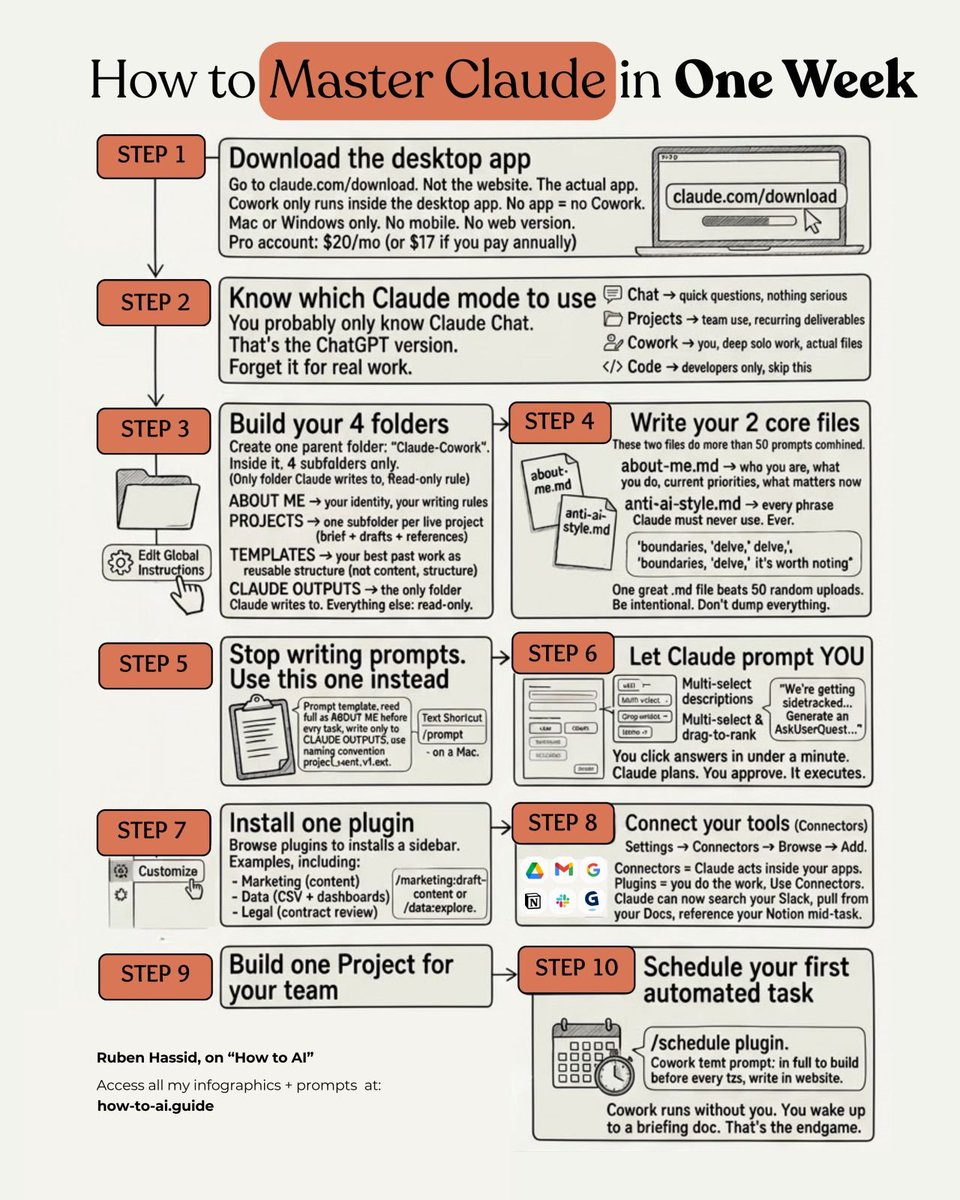

![rubenhassid's tweet photo. 840 out of 1,000 people have never used AI.
Here's the 7-day plan to not be one of them:
Day 1: Set up Claude (and quit ChatGPT)
1. Download the Claude app. Get the Pro.
2. Select Opus 4.6 + Extended thinking.
3. Create your "about me" markdown file.
4. Download mine at https://t.co/psB7XxB2Y4.
5. Full setup guide: https://t.co/jw2qdIcjnh
Day 2: Master Claude Cowork
1. Open Cowork tab on Claude desktop app.
2. Select a folder from your computer
2. Build 4 subfolders: About Me, templates, project & outputs. Download mine at https://t.co/psB7XxB2Y4
3. Set Global Instructions (so it read files)
4. Use this prompt for everything: "Do [task]. Read my folder. Ask me questions first."
5. Full Cowork guide: https://t.co/uWTpOI3Woc
Day 3: Set up Claude for your team
1. Go to claude .com/pricing/team
2. Create one Project per recurring task
3. Upload a "gold standard" example per project
4. Generate custom instructions & prompt templates
5. Full team playbook: https://t.co/qxlcqhf8bM
Day 4: Create stunning slides with AI
1. Claude for deep research.
2. Then Gamma connector for design.
3. Prompt Claude: "Research [topic]. Save a brief. Don't generate slides yet."
4. Then prompt: "Turn the brief into a Gamma presentation."
5. Edit for 15 mins. That's what makes it great.
6. Full slides guide: https://t.co/L0bPMgXci6
Day 5: Generate realistic images with AI
1. Go to gemini → Tools → Create image
2. Select "Thinking" model + Nano Banana 2
3. Turn articles/NLs into infographics.
4. Create studio-quality headshots from your selfie
5. Full Gemini guide: https://t.co/vgruCL3xUl
Day 6: Grow on LinkedIn with AI (0 to 10,000 followers)
1. Define ONE problem you solve.
2. Post = 1 solution × 1 angle × 1 format
3. Use AI for search, writing & a 30-day content
4. Post one post a day. Weekends included.
5. Full LinkedIn guide: https://t.co/iNfGOB4qMo
Day 7: Build system (and never fall behind)
1. Stay updated with AI News
2. Pick 2-3 creators who teach AI simply.
3. One newsletter. Once a week. That's it.
4. Every article you read → try one thing.
5. Start with my guide here: https://t.co/psB7XxB2Y4.
Here's why this matters:
→ 840 out of 1,000 people have never used AI
→ 139 out of 1,000 only use free ChatGPT
→ 10 out of 1,000 use other free tools
→ 7 out of 1,000 pay for ChatGPT
→ 4 out of 1,000 pay for other AI tools
If you're reading this, you're already in the top 16%.
These 7 guides put you in the top 0.4%.
It took me 1,000+ hours to write them.
It takes you 7 days to use them.](https://pbs.twimg.com/media/HEvIA0QbQAA1_Fg.jpg)
![rubenhassid's tweet photo. How to set up Claude so it never forgets you:
Prompts → Projects → Skills (explained in 3 mins)
Prompts = telling a stranger your job every morning.
Projects = giving a new hire a binder on day one.
Skills = training an employee once. For forever.
Step 1: Start with a Prompt (but don't stay there)
✦ Open Claude. Type your task. Get an answer.
✦ It works. But tomorrow? Claude forgot everything.
✦ You re-explain. Again. Every. Single. Chat.
✦ That's Level 1. Most people never leave it.
Step 2: Move to a Project
✦ Go to Claude .ai → Create a Project.
✦ Upload your voice file. Upload your instructions.
✦ Now every chat inside that Project knows you.
✦ Your context, style, and tone stick.
But you still have to open the right Project.
You still have to say "read my file first."
Step 3: Graduate to Skills
✦ Open Claude Cowork.
✦ Select Opus 4.6 + Extended Thinking.
✦ Prompt: "Use the skill-creator to help me build a skill for [your most repeated task]."
Claude interviews you. Answer extensively.
"I write reports" is useless.
"I write weekly reports that start with the headline metric, 3 sections max, next steps as bullets" is a Skill.
The specificity is the skill.
Step 4: Install and test
✦ Save the Skill folder.
✦ Go to Settings → Capabilities → Skills → Upload.
✦ Open a new chat. Type your task normally.
✦ The Skill fires on its own. No slash command.
✦ Claude just knows.
I just wrote my full Claude Skills breakdown. It covers setup, the skill-creator walkthrough, and the 7 hacks I found buried in Anthropic's docs.
Read it here: https://t.co/jT4uB5AFtY
To download all of my Claude infographics:
Step 1. Go to https://t.co/psB7XxAv8w.
Step 2. Subscribe for free. Don't pay anything.
Step 3. Open my welcome email (most skip this).
Step 4. Hit the automatic reply button inside.
Step 5. Download my infographics from my Notion.
♻️ Repost this to help someone on your team stop re-explaining themselves to Claude every morning.](https://pbs.twimg.com/media/HE0WoEnbwAAj_5O.jpg)
![rubenhassid's tweet photo. The only Claude skills guide you need:
(Save this. Send it to your team. Thank me later)
1. Get the paid plan + the desktop app (Cowork).
2. Once done, select Opus 4.6 + Extended Thinking.
3. Then type: "Use the skill-creator to help me build a skill for [your task]."
4. Answer the interview extensively.
5. Review the SKILL .md. Install it.
If you want a free tutorial with screenshots, go here:
↳ https://t.co/jT4uB5Bdjw
Here are my favorite Skills to build first:
✦ The LinkedIn Post Skill.
Prompt: "Use the skill-creator to help me build a skill for writing LinkedIn posts. My posts always start with a punchy first line under 10 words, 3 paragraphs max, 1,300 characters or less, never using hashtags in the body."
✦ The Weekly Report Skill.
Prompt: "Use the skill-creator to help me build a skill for weekly reports. They always start with the headline metric, use 3 sections max, and end with next steps as bullet points."
✦ The Client Contract Skill.
This one will probably save your legal team hours...
Prompt: "Use the skill-creator to help me build a skill for drafting client contracts. It must follow [your template], include [your standard clauses], and always flag non-standard requests before finalizing."
The part most people skip (don't):
After it builds your Skill, Claude runs an evaluation.
It tests your Skill before you install it.
It's the most important step.
Take the 5 minutes.
I made over 100+ infographics like this.
If you want to download all of them, just:
1. Go to https://t.co/psB7XxB2Y4.
2. Then enter your work email.
3. It will ask you to pay or not. Don't pay.
4. Wait 2 min. Then open the welcoming email.
5. Click on my Notion library with everything in it.
Disclaimer: you will be subscribed to my newsletter. It's free, and always will be. Some people pay only to join my community & get answers faster.
400,000 readers enjoy it twice a week.
To always stay ahead of the AI curve.
To master AI, before it masters you.
♻️ Help others get better at Claude. Repost this image.](https://pbs.twimg.com/media/HE4Qi3EasAA3EJP.jpg)
![rubenhassid's tweet photo. Anthropic made Claude Skills absurdly technical.
Here's the guide I wish existed (in just 7 hacks):
Hack 1: Use the Skill Creator
Open Cowork. Select your folder.
Make sure you're on Opus 4.6 + Extended Thinking.
Type: "Use the skill-creator to help me build a skill for [your most repeated task]."
It interviews you. It builds everything.
Hack 2: Negative Triggers
Your Skill fires when it shouldn't. You ask a simple question and your LinkedIn Skill activates.
The fix: the "Do NOT use for…" line matters more than the "Use when…" line.
80% of a good Skill is what it's NOT for.
Most people only write what it IS for.
That's why it breaks.
Hack 3: Stack Skills with your Voice File
Your about-me .md tells Claude who you are.
Your Skill tells Claude how to do the job.
They fire together. Two layers. Simultaneously.
So your LinkedIn Skill doesn't need your rules.
Claude already knows your voice from the .md file.
To download mine, go here: https://t.co/psB7XxB2Y4.
Don't pay anything. It's free in the welcome email.
Hack 4: Build Skills from past chats
Don't start from scratch.
You've been giving Claude instructions for months.
Those old prompts already contain the process.
1. Click on a Cowork chat session.
2. On the name's arrow.
3. Turn it into a Skill
Claude reverse-engineers your workflow. Done.
Hack 5: Skills save Tokens (that's money)
You'd think 20 installed Skills eat your usage. Opposite.
Claude only reads the 3-line header of each Skill.
Full instructions load only when a task matches.
A task that took 15 prompts & 12,000 tokens without Skills? 2 messages. 6,000 tokens. With one.
Hack 6: The Debugging Trick
Your Skill doesn't fire and you don't know why.
Prompt: "When would you use [skill-name] skill?"
It quotes the exact description back to you.
You instantly see what's vague. What's missing.
Fastest fix for any Skill that won't activate.
Hack 7: Skills are Portable
Anthropic published Skills as an open standard.
The same SKILL .md file works across platforms.
Build it for Claude today. If Gemini or ChatGPT support the format tomorrow? It transfers.
Same idea as your voice file.
Now your workflows are portable too.
Where Skills fall short:
✦ Bad description: Skill never fires. Use Hack 6.
✦ Broad description: Skill hijacks all chats. Hack 2.
✦ Skills give you 80%, not 100%. You still review.
✦ Usage still burns fast. If you're using Cowork daily, consider the Max plan ($100/month).
The real difference:
Most people open Claude, type one prompt, get a mid response, and close the tab.
Because they're still prompting.
Skills don't prompt. They fire automatically.
Build them once. Never re-explain a task again.
Download my Skills here: https://t.co/jT4uB5Bdjw](https://pbs.twimg.com/media/HE5iarOb0AATSWs.jpg)
![rubenhassid's tweet photo. You don't need to learn to code anymore.
Here's how to prompt Claude Code (zero coding):
1. Open the Claude desktop app.
2. Click "Code" (not Chat, not Cowork).
3. Select a folder from your computer.
4. Connect a free GitHub account in Settings.
5. Go to Connectors.
6. Use this setup guide: https://t.co/WYZd5ltVMW
Claude now builds anything you describe in English.
But here's where it gets powerful:
Before you prompt, change these 2 settings:
1. Select "Opus 4.6" model.
It's the smartest model for complex builds.
2. Turn on "Auto accept edits."
It stops Claude from pausing after every action.
Then stop describing code. Paste this instead:
"Create a GitHub repo named [NAME]. I do not know how to code. Code everything for me. I want to [GOAL] for [SUCCESS CRITERIA]. Here's an example [attach screenshot]."
Claude reads your screenshot. It builds the site.
The secret is not knowing how to code anymore.
It is knowing how to prompt. But to go even deeper, use my full playbook: https://t.co/WYZd5ltVMW
(save this if you can't code - you won't need to)](https://pbs.twimg.com/media/HE9W15XaQAAUOvw.jpg)
![rubenhassid's tweet photo. How to actually use Claude in 2026 :
(Hint: Claude Chat is only 20% of it)
Mode 1: Claude Chat
1. Don't type your topic. Type "Interview me."
2. Tell Claude what you're writing (post or email).
3. Let it ask you ONE question at a time.
4. You answer. It asks again. You answer again.
5. After 4-5 questions, Claude writes the first draft.
6. It sounds like you. Because these are your words.
7. You never stare at a blank page again.
Mode 2: Claude Cowork
8. This one lives on your computer. In a folder.
9. Put your writing rules and examples in that folder.
10. Create 4 folders under one main folder 'Cowork':
11. 'About me', 'templates', 'projects', 'Output . md'
12. To download mine, go to https://t.co/psB7XxAv8w.
13. Pay nothing. Get the link to download in the mail.
Mode 3: Claude Projects
14. Chat inside Project already knows your rules.
15. Context that lives forever, across any chat.
16. Don't guess which Projects to build.
17. Use this prompt:
"I work at [company]. My team helps [clients] [achieve goals]. Interview me. Ask ONE question at a time about what we do, what we deliver, what's repetitive. Then give me 3-5 Projects with names."
Mode 4: Claude Code
18. Screenshot a website you like.
18. Drag it into Claude Code.
19. Prompt: "Build me something that looks like this, but for [my project]. I don't know how to code. Code everything for me."
20. Claude writes the code. Pushes it to GitHub.
21. Not a single line of code. This is vibecoding.
Mode 5: Claude Dispatch
22. Open Claude on your phone.
23. Text it a task. Go grab coffee.
24. Claude is on your laptop doing the work.
25. Use this prompt: "Go to my Fiverr account. Post a job for [task]. Message the best 10 freelancers. Follow up until one accepts for [budget] max."
26. You get updates on your phone. Claude is clicking, browsing, and messaging.
27. You come back to 4 offers.
That's 5 Claudes. Not one.
Most people never leave Mode 1.
Now you have all five.
Access my free prompts, setup, and my exact files:
1. Go to https://t.co/psB7XxAv8w.
2. Subscribe for free (don't pay anything).
3. Open my welcome email.
4. Hit the automatic reply button inside.
5. Receive your downloadable files + bonus video.](https://pbs.twimg.com/media/HE9w20bbIAANO8f.jpg)
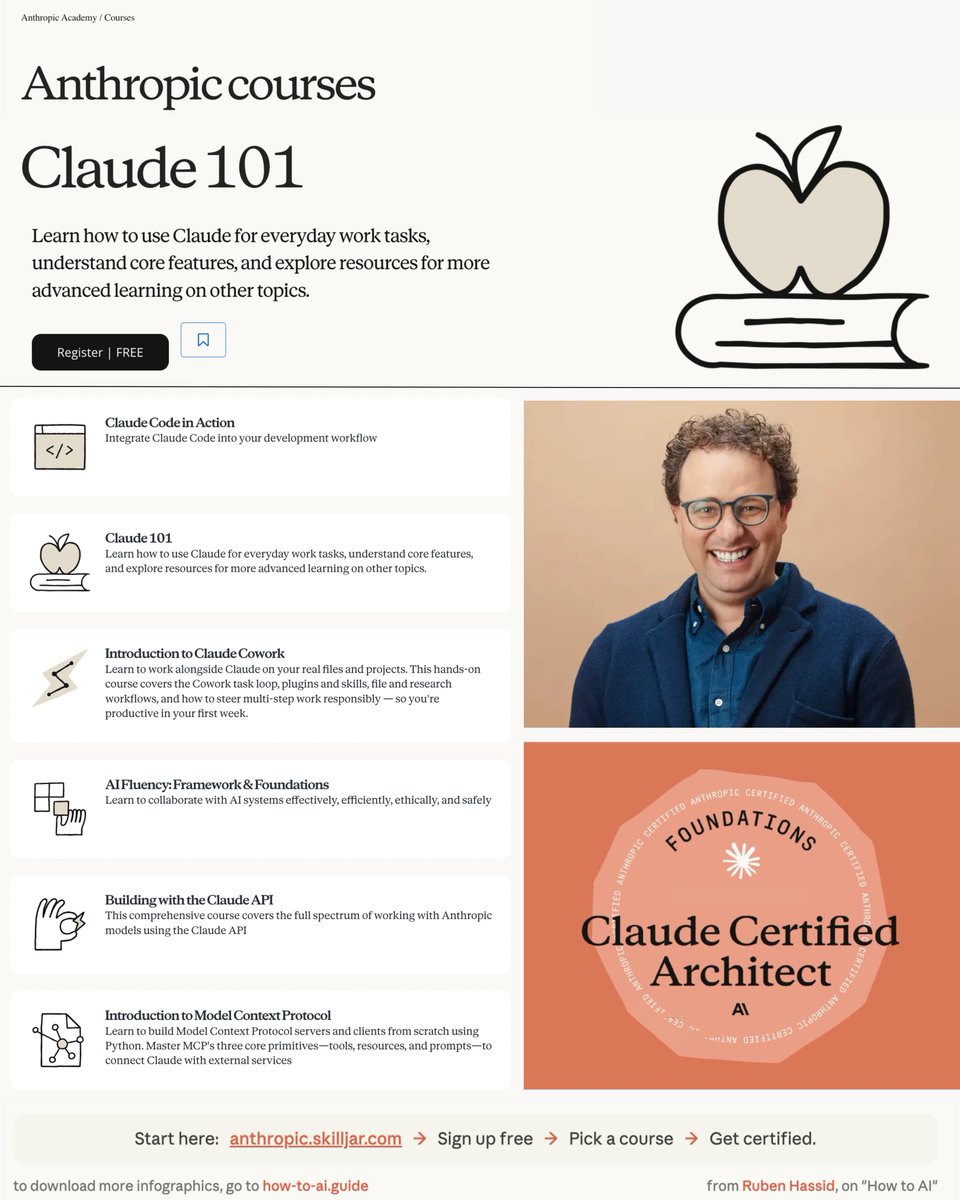
![rubenhassid's tweet photo. 32 Claude shortcut hacks for faster prompts:
(worth saving for later)
Add one of these at the very start of your prompt.
Example: ELI5: [your topic] → get a simple, kid-friendly explanation.
——
/ELI5 is used to explain as if to a 5-year-old.
/TLDL summarizes a very long text in a few lines.
/STEP-BY-STEP lays out reasoning step by step.
/CHECKLIST turns a response into a checklist.
/EXEC SUMMARY gives a quick executive-style summary.
/ACT AS makes ChatGPT speak in a specific role.
/BRIEFLY forces a very short answer.
/JARGON asks to use technical vocabulary.
/AUDIENCE adapts the response to a chosen audience.
/TONE changes the tone (formal, funny, dramatic, etc.).
/DEV MODE simulates a raw, technical developer style.
/PM MODE gives a project-management perspective.
/SWOT produces a strengths/weaknesses/opportunities/threats analysis.
/FORMAT AS enforces a specific format (table, JSON, etc.).
/COMPARE puts two or more things side by side.
/MULTI-PERSPECTIVE shows several points of view.
/CONTEXT STACK keeps multiple layers of context in memory.
/BEGIN WITH / END WITH forces starting or ending with something.
/ROLE: TASK: FORMAT: explicitly defines the role, the task, and the expected format.
/SCHEMA generates a structured outline or a data model.
/REWRITE AS: rephrases in a requested style.
/REFLECTIVE MODE prompts the AI to reflect on its own answer.
/SYSTEMATIC BIAS CHECK asks to identify biases.
/DELIBERATE THINKING forces slower, more thoughtful reasoning.
/NO AUTOPILOT forbids superficial, autopilot responses.
/EVAL-SELF asks for a critical self-evaluation of the response.
/PARALLEL LENSES examines from several angles in parallel.
/FIRST PRINCIPLES rebuilds from fundamental basics.
/CHAIN OF THOUGHT shows intermediate reasoning.
/PITFALLS identifies possible traps and errors.
/METRICS MODE expresses answers with measures and indicators.
/GUARDRAIL sets strict boundaries not to cross.
——
After months of testing Claude, I built a single prompt library with every prompt I personally use.
To access it, complete these 4 steps:
1. Subscribe (for free) → https://t.co/psB7XxAv8w.
2. Open my welcome email.
3. Hit the automatic reply button inside.
4. Receive your prompt library + bonus video.](https://pbs.twimg.com/media/HFEeXMqb0AAG2bC.jpg)


