Describe the Google Sheets or Excel formula you need to GPTExcel, and it will generate and explain the formula for you.
You get 4 free request per day.
https://t.co/qnsQou55qz
Need some jokes? Enter a grade level and topic into the Teacher Joke Generator. The AI isn't a great joke teller, but sometimes the jokes are worthy of a chuckle.
https://t.co/tXbhtZVnnG
Typpo is an iOS app that records your voice and makes an animated video that displays your words and while playing your audio. Select from a variety of design templates. https://t.co/c5QHRQ2vk5
(Thanks to @emilyforedu's for writing about Typpo on TCEA blog.) #AiinEdu#ShiftInEdu
If you have a second display attached to your computer, then you have the option to mirror or extend the screen. Mirroring duplicates the computer's screen while extending treats each display as a separate screen.
🧍♀️ Lucidpic generates realistic looking photos of people. You choose the age, gender, ethnicity, expression, hair color, clothing, and place.
Limited to 3 free generations per month.
https://t.co/8Zgh3Q0n4O
Tip Tuesday! A Google Doc's background doesn't have to be white. Go to File, choose Page setup, and pick a page color. Be sure the text color contrasts with the background color for readability.
@TCEA@preimers@Apple I love Freeform as a teacher whiteboard. I can take photos of textbook pages and handouts (or insert PDFs) and mark them up while mirroring my screen. Being able to easily zoom in is a big plus.
Tip Tuesday! You can go to a specific slide by typing the slide number and pressing Enter or Return when in Slideshow/Present mode in Google Slides, PowerPoint, or Keynote. You could write down a list of key slide numbers as a reference before presenting.
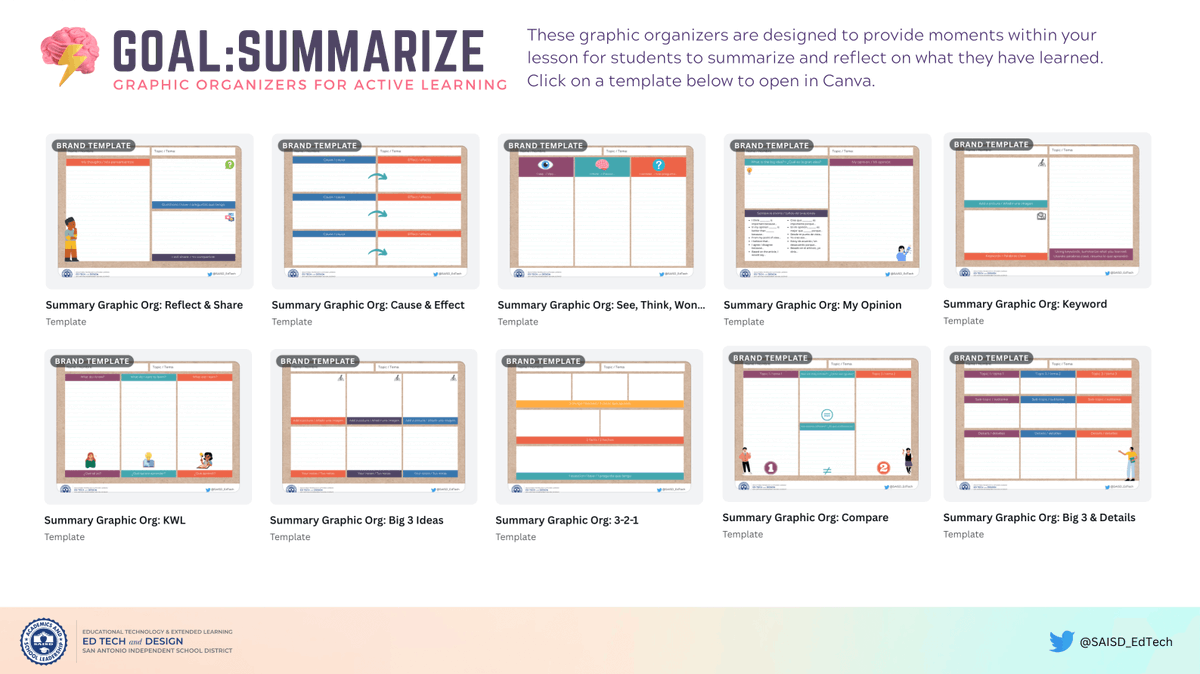
🎯 Ernest Gonzales tells us about a beautiful collection of graphic organizer templates in @Canva from @SAISD_EdTech. "Graphic Organizers for Active Learning" are organized into 8 categories.
https://t.co/ehJptEi95z
🍭 Tease a lesson by displaying a "whirly swirly" image related to the lesson. Invite students to guess and discuss before revealing the image and lesson connection.
When certain shapes are selected, a yellow-orange diamond appears. Dragging one of these handles changes a feature of the shape. Some shapes can look very different after they have been adjusted!
#Shapegrams#GoogleEdu#GoogleSlides#GoogleDrawings#edutwitter
🧐 Open a lesson with a "Baffling Blur". Blur parts of an image and invite students to make educated guesses about what has been blurred. You can use https://t.co/TAgn9rIs2m to blur areas of an image.